Here is a step-by-step guide to help you fix Android connection issues.
(Samsung devices are used as an example; the steps are similar for other Android phones.)
For example, you may encounter situations where USB Debugging is already enabled, but the software still prompts you to turn it on, or the USB Debugging authorization pop-up does not appear on your device.
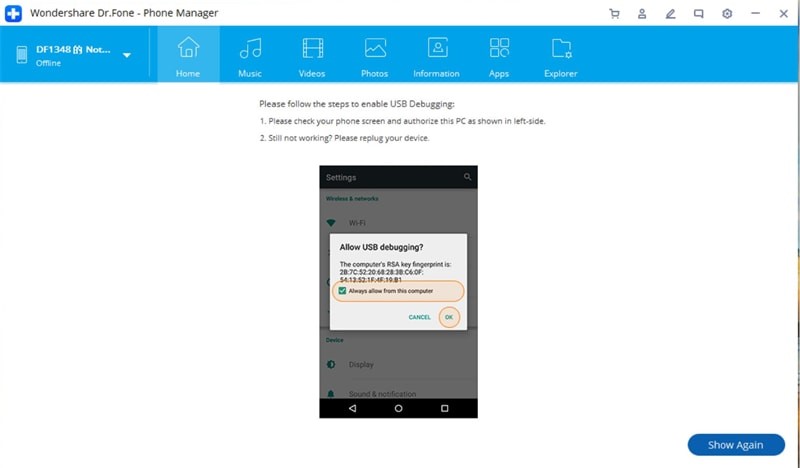
Step 1
Restart your Android device, then reconnect it to your computer.
Once the connection is established, unlock your phone and swipe down from the top of the screen to open the notification panel.
Tap the notification labeled Android System – USB for file transfer.

Step 2
In the USB preferences, select any option other than Transferring files / Android Auto (for example, Transferring images).
Then switch back to Transferring files / Android Auto.
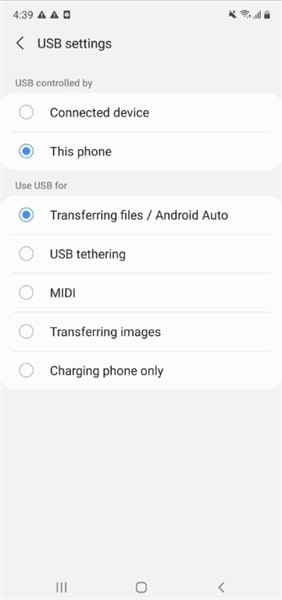
After completing these steps, USB Debugging should be enabled successfully, and you can continue using Wondershare Dr.Fone as intended.
Was This Helpful?
Thanks for your feedback.
Can you tell us what didn't work for you?
Email address is optional. Leave it blank if you do not need follow-up.
Feedback sent!