1. Please make sure the sample video file you added is a valid file created with the same device and the same format as the corrupted video.
2. You can try to repair the corrupted videos again with a different sample video.
3. If your damaged video is recovered by data recovery software, we recommend that you try the Advanced Video Recovery feature of Recoverit. It can perform a complete scan of the drive and recover more video-related data. If the video is still damaged after recovery, you can try the Advanced Video Repair feature again with good sample videos.
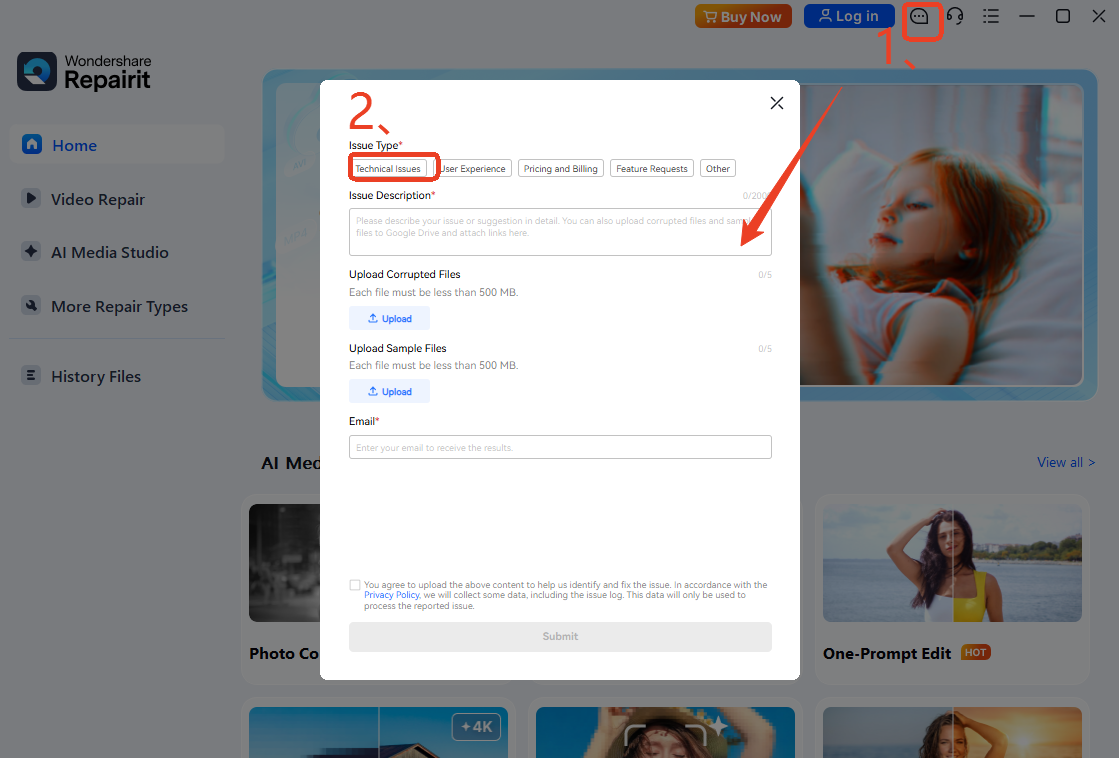
If the issue persists after trying the methods above, please first send us feedback by clicking the "speech bubble icon with three dots" in the top-left corner. Then, follow the instructions in the image below to provide the original, damaged video file (the unrepaired version) along with a sample of a properly functioning video, and include an email address where we can reach you.
Was This Helpful?
Thanks for your feedback.
Can you tell us what didn't work for you?
Email address is optional. Leave it blank if you do not need follow-up.
Feedback sent!