Troubleshooting Filmora Network Connection Issues
1. Switch Networks & Restart
-
Connect to an alternative network (e.g., switch Wi-Fi or use a hotspot).
-
Restart Filmora to verify if the issue resolves.
2. Disable Security Tools
-
Temporarily turn off antivirus/firewall/VPN software.
-
Restart Filmora to test connectivity.
-
Important: Re-enable security tools afterward.
3. Check/Modify Hosts File
The host file may block Wondershare domains.
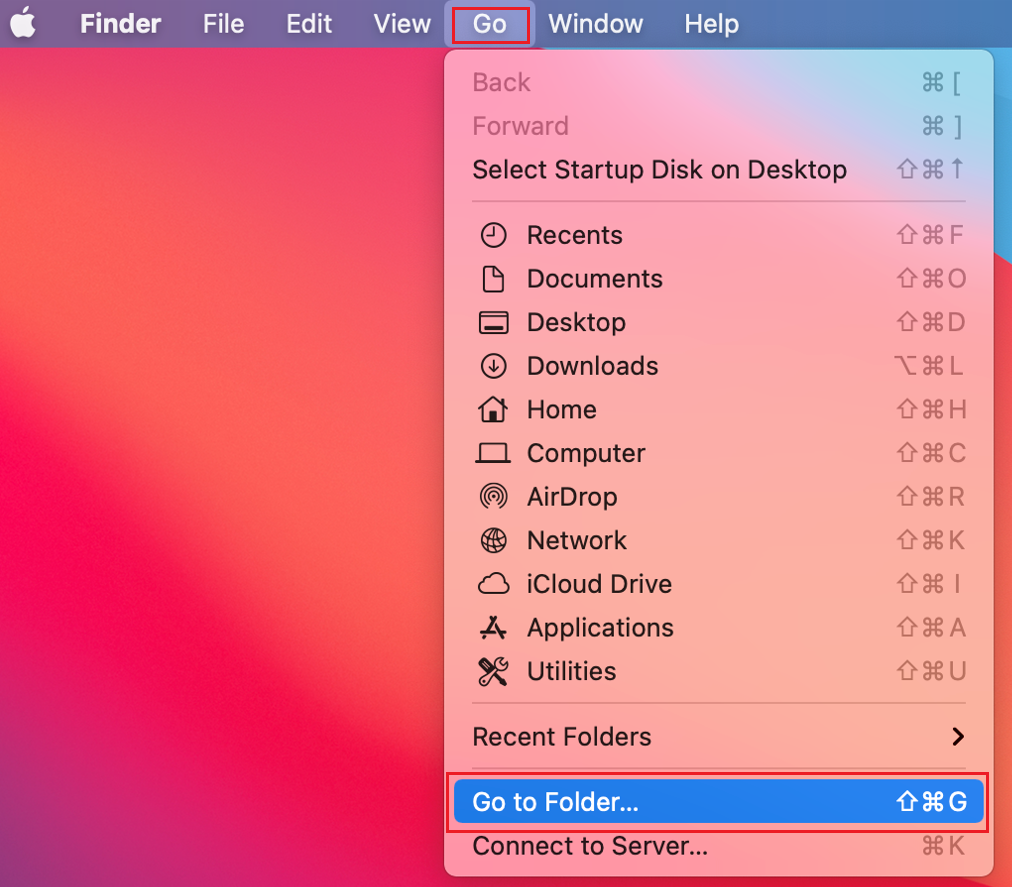
- Open Finder → Go → Go to Folder..
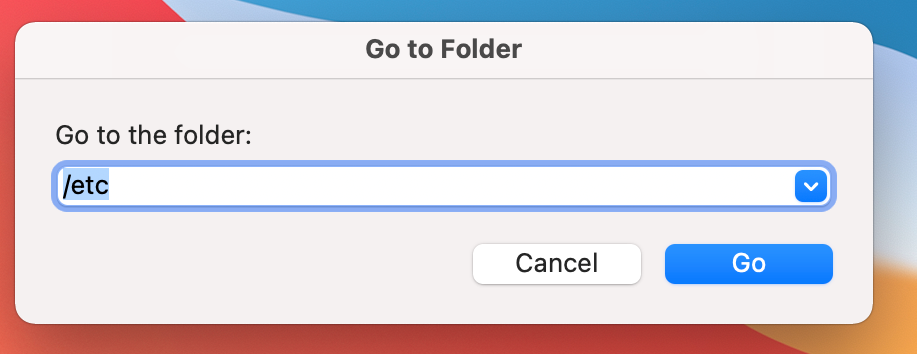
- Enter /etc → Click Go.
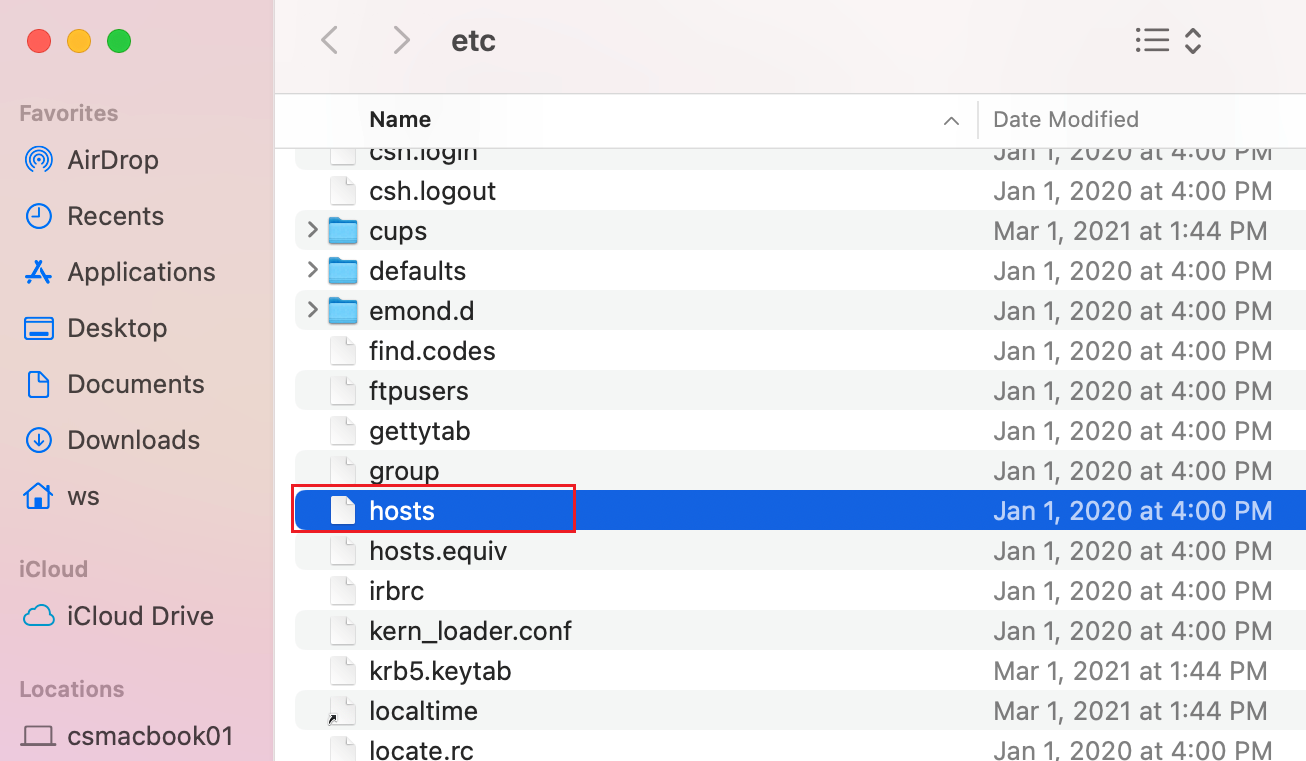
- Locate the hosts file in the directory.
- Copy hosts to your desktop (right-click → Copy).
- Open the desktop copy with TextEdit.
- Delete all lines containing wondershare (e.g., 127.0.0.1 activation.wondershare.com).
- Save the file (File → Save).
- Drag the modified file back into /etc, replacing the original (admin password required).
- Restart your Mac.
- Note: If replacement fails:
Open Terminal → Run:
sudo mv ~/Desktop/hosts /etc/hostsEnter admin password when prompted.
4. Change DNS Settings
Use Google DNS (8.8.8.8) to resolve domain conflicts:
-
Go to Apple Menu → System Settings → Network.
-
Select your active connection (Wi-Fi/Ethernet) → Click Details.
-
Navigate to DNS → Click the + under DNS Servers.
-
Enter 8.8.8.8 → Press Enter.
-
Remove existing DNS servers:
-
Select each existing IP → Click -.
-
-
Click OK → Restart your Mac.
🔗 Reference: Apple DNS Configuration Guide
Was This Helpful?
Thanks for your feedback.
Can you tell us what didn't work for you?
Email address is optional. Leave it blank if you do not need follow-up.
Feedback sent!