1. Hover the play head to the position that you want to add a freeze frame, and then right-click the video. You can use the Backward and Forward buttons in the Preview window to navigate the video frame-by-frame to find the frame you want.
2. Right-click on the video in the timeline, and then select the Add Freeze Frame option from the pop-up video context menu. Filmora will take a snapshot of the current frame of the video and then insert it into the position where the playhead is located.
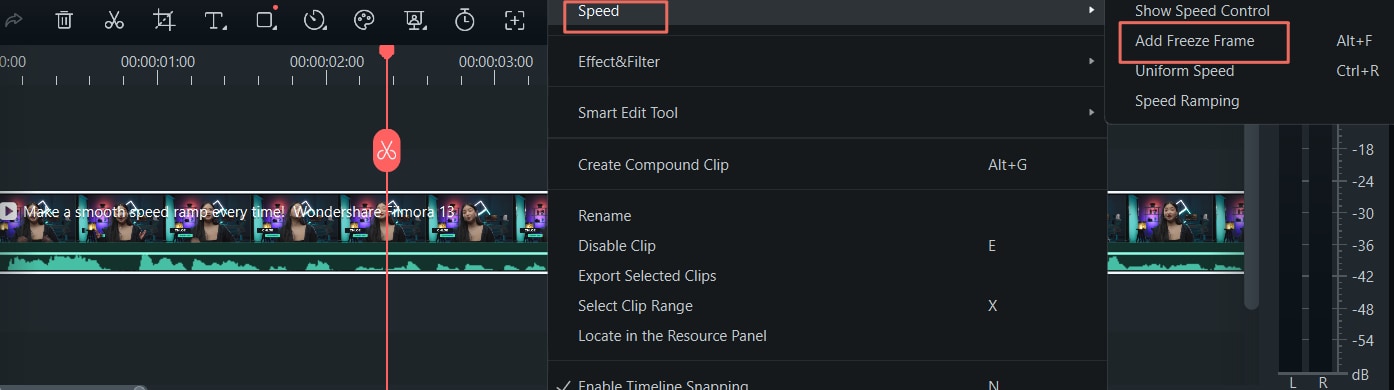
Tip:
You could also find the Speed icon in the toolbar above the timeline and click the Freeze Frame option.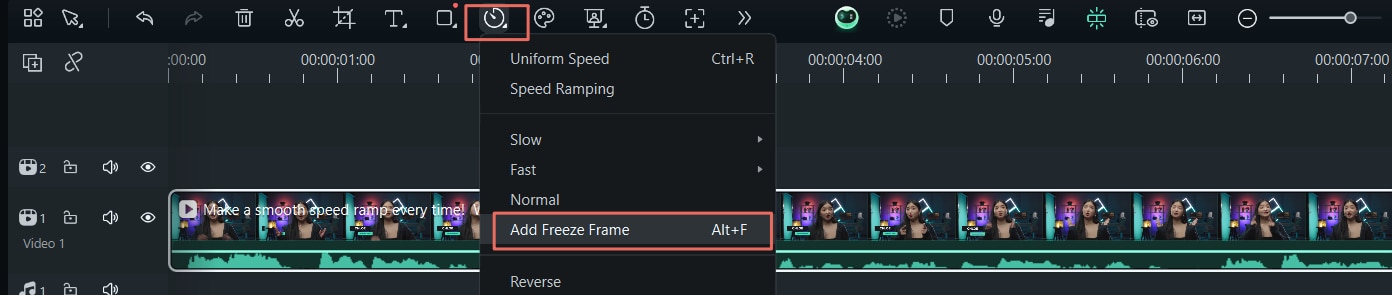
Alternative Way to Add Freeze Frame
Note:
There will be no audio, sound, or voiceover in the freeze frame portion. To change the duration of the freeze frame, drag either edge of the freeze frame in the timeline, or click the Speed icon in the toolbar and select the Duration option to adjust.
For more detailed operations, please click on the following video instructions.
Was This Helpful?
Thanks for your feedback.
Can you tell us what didn't work for you?
Email address is optional. Leave it blank if you do not need follow-up.
Feedback sent!