Please refer to the method below to create a wipe video.
1. First, add the main video (background video) to video track 1, and the video you want to display as a wipe to video track 2.
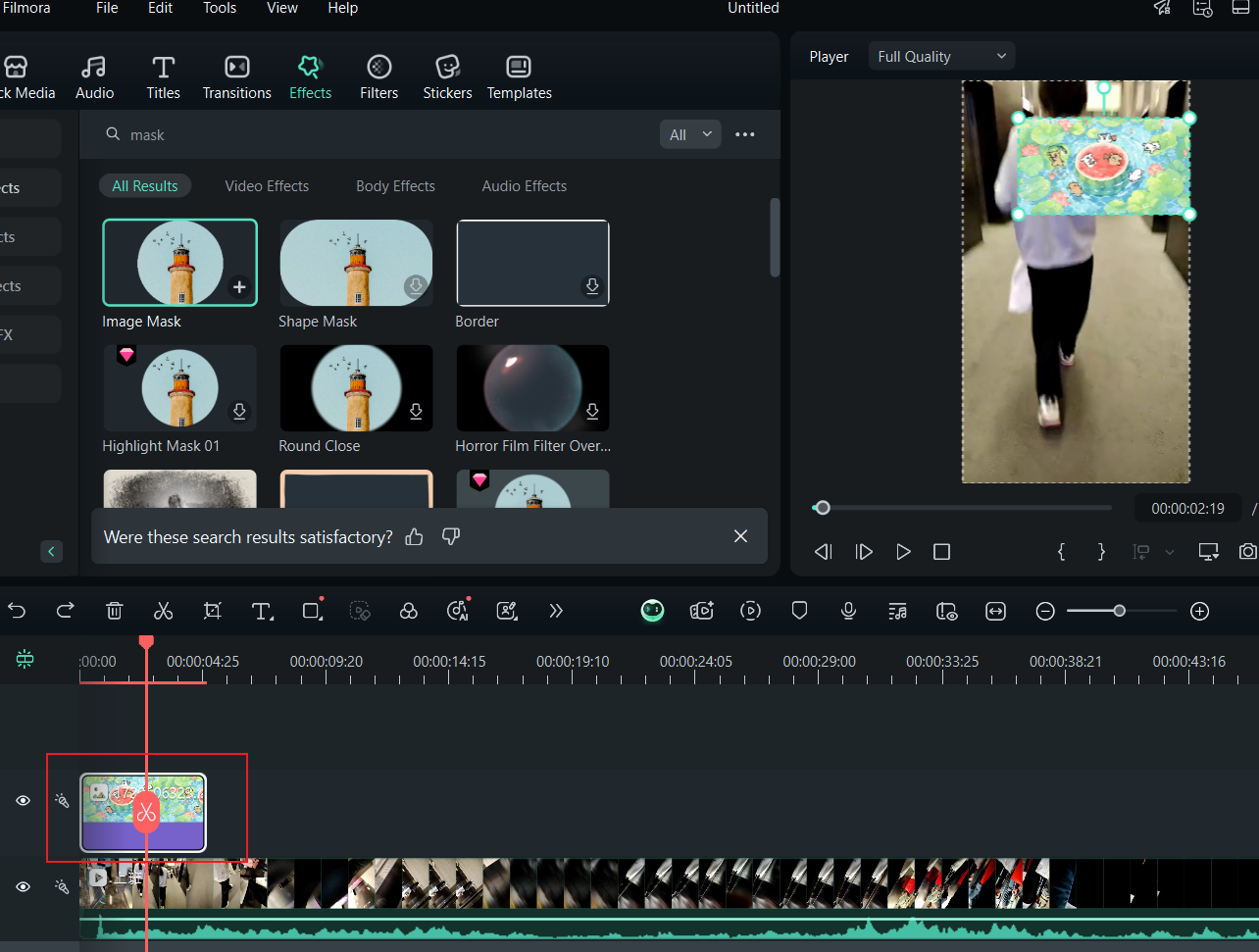
2. Double-click the video in video track 2, and in the editing screen that appears, you can adjust the screen size and position of the video you want to display as a wipe in "Video" > "Transform" > "Scale" and "Position".
*You can also adjust the screen size and position by dragging and dropping the image in the playback window.
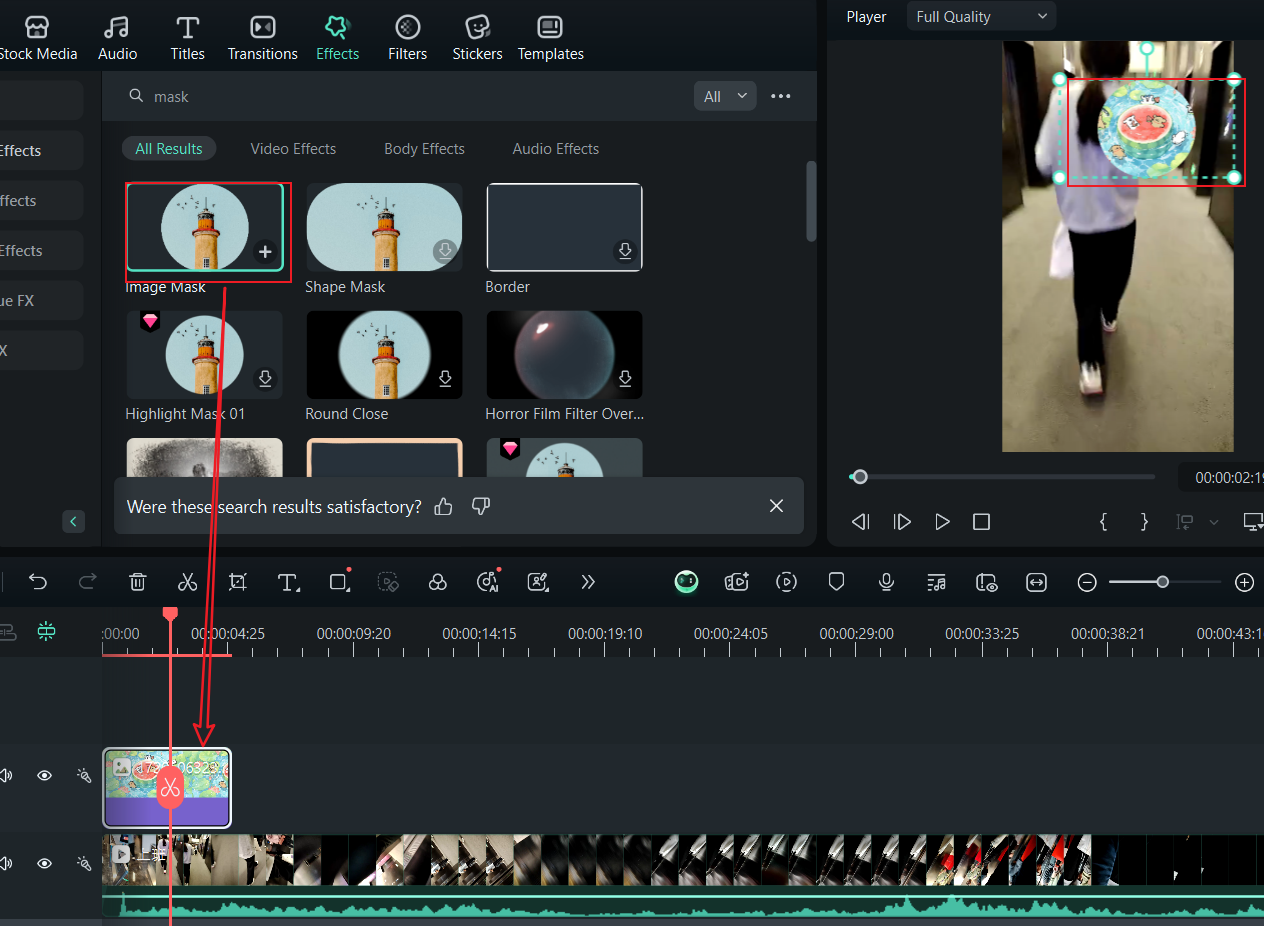
3. Drag [Effects] > [Image Mask] to the video placed in video track 2 to apply it.
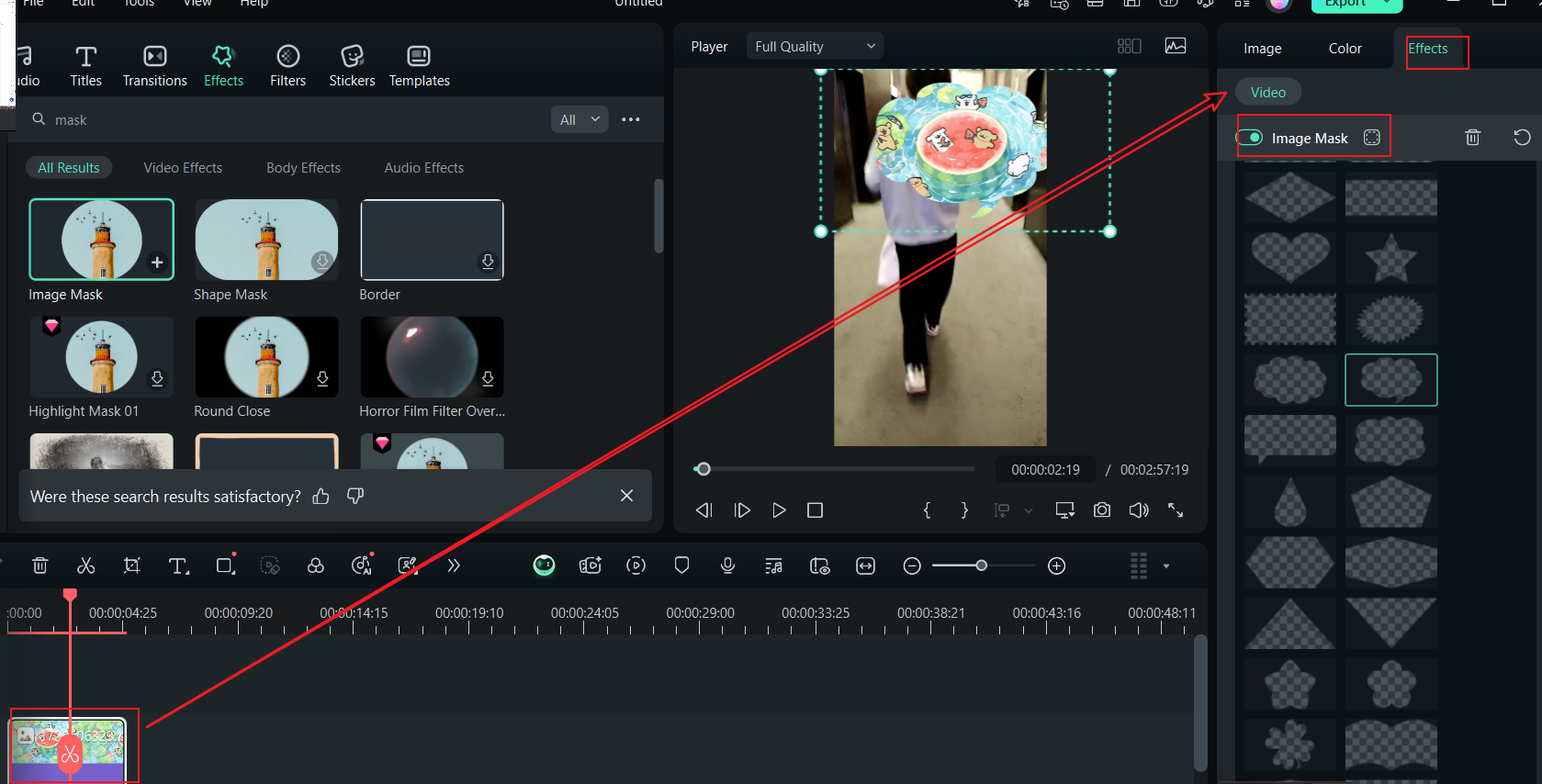
4. double-click the video in video track 2, and edit the shape, width, height, etc. of the image mask in [Video] > [Image Mask].
Was This Helpful?
Thanks for your feedback.
Can you tell us what didn't work for you?
Email address is optional. Leave it blank if you do not need follow-up.
Feedback sent!