Having a great thumbnail is just as important as having a great video, as it's the first thing your subscribers will see about your videos.
We provide two entrances for editing thumbnail:
Method 1: Using the Export Window
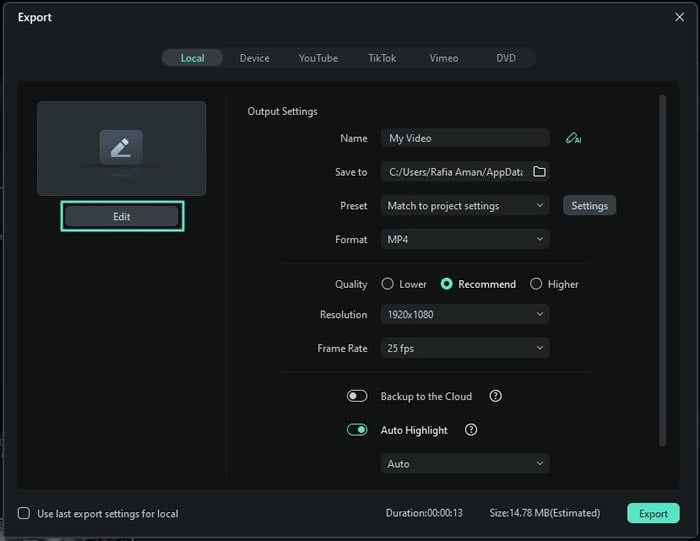
After editing your video completely with Wondershare Filmora, click the "Export" button. The export window will appear; click the "Edit" button at the left top corner of this window. This will take you to the thumbnail generator window.
Method 2: From the Project Info Panel
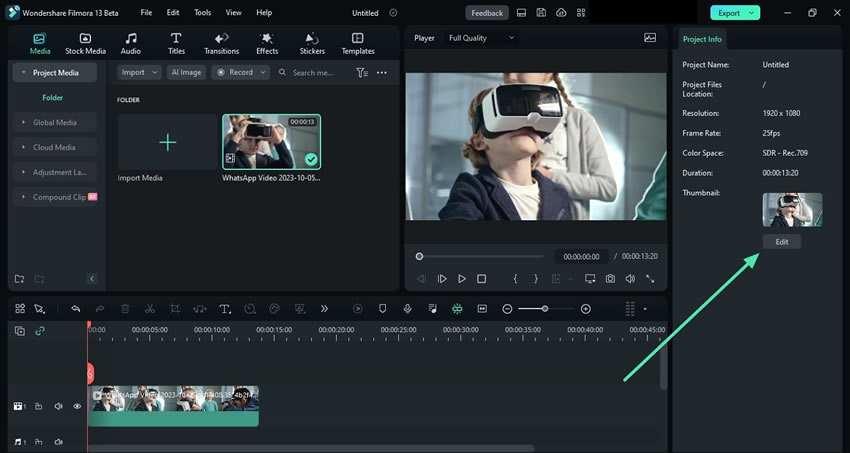
After editing your content, click anywhere in the timeline other than the media clip, and a panel named "Project Info" will appear at the right. From this panel, click the "Edit" button. This will take you to the "Edit Thumbnail" window, from where you can generate thumbnails from your video in the "Video" tab and export it in the same manner above.
In the "Edit Thumbnail" window, you could edit your thumbnail. We have also prepared templates and AI Cover for you to choose from:

Note: You could also refer to this Filmora Tutorial to make your attractive thumbnail.
Was This Helpful?
Thanks for your feedback.
Can you tell us what didn't work for you?
Email address is optional. Leave it blank if you do not need follow-up.
Feedback sent!