After editing is complete, please follow these steps to export a multi‑track video:
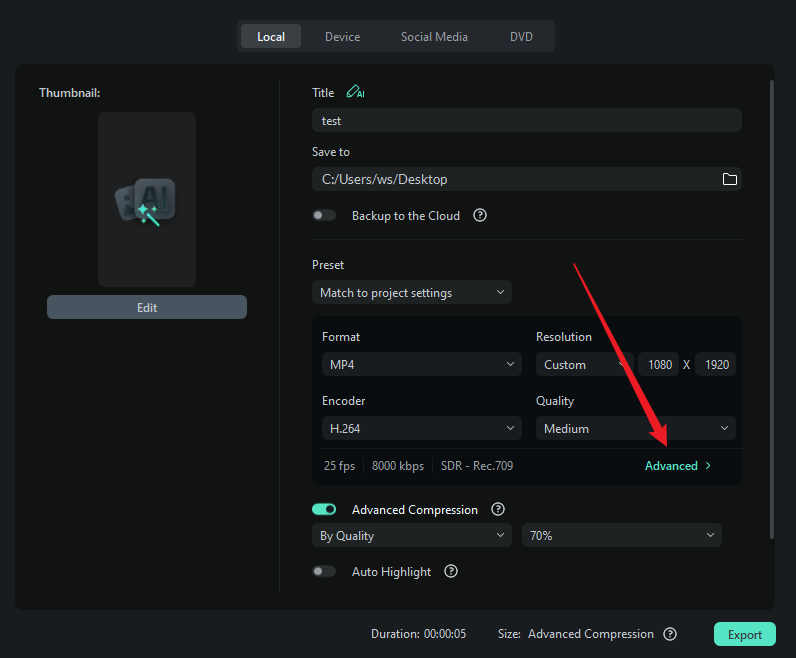
- Click the “Export” button;
- In the Export page, click “Advanced”;
- Select “Export Multi‑track Video”;
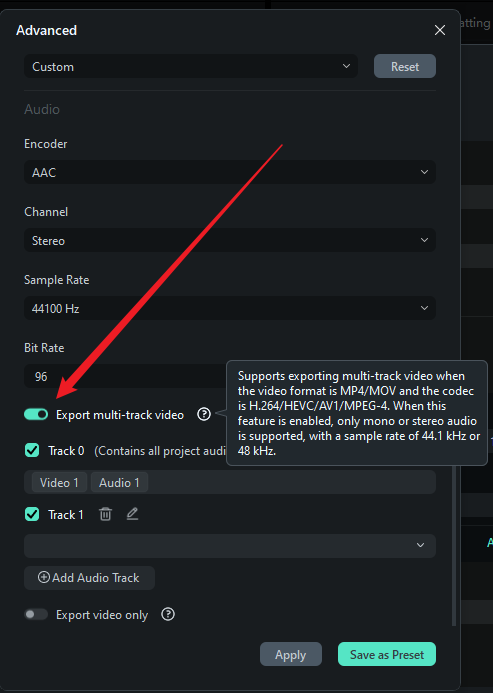
- Check the audio tracks you want to export (you can select multiple tracks simultaneously);
- Perform the following operations as needed:
- Add new audio tracks (up to 10 tracks);
- Delete audio tracks;
- Check/Uncheck audio tracks;
- Cross‑select timeline tracks.
- Set the export path and video parameters, then click “Export” to generate a video containing multiple audio tracks.
Was This Helpful?
Thanks for your feedback.
Can you tell us what didn't work for you?
Email address is optional. Leave it blank if you do not need follow-up.
Feedback sent!