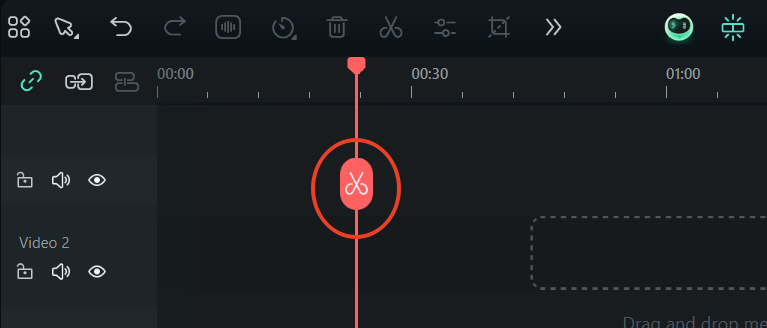
Follow these steps to disable the split button in your editing interface:
-
Launch Filmora and open your project
-
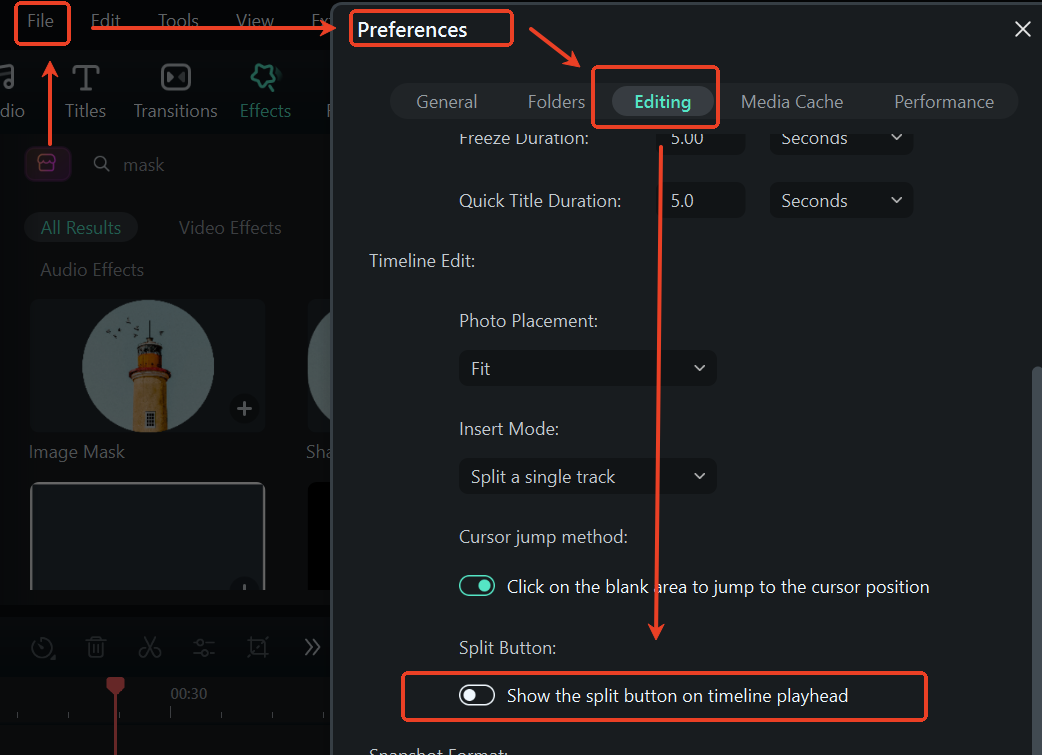
Access Preferences:
-
Navigate to the top menu bar
-
Click "File" > "Preferences" > "Edit" (Windows)
-
For Mac users: "Wondershare Filmora" > "Preferences" > "Editing"
-
-
Disable the Split Button:
-
In the Editing Preferences panel
-
Locate the "Show Split Button" option
-
Uncheck the box to hide the button
-
-
Confirm Changes:
-
Click "OK" to save your preferences
-
The split button will now be hidden from your editing interface
-
Note: This setting only affects the visibility of the split button - you can still:
-
Use the keyboard shortcut (Ctrl/Cmd+B) to split clips
Was This Helpful?
Thanks for your feedback.
Can you tell us what didn't work for you?
Email address is optional. Leave it blank if you do not need follow-up.
Feedback sent!