Step 1, Import Videos to Media Library
Import both your background video and green screen clip to the media library.
Step 2, Drag and Place Videos to the Timeline
Drag the background clip to the video track on the timeline, and green screen footage to the track above as shown below:
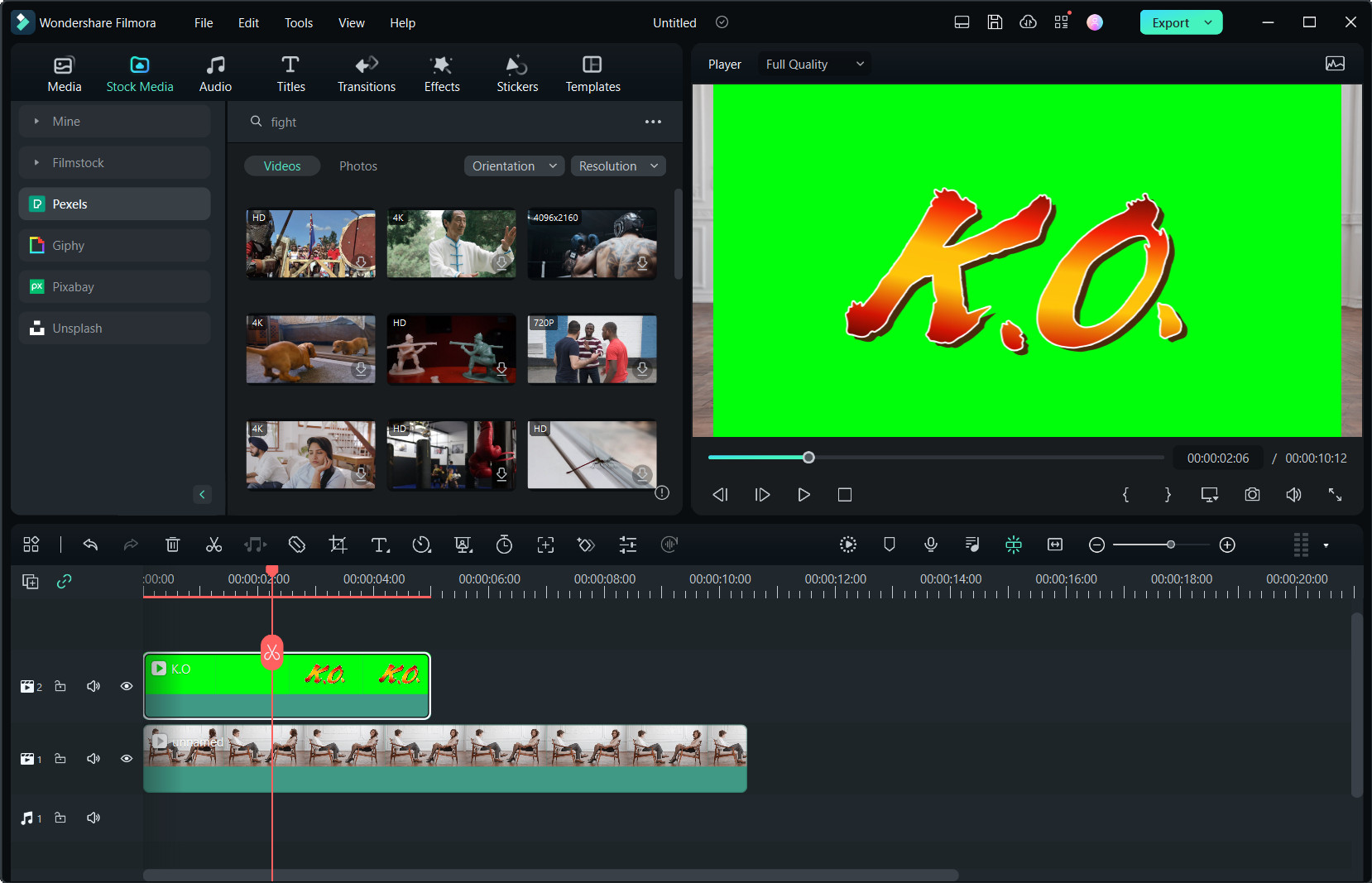
Green Screen PiP Interface
Step 3, Use Chroma Key to Remove Green Screen
Double-click the green screen clip, and then tick the Chroma Key option. By default, the green screen color will be picked and be removed automatically. You also can refine video by adjusting the offset, tolerance, edge thickness, and edge feather settings to make the background video clearer.
For more detailed operations, please click on the following video instructions.
Was This Helpful?
Thanks for your feedback.
Can you tell us what didn't work for you?
Email address is optional. Leave it blank if you do not need follow-up.
Feedback sent!