Silence Detection
Silence Detection can scan and remove silent pauses from your videos automatically, saving you editing time and keeping your viewers engaged.
Apply Silence Detection in Filmora
Silence Detection only works with clips that have audio. To automatically detect and delete silent pauses in a clip you need to:
1. Find the Silence Detection Feature
(1) Tap on the Silence Detection button on the toolbar.
(2) Right-click on the video in the Media and select Silence Detection.
(3) Select the video clip or audio clip and choose Tools>Audio> Silence Detection in the top navigation bar.
After tapping the Silence Detection option, the window of Silence Detection will pop up.
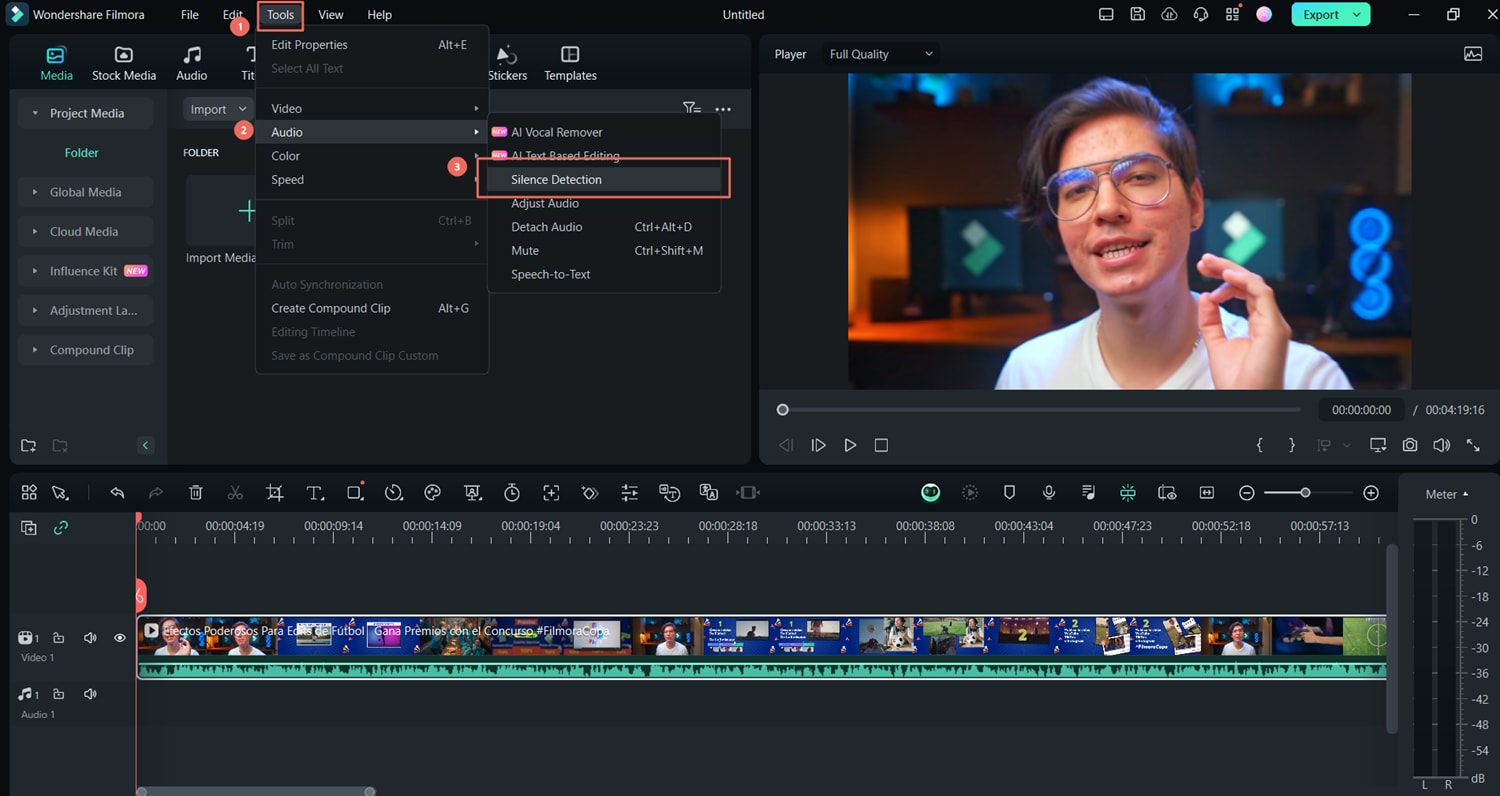
2. Adjust the Parameters of the Silence Detection
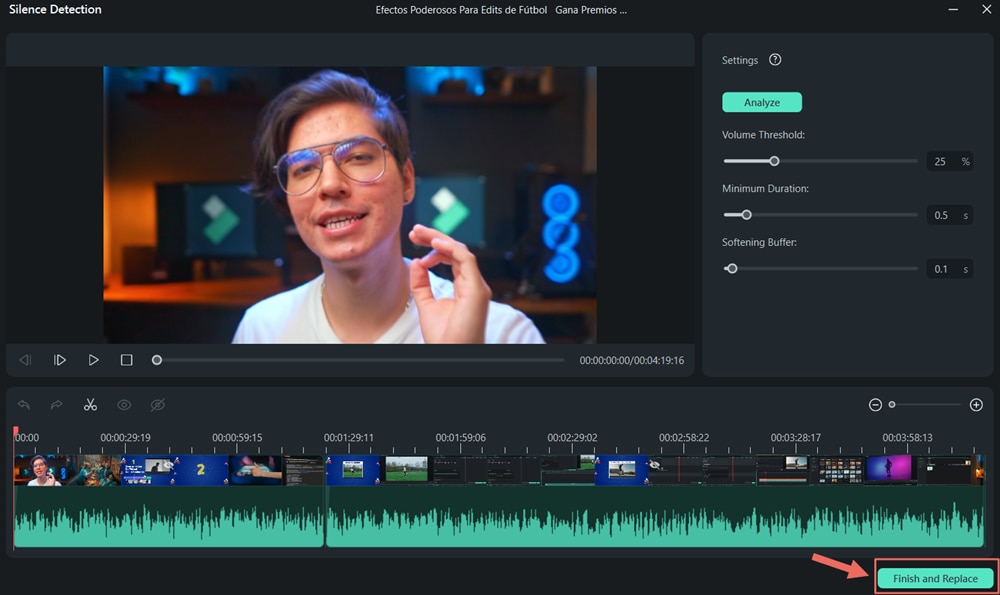
In the Silence Detection window, you can adjust three parameters for Silence Detection.
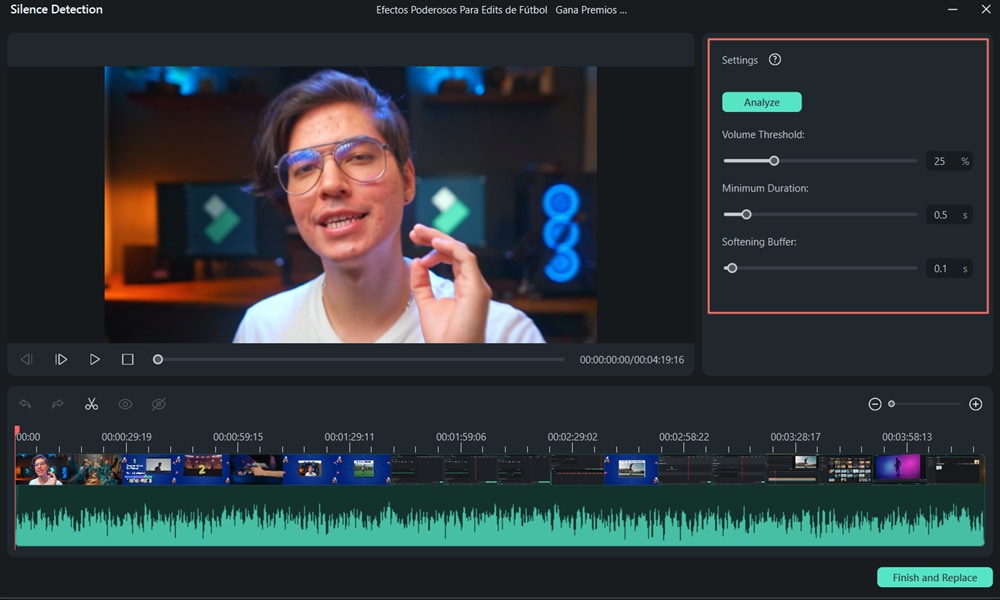
(1) Volume Threshold: The Volume Threshold setting helps the algorithm to know your silence threshold value. The default volume threshold is 25%. It means if the volume threshold value of segments is under 25%, the segments will automatically be considered silent.
(2) Minimum Duration: The Minimum Duration setting helps Filmora to know the silence duration and low-sounding parts. The default minimum duration is 0.5s. It means the silence should last over 0.5 seconds to be defined as silence.
(3) Softening Buffer: The Softening Buffer option provides buffering time for the start and end of audible segments. The default softening buffer is 0.1s. It means that the audible segments can get 0.1 second buffering time at the start and end separately.
3. Start the Automatic Silence Detection Process
After setting the detection parameters, click Analyze to initiate the automatic silence detection sequence. You will see two different things in the timeline:
(1) The black parts show the silent segments.
(2) The highlight parts show the audible segments.
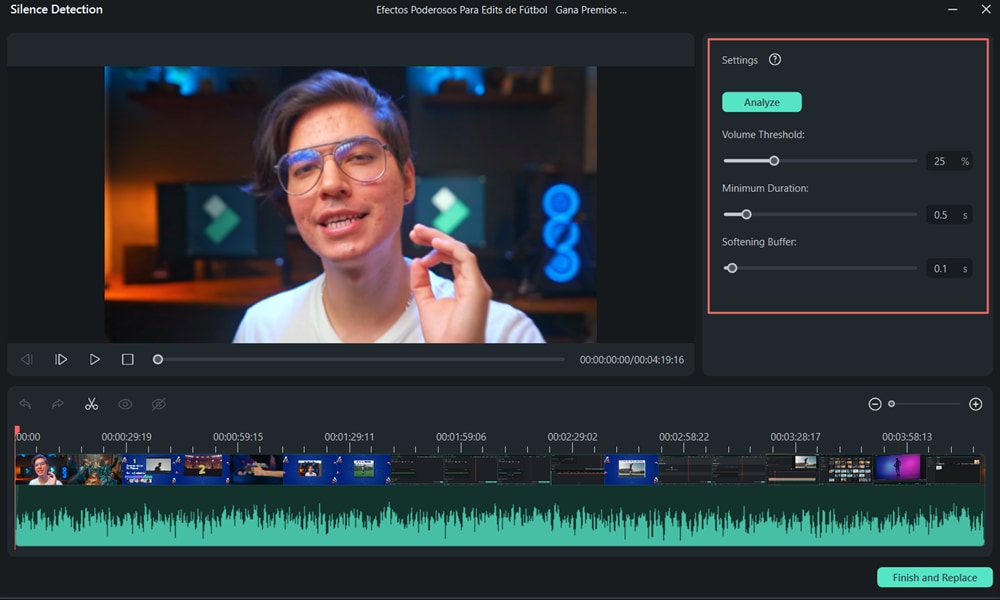
4. Preview the Video
You can play the video to check whether all silent parts are removed perfectly or not. If you are not satisfied with the result, you can adjust the three audio parameters above. Then click Analyze to delete the silent parts.
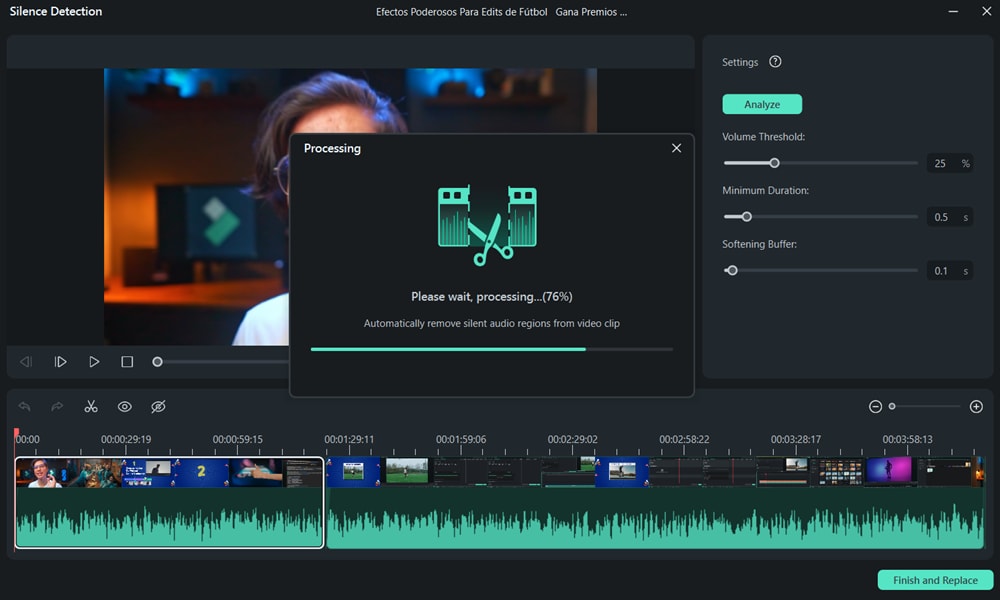
5. Export to Timeline
Once your clip is ready, you can press Finish and Replace to Filmora Timeline to continue editing.
Turn off Silence Detection Function
You can also abandon the Silence Detection process by closing the window.
For more detailed operations, please click on the following video instructions.
Was This Helpful?
Thanks for your feedback.
Can you tell us what didn't work for you?
Email address is optional. Leave it blank if you do not need follow-up.
Feedback sent!