Locate Filmora's Volume Tool in the Work Area
Getting started with volume adjustments in Filmora for Mobile requires first navigating to the mobile editing app's Work Area, and you can get to it by doing the following:
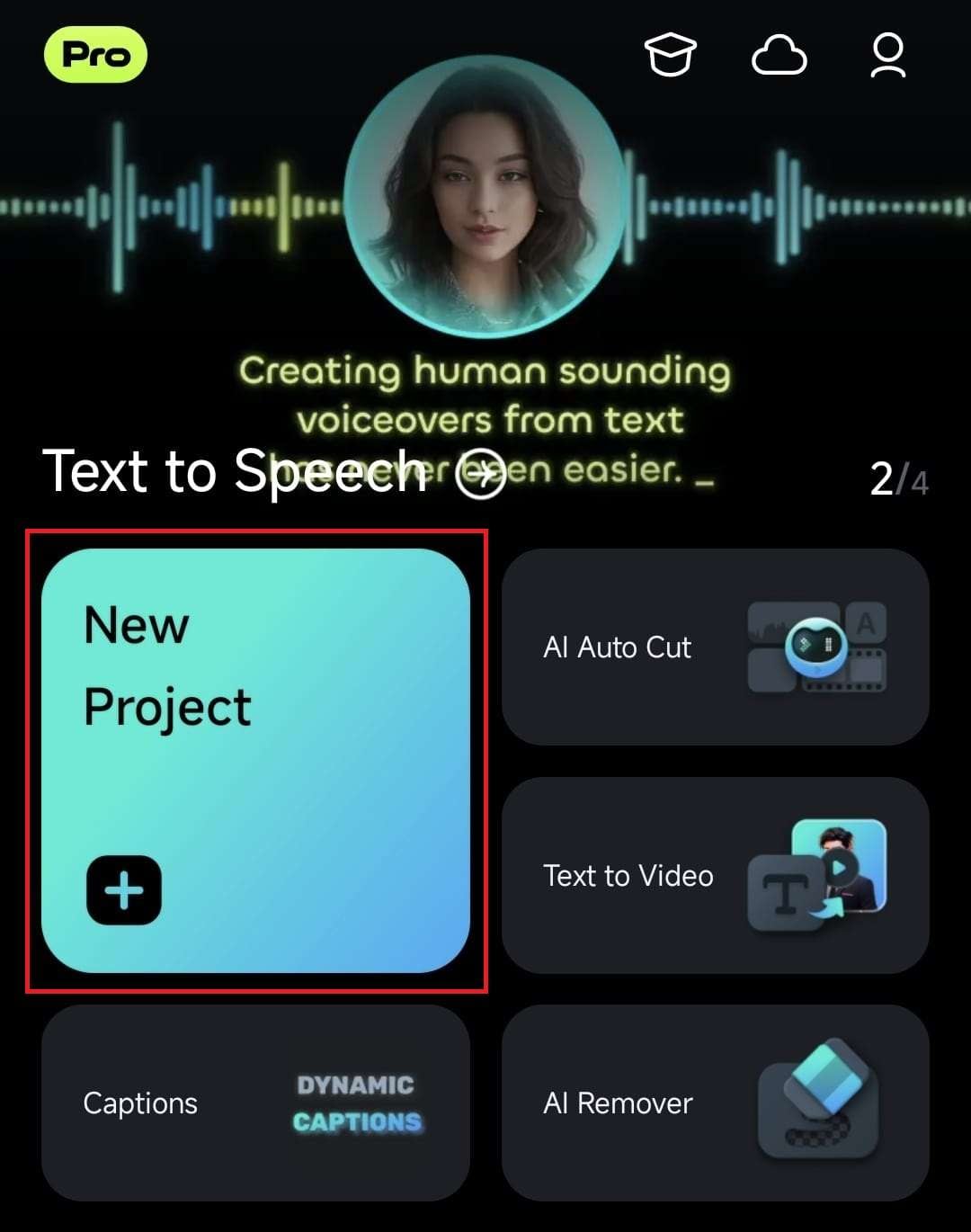
1. Launch Filmora for Mobile and hit the Quick Access panel's New Project button on the app's startup screen.
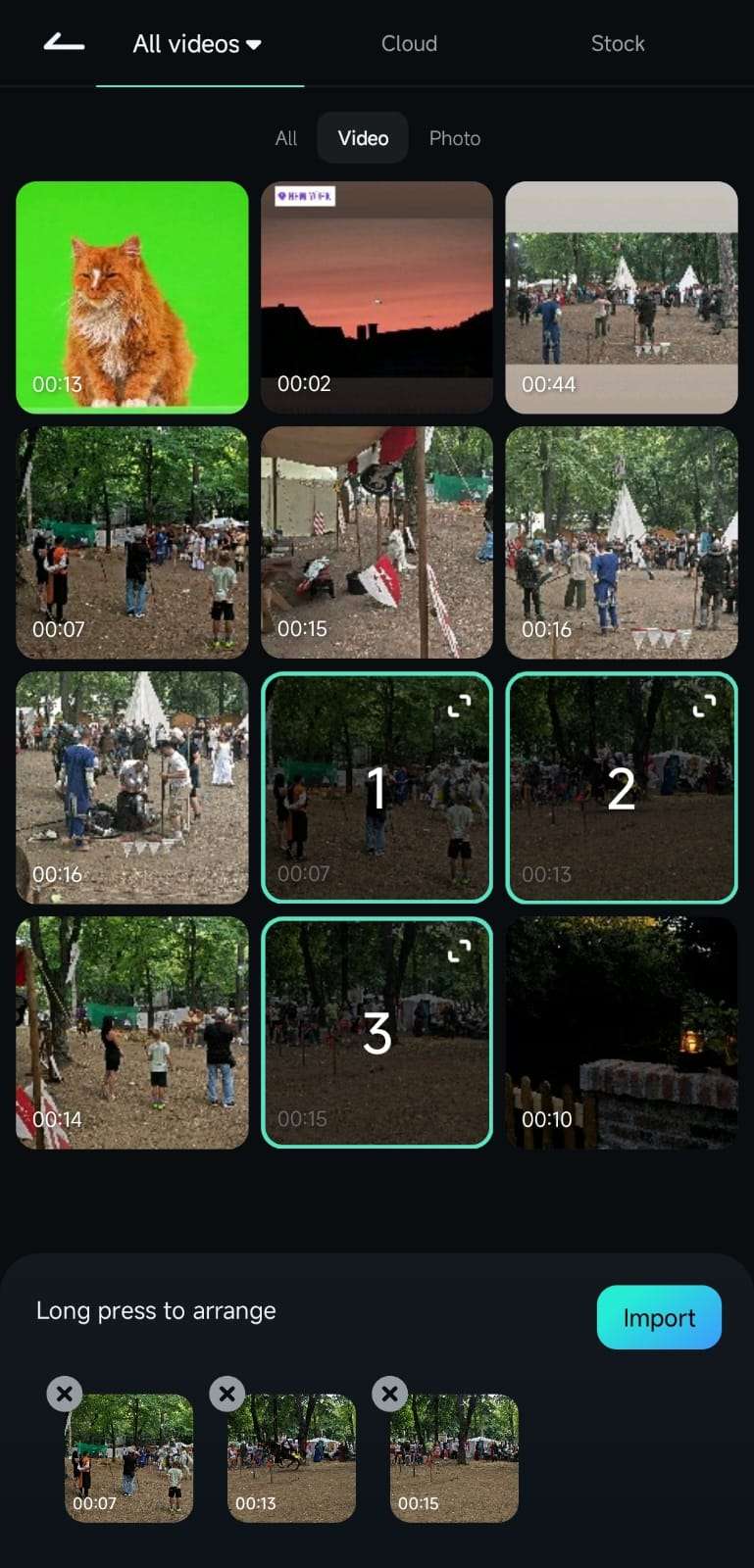
2. Tap on one or more videos to select them and press Import to add them to Filmora's Work Area.
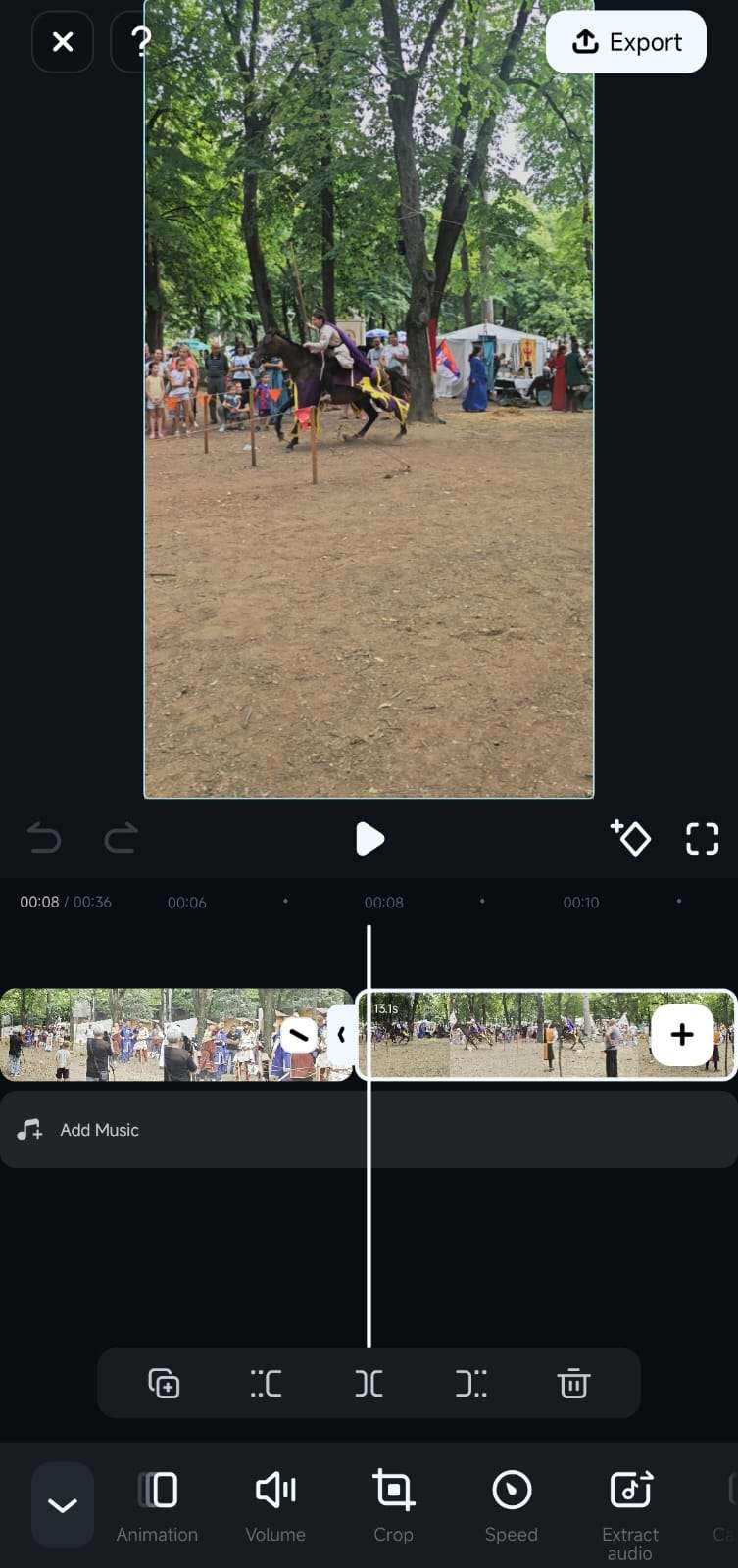
3. Once inside the Work Area, you'll see the Timeline you can scroll. Then, find a clip whose volume you want to modify and tap on it to select it.
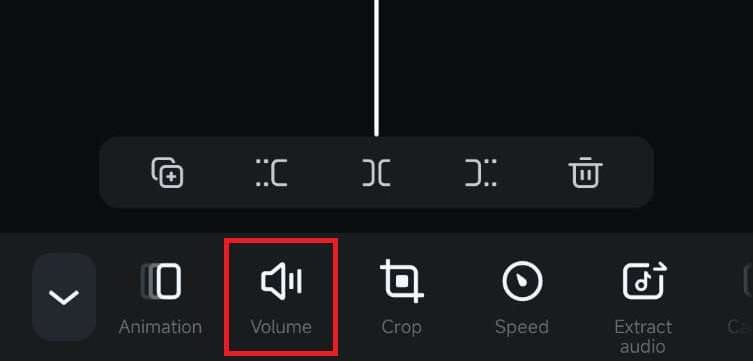
4. The Toolbar at the bottom of the app's screen will change, and you can click the Volume button.
Make Volume Adjustments in the App's Timeline
With the Volume feature selected, adjusting audio levels is effortless, and you can follow this short guide to do it:
1. Move the volume slider left or right to adjust the volume of a clip.
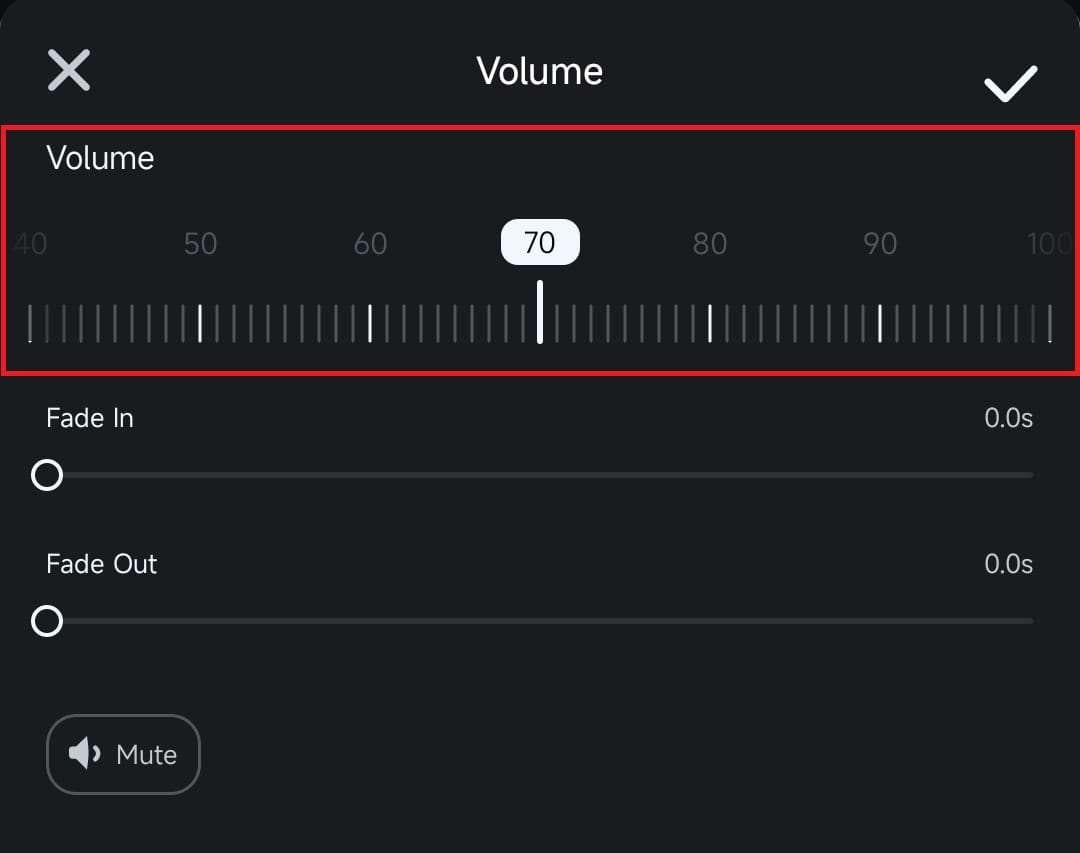
2. Alternatively, create fade-in and fade-out audio effects or mute the segment altogether.
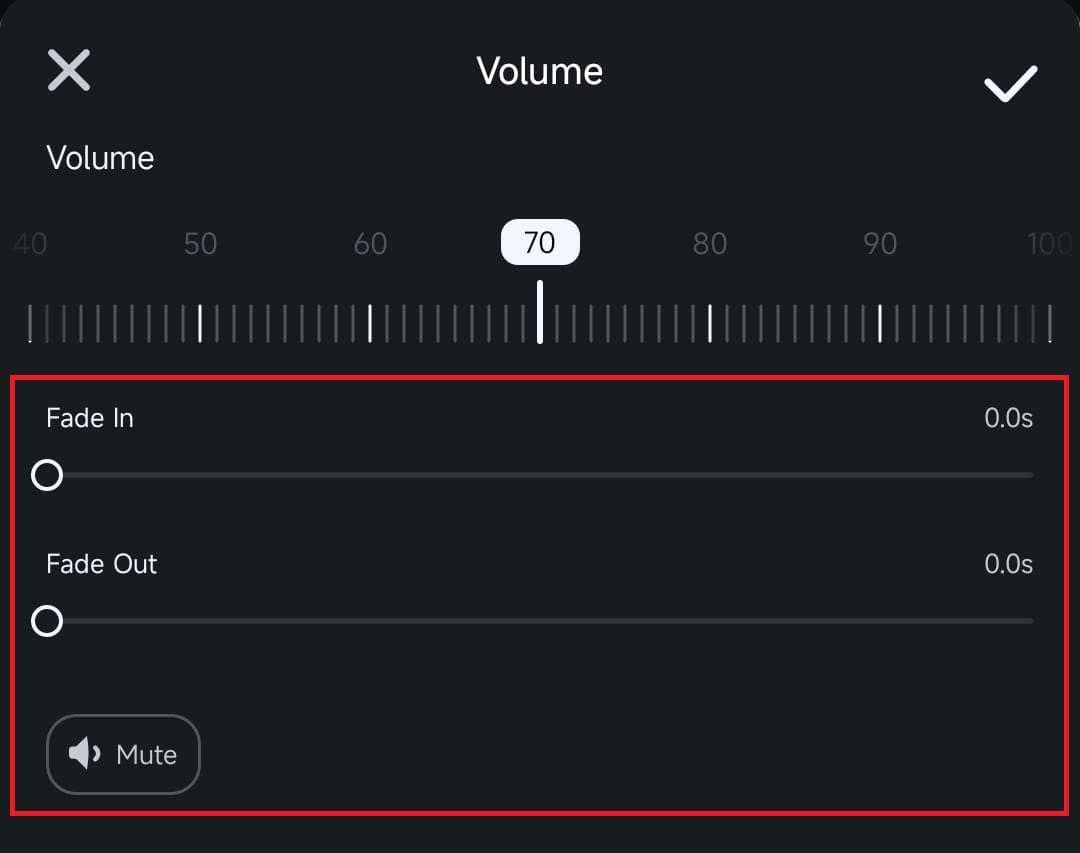
3. Repeat the process for other clips in the Timeline.
Was This Helpful?
Thanks for your feedback.
Can you tell us what didn't work for you?
Email address is optional. Leave it blank if you do not need follow-up.
Feedback sent!