Access Filmora’s Cropping Tool
The Crop feature in Filmora for Mobile can be accessed through the app’s Work Area, meaning you’ll first have to create a project and import the clip, and here’s how:
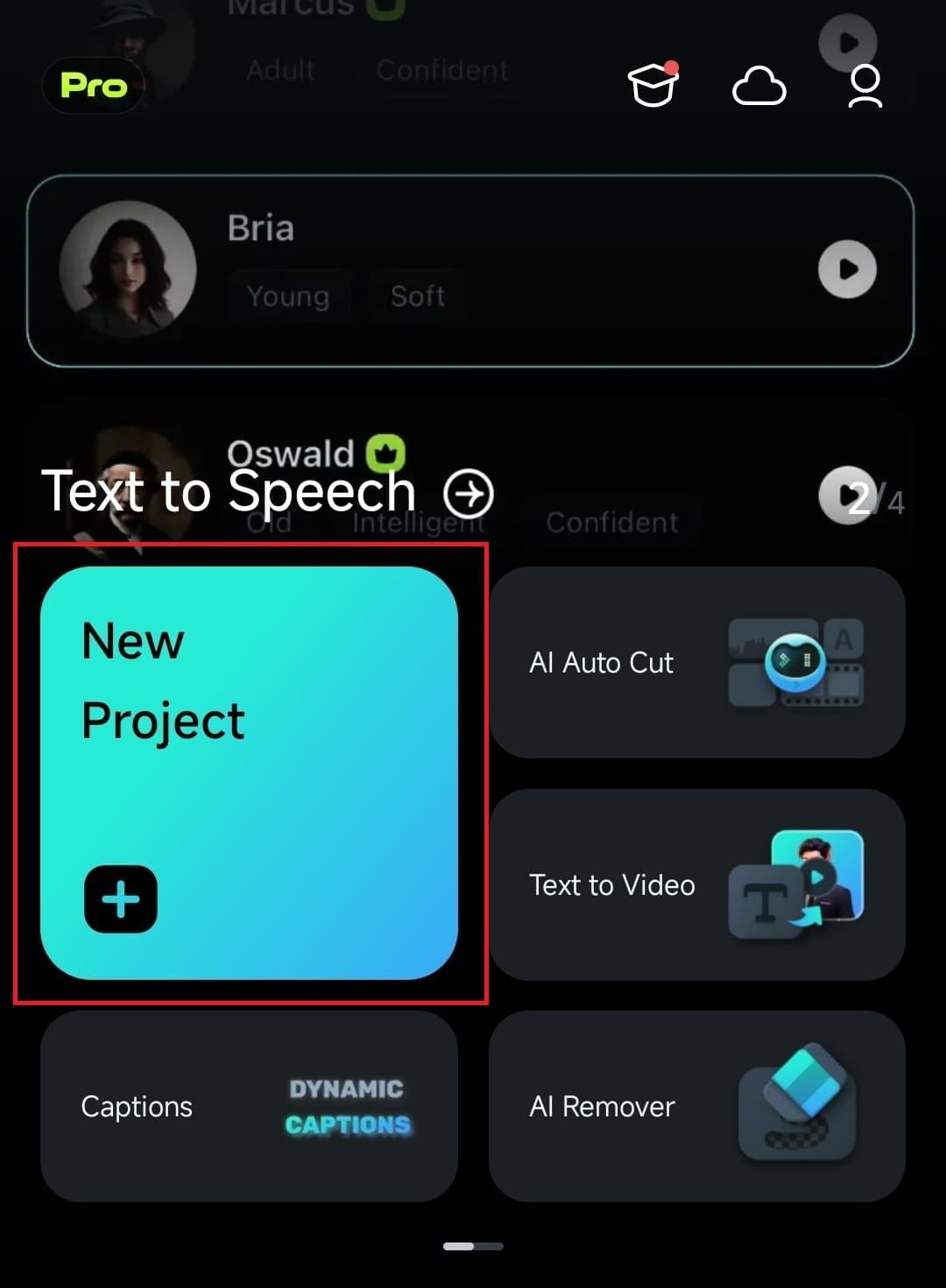
1. Initiate the process by tapping the New Project button on Filmora’s startup screen.
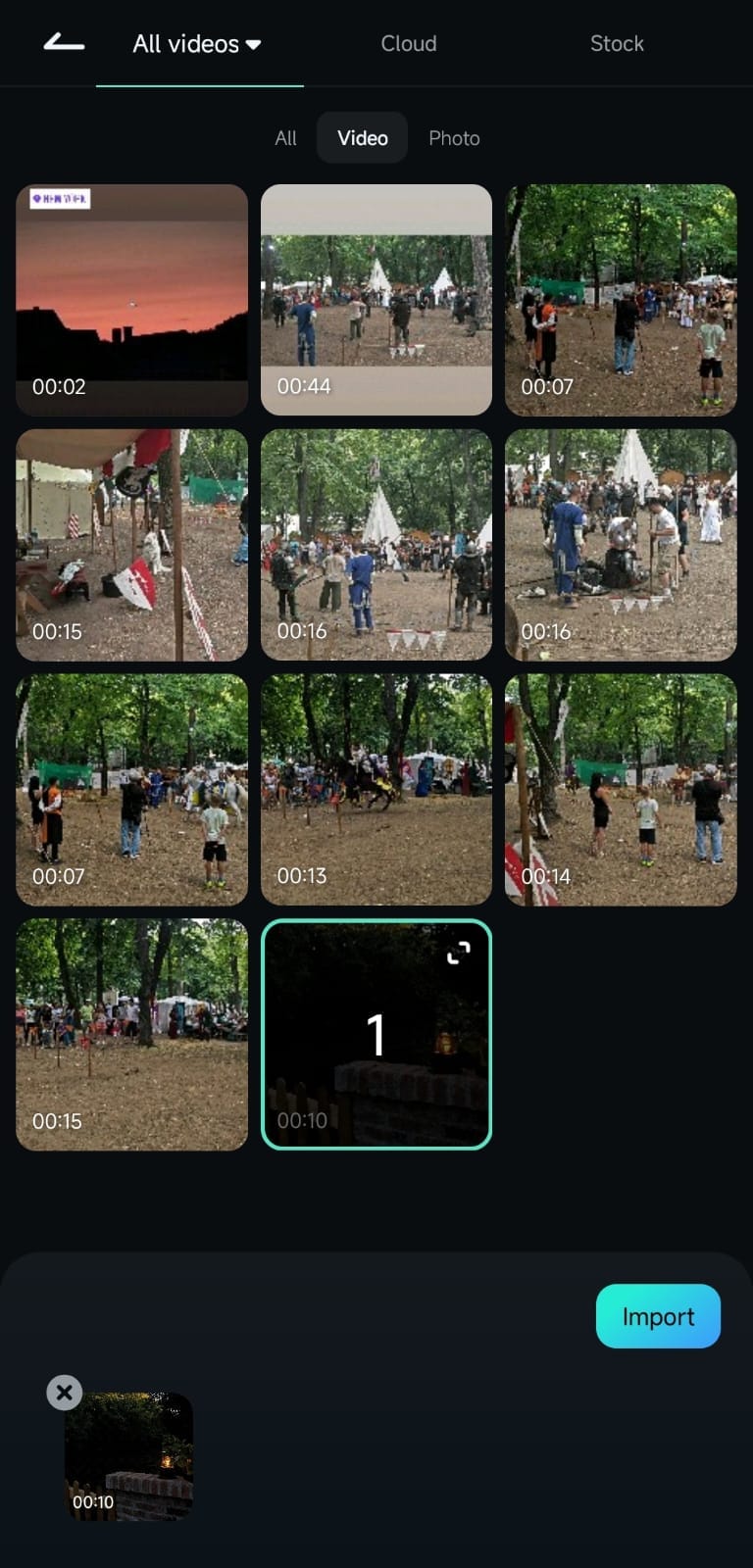
2. Tap on a particular video clip to select it and press the Import option in the bottom right corner.
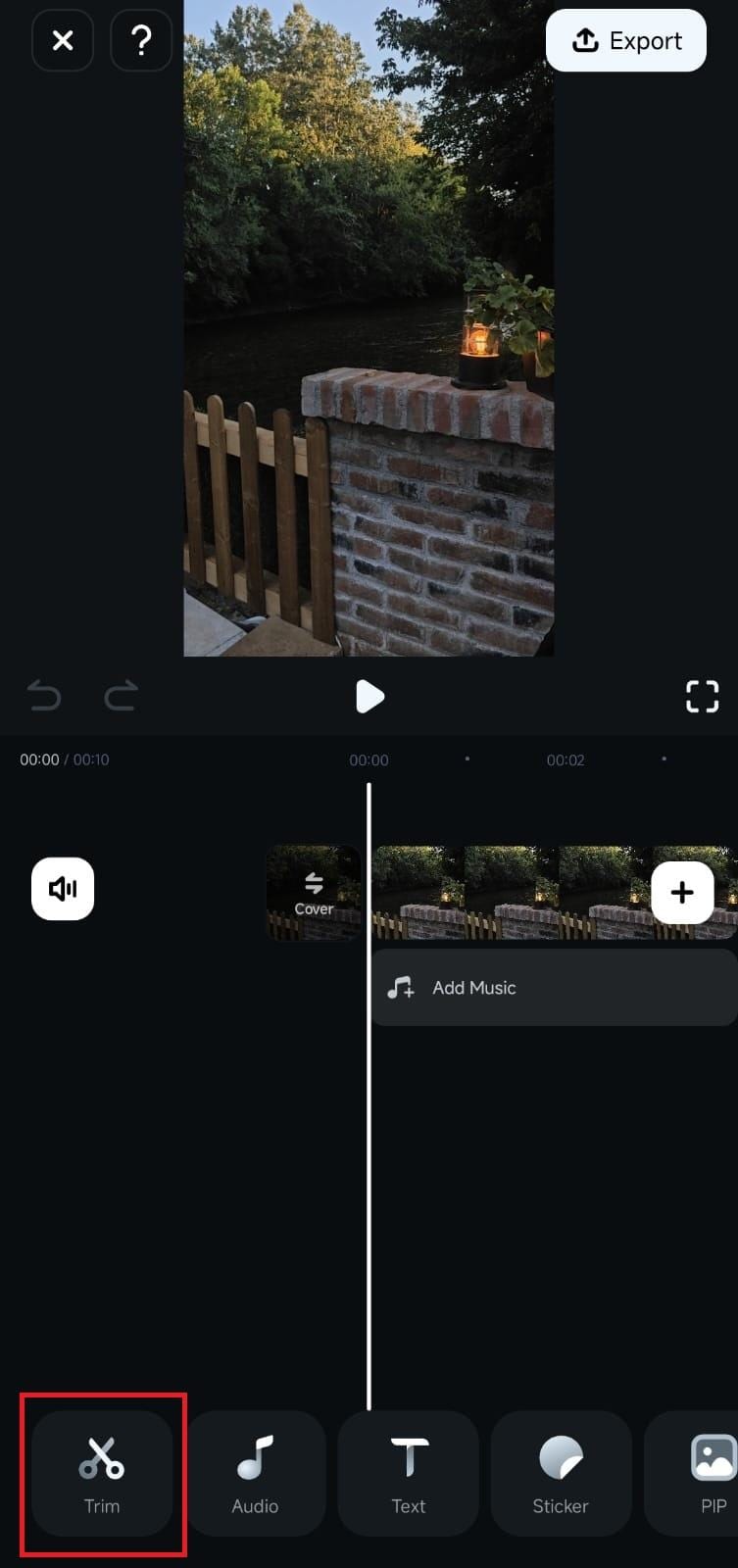
3. Click on a video in the Timeline to select it, and hit the Trim button at the bottom.
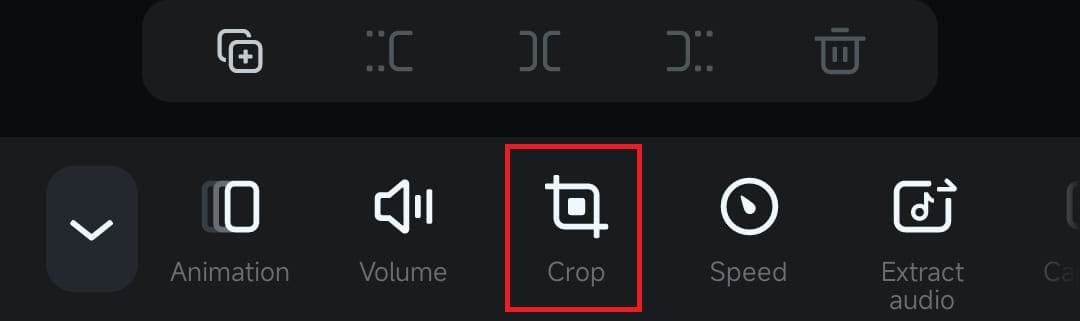
4. Inside the Trim menu, find and open the Crop tool.
Adjust the Crop Area and Aspect Ratio
Once inside Filmora’s Crop tool, making manual cropping area adjustments and using premade aspect ratios is effortless and only requires a few taps.
1. Press and hold on the sidelines and then drag them around to adjust the crop area to your liking.
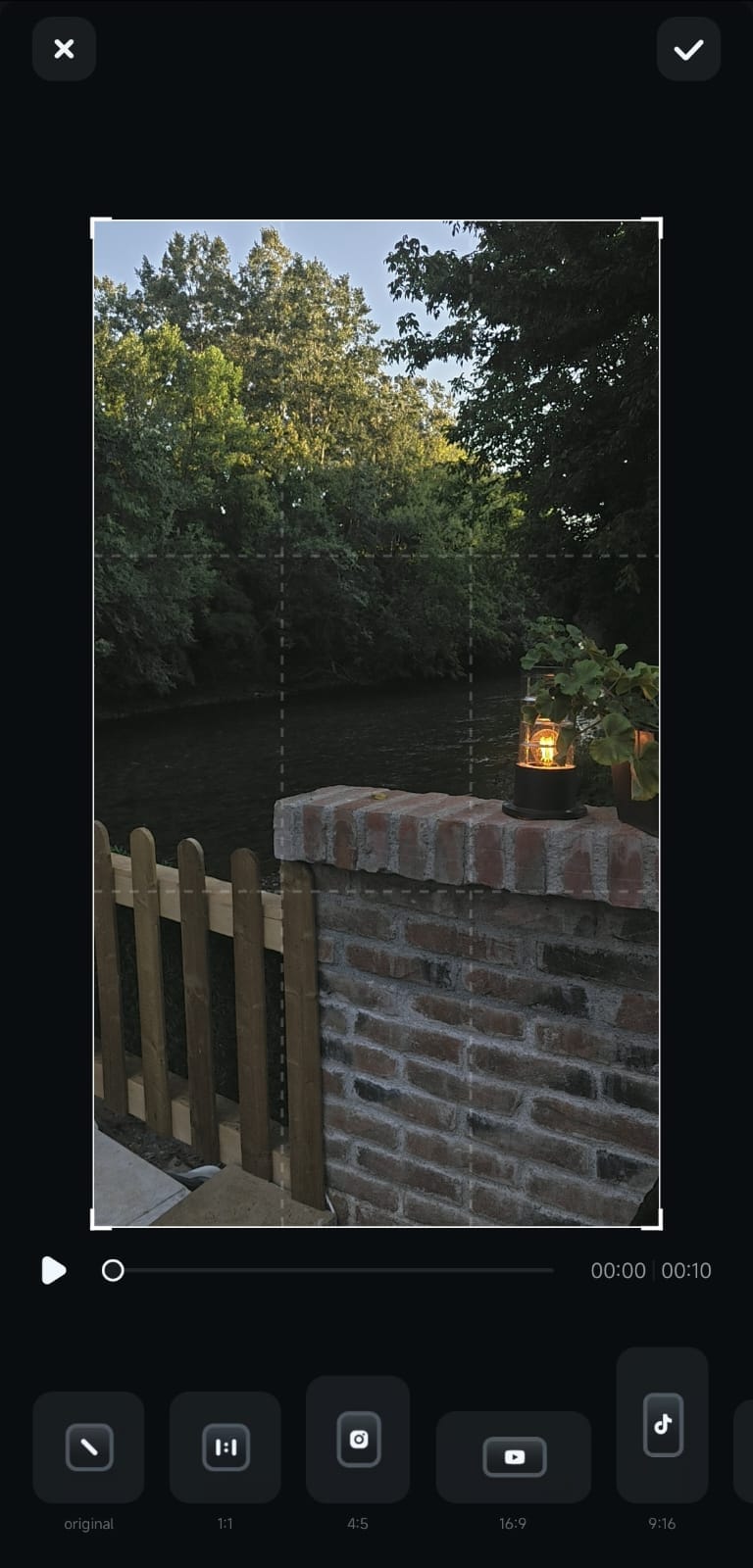
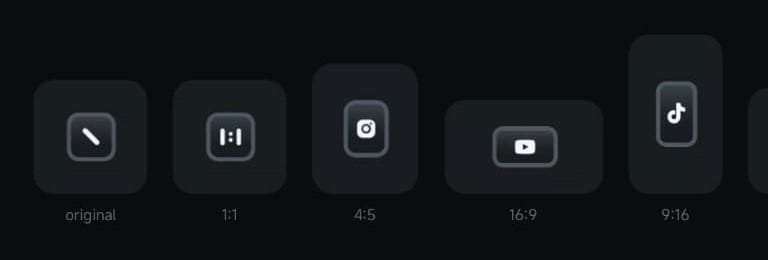
2. Alternatively, click on one of the premade aspect ratios at the bottom of the screen to instantly adjust the video and make it fit a specific social media platform’s requirements.
5. When ready, tap the Checkmark button at the top right and preview the video in Filmora’s Work Area.
Was This Helpful?
Thanks for your feedback.
Can you tell us what didn't work for you?
Email address is optional. Leave it blank if you do not need follow-up.
Feedback sent!