Duplicate a Clip in the Timeline in the Work Area
The first method involves duplicating a clip in the app’s Timeline, and you can do that by following this short guide:
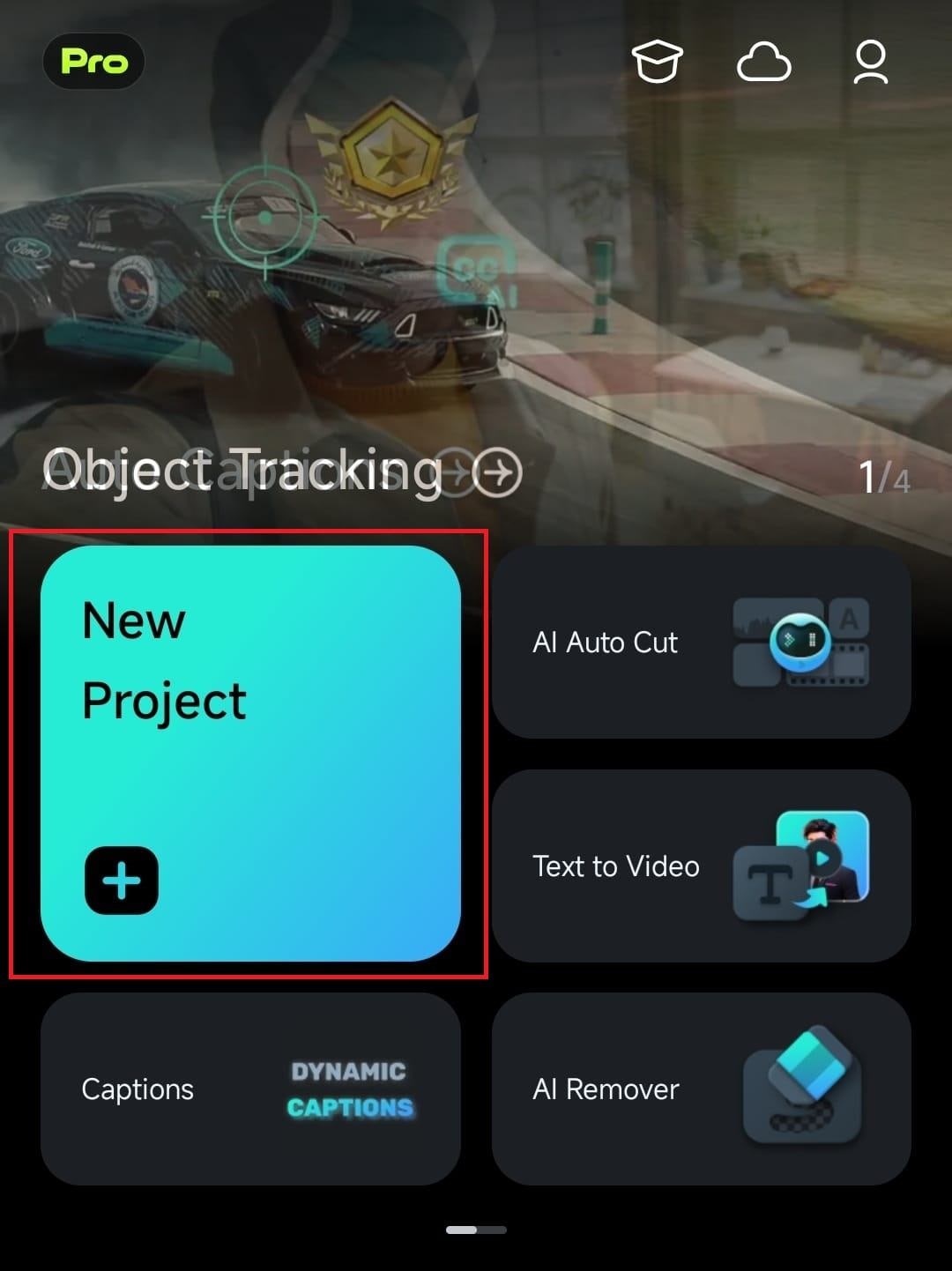
1. Launch Filmora for Mobile and tap the New Project button on the home page.
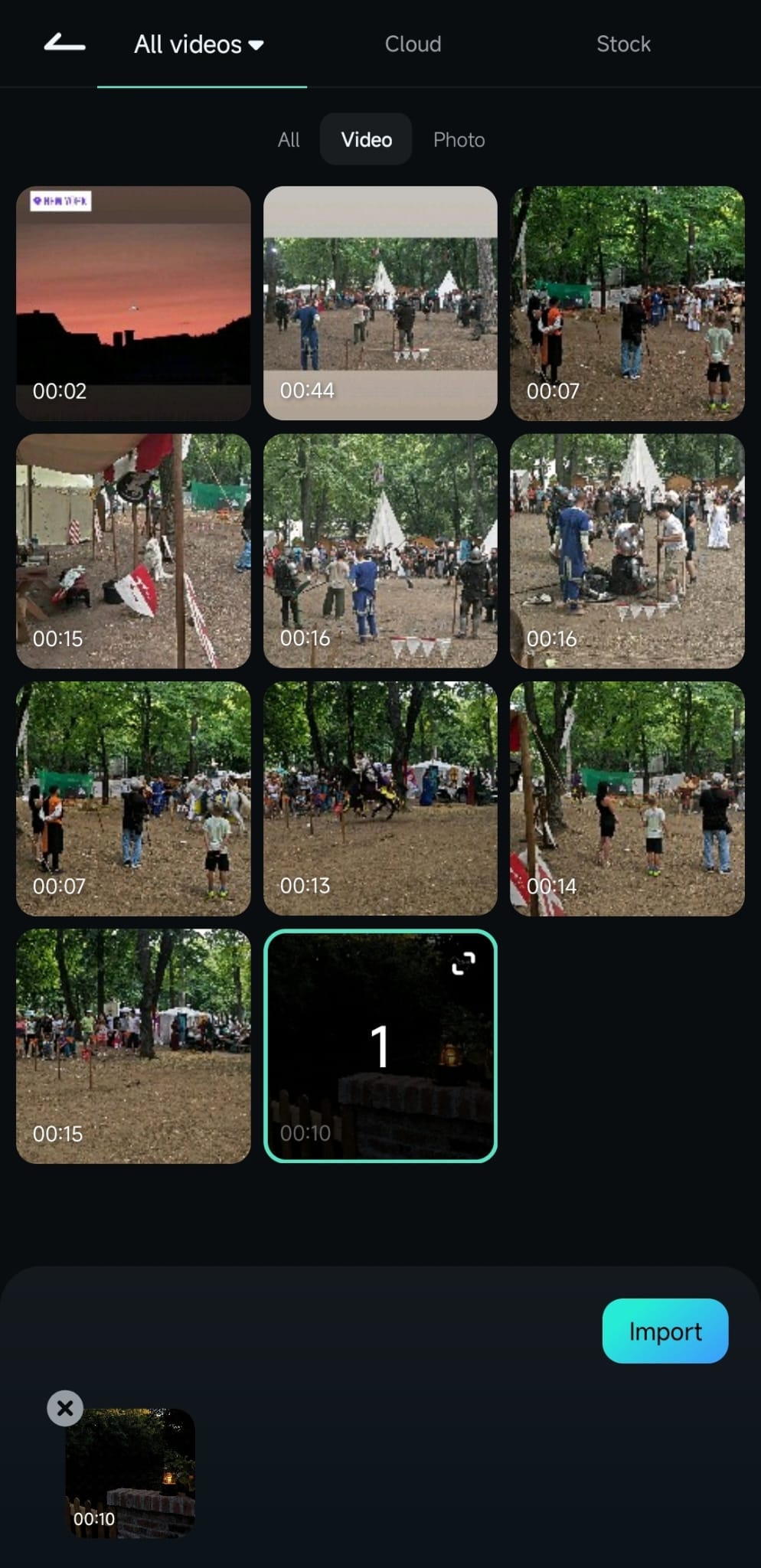
2. Add a video by selecting it and clicking the Import button.
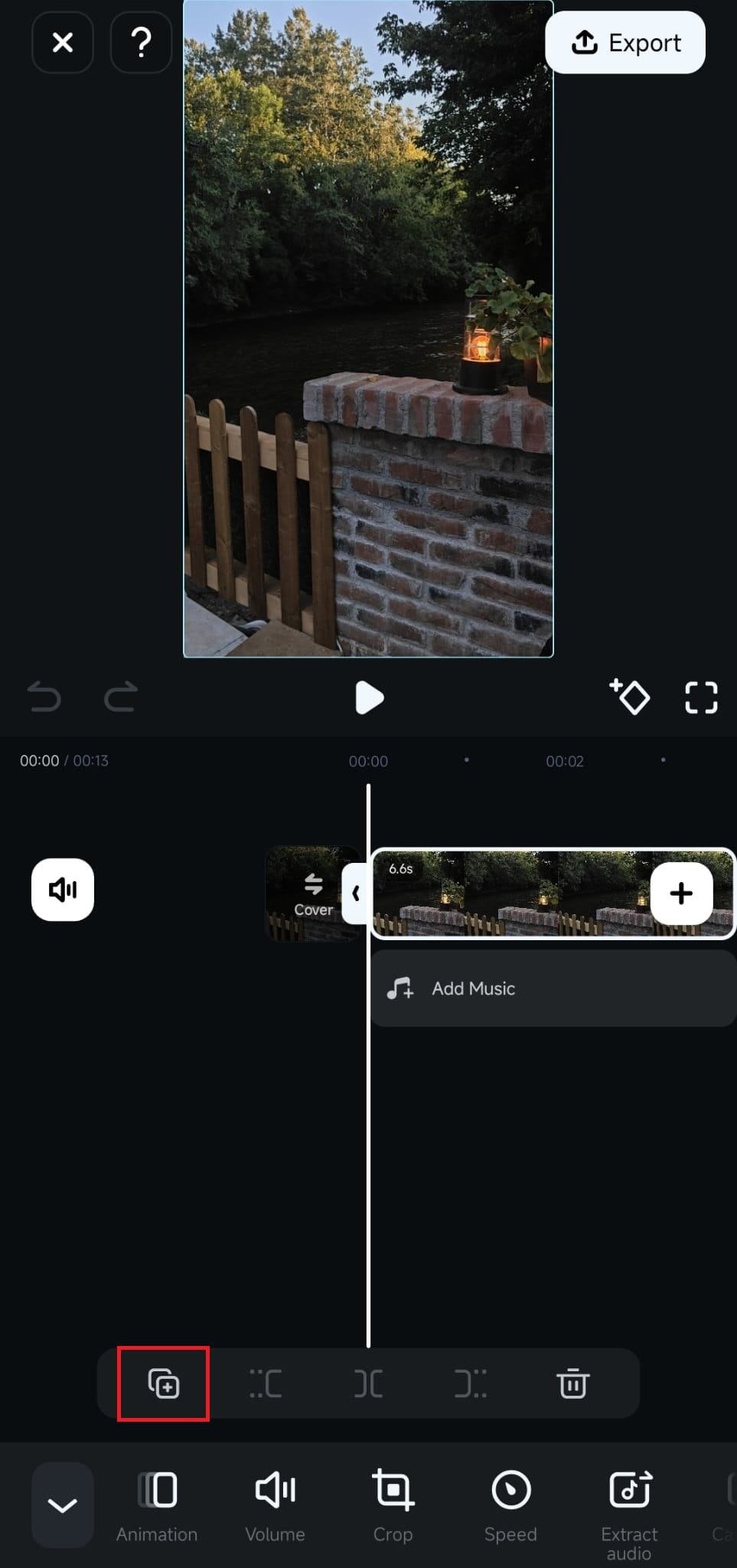
3. Tap on a video in the Timeline to select it, then press the Duplicate button at the bottom of the screen.
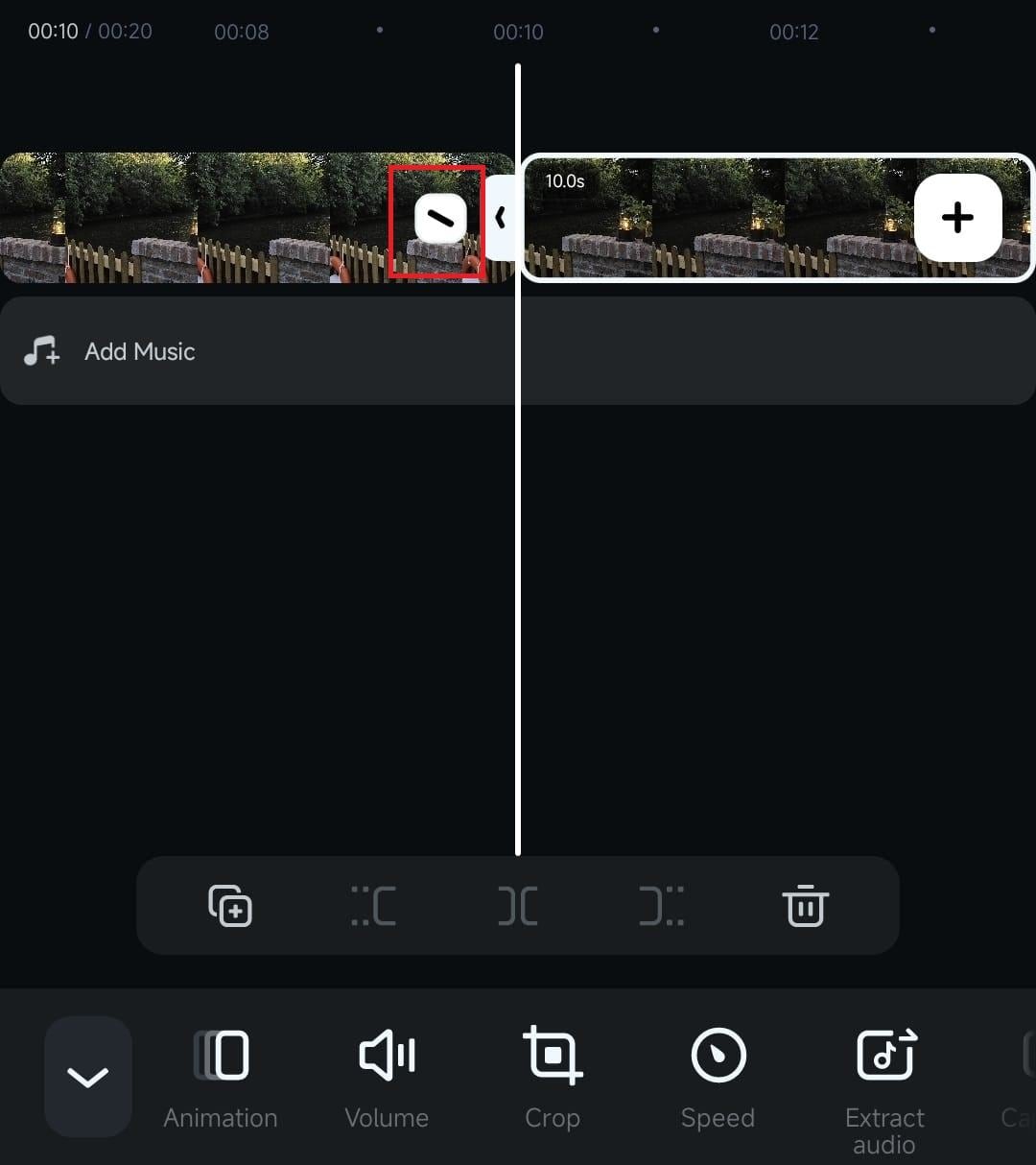
You can then adjust the position of the duplicated clips by dragging and dropping them in the Timeline.
Note: You can tap the tiny Backslash button between the two clips to access the Transition menu and add cool-looking transition effects to your video.
Duplicate a Video in the Project Management Panel
If you want to try different video editing routes and aren’t sure which one you’ll like more, you can duplicate a video in the mobile editing app’s Project Management panel. Here’s how:
1. Swipe up in the Project Management panel on Filmora’s startup screen.
2. Tap the Three Dot button next to a particular project.
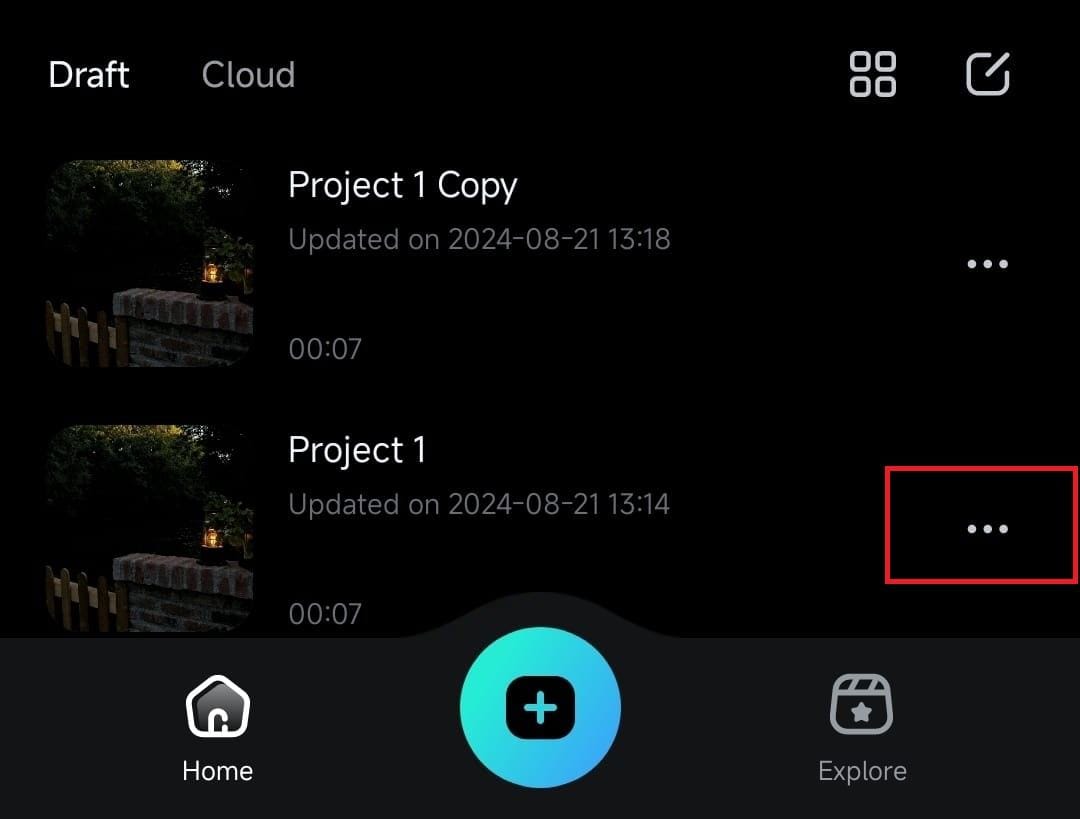
3. Click the Duplicate option to create a copy of the video.
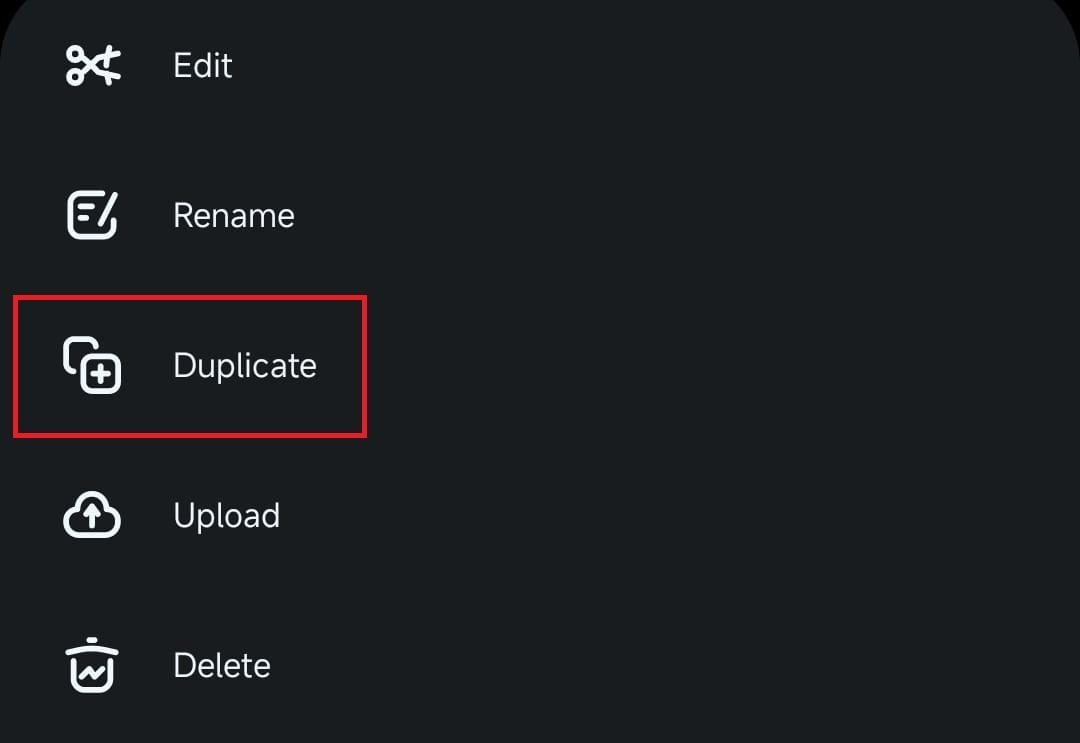
By creating a copy of your video or project, you won’t have to worry about affecting the original clip, giving you absolute creative freedom to try various editing effects.
Was This Helpful?
Thanks for your feedback.
Can you tell us what didn't work for you?
Email address is optional. Leave it blank if you do not need follow-up.
Feedback sent!