Locate Chroma Key in Filmora
In Filmora for Mobile, Chroma Key is a part of the more extensive Smart Cutout menu. You can get to it and apply it to your videos by following this short guide:
1. Launch Filmora for Mobile and tap the New Project button in the Quick Access panel, or hit the blue Plus icon in the Menu bar to create a new project.
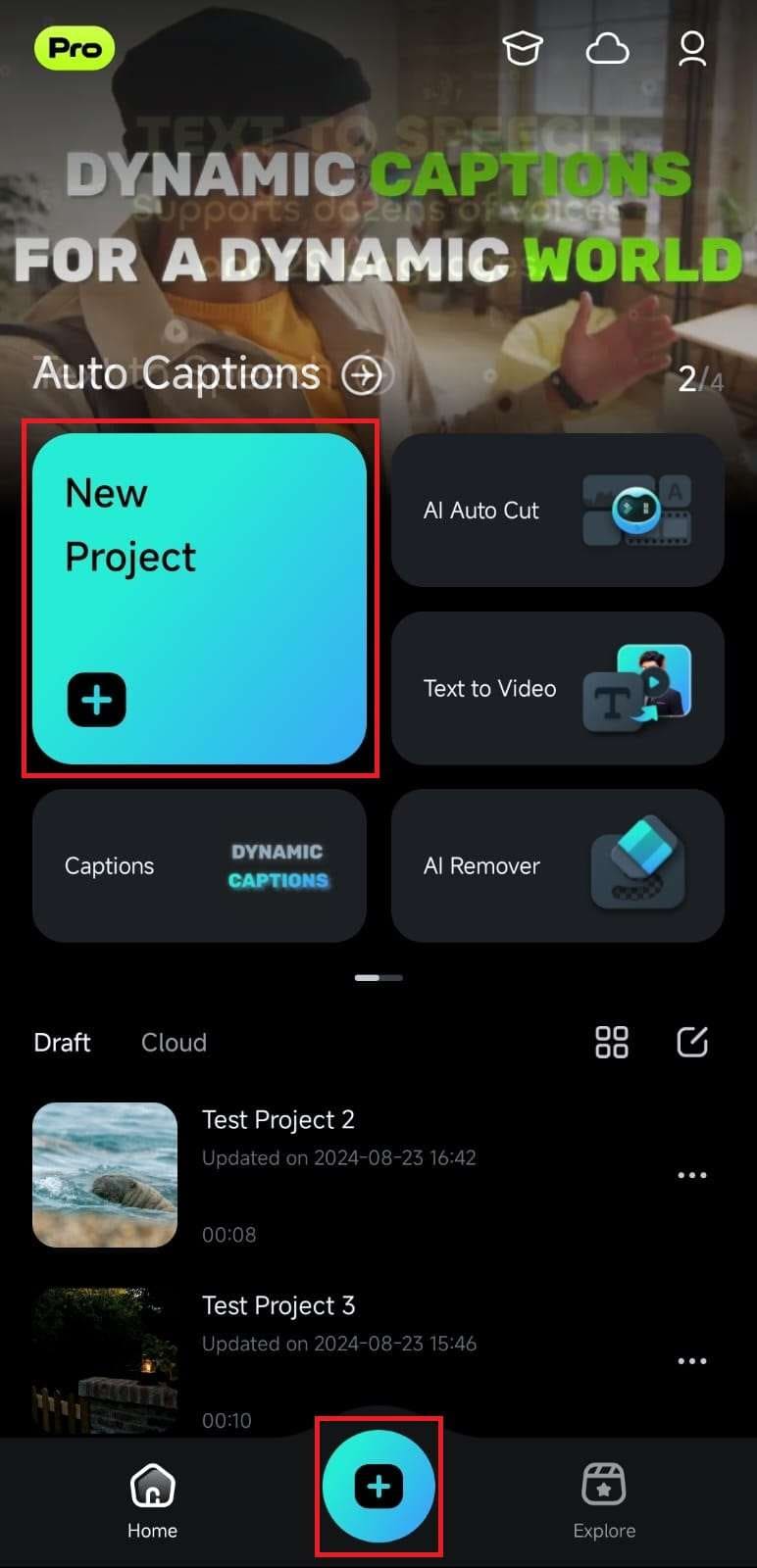
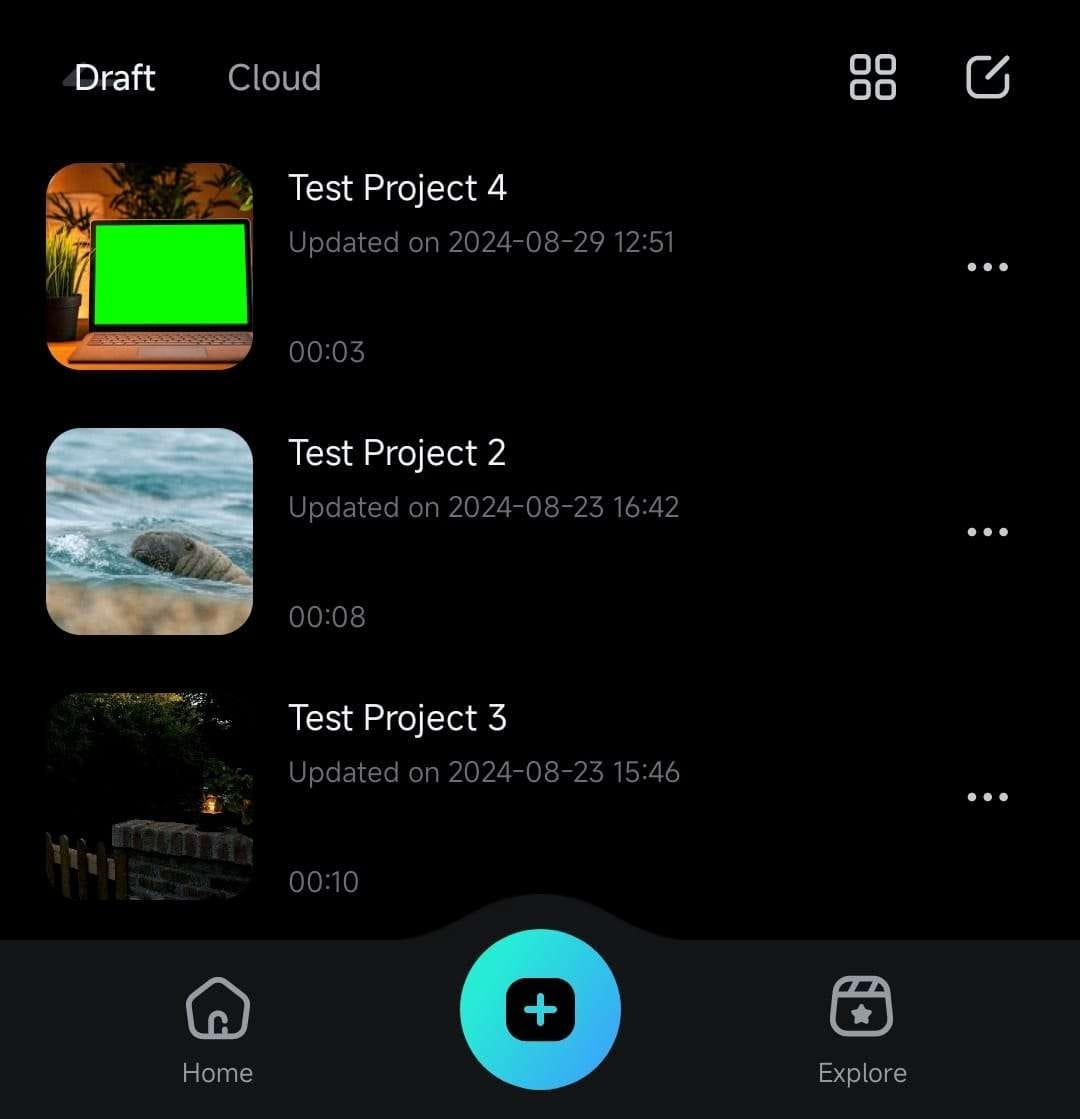
Alternatively, swipe up from the Project Management panel and open an existing green-screen video editing project from the Draft or the Cloud tabs, depending on where the project is stored.
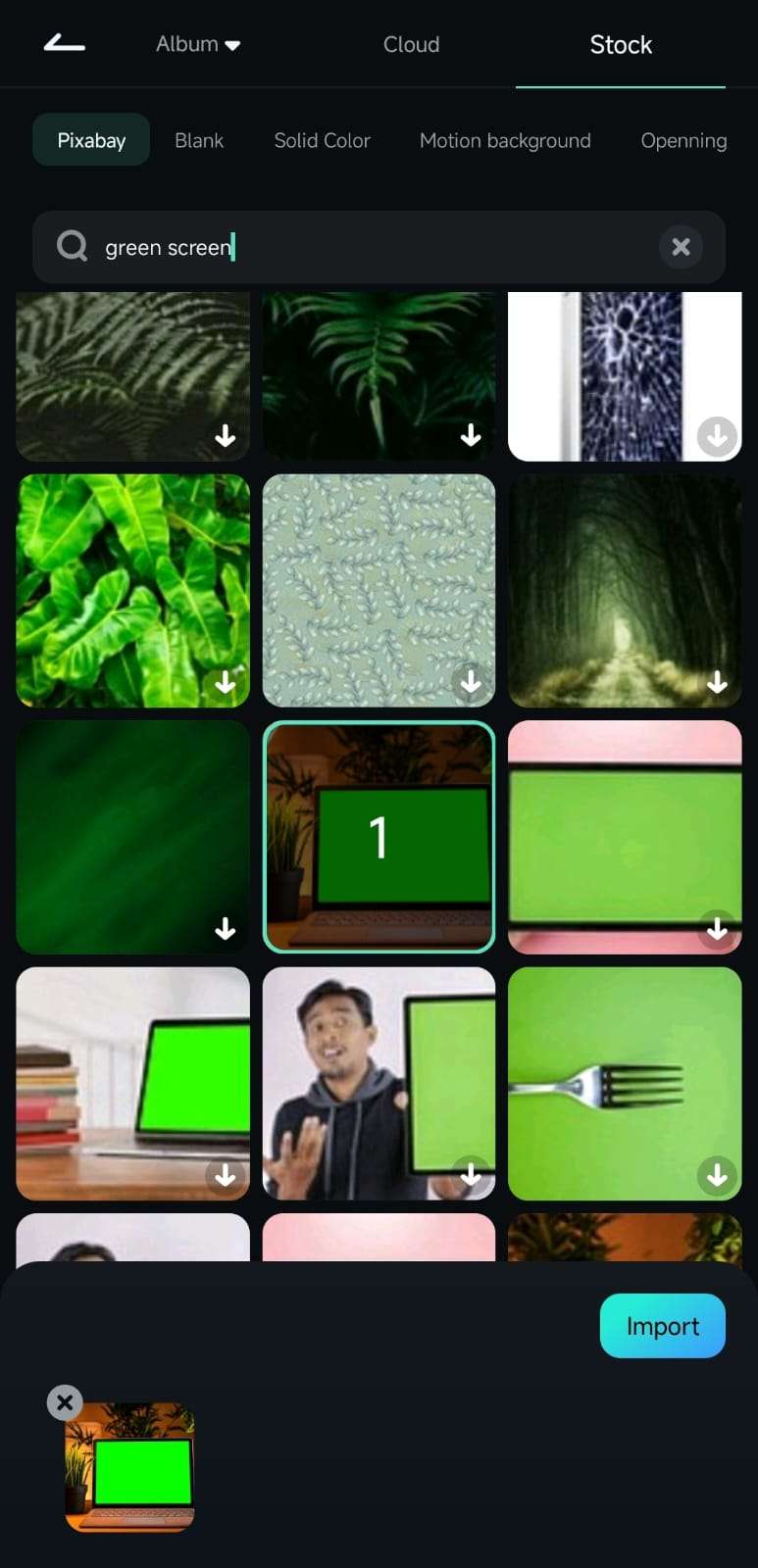
2. If you've created a new project, open green-screen videos from your phone's gallery or select green-screen media from the Stock page in the Import menu. Once you do, hit Import to add them to Filmora.
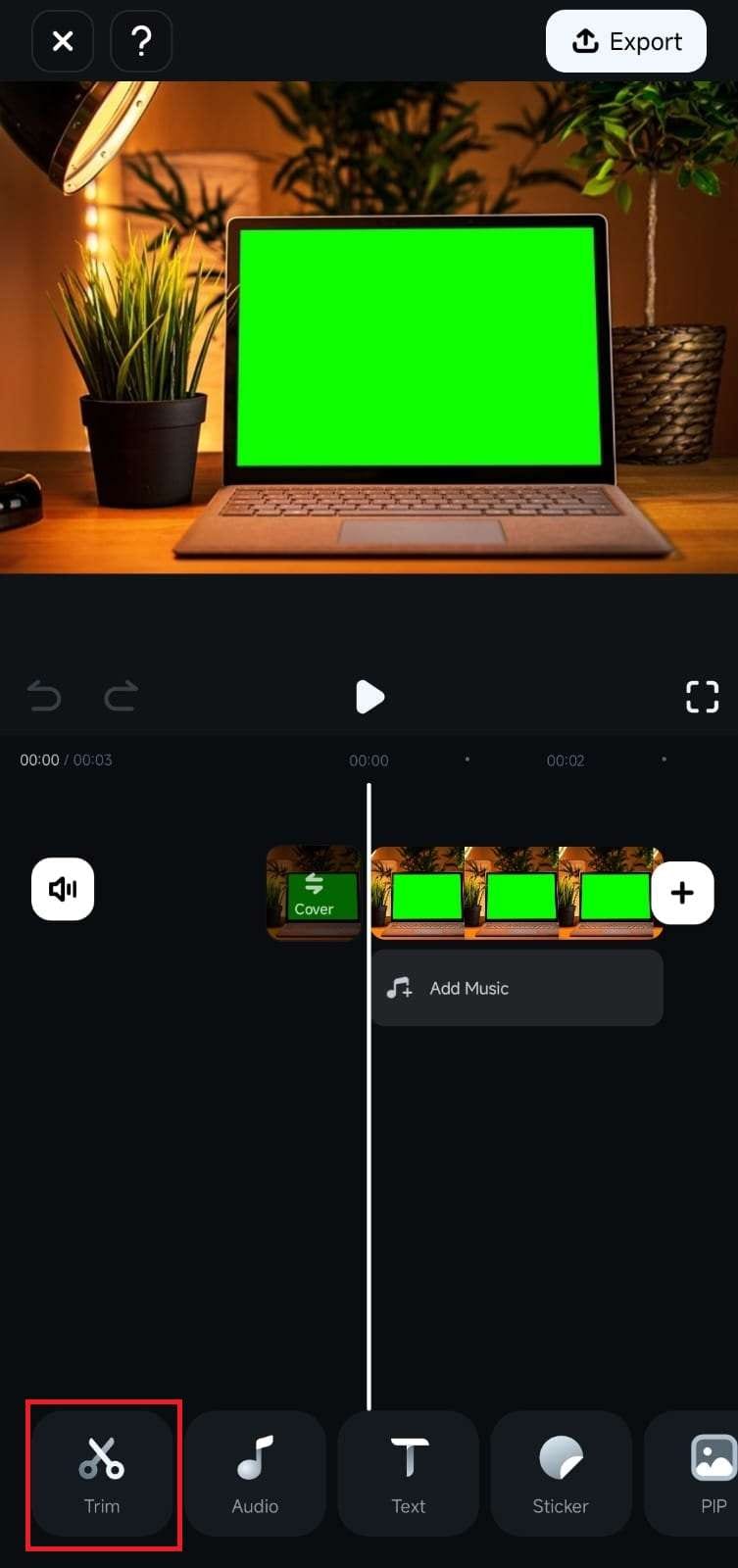
3. After entering Filmora's Work Area, hit the Trim button in the Toolbar at the bottom to access the app's video editing tools.
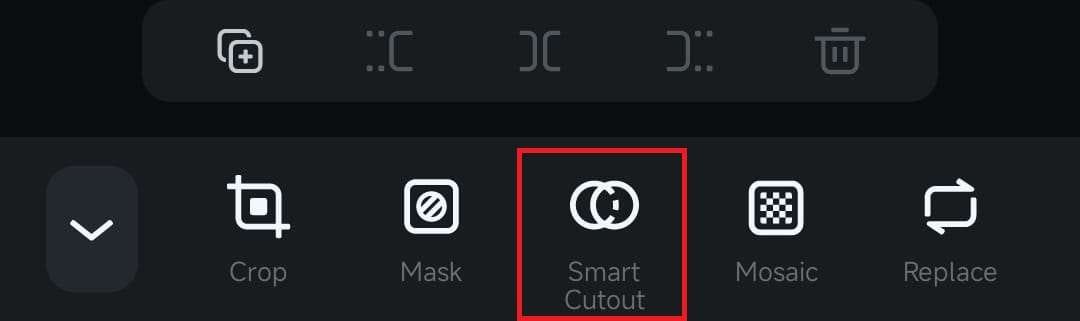
4. Locate the Smart Cutout option in the now-changed Toolbar and tap on it.
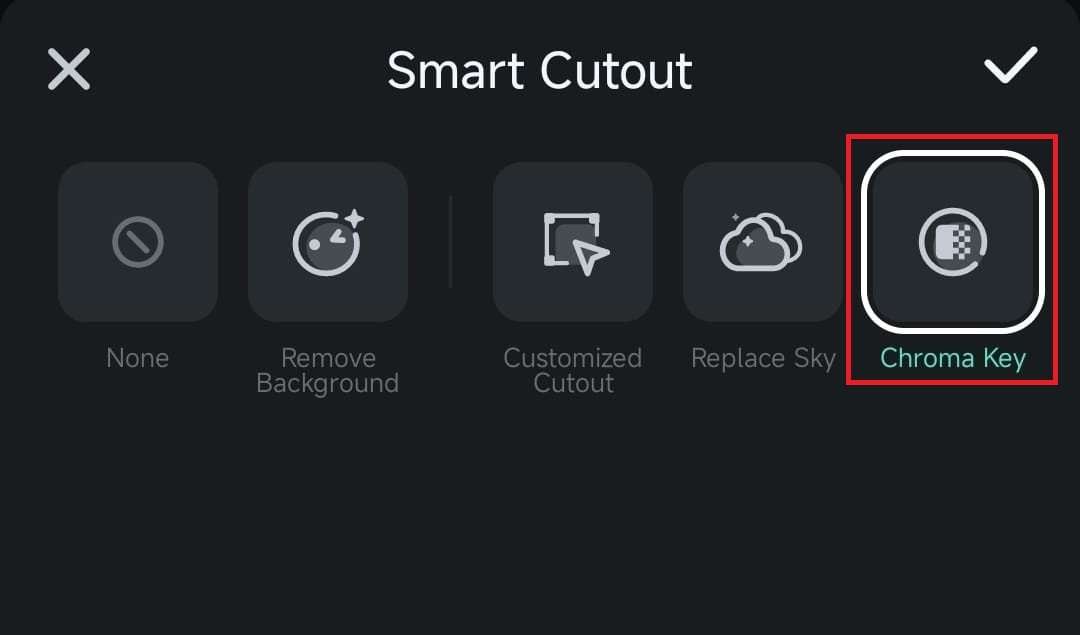
5. Tap on the Chroma Key button.
Apply and Adjust the Chroma Key Effect
The Chroma Key menu comprises a Color Picker and two adjustment sliders.
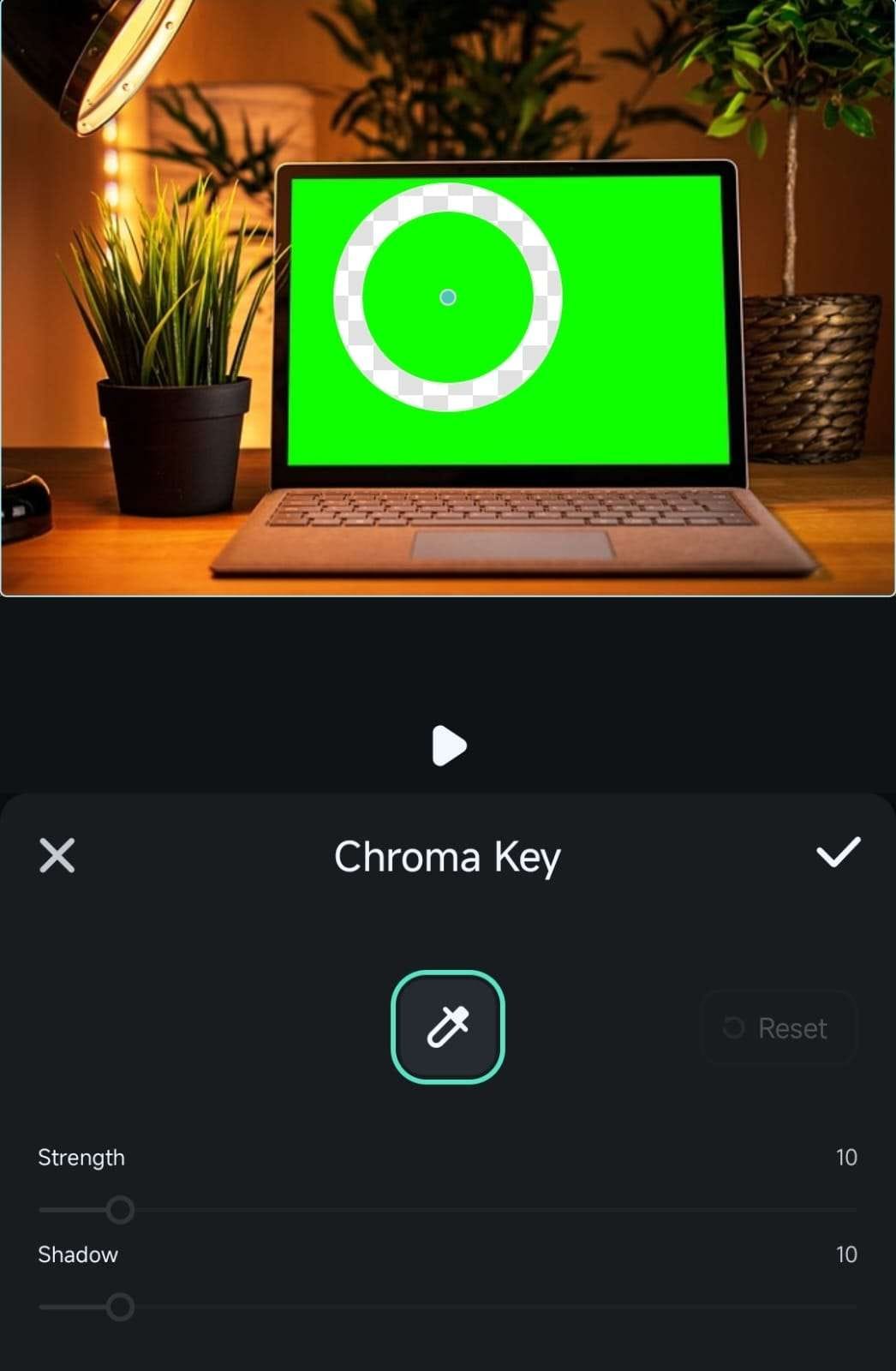
Once inside it, removing a green screen from your video or image is a matter of a few simple taps, and here's how you can go about it:
1. Move the Color Picker tool in the Preview panel and place it on a green screen. When you drop it, the app will remove the said color from the video or image.
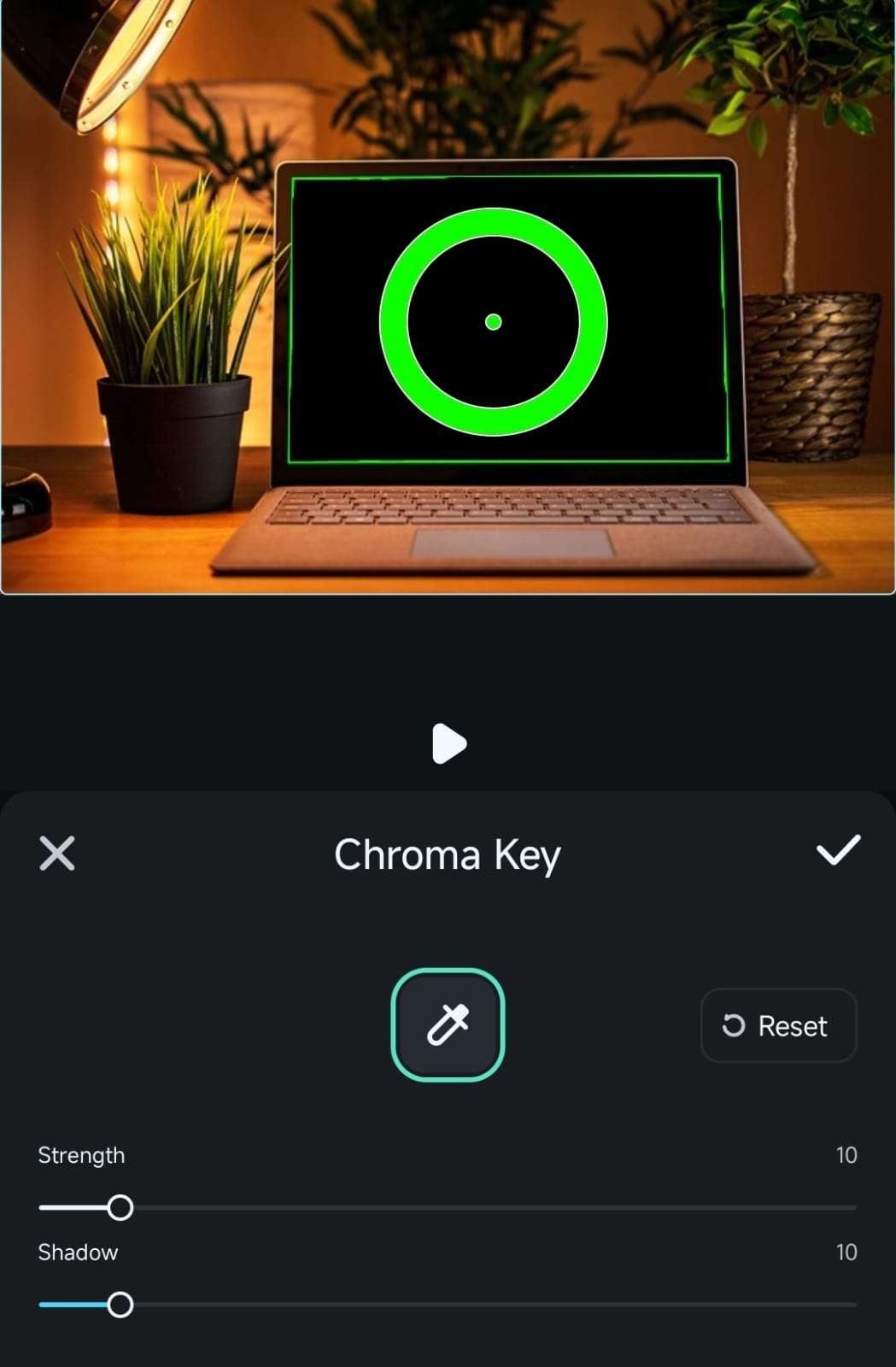
2. To further modify the effect and make green screen removal perfect, you must adjust the Strength and Shadow sliders underneath the Color Picker.
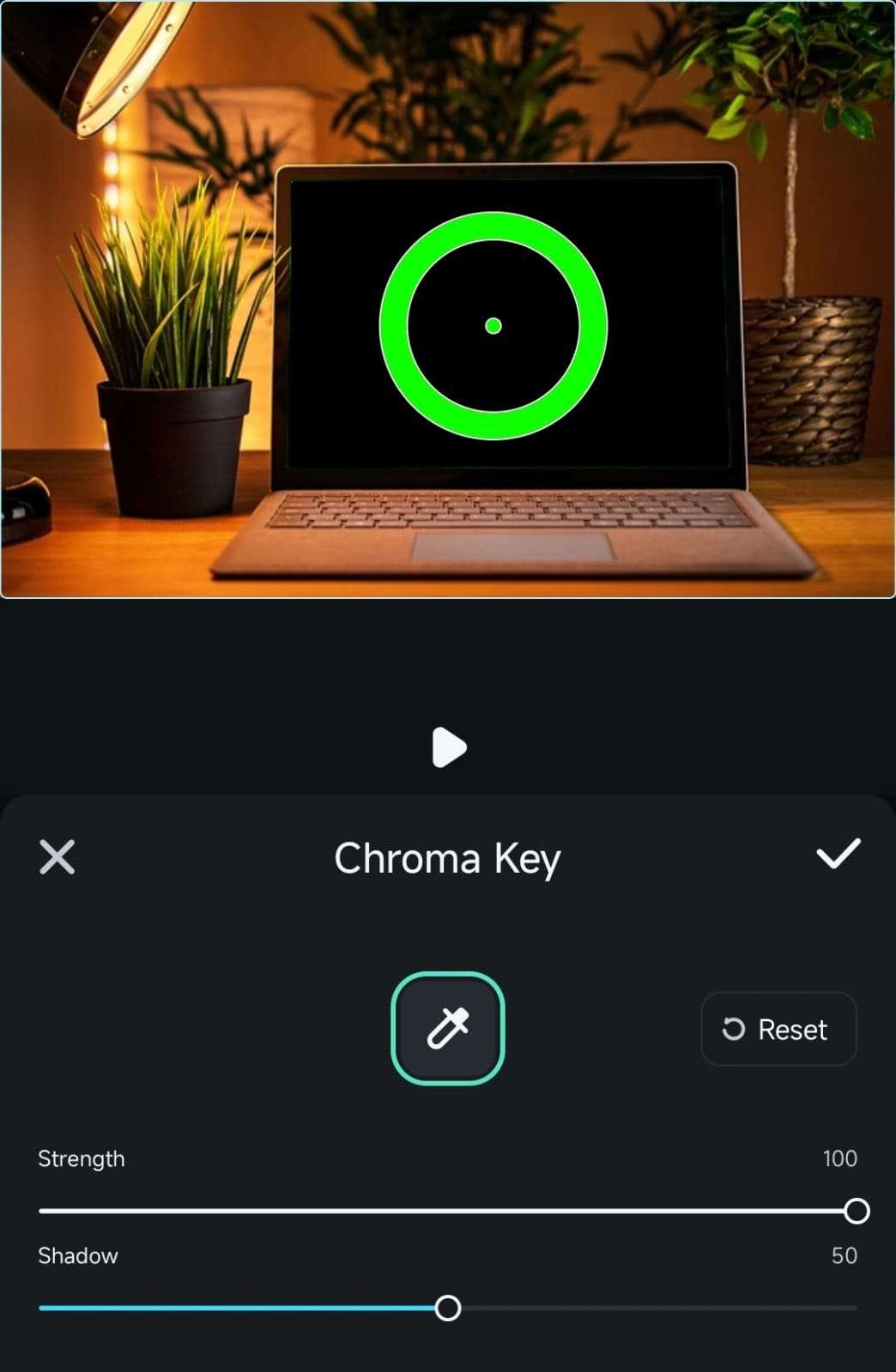
3. Once the green screen has been completely removed from the video or image, hit the Checkmark button in the Chroma Key menu, and then tap Checkmark again in the Smart Cutout menu to apply the effect.
Was This Helpful?
Thanks for your feedback.
Can you tell us what didn't work for you?
Email address is optional. Leave it blank if you do not need follow-up.
Feedback sent!