1. Inside the app's Work Area, tap on the clip in the Timeline to select it.
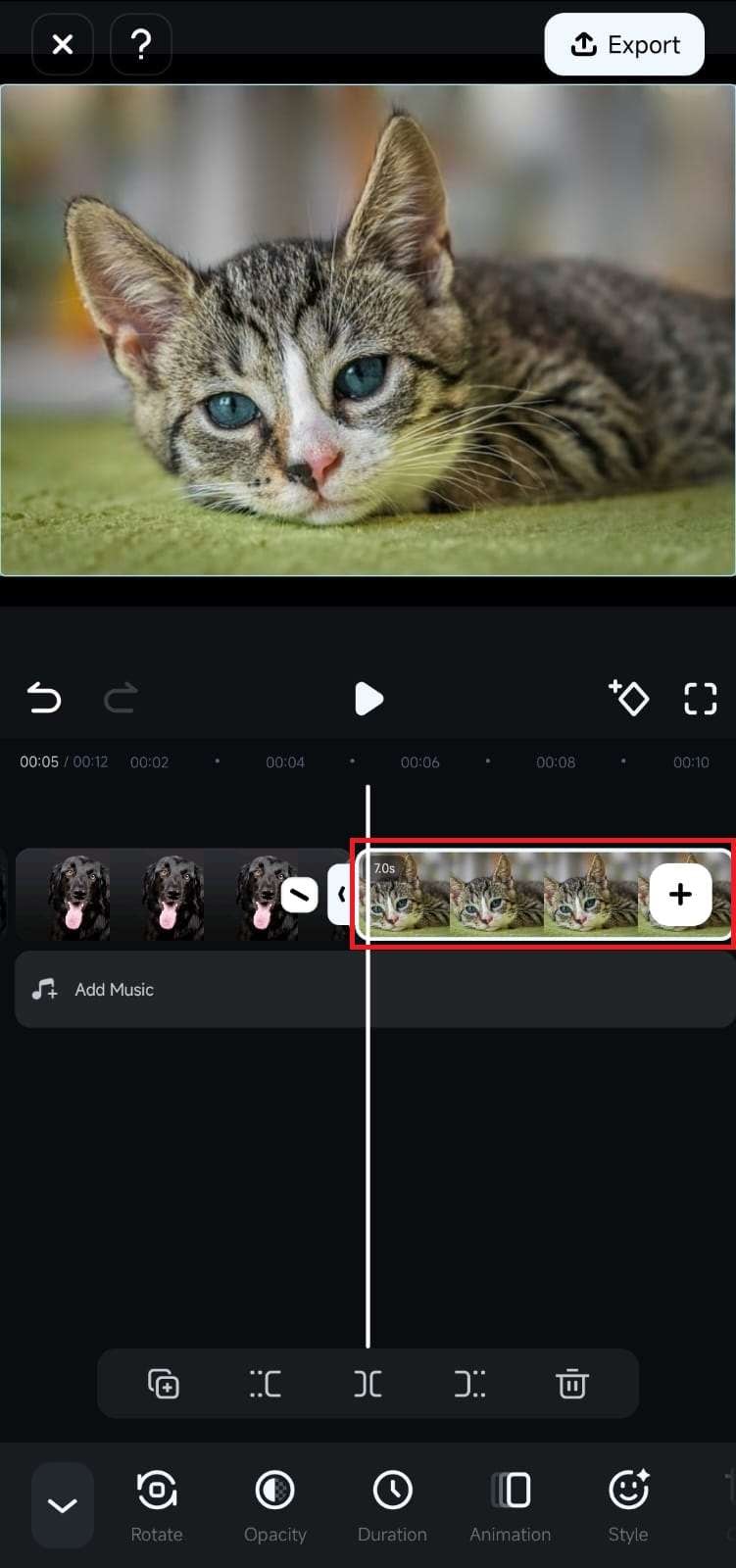
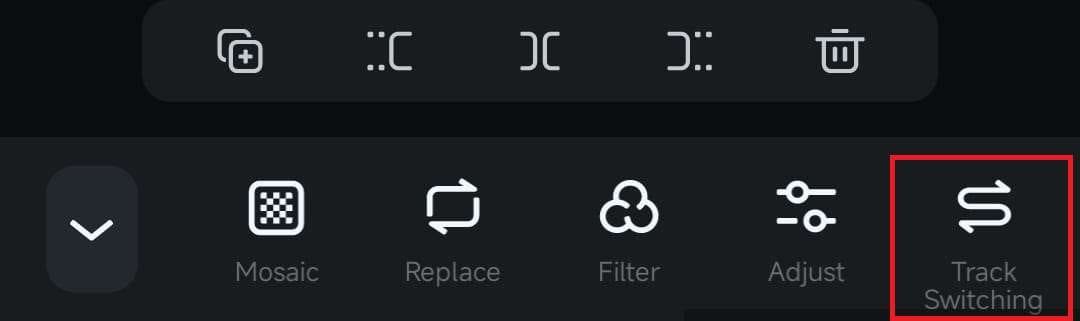
2. Scroll the Toolbar to the very end and click on the Track Switching option.
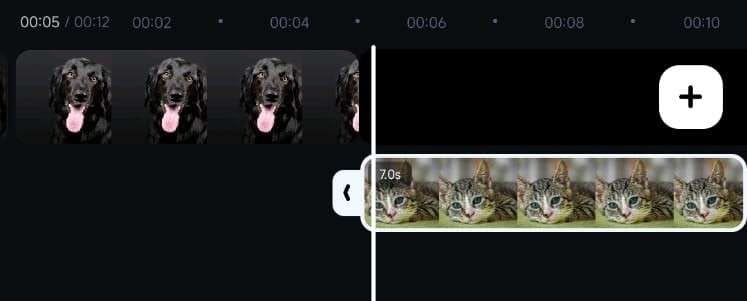
3. Once you enable the feature, the selected clip will move positions in the Timeline. You can then order these clips precisely how you want.
Was This Helpful?
Thanks for your feedback.
Can you tell us what didn't work for you?
Email address is optional. Leave it blank if you do not need follow-up.
Feedback sent!