After importing video clips into Filmora, please follow the steps below to use AI Denoise function.
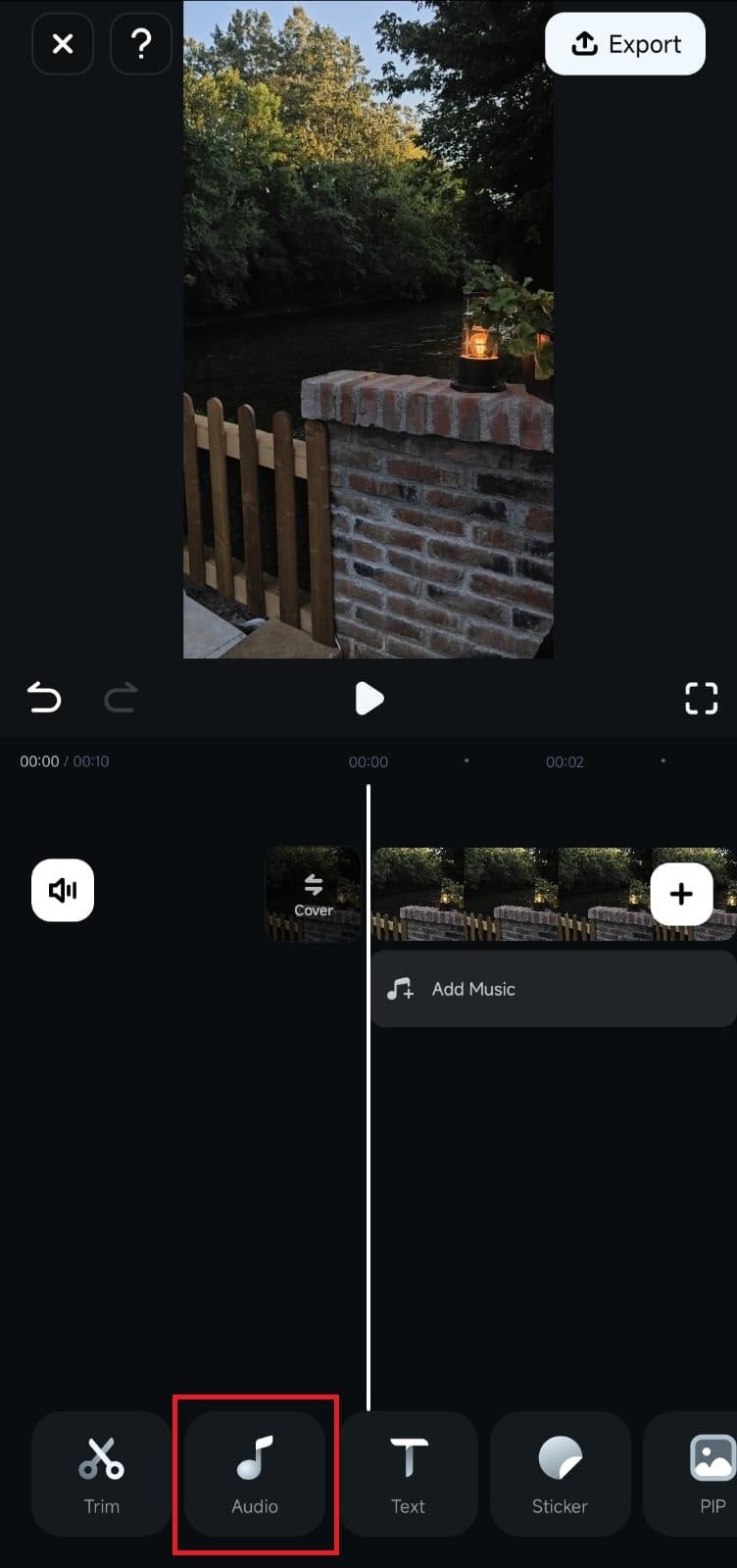
1. Tap the Audio tab in the Toolbar at the bottom of the Work Area.
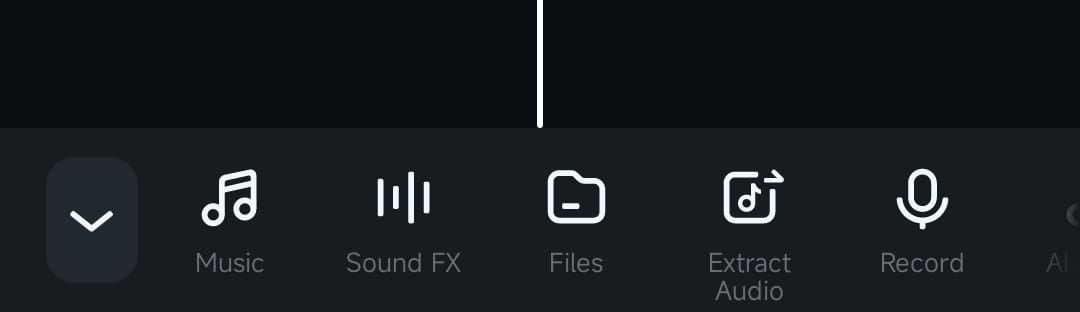
2. Click on Music, Sound FX, or Record, depending on what you want to add to the clip.
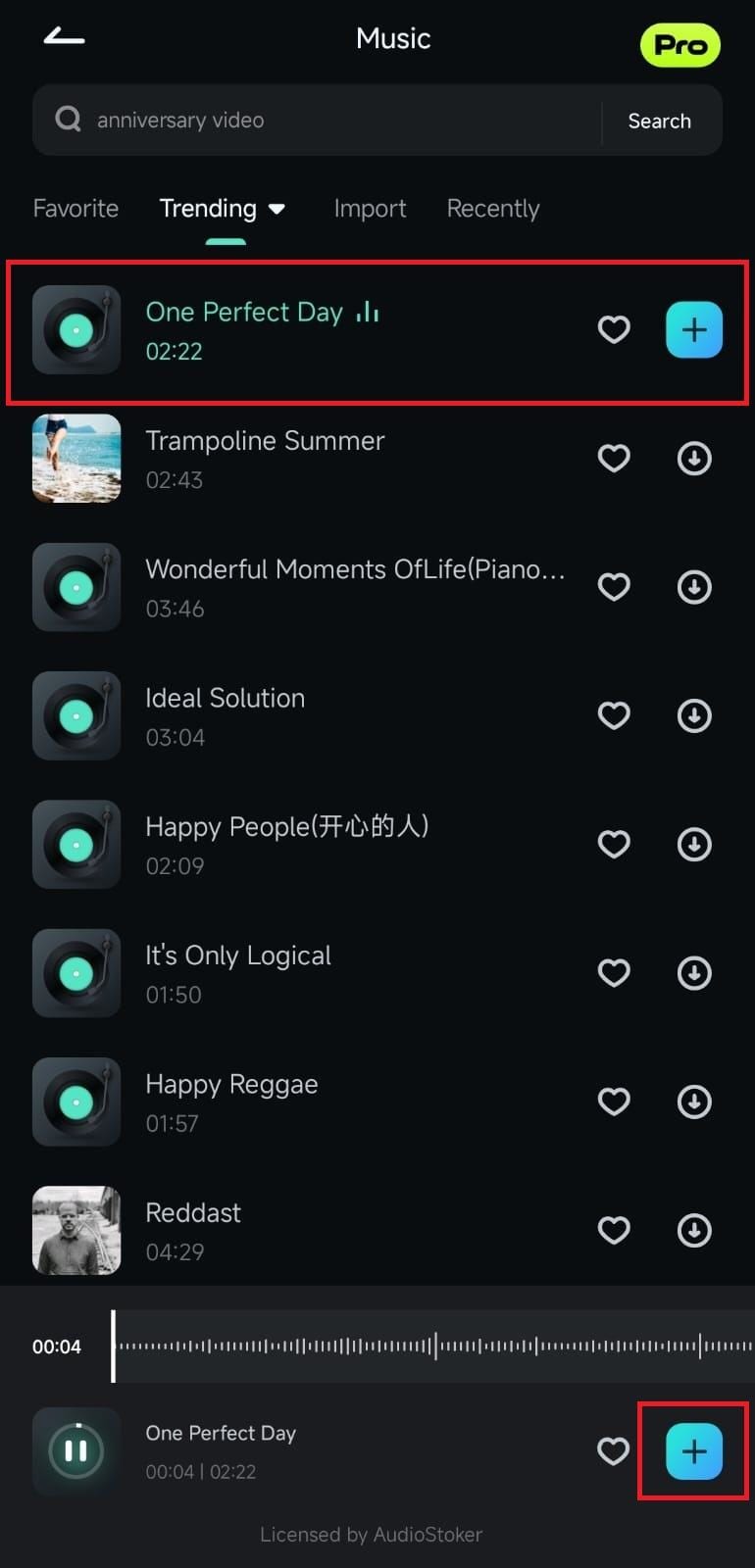
3. Choose a song or a sound effect or record a voiceover. Then, tap the Plus button to add it to the video.
Note:
Custom music can also be added through the Files option. You can even use the AI Audio option to generate the perfect and unique sounds for your clips.Noise Reduction With AI Denoise
With an audio track now ready to be denoised with Filmora’s powerful AI Denoise tool, all that’s left to do is the following:
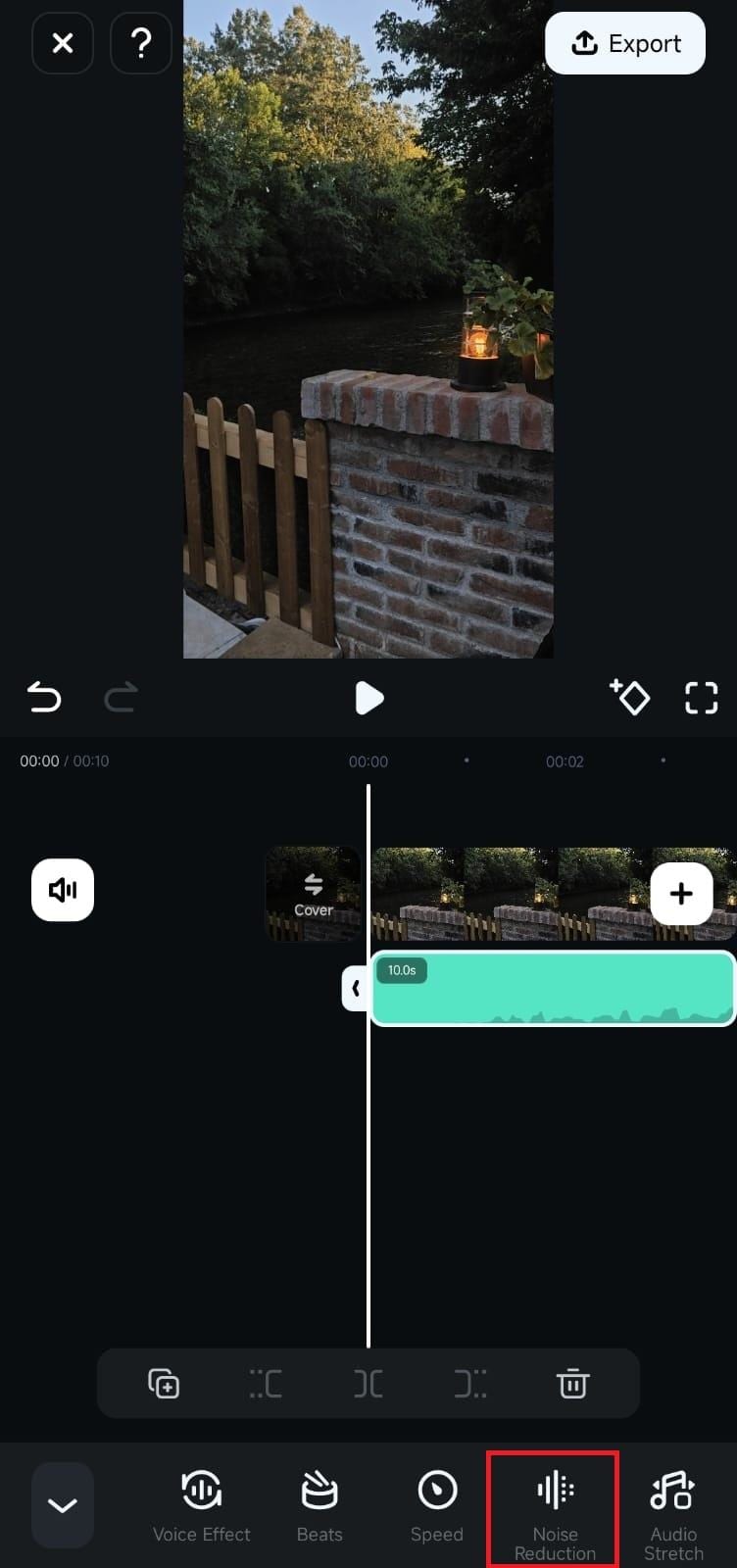
1. Tap on the audio track in the Timeline section of the Work Area to select it. The Toolbar will change depending on what’s selected in the Timeline.
2. Swipe the Toolbar until you find the Noise Reduction tool. Then, tap it to enable Filmora’s AI Denoise feature, which will automatically denoise your audio.
Was This Helpful?
Thanks for your feedback.
Can you tell us what didn't work for you?
Email address is optional. Leave it blank if you do not need follow-up.
Feedback sent!