After importing your video clips into Filmora mobile, please follow the steps below to use AI Music feature.
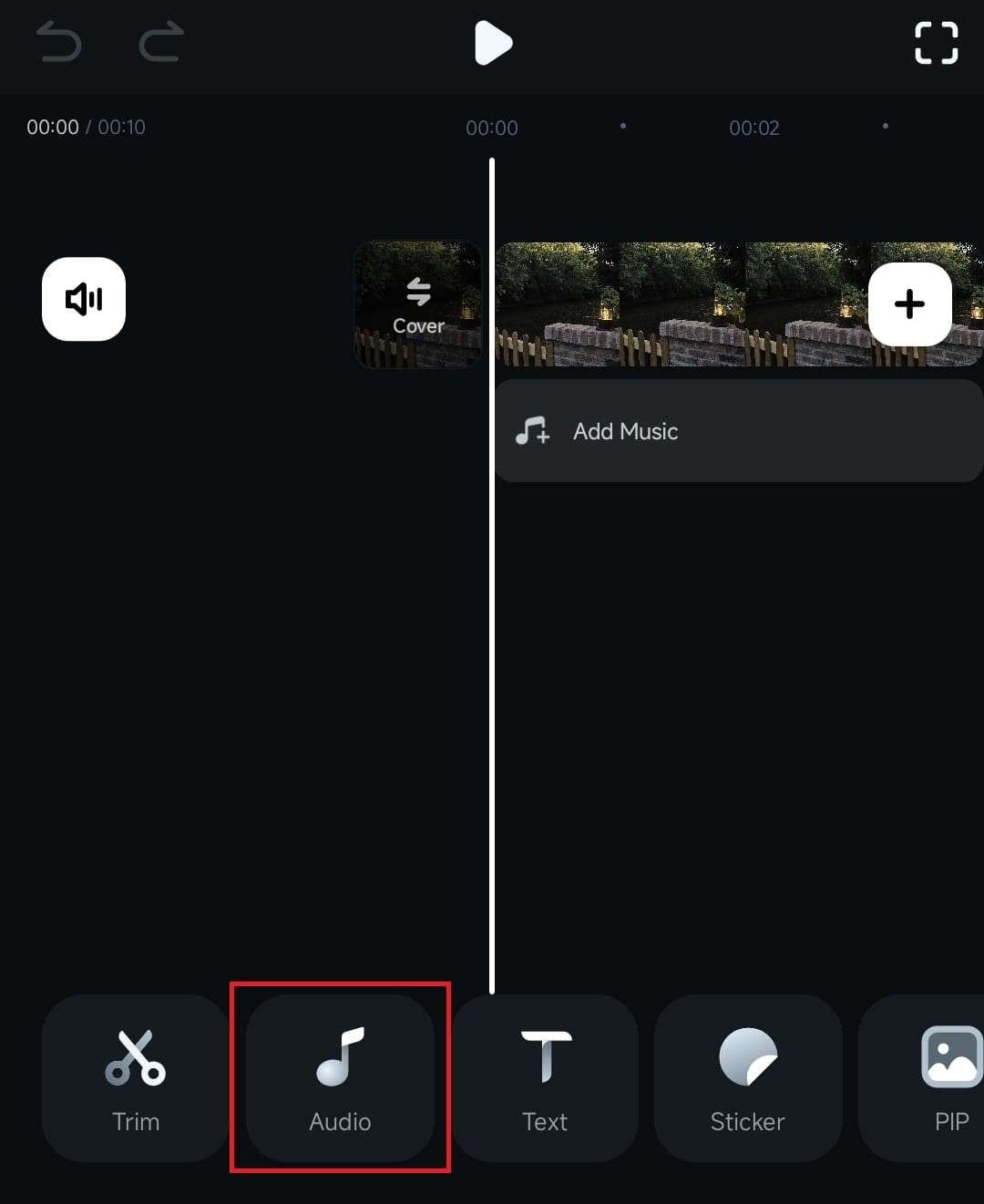
Tap the Audio button at the bottom of the screen.
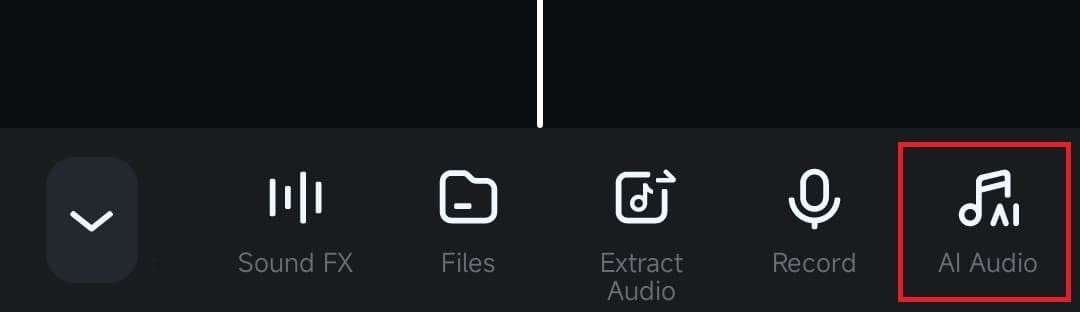
Scroll the menu bar at the bottom and click on AI Audio to access Filmora’s powerful AI-fueled music generation tool.
Customize AI Music and Generate Sounds
Once you’ve opened Filmora for Mobile’s AI Music tool, you can customize various aspects of the audio track you’re about to generate. Let’s see the options you have.
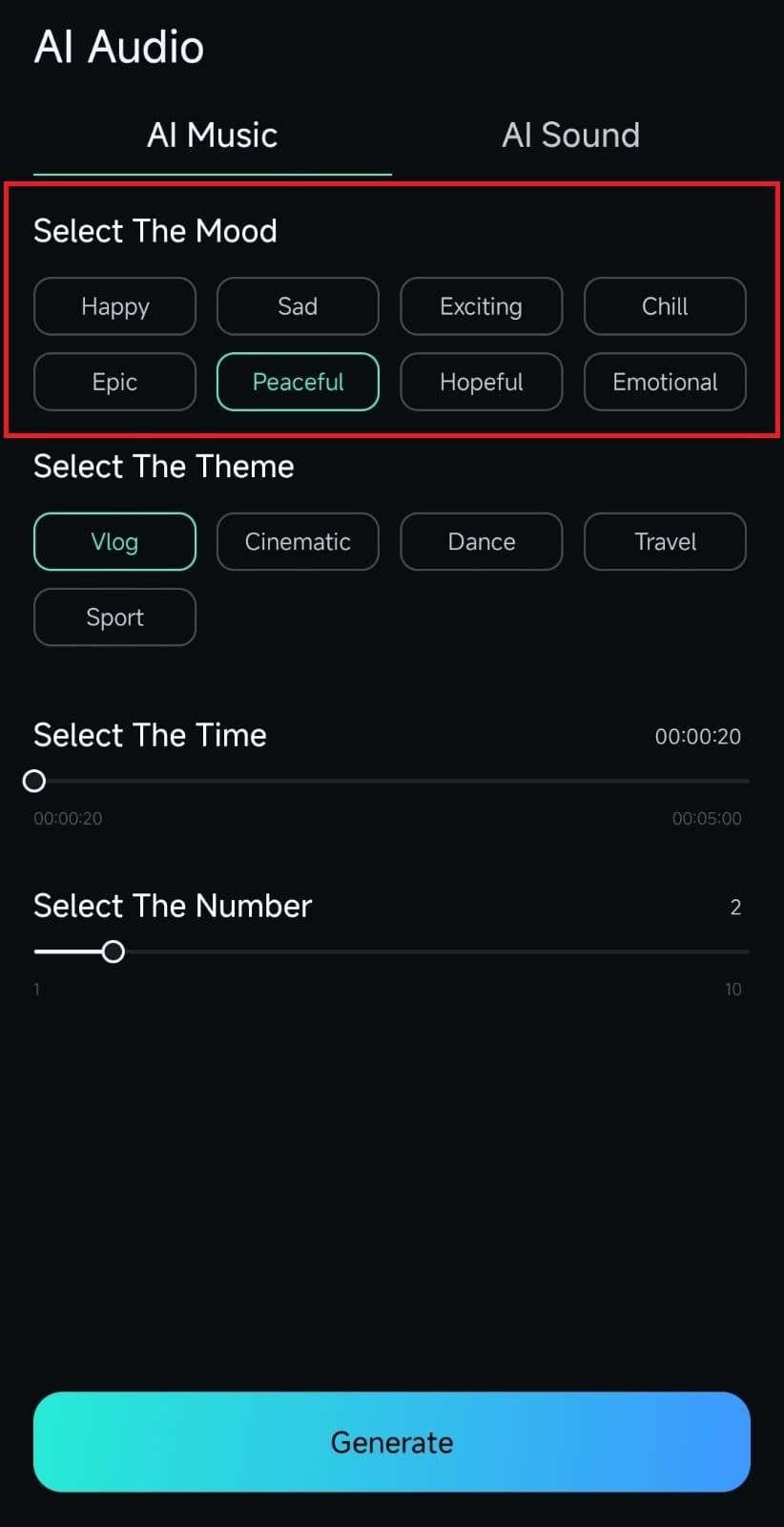
1. The first section inside the AI Music tool lets you adjust the generated audio track’s mood. You can choose between Happy, Sad, Peaceful, Epic, and other options.
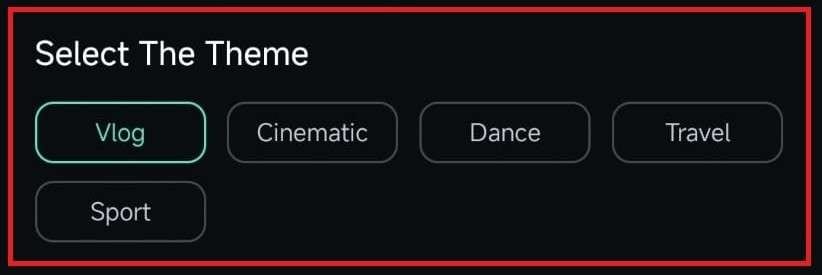
2. Right below the mood section is the theme part, where you can choose Travel, Vlog, and other themes for your track.
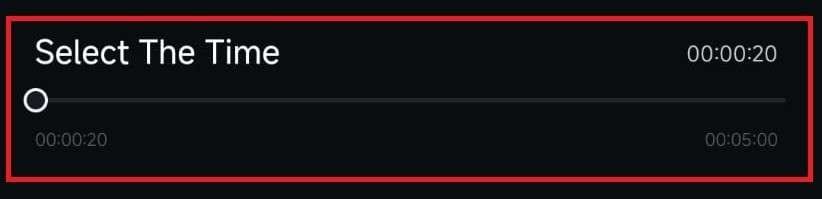
3. Then there’s the duration section, where you should adjust the length of the audio track you’re about to generate.
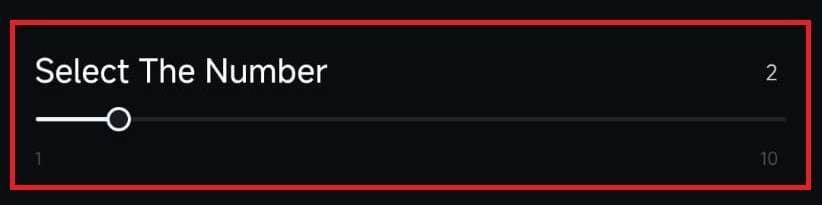
4. Finally, you can adjust the number of generated audio tracks, giving you plenty of choice for applying the perfect sounds to your clip.
5. Once everything’s adjusted to your liking, tap the Generate button at the bottom and let Filmora’s AI Music tool create the perfect audio track for your video.
6. After a few seconds, you’ll see the generated audio track, which you can listen to, add to favorites, download, or add to your clip by tapping the blue Plus icon.
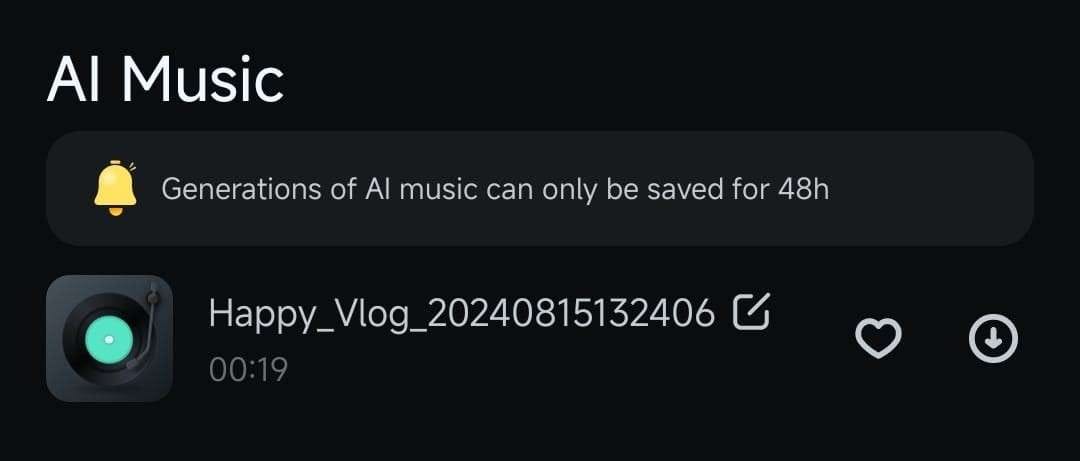
7. Alternatively, tap the Regenerate button at the bottom to create a new audio track.

Explore the AI Sound Tab
Taping the AI Audio tab in the work area during editing automatically takes you to AI Music. However, you should also explore another part of AI Audio – AI Sound. It’s available as a tab at the top of the AI Audio section, a single click away from the AI Music section we discussed above.
The AI Sound tab will allow you to generate custom sounds with prompts, and here’s how you can use it:
1. Once you’ve accessed the AI Audio tab in the work area, tap the AI Sound tab right below it.
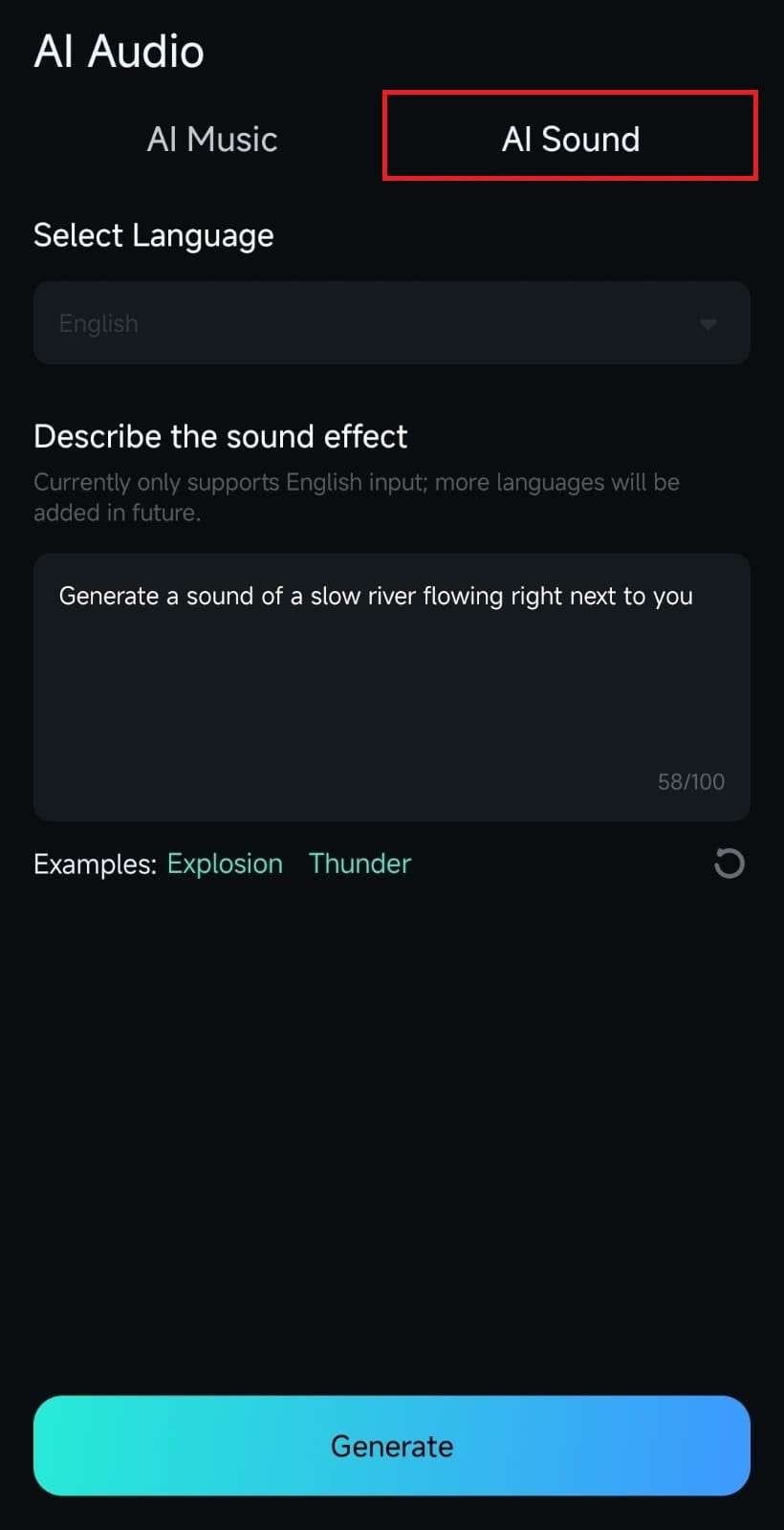
2. Pick a language and add a short prompt describing the sound effect you want to generate.
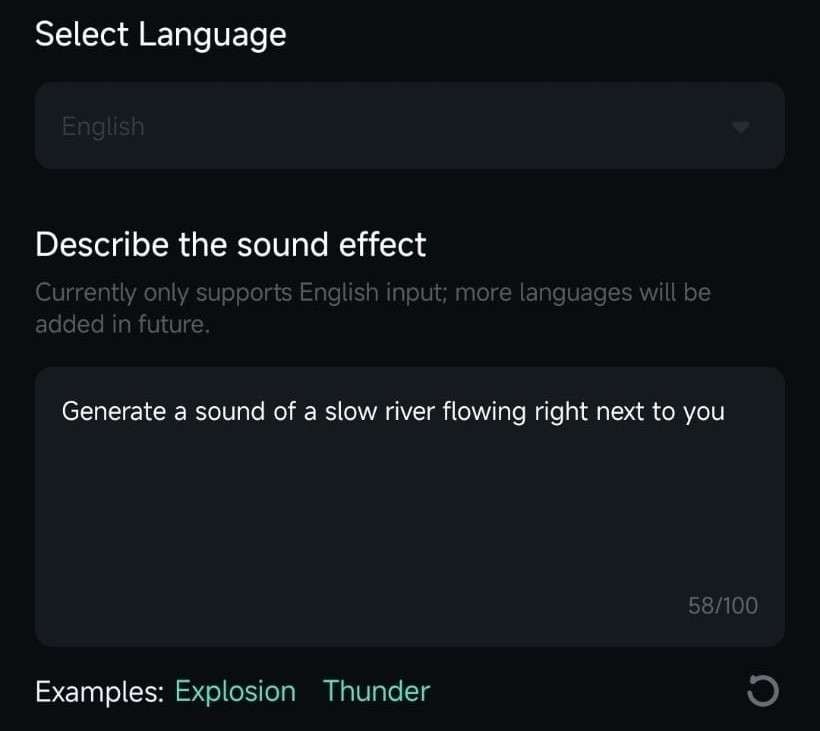
3. Tap the Generate button at the bottom of the screen, and the app will generate a unique-sounding track for your clip.
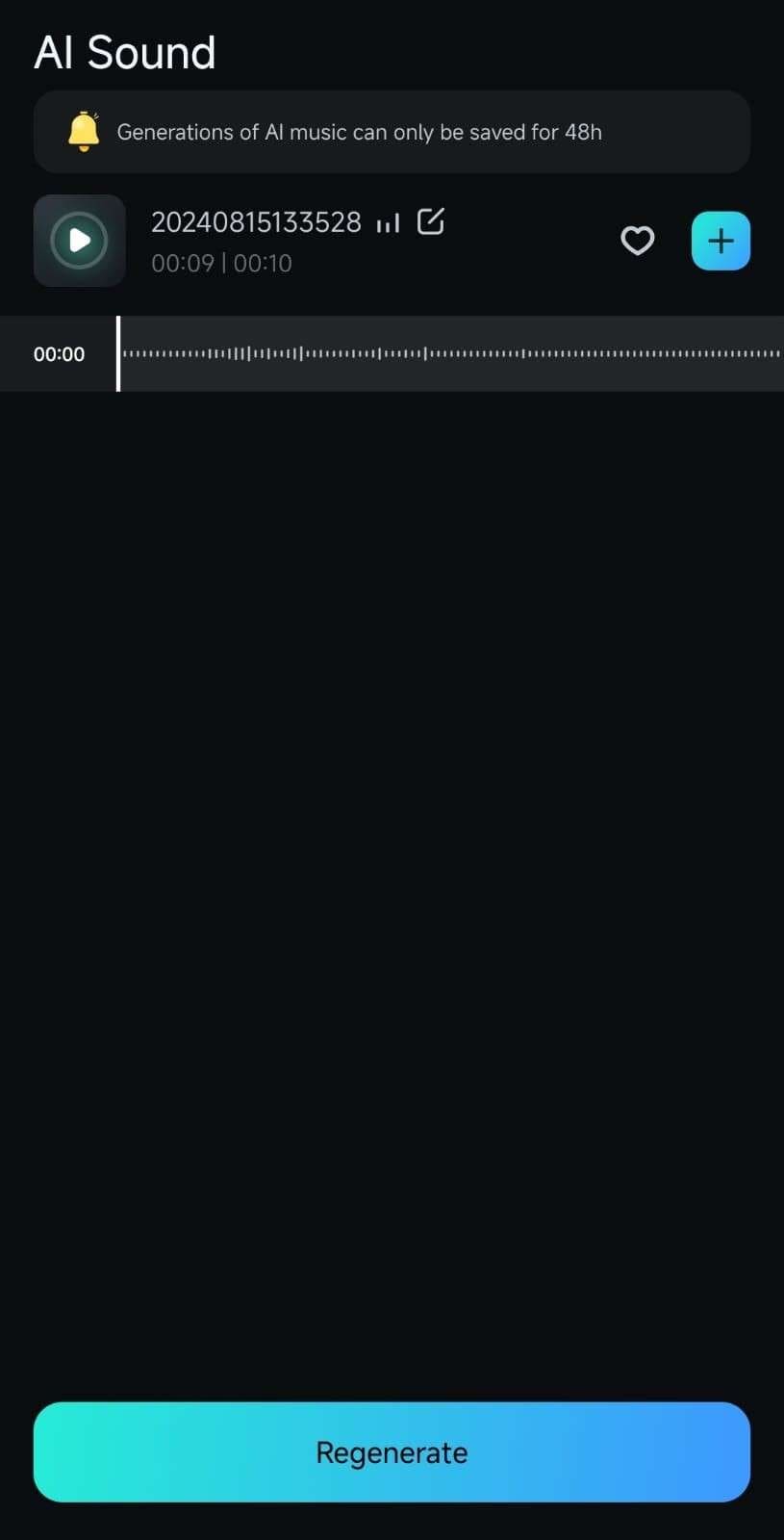
4. After a few seconds, Filmora will create the sound effect, which you can then play, add to favorites, or tap the blue Plus icon to add to your clip.
Was This Helpful?
Thanks for your feedback.
Can you tell us what didn't work for you?
Email address is optional. Leave it blank if you do not need follow-up.
Feedback sent!