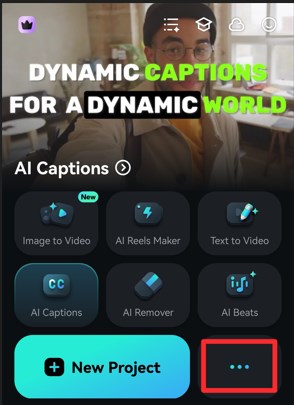
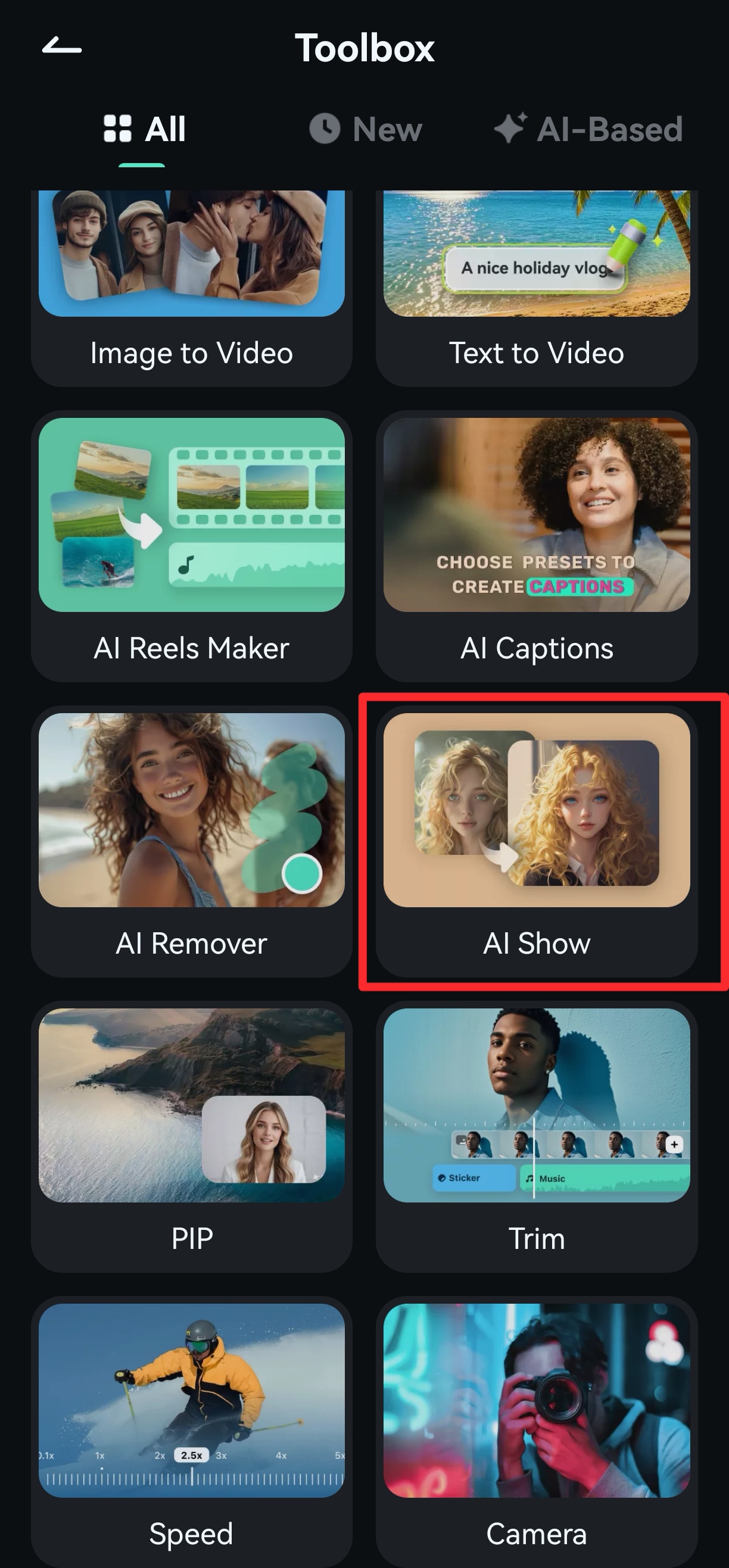
To use AI Show, please follow the steps below to find this function:
First, please click the 3 dots icon in Filmora homepage to enter Toolbox.
Find AI Show in Toolbox.
Filmora’s AI Show tool features dozens of image and video templates for stunning and exciting edits; you only need to pick one.
1. Tap the Image or Video tabs depending on the type of AI Show you want to create.

2. Pick one of the available templates in that category.
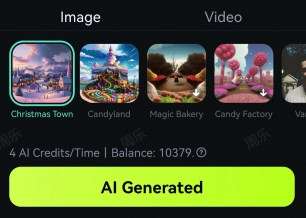
3. Click the AI Generated button at the bottom.
Once you’ve selected one of the available templates for the app’s AI Show tool, you’ll need to pick an image from your phone’s gallery to add to the show.
1. Tap the tiny Arrow button next to Album to access your phone’s specific gallery folder.
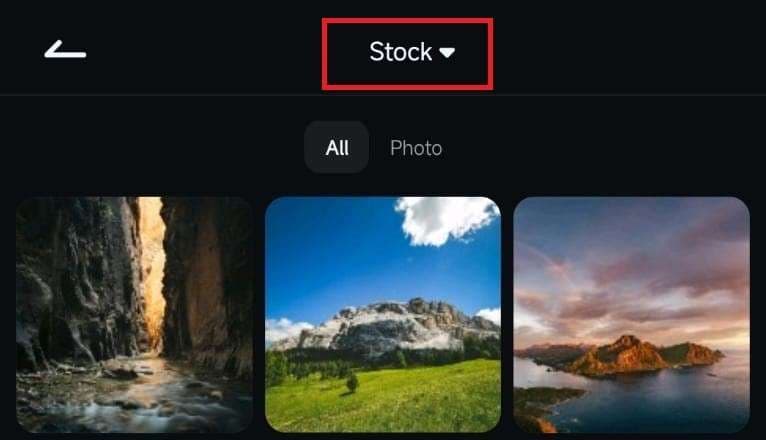
2. Find a photo you’d like to use for Filmora’s AI Show and tap on it to select it.
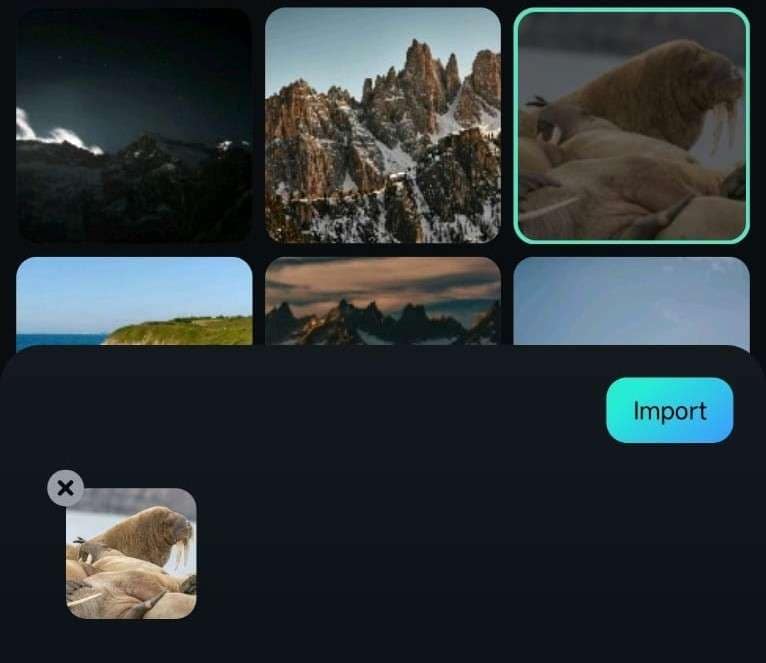
3. Click the Import button in the bottom right corner
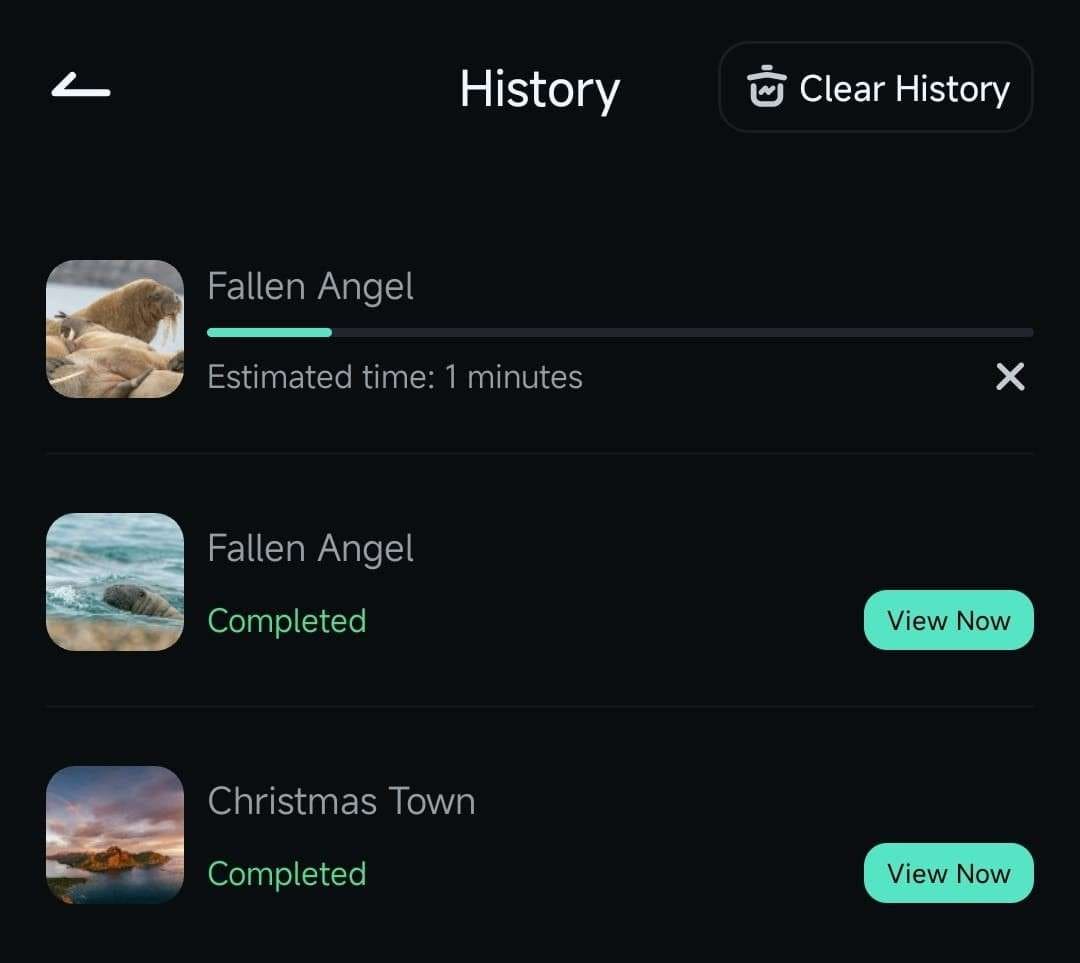
4. Give the AI Show feature a few seconds to generate an edit. Once it’s done, you can tap the View Now button next to it to see what it came up with.
Was This Helpful?
Thanks for your feedback.
Can you tell us what didn't work for you?
Email address is optional. Leave it blank if you do not need follow-up.
Feedback sent!