Once you’ve added your videos or photos and are inside the Work Area, you can follow this short guide to enable the Smart Cutout tool:
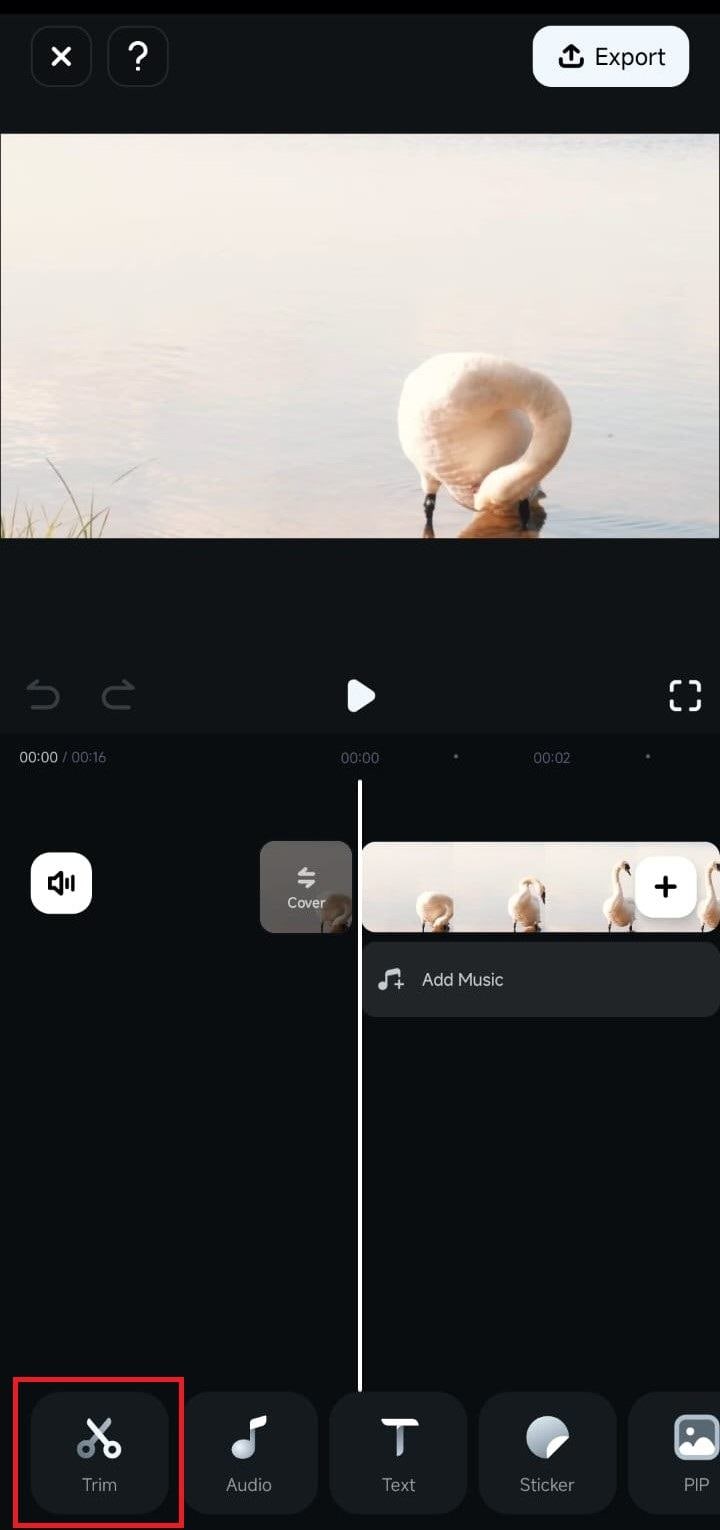
1. Tap Trim in the Toolbar at the bottom.
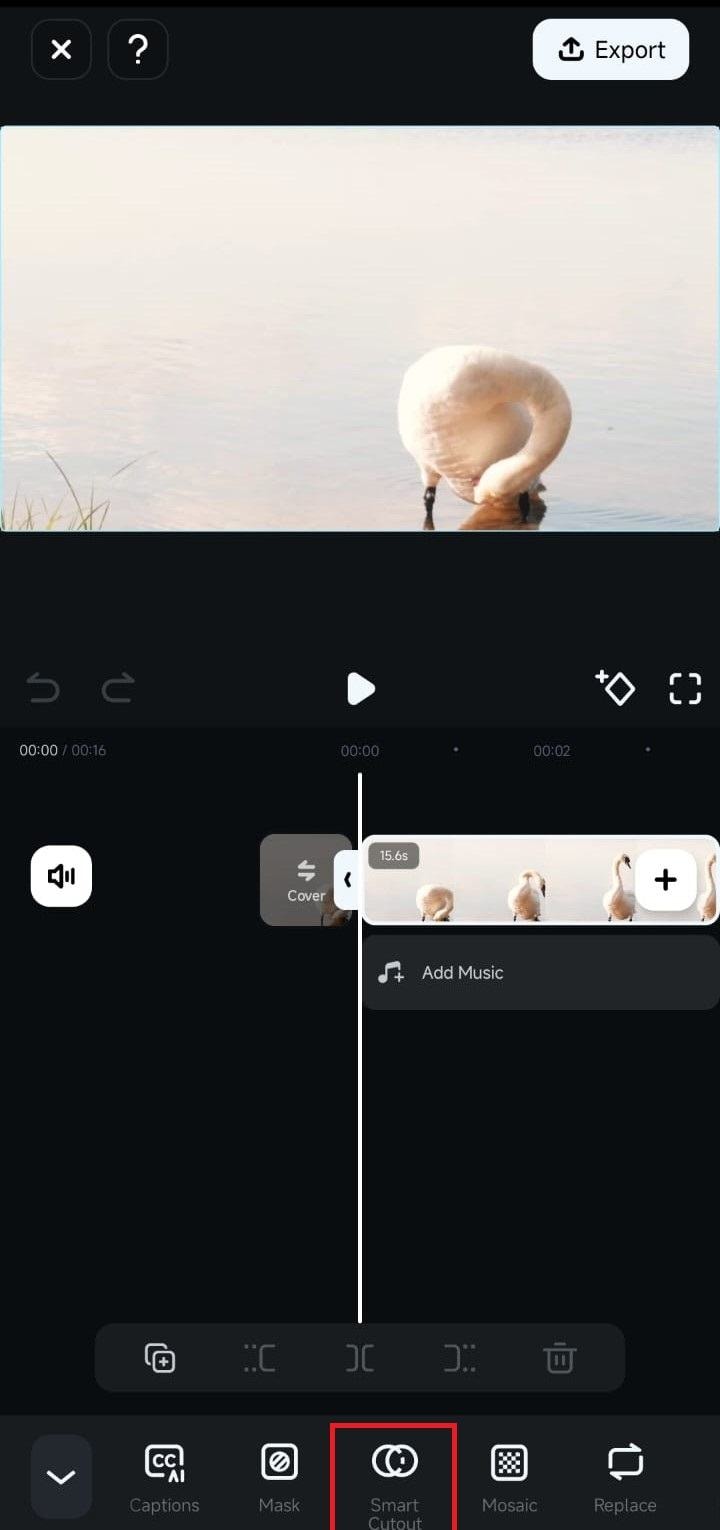
2. Swipe in the menu bar and click the Smart Cutout option.
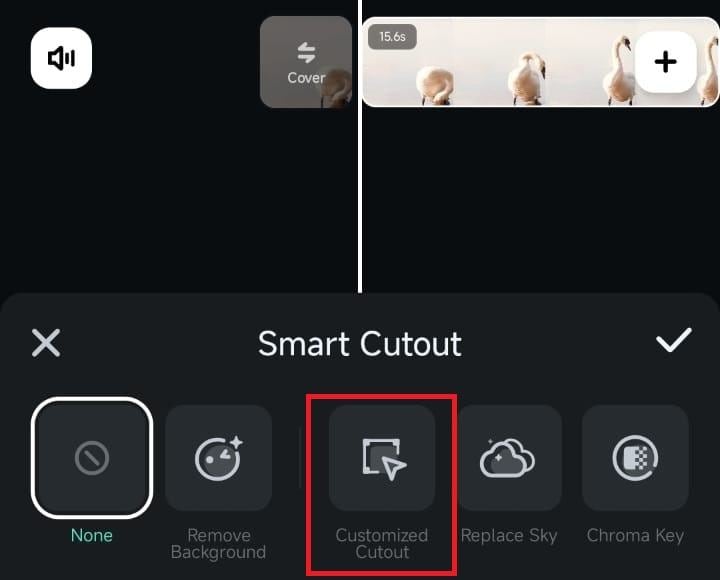
3. Tap on Customized Cutout in the Smart Cutout submenu.
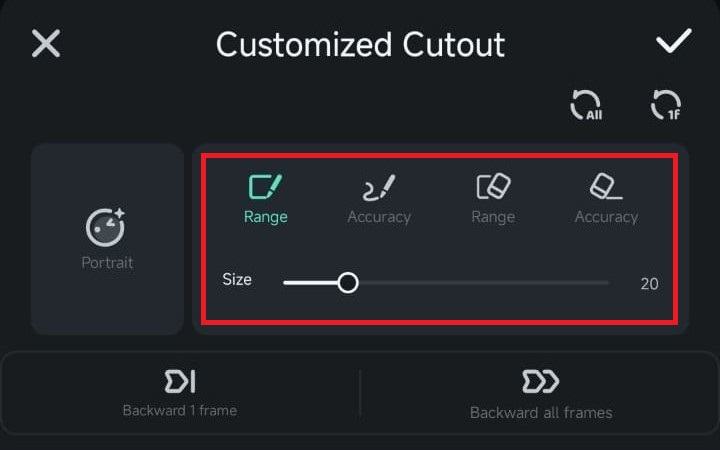
4. Adjust the Range and Accuracy Size settings and brush over the object you want to remove from the video or photo.
5. When satisfied with the cutout, tap the Checkmark button to let Filmora’s AI handle everything.
Was This Helpful?
Thanks for your feedback.
Can you tell us what didn't work for you?
Email address is optional. Leave it blank if you do not need follow-up.
Feedback sent!