Once you’ve added the text to the video, please follow these steps to try Text-to-Speech:
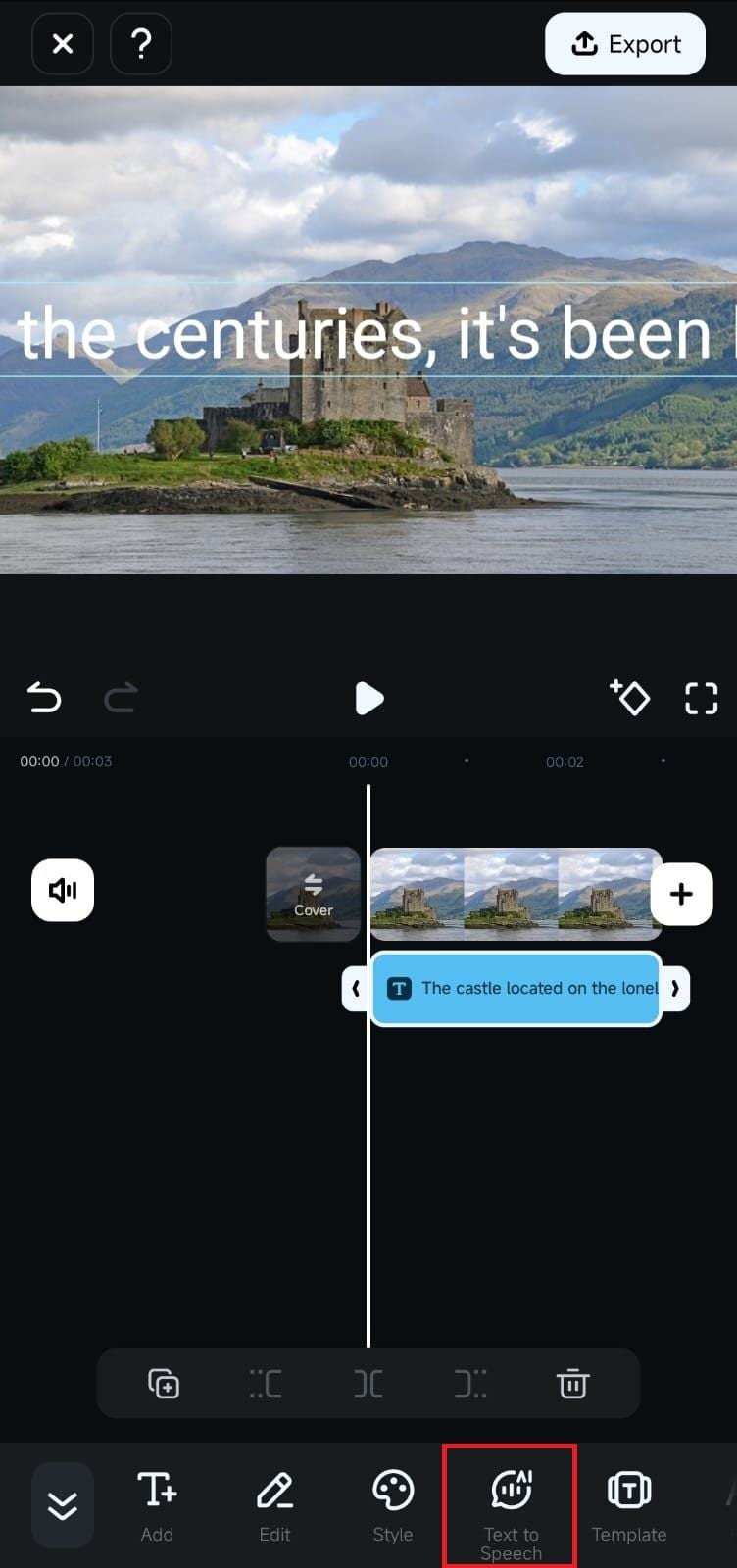
1. Tap the text in the Timeline to select it, and the Toolbar at the bottom will change.
2. Click the Text-to-Speech button.
3.New Choose Voice window will pop up. You can then browse the various tabs like Trending, Narration, News, Ads, etc. Tap a voice to preview it and find the perfect voice for your specific clip.
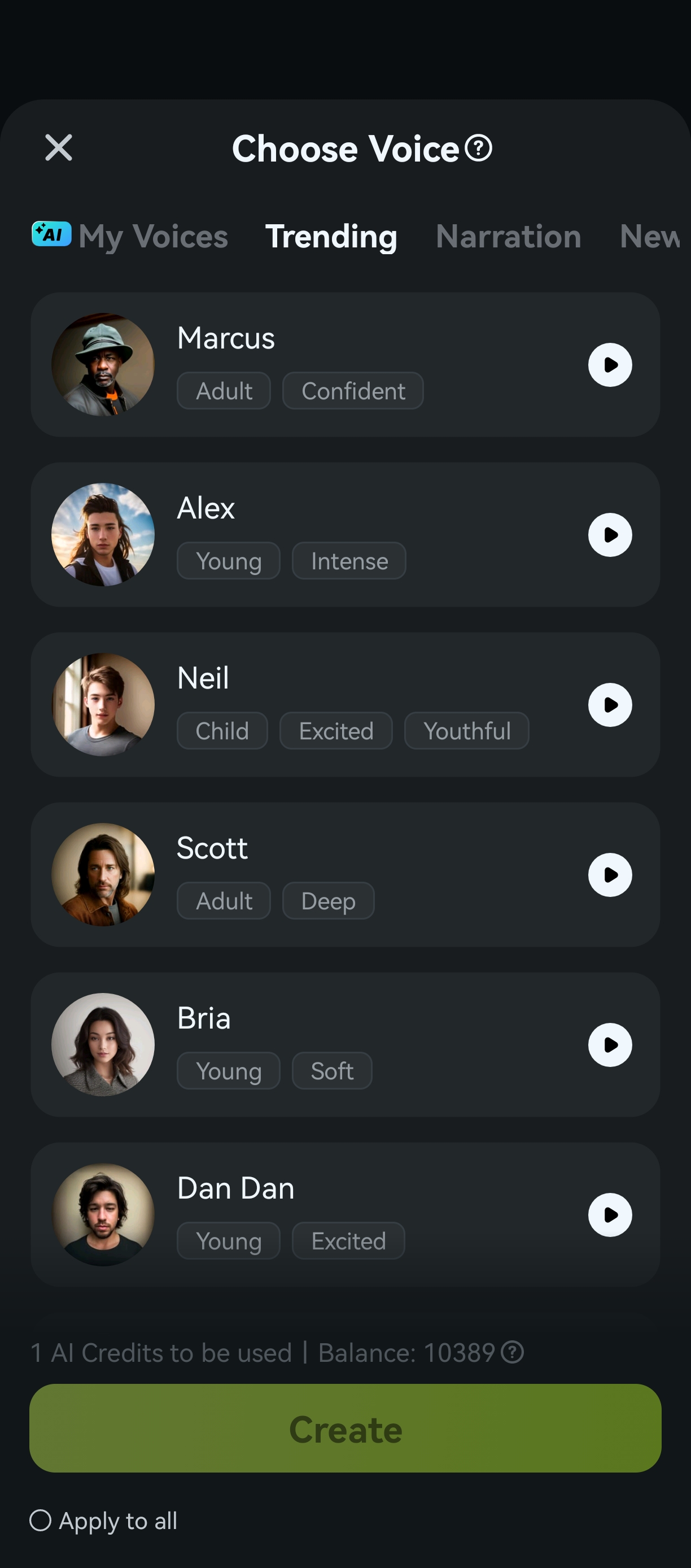
4. Once you know which AI voice you want to add, select it and tap Create. The app will transform your text into your chosen voice in seconds.
For more detailed operations, please watch the following video instructions.
Was This Helpful?
Thanks for your feedback.
Can you tell us what didn't work for you?
Email address is optional. Leave it blank if you do not need follow-up.
Feedback sent!