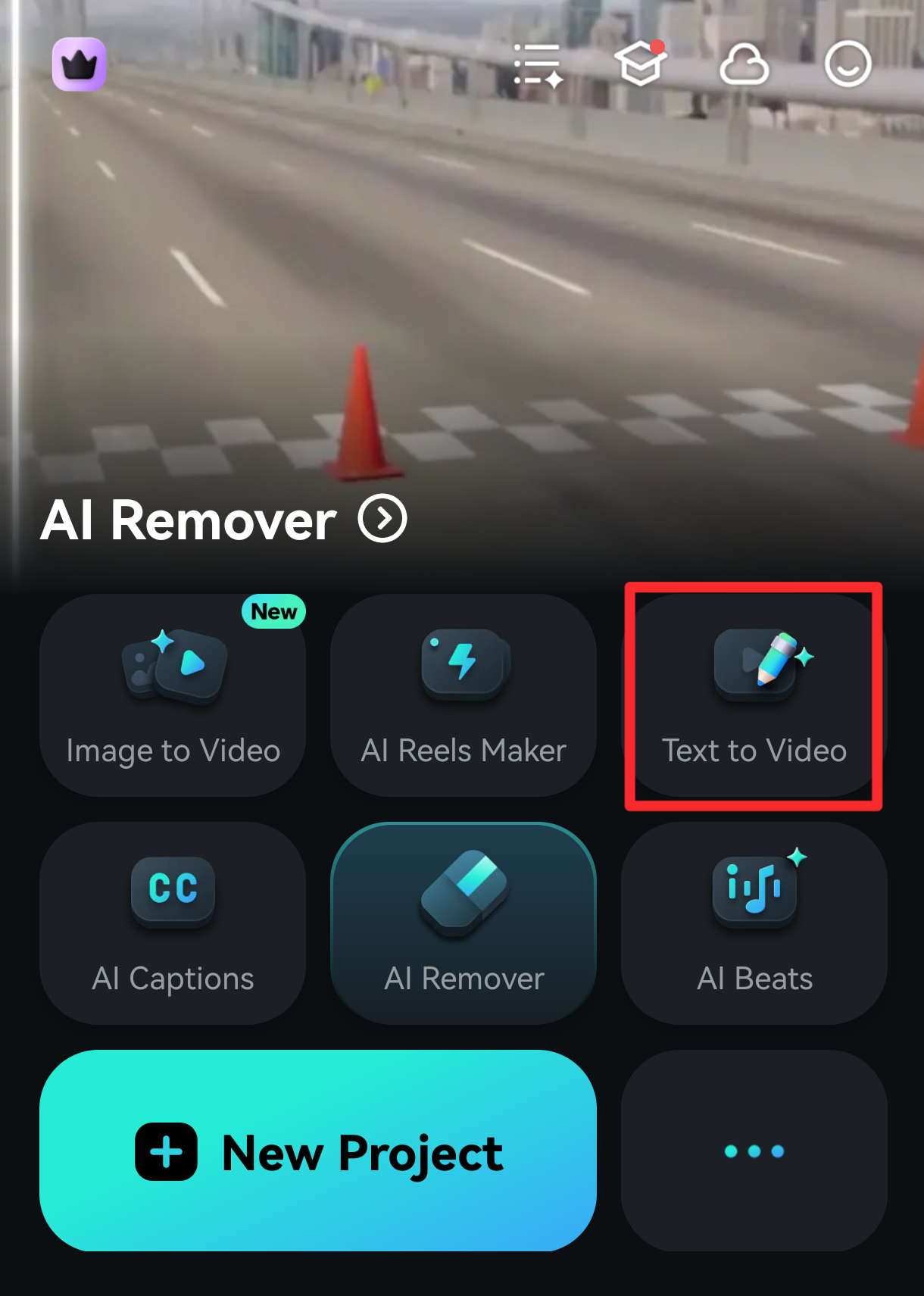
To use Text to Video feature in Filmora mobile, you can access it by tapping the Text to Video option in the Quick Access panel in the homepage of Filmora mobile.
Once you launch Filmora’s Text to Video tool, you’ll see a screen divided into several sections. The first section shows a text input field and asks you to describe the video’s topic. Moreover, the other two sections include the Settings area and the Inspiration Library, but more on these later in the guide.
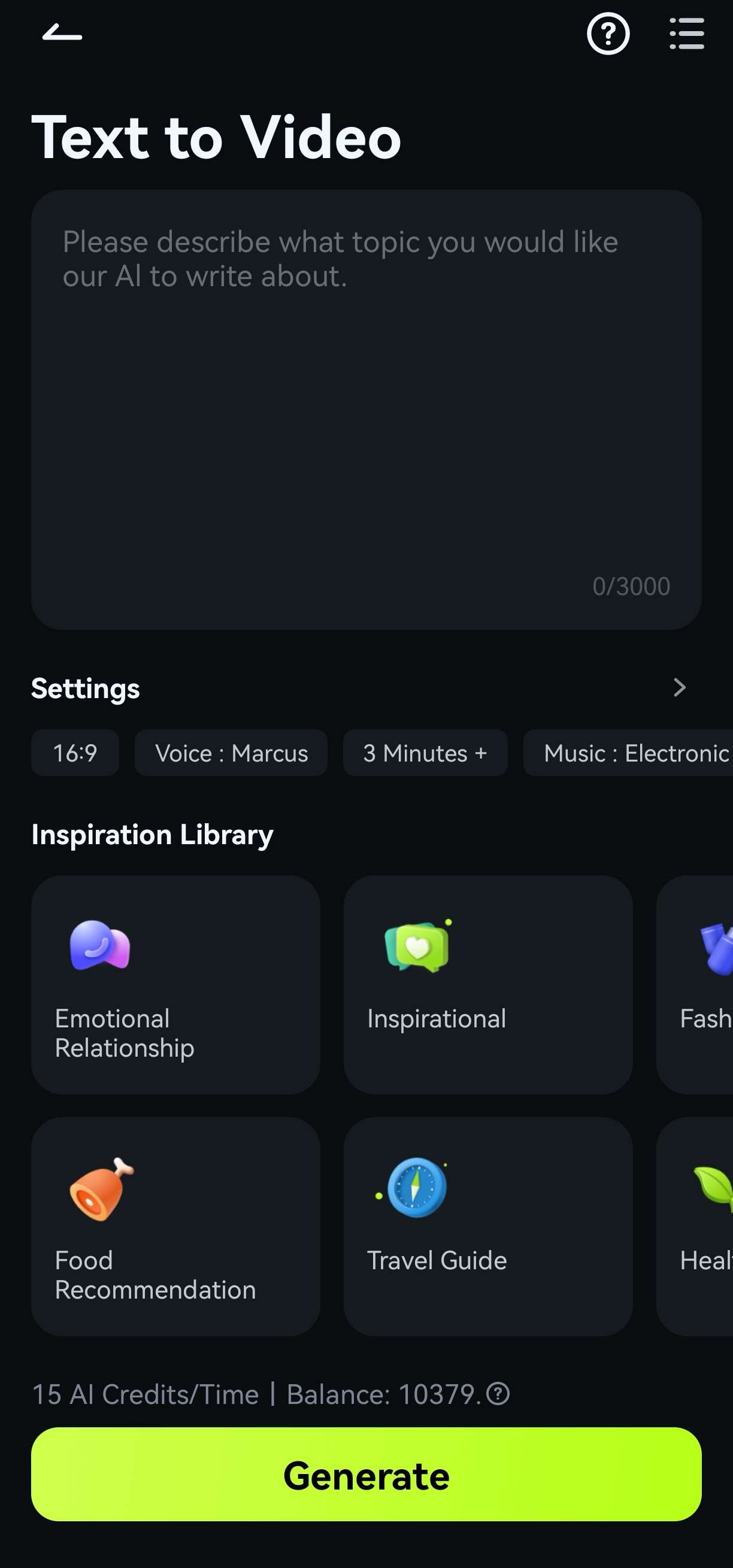
To generate the video, you must add a textual prompt for Filmora’s AI engine. The more detailed the prompt, the better the AI engine will understand what you want to create. You have 3,000 characters to play with here.

Adjust the Settings
Right below the text input field is the Settings area, where you can scroll from one side to the other and see the chosen options. Clicking any of these options will open the extensive Settings menu, allowing you to adjust these options to your liking.

1. The first half of the Settings menu has options that let you use Filmora’s intelligent AI copywriting engine, add subtitles, switch between portrait and landscape modes, and customize the video’s length. Adjusting options in this area allows you to create a unique video and stylize it exactly how you want.

2. Right below is the second half of the Settings menu, which deals with the audio aspect of the generated video. In it, you can pick specific music to add to the generated clips and choose a voice that’ll perfectly fit your video with harmonious narration.

3. When you’re done adjusting these options, close down the Settings menu and tap the Generate button at the bottom of the screen.
Was This Helpful?
Thanks for your feedback.
Can you tell us what didn't work for you?
Email address is optional. Leave it blank if you do not need follow-up.
Feedback sent!