Open a Project That Was Uploaded to the Cloud
If your editing project isn’t stored locally on the mobile device, you’ll need to access it from the Wondershare Drive, also known as the Filmora Cloud:
1. Select the Cloud tab in the Project Management panel from the mobile app’s startup window.
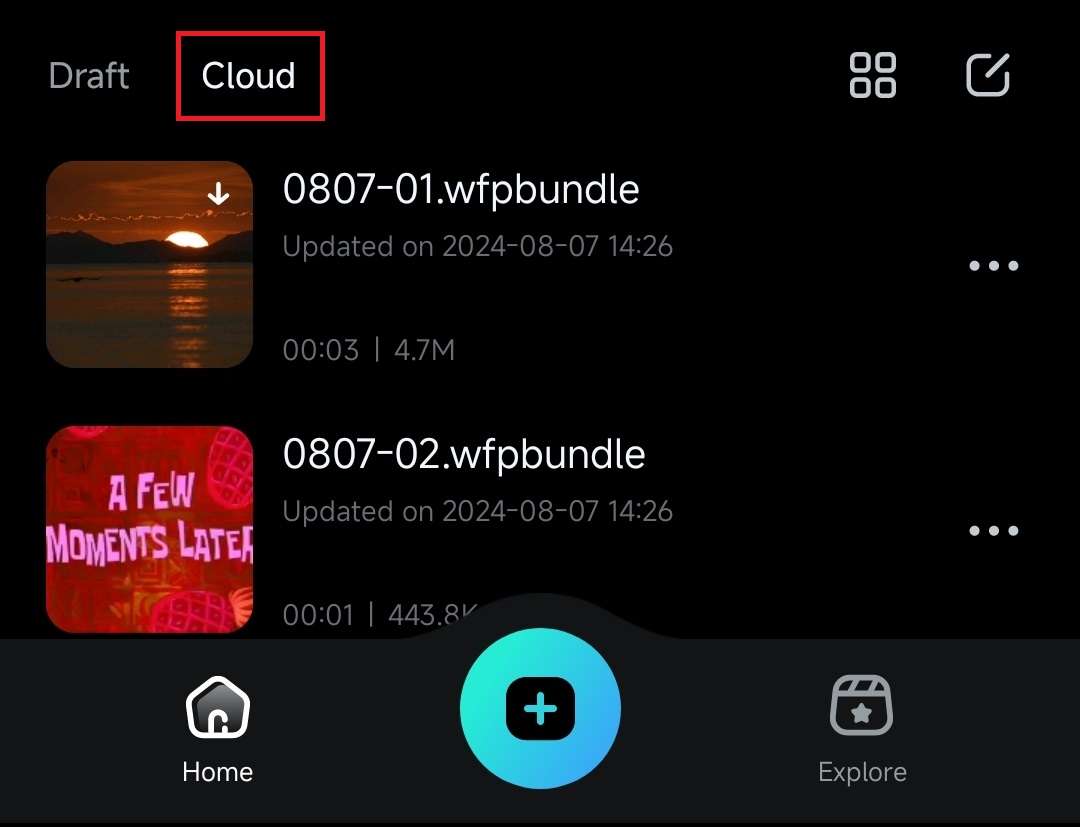
2. Alternatively, tap the Wondershare Drive icon in the top right corner of the screen to access the entirety of your Filmora Cloud.

3. Cloud-saved projects will appear as .wfpbundle files. Click on one and select Download to save the file locally.
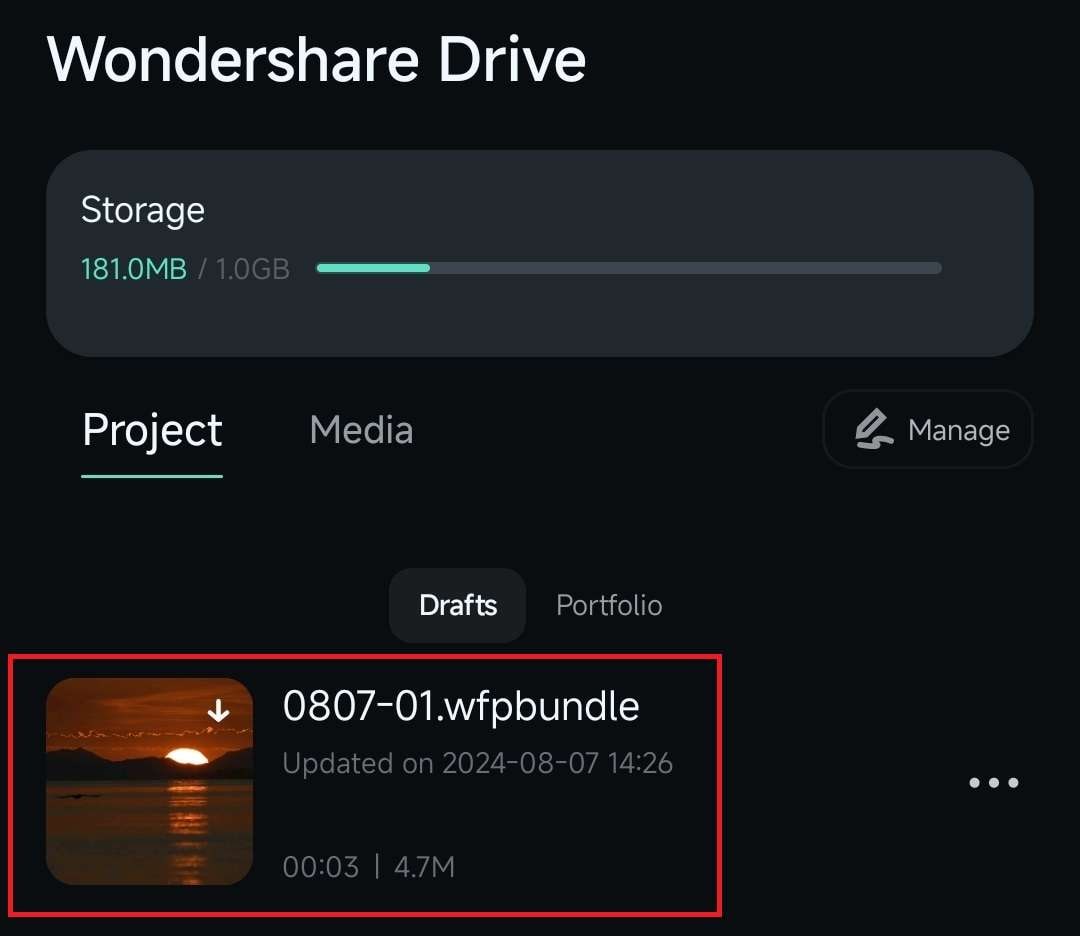
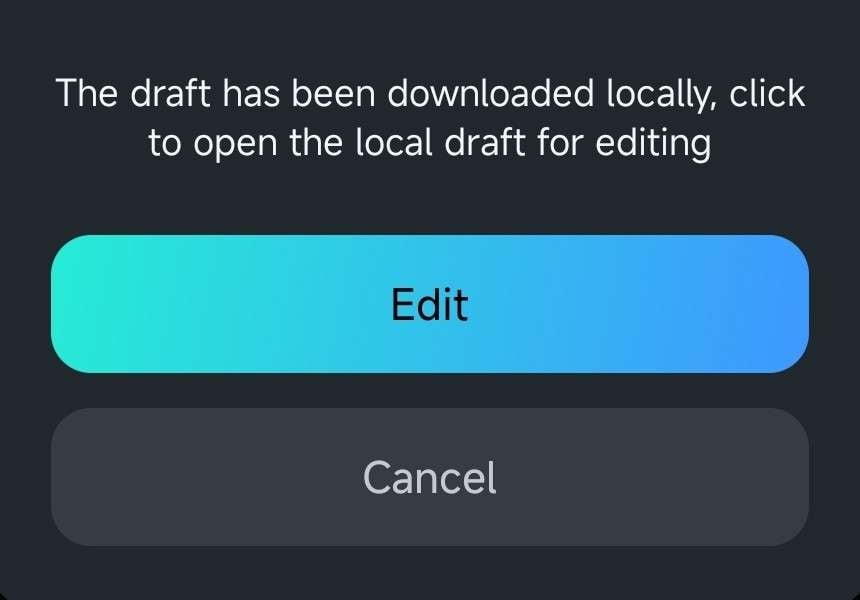
4. Once the project has been downloaded from the cloud, click on it again. Then, tap the Edit option to open the local draft for editing.
Conclusion
If you’ve edited videos and photos with Filmora for Mobile before, the most recent projects will appear first under the Draft tab in the Project Management panel. Similarly, cloud-stored projects can be accessed through the Cloud tab or the Wondershare Drive shortcut in the top right corner.
Was This Helpful?
Thanks for your feedback.
Can you tell us what didn't work for you?
Email address is optional. Leave it blank if you do not need follow-up.
Feedback sent!