Record a Voiceover
Once you're inside Filmora's Work Area and have a video or image ready to be edited, you can follow these steps to get to the app's Record tool:
1. Tap the Audio button in the app's Toolbar at the bottom.

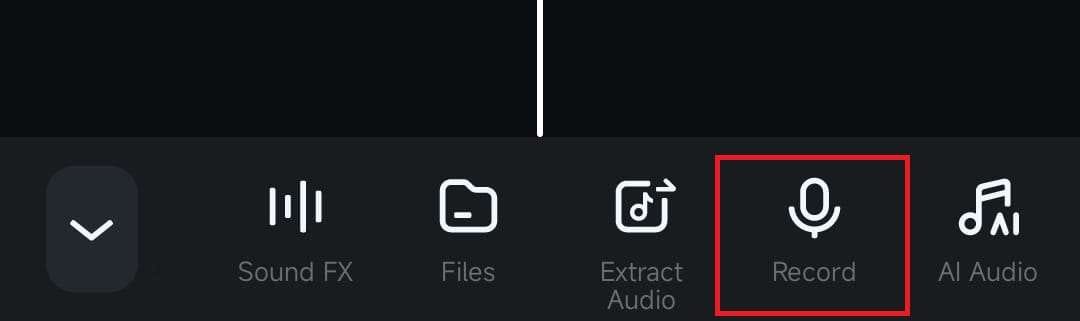
2. Swipe in the Toolbar to find the Record option and tap on it.
3. Click the big red Record button in the middle and start talking into your mobile device's microphone.

4. Once you're done narrating or explaining, tap the red button again to stop recording a voiceover. Then, add the voiceover to your video or photo by clicking the Checkmark button.

Add a Voice Effect to the Recording
If you'd like to spice up your voiceover, Filmora for Mobile also includes multiple unique-sounding voice effects, which can be added straight from the voiceover recording menu.
1. Right after you've recorded a voiceover, tap the Voice Effect button in the recording menu.

2. Select one of the available voice effects, such as Chipmunk, Phone, Robot, or others, and tap the Checkmark button to add it to the recording.

Was This Helpful?
Thanks for your feedback.
Can you tell us what didn't work for you?
Email address is optional. Leave it blank if you do not need follow-up.
Feedback sent!