Add a Video to Filmora’s Work Area
Like most of Filmora for Mobile’s video editing features, the app’s Reverse tool is available through the Work Area. You can access it by creating a new project or opening an existing one and looking in the Trim menu.
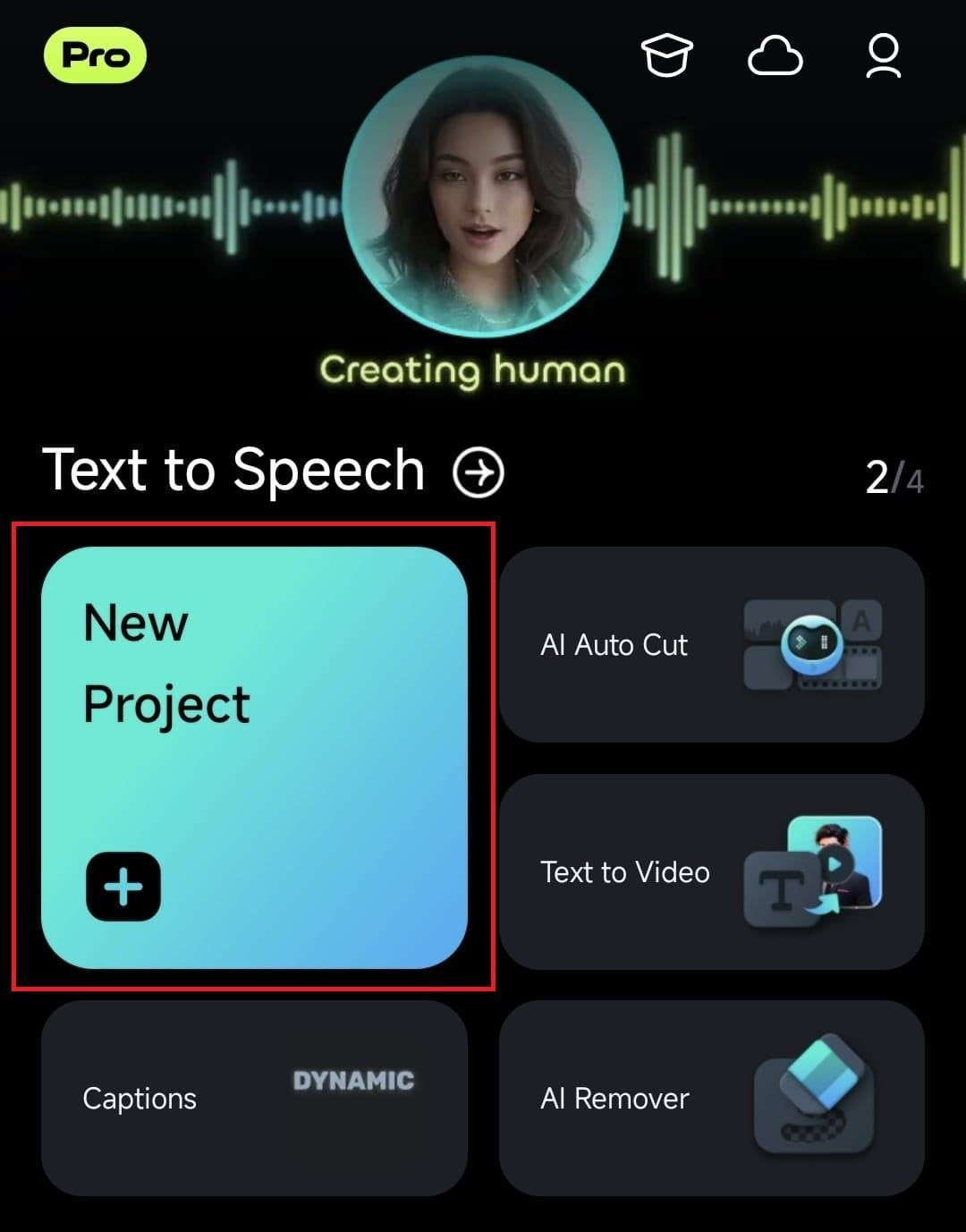
1. Launch the mobile editing app and use the New Project button in the Quick Access panel on the homepage.
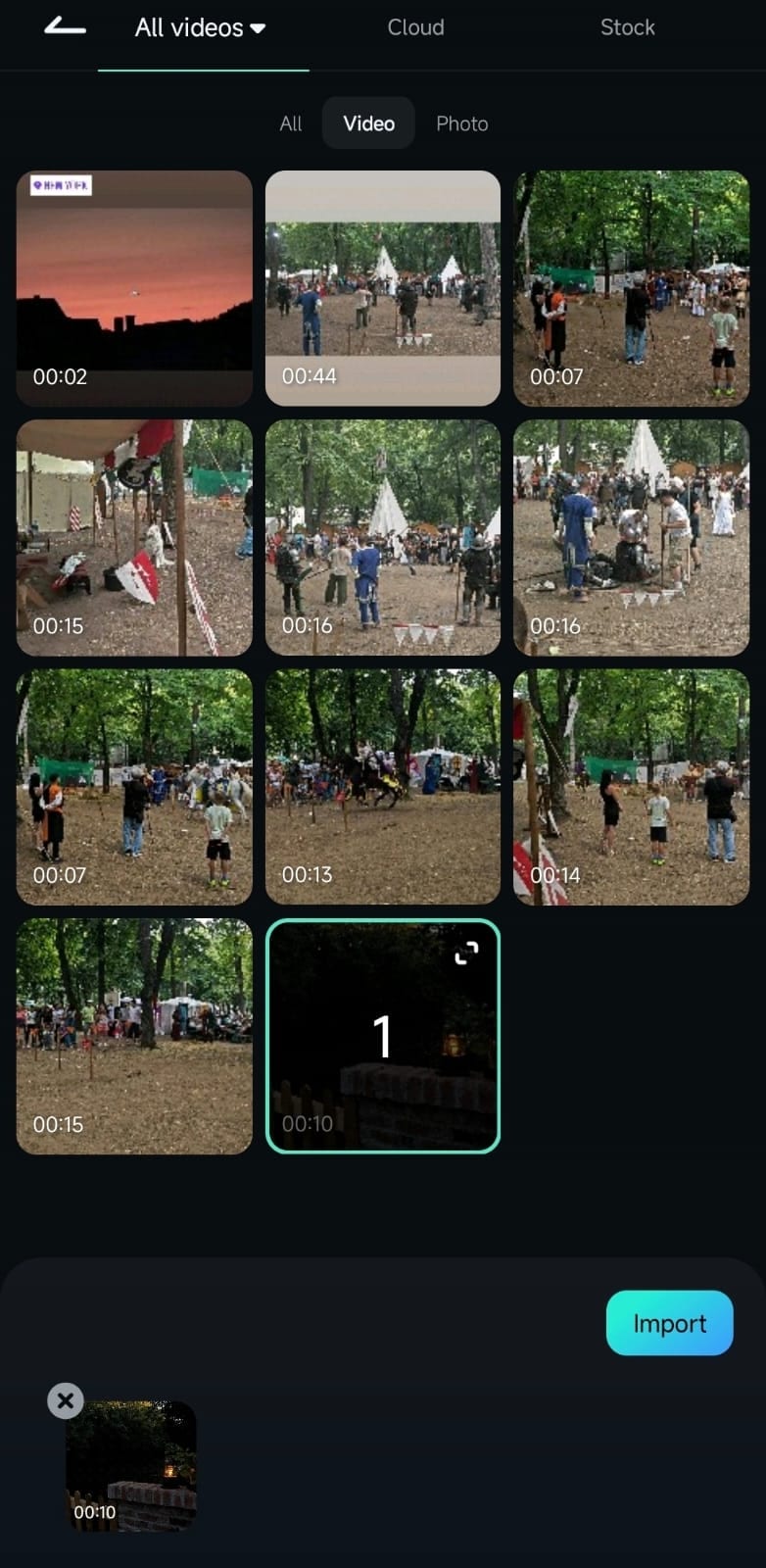
2. Find a video that you want to reverse, tap on it to select it, and hit Import.
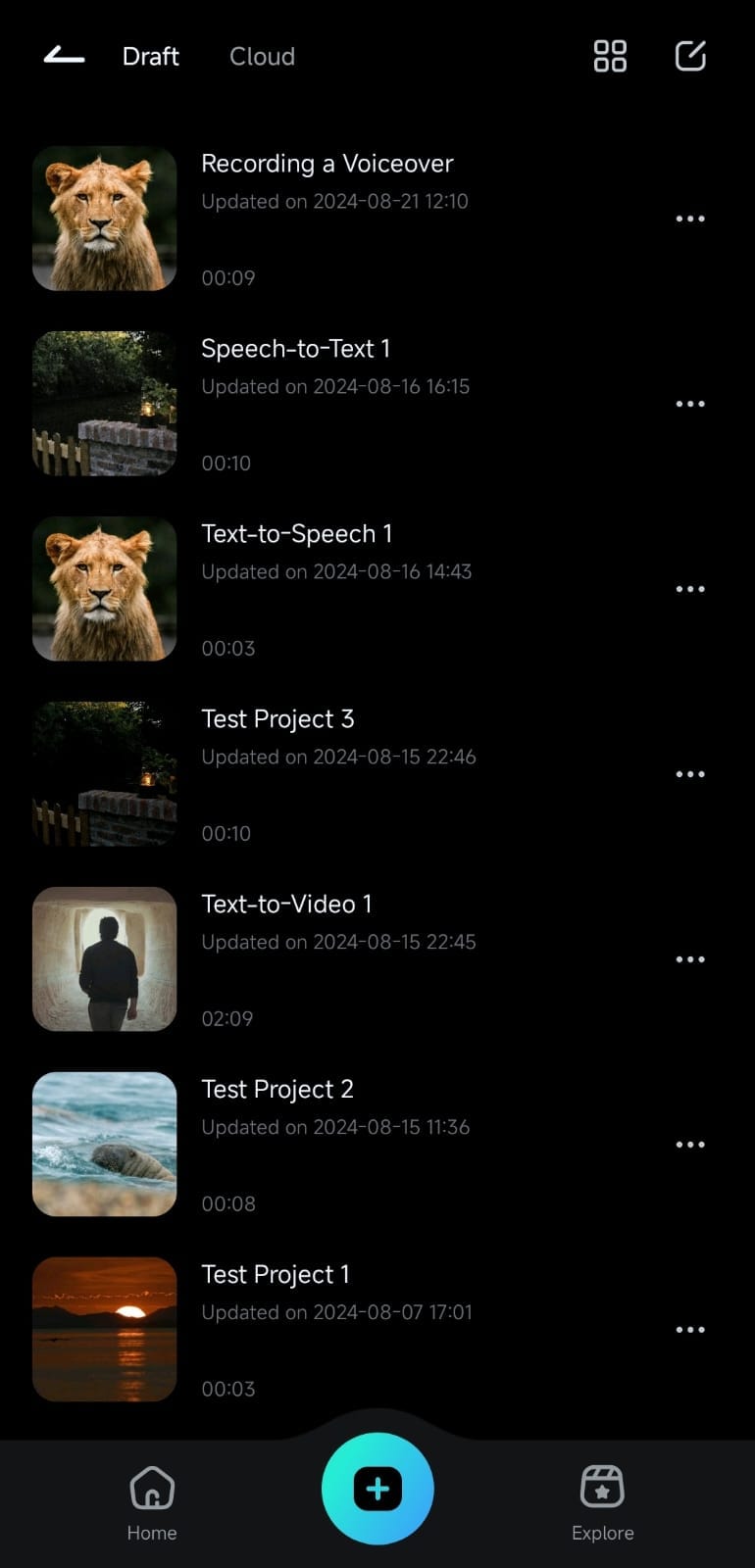
You can also open the Project Management panel, look through drafts and cloud-stored items, and open an existing editing project.
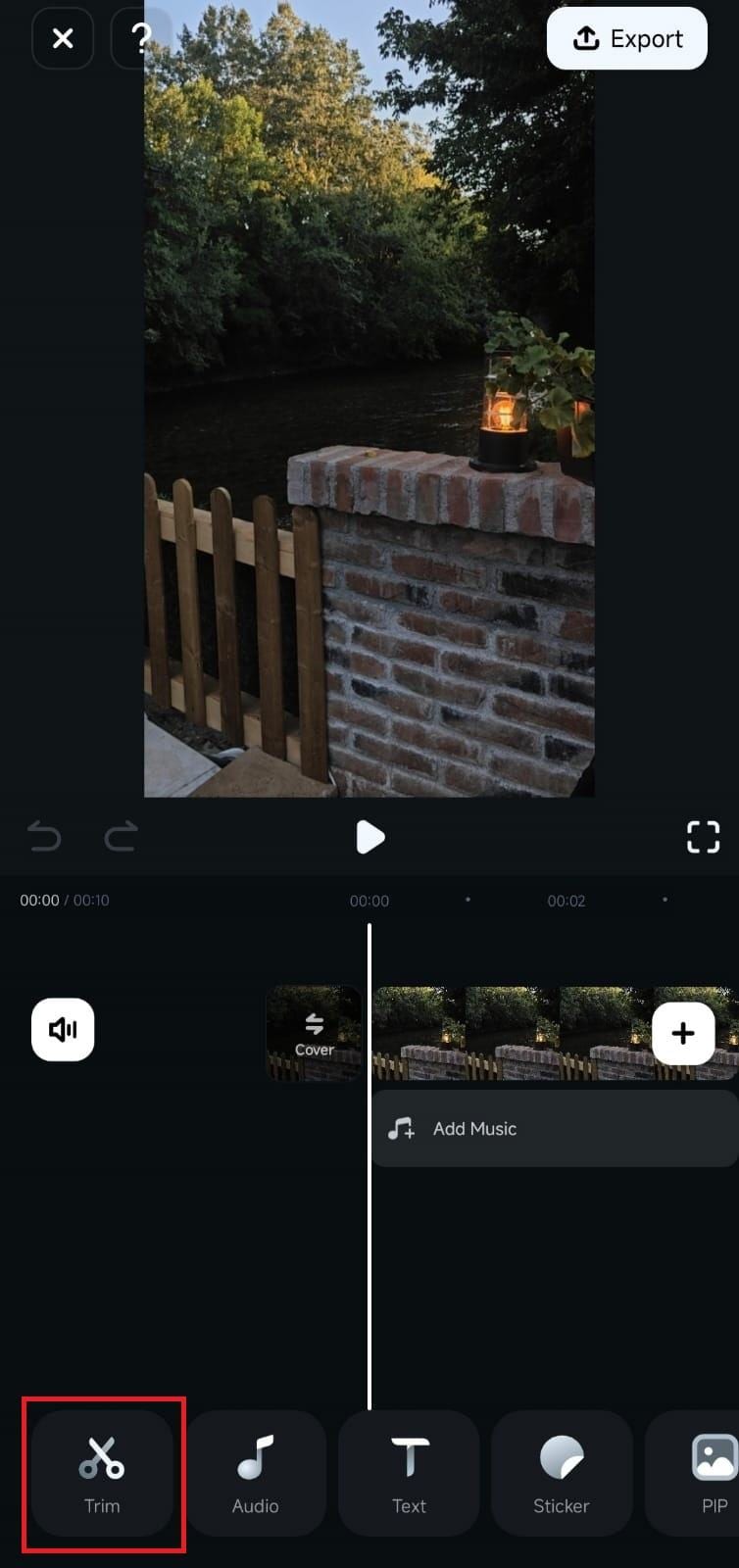
3. After getting to Filmora’s Work Area, tap on the video in the Timeline to select it, and hit the Trim button at the bottom.
Apply the Reverse Effect to Your Video
Once inside Filmora’s Trim menu, scroll the Toolbar until you find the Reverse option. When you do, it only takes a single tap, and the app will automatically reverse the video.
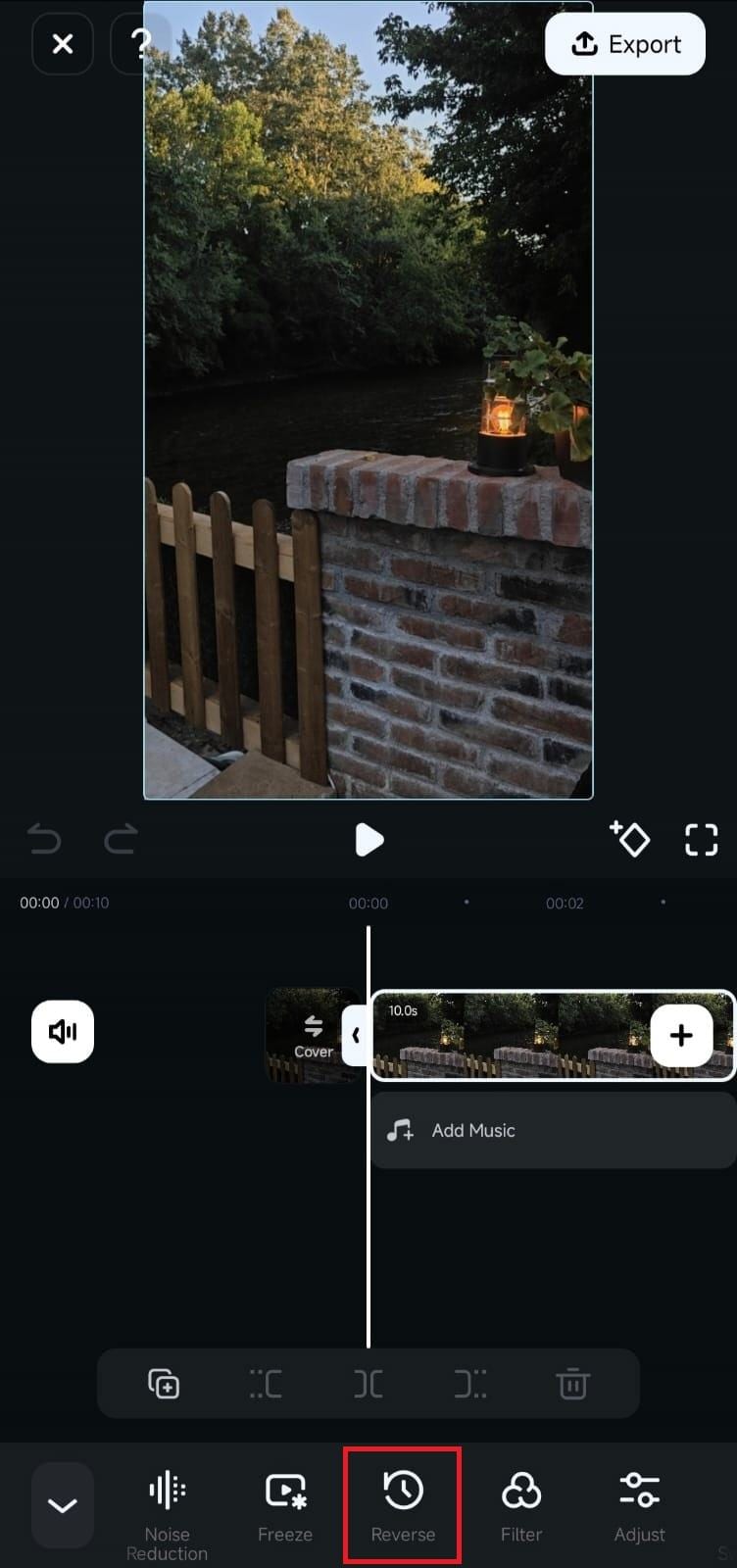
Play the video to check if you’re satisfied with the effect, and save it by clicking the Export button in the top right corner of Filmora’s Work Area.
For more detailed operations, please click on the following video instructions.
Was This Helpful?
Thanks for your feedback.
Can you tell us what didn't work for you?
Email address is optional. Leave it blank if you do not need follow-up.
Feedback sent!