How to Rotate Video
Locate the Rotate Tool in the Work Area
Filmora’s Rotate tool can be found in the mobile editing app’s Work Area, meaning you’ll first need to import footage by creating a new project or opening an existing one. Here’s how:
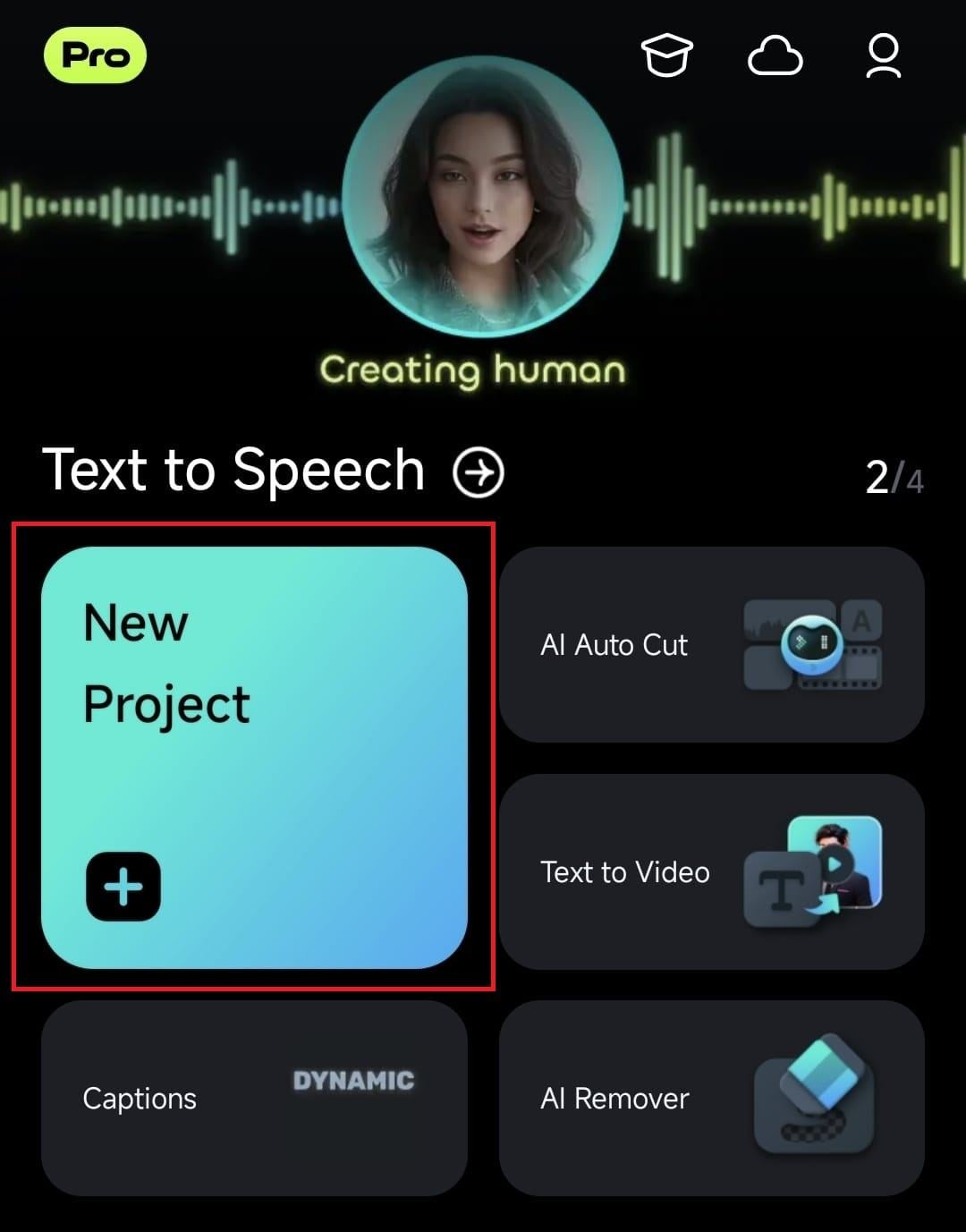
1. Open Filmora for Mobile and hit the New Project option in the Quick Access panel on the startup screen.
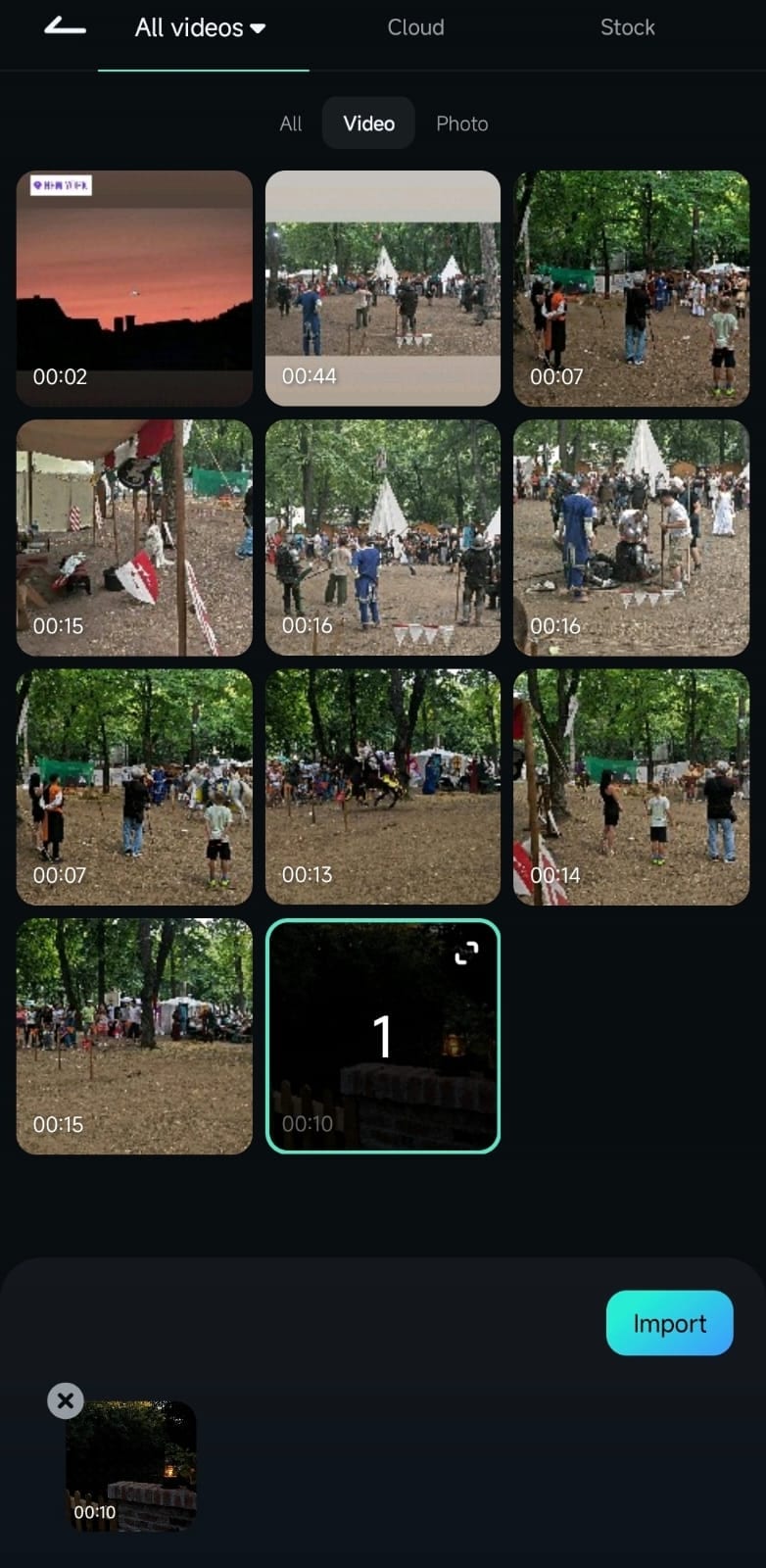
2. Import a video clip by tapping on it to select it and hitting the Import button in the bottom right corner.
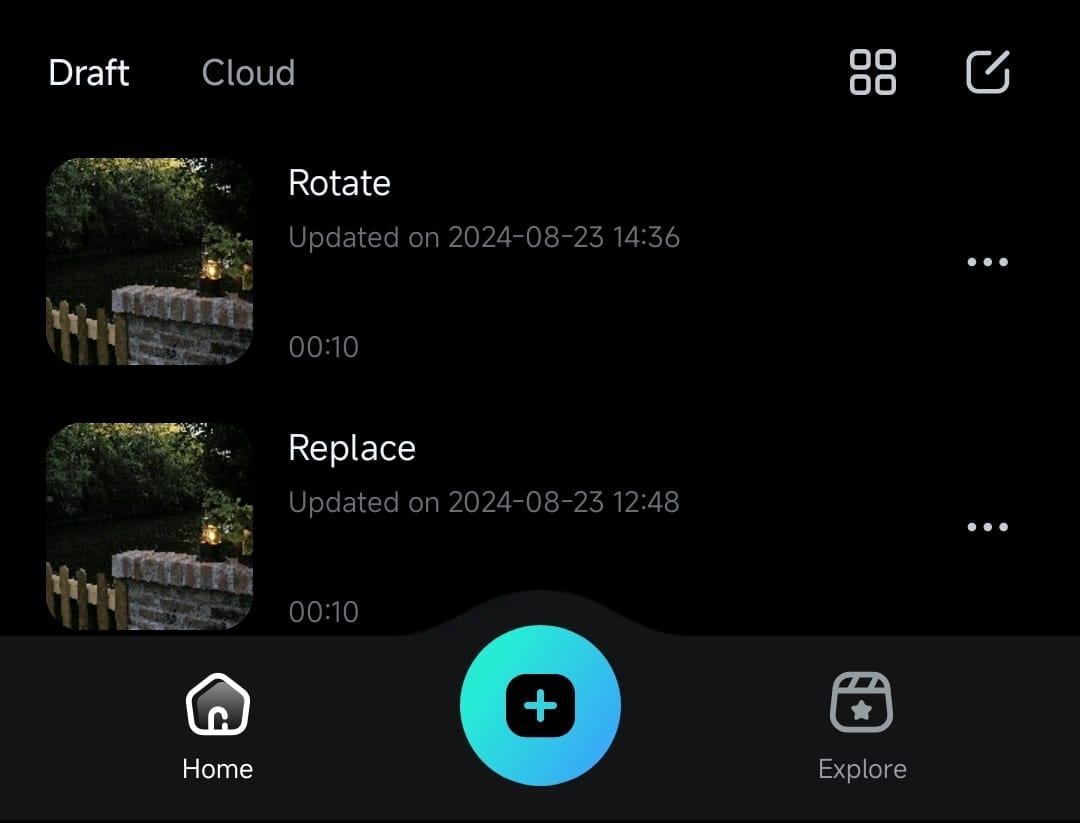
Alternatively, open your existing video editing project by tapping on it in the Project Management panel on Filmora for Mobile’s startup screen.
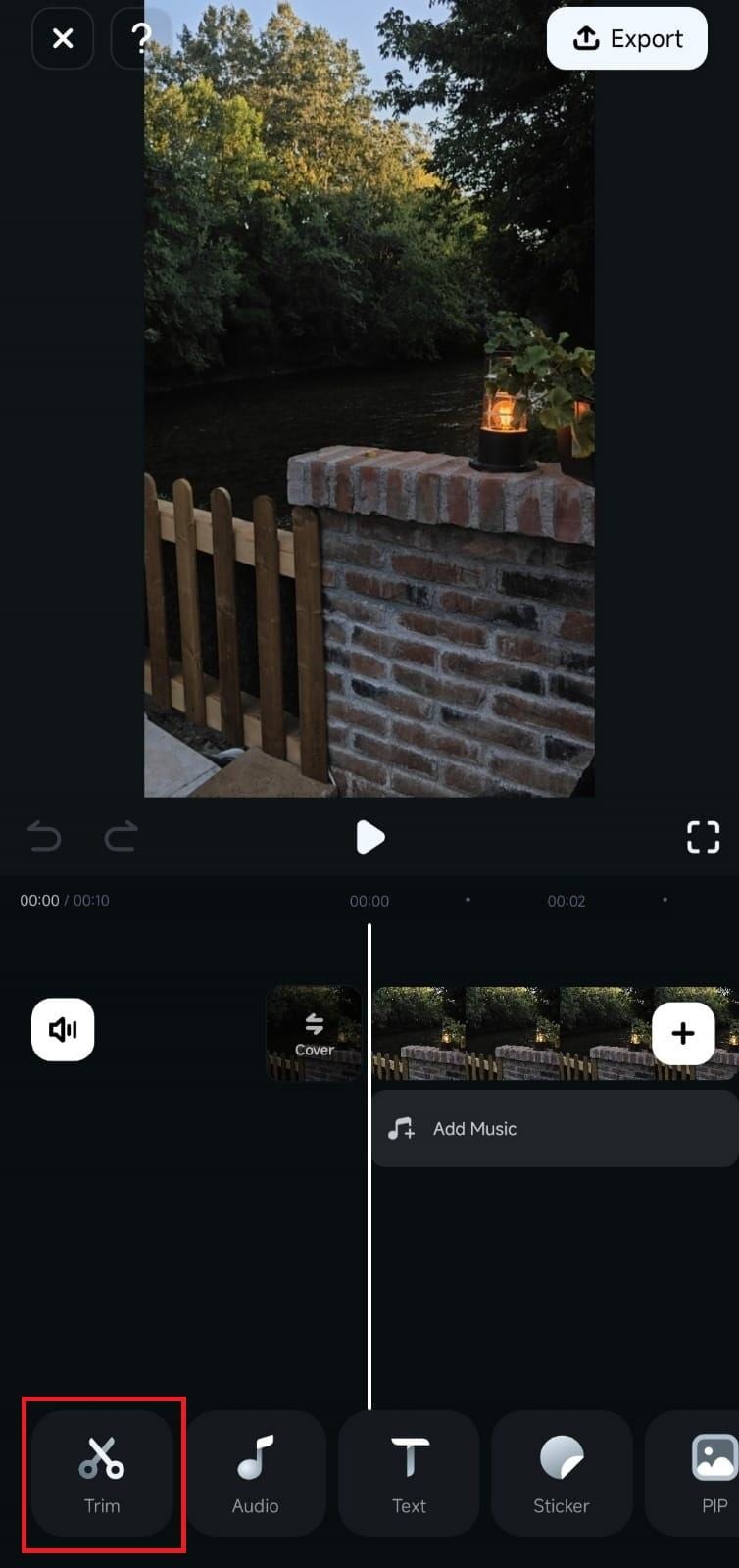
3. Once inside the Work Area, select the video by tapping on it in the Timeline. Then, hit the Trim button at the bottom of the screen.
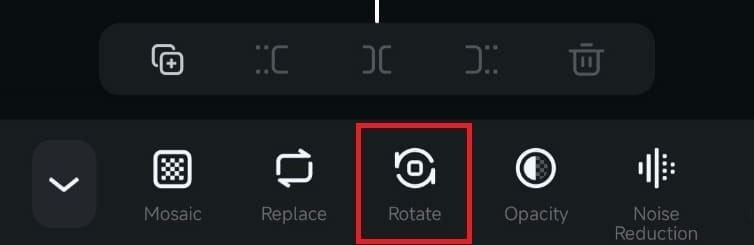
4. Find and click the Rotate tool inside Filmora’s Trim menu.
Adjust and Apply the Rotation
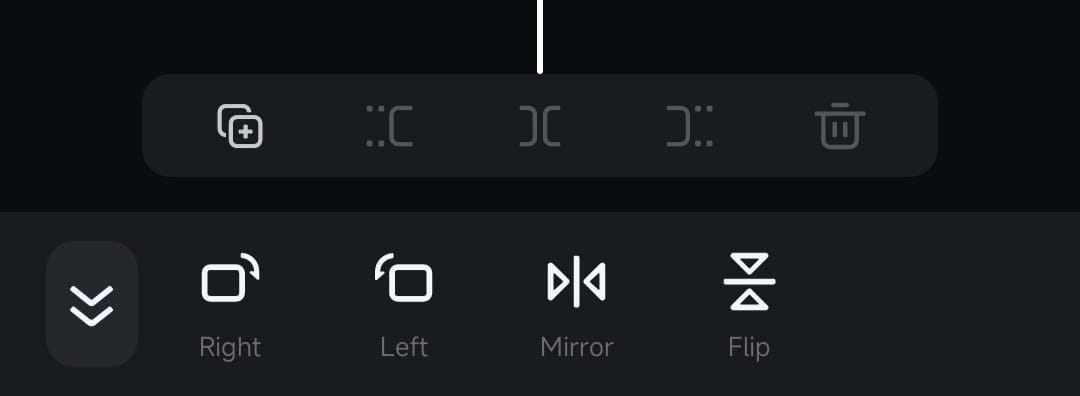
Filmora for Mobile’s Rotate tool offers four video rotation options: Right, Left, Mirror, and Flip. The names and icons of these options suggest the type of rotation they’ll apply.
1. Choose one of the four rotation options depending on whether you want to rotate the video 90 degrees to the side, mirror the footage, or flip it upside down.
2. The effect will be applied instantly, and you can preview the changes in the Player at the top or tap the Export button in the top right corner to save the final video.
Was This Helpful?
Thanks for your feedback.
Can you tell us what didn't work for you?
Email address is optional. Leave it blank if you do not need follow-up.
Feedback sent!