Locate and Open Filmora’s Speed Feature
To speed up a video with Filmora for Mobile, you’ll first need to navigate to the mobile editing app’s Work Area and find the Speed tool. You can do that by opening an existing project or creating a new one and importing a video, and here’s how:
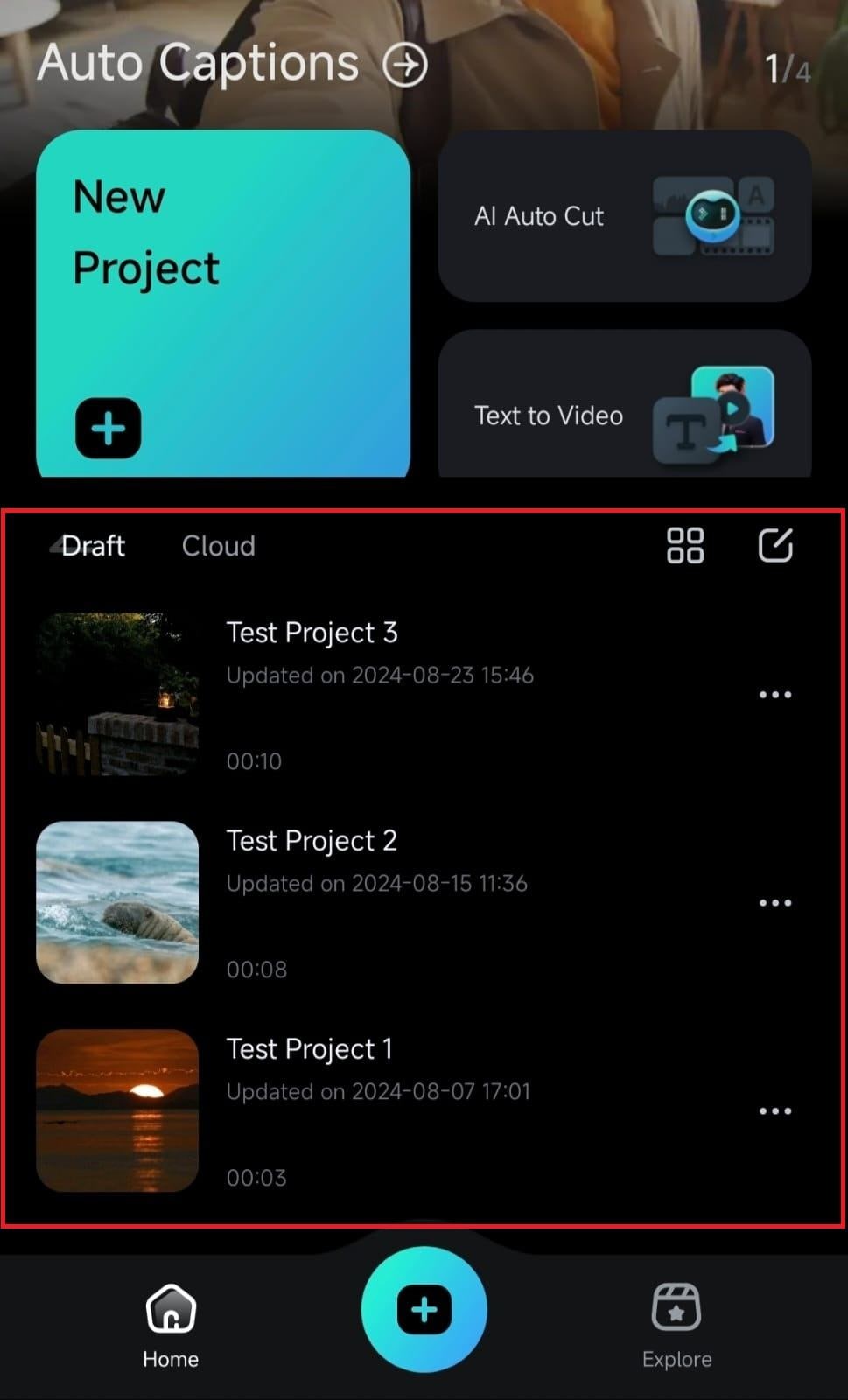
1. Launch Filmora for Mobile and tap on one of your projects in the Project Management panel on the app’s startup screen.
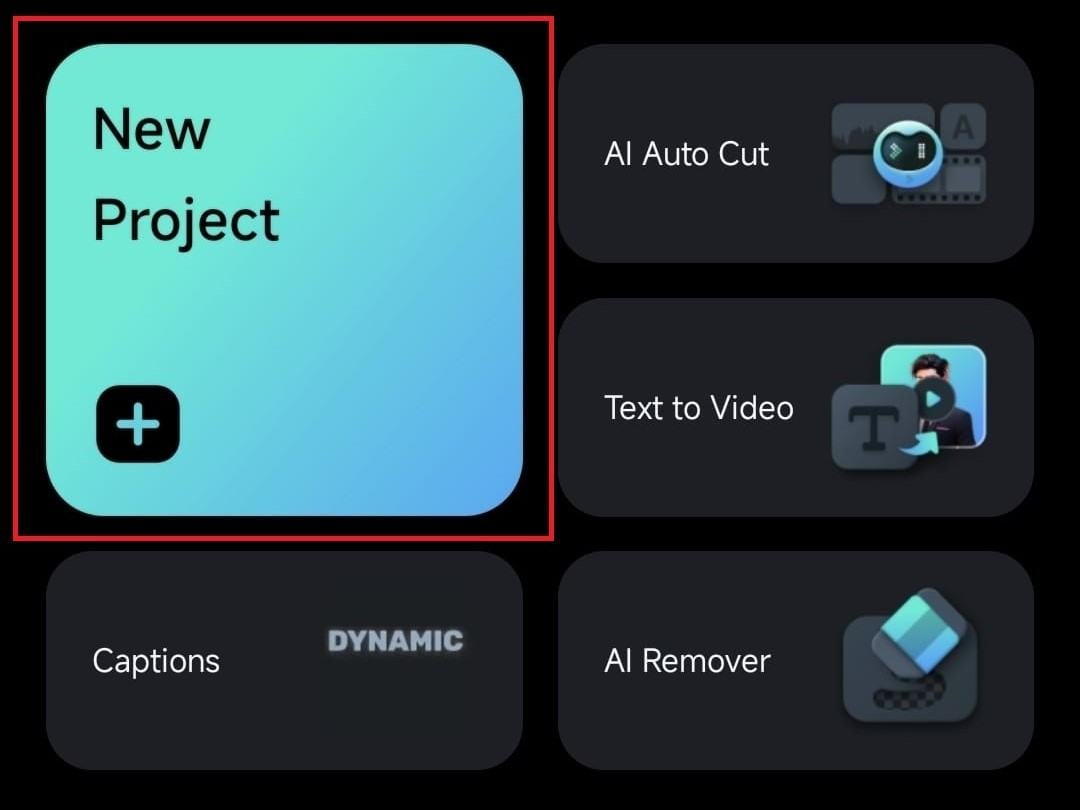
2. Alternatively, tap the New Project button in the Quick Access panel to start from scratch.
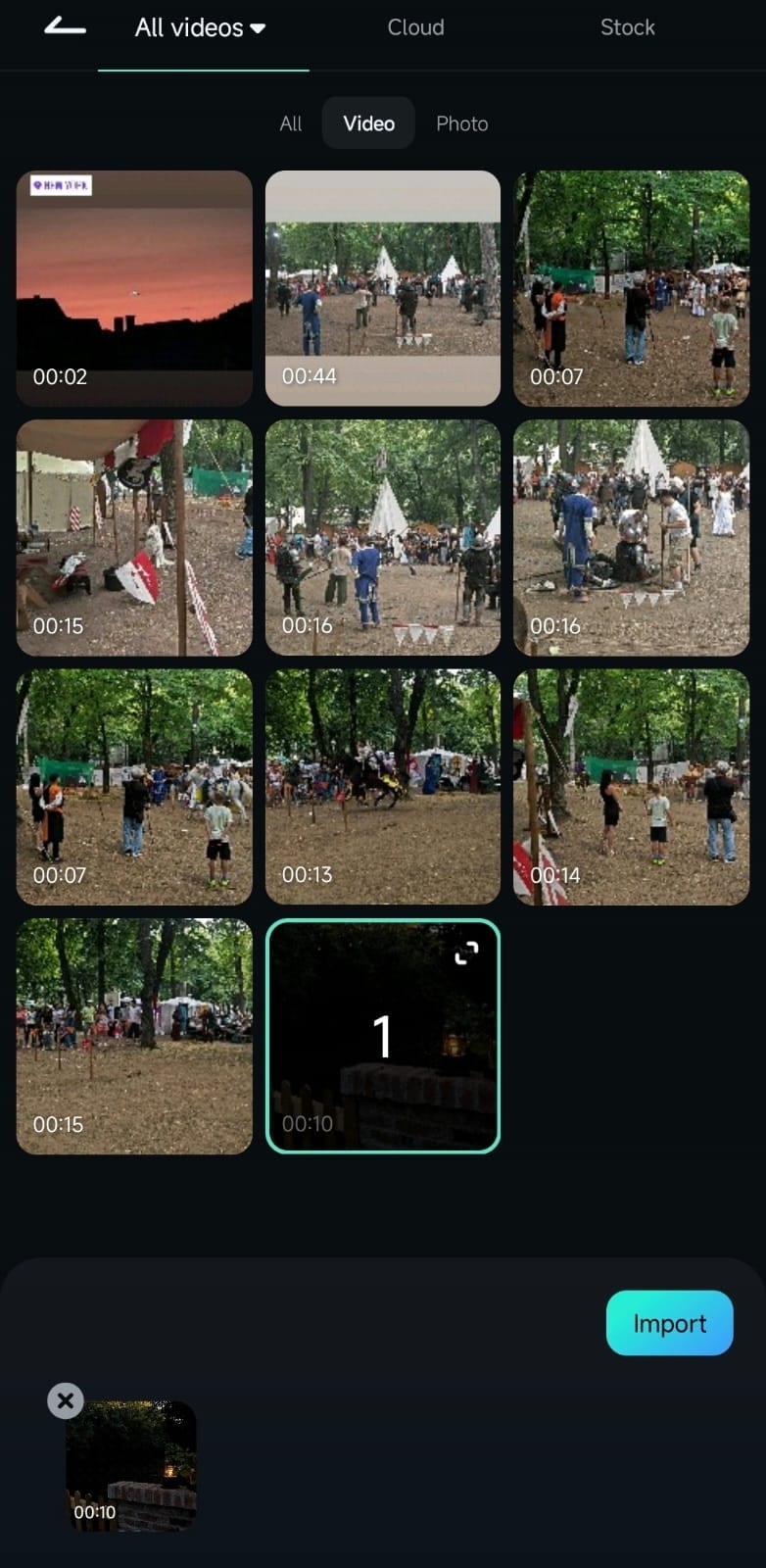
3. Then, browse through your mobile device’s gallery folders, find a video whose speed you want to adjust, and tap Import.
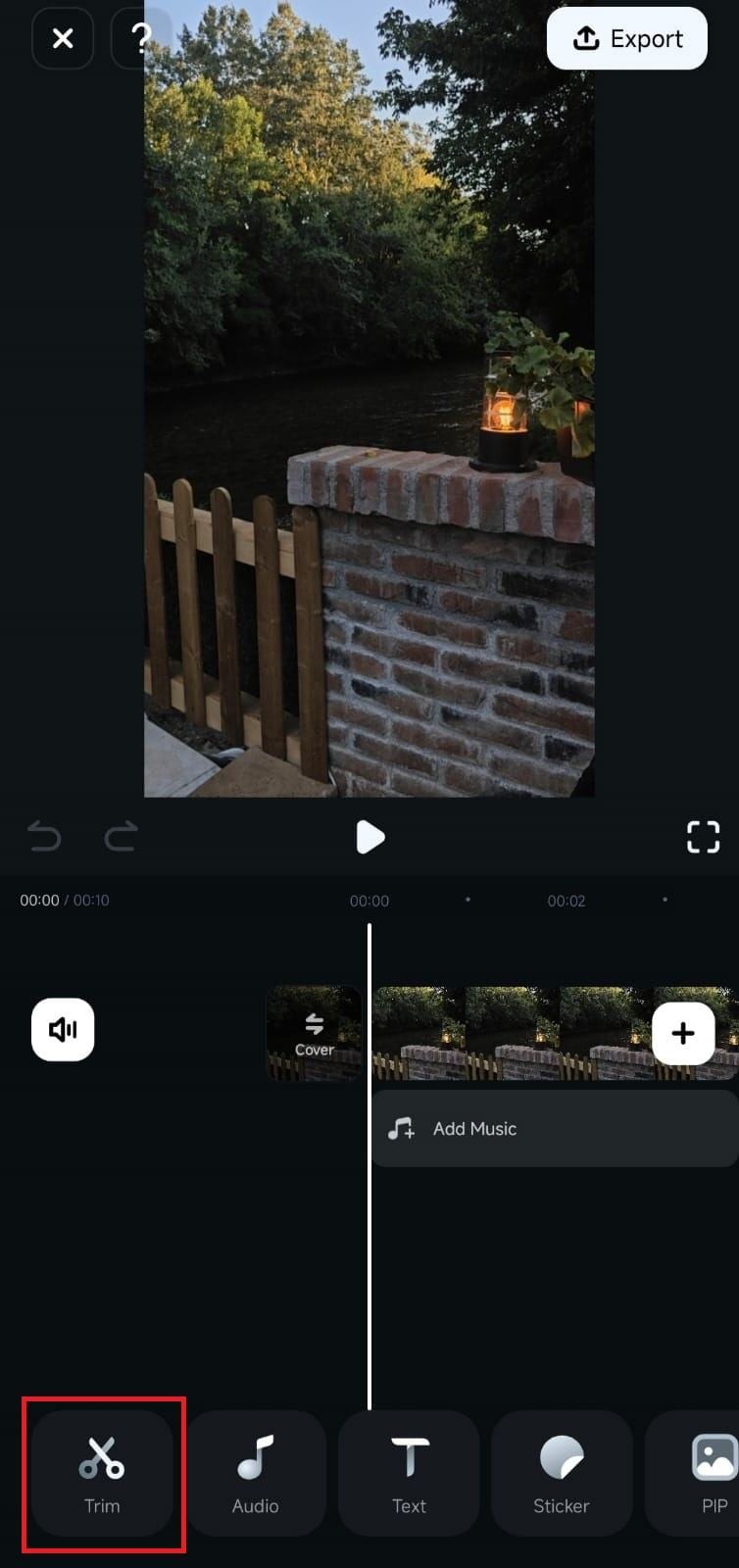
4. Once inside Filmora’s Work Area, tap on the clip in the Timeline to select it and hit Trim in the Toolbar.
4. Find and enable the Speed tool in the Toolbar at the bottom of the screen.
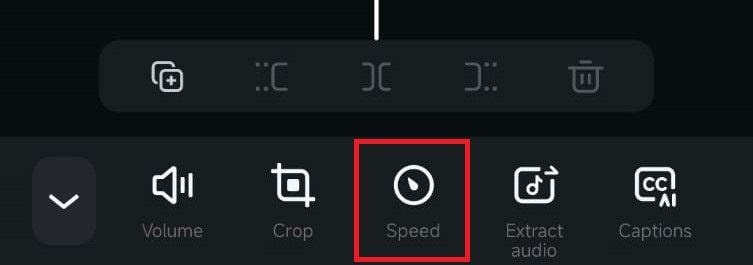
Add a Uniform Speed-up Effect
Filmora will open the speed adjustment panel, starting with the Normal tab as selected. You can then follow these steps to speed up the entire video evenly:
1. Drag the slider from 1x to the speed you want. The bottom part will show the change in the duration of the video with the applied speed-up effect, and you can drag it up to 10x.
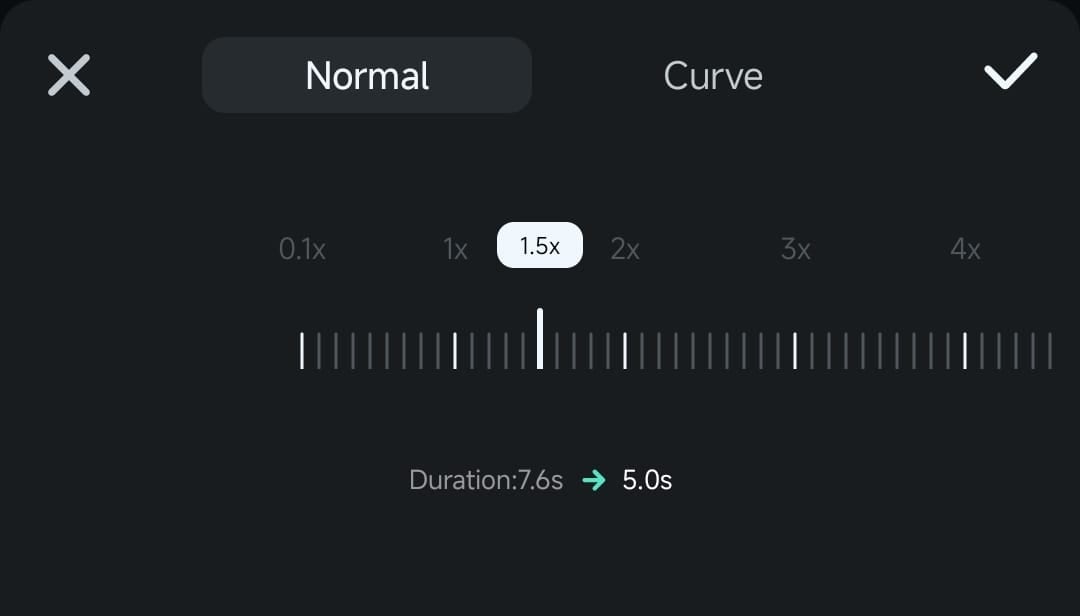
2. If satisfied, hit the Checkmark button to apply it.
Create a Dynamic Speed Effect With the Curve Tool
To enhance your video speed effects to the next level, you must try Filmora’s Curve tool. It includes five speed-ramping presets and a manual speed customization option, which you can use by following these simple steps:
1. With the Speed tool enabled through the Trim menu in the Work Area, tap the Curve tab at the top.
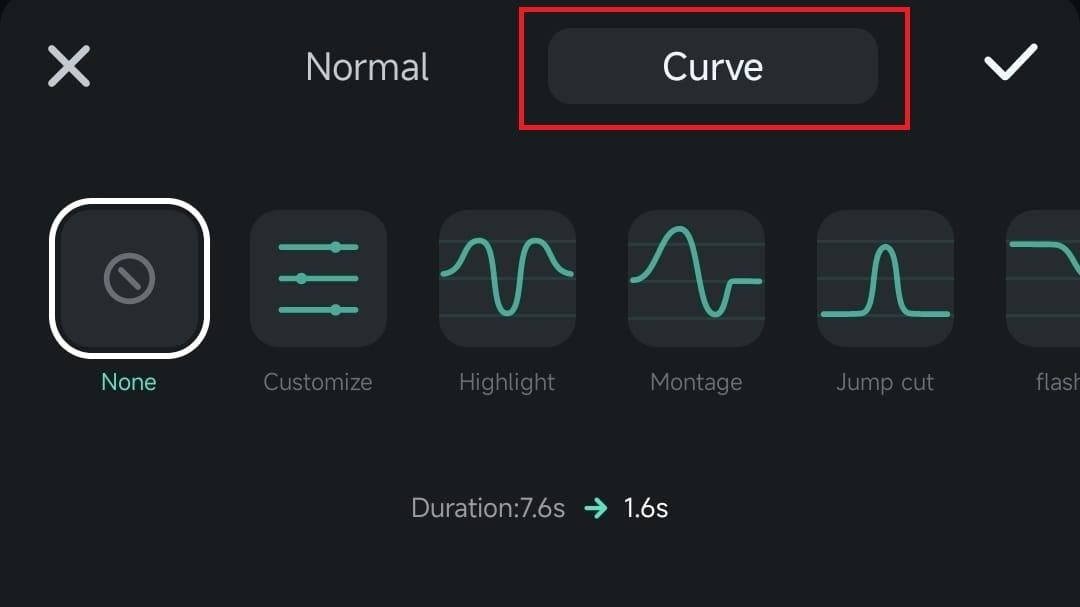
2. Select one of the five pre-made speed-ramping options, such as Highlight, Montage, or Jump cut.
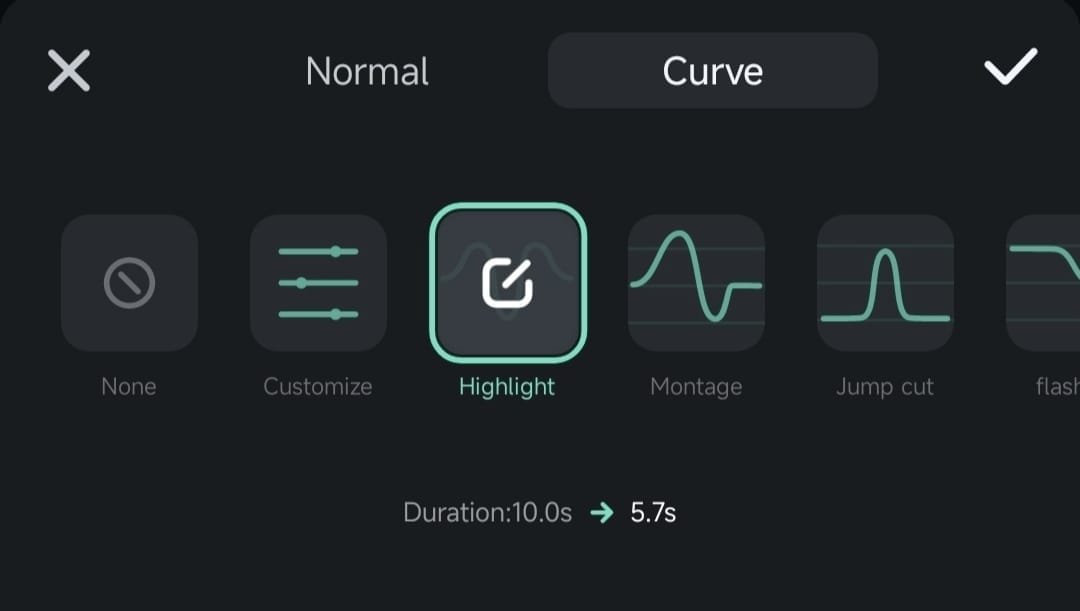
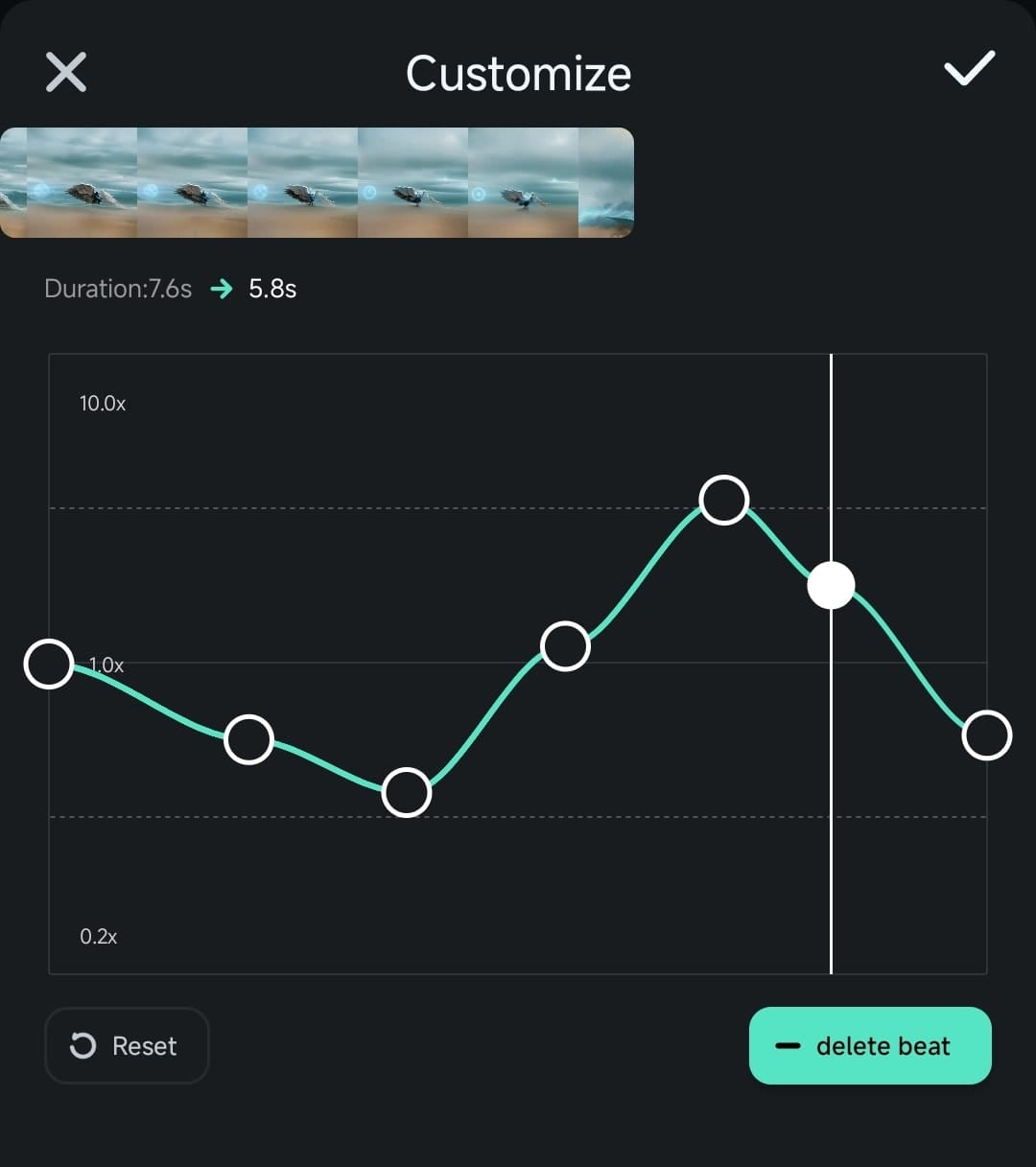
3. You can apply a speed curve preset as-is or tap on it again to customize the pre-made effect. Do that by moving the existing beats around the graph to increase or decrease the speed of certain clip parts.
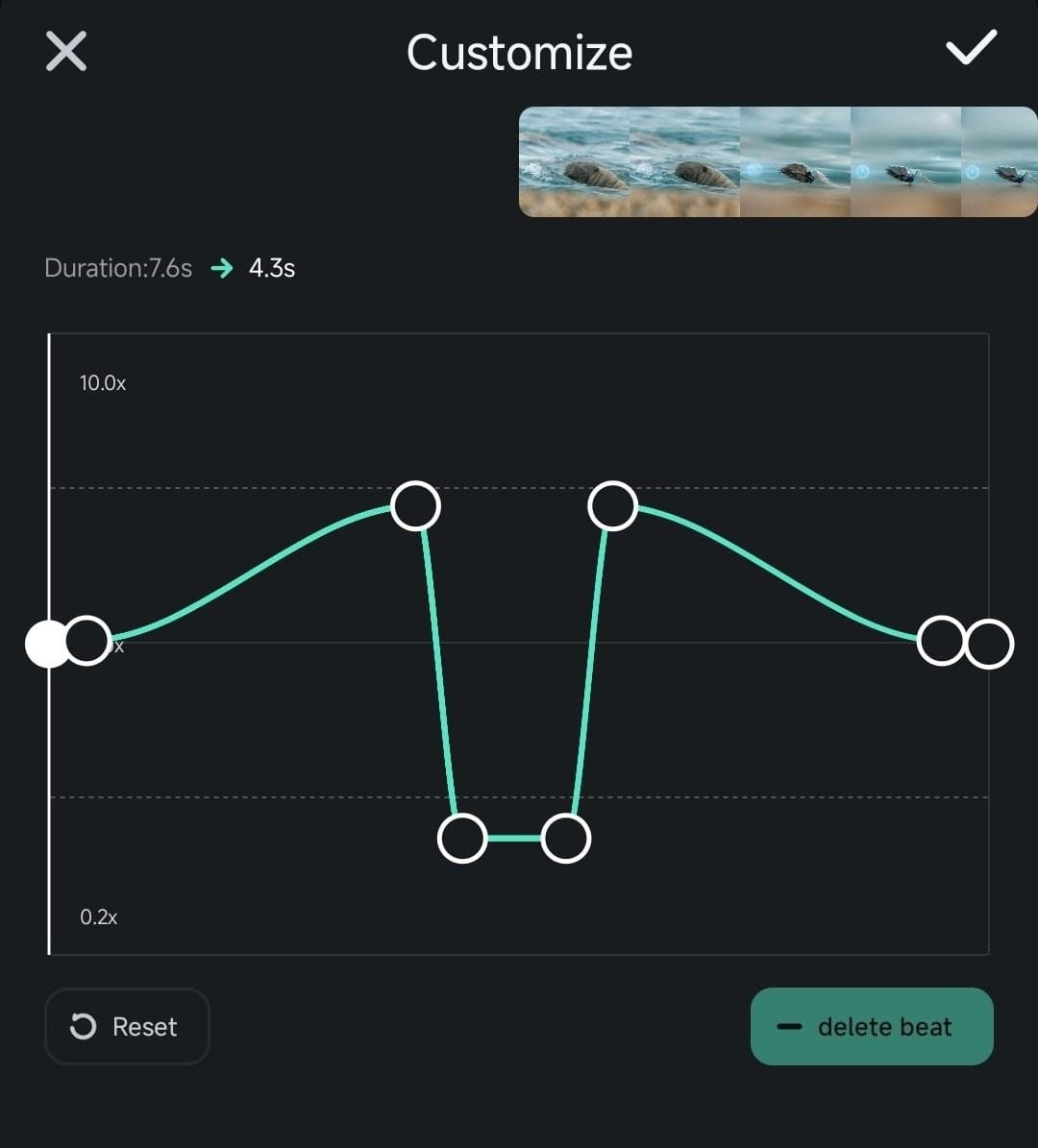
4. Alternatively, use the Customize option and create your custom speed-ramping curve from scratch.
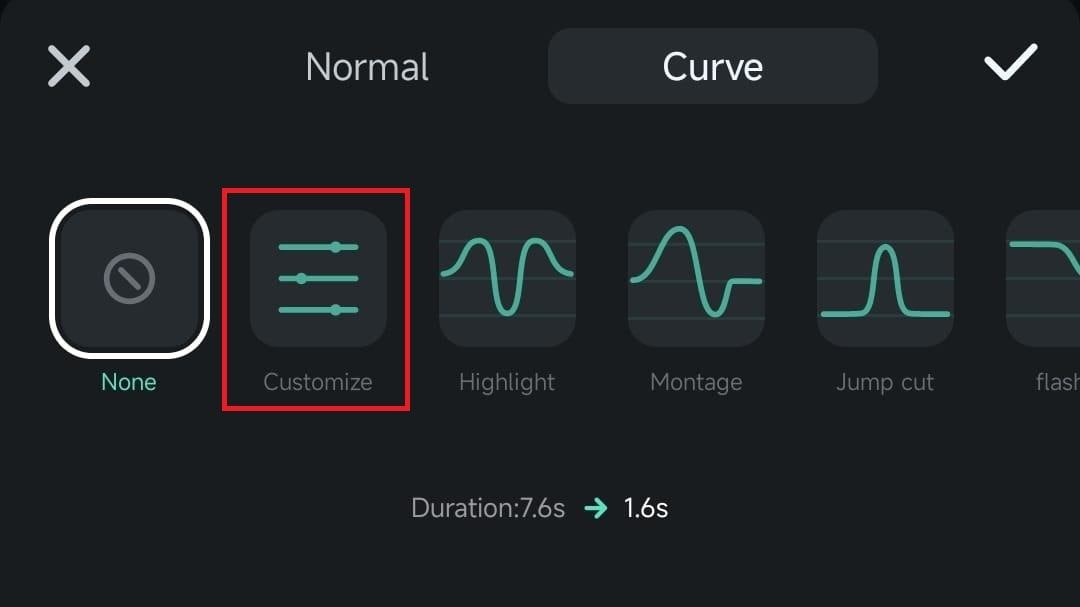
5. Adjust the speed curve to your liking by tapping the add beat button in the bottom right and dragging the added beats to speed up and slow down particular video parts. Alternatively, click delete beat to remove parts of the speed curve you don’t want.
Was This Helpful?
Thanks for your feedback.
Can you tell us what didn't work for you?
Email address is optional. Leave it blank if you do not need follow-up.
Feedback sent!