Import a Video Into Filmora
To access the Split feature, you must first import media into Filmora for Mobile. Here’s what you’ll need to do:
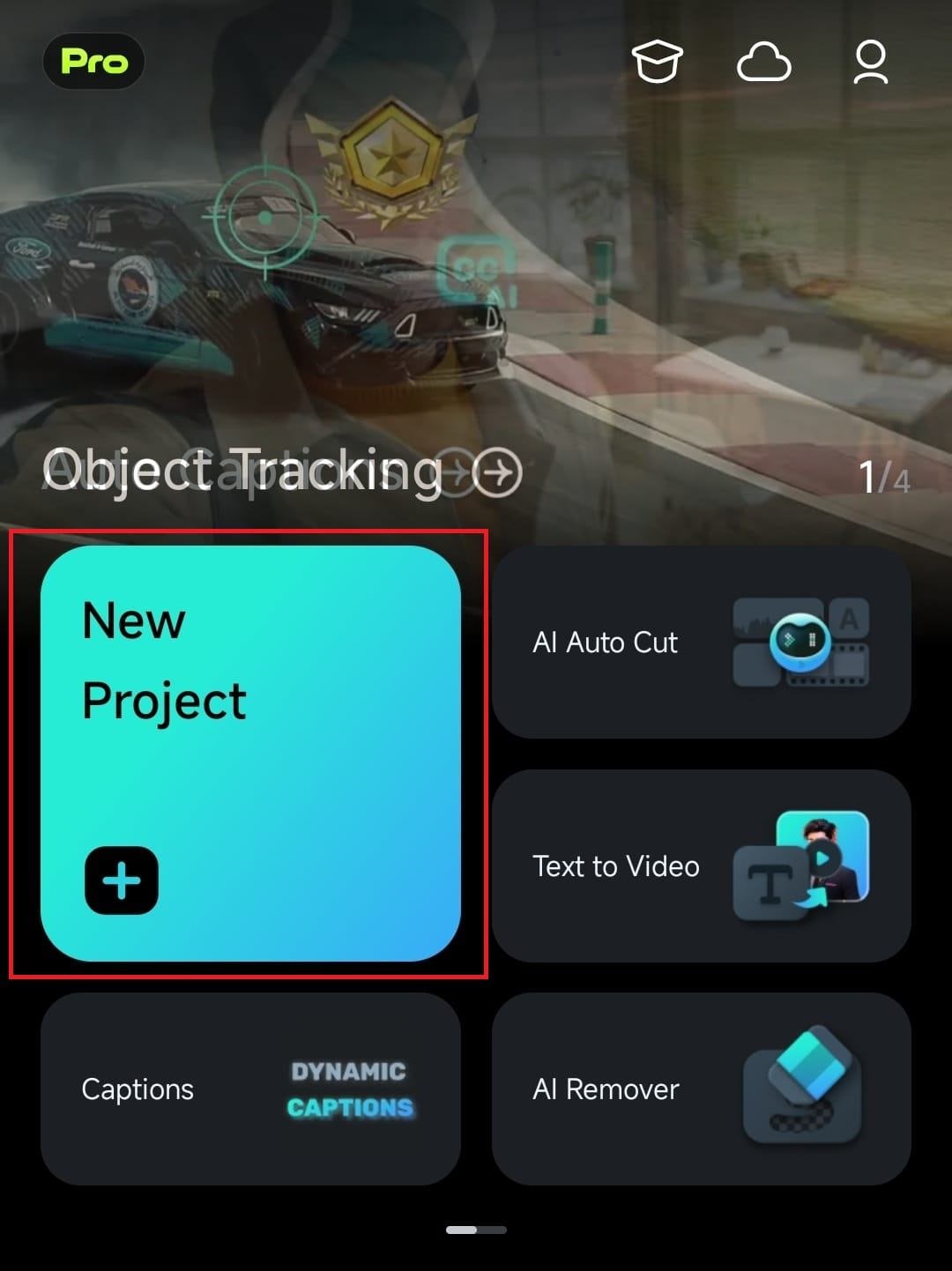
1. Open the mobile editing app and click New Project on the startup screen.
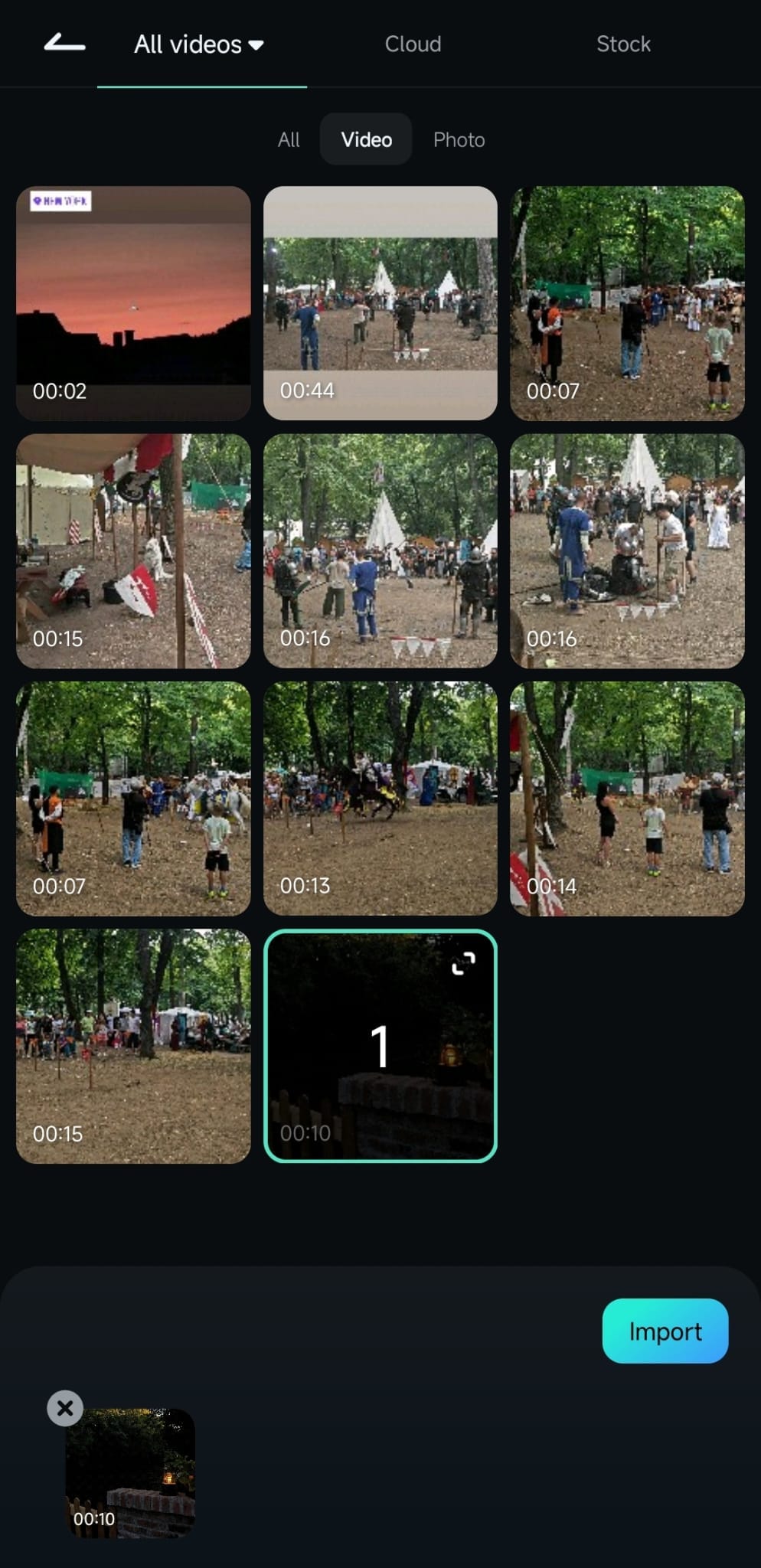
2. Tap on a video to select it, and hit the Import button at the bottom.
Split the Video in the Timeline
Once inside Filmora’s Work Area, follow these simple steps to split your video into two or more segments:
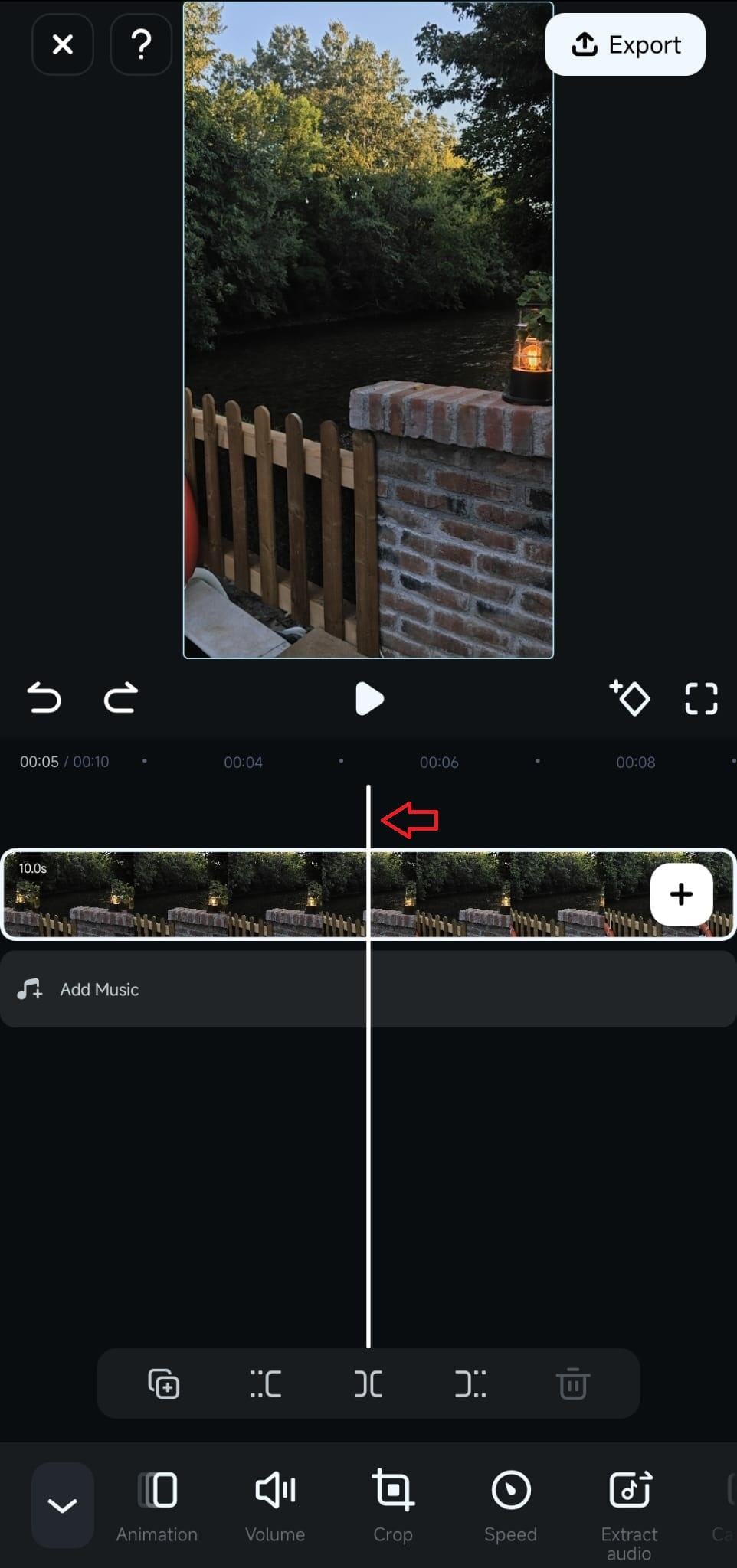
1. Tap on a video in the Timeline to select it and scroll to adjust the Playhead line to a position where you want to create a split.
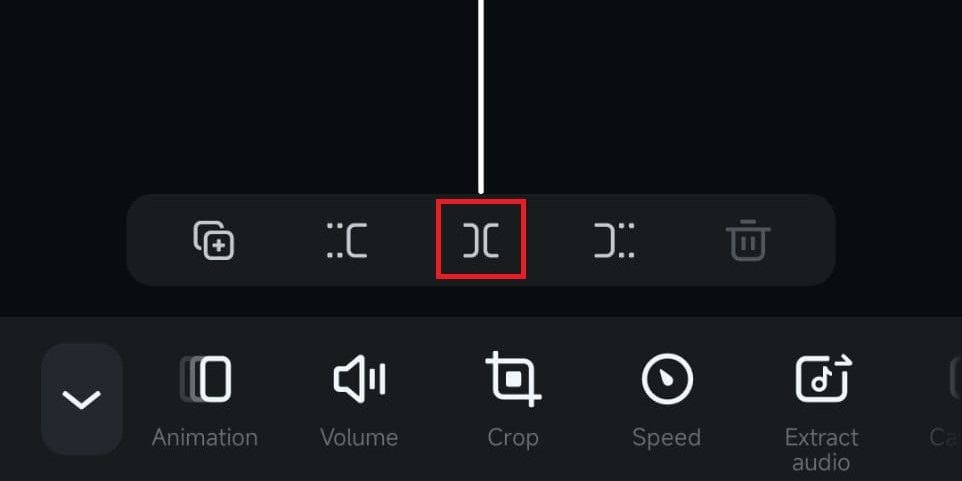
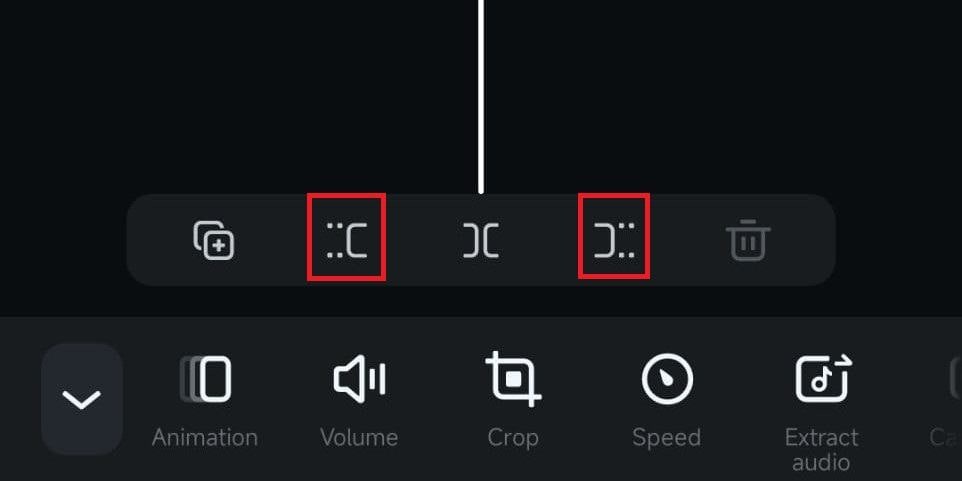
2. Tap the Split button above the Toolbar, after which you can rearrange the order of the created segments by dragging and dropping them in the Timeline.
3. Optionally, after splitting the video, you can hit the Backslash button between two clip segments to open the Transition menu and look through Filmora’s extensive transition effect library.
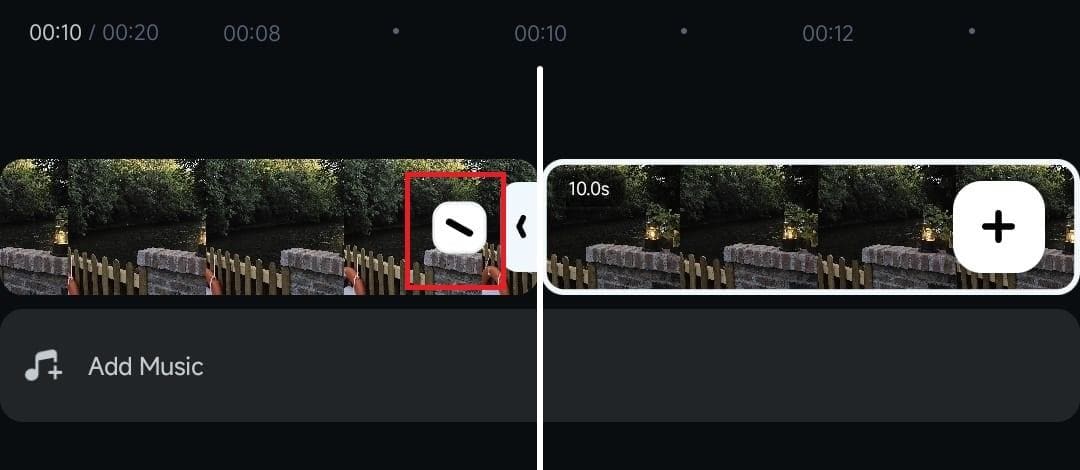
Note: The Split feature can also be combined with the Trim buttons, allowing you to remove unwanted segments from the middle of the clip.
Was This Helpful?
Thanks for your feedback.
Can you tell us what didn't work for you?
Email address is optional. Leave it blank if you do not need follow-up.
Feedback sent!