Use the Trim Feature in the Quick Access Panel
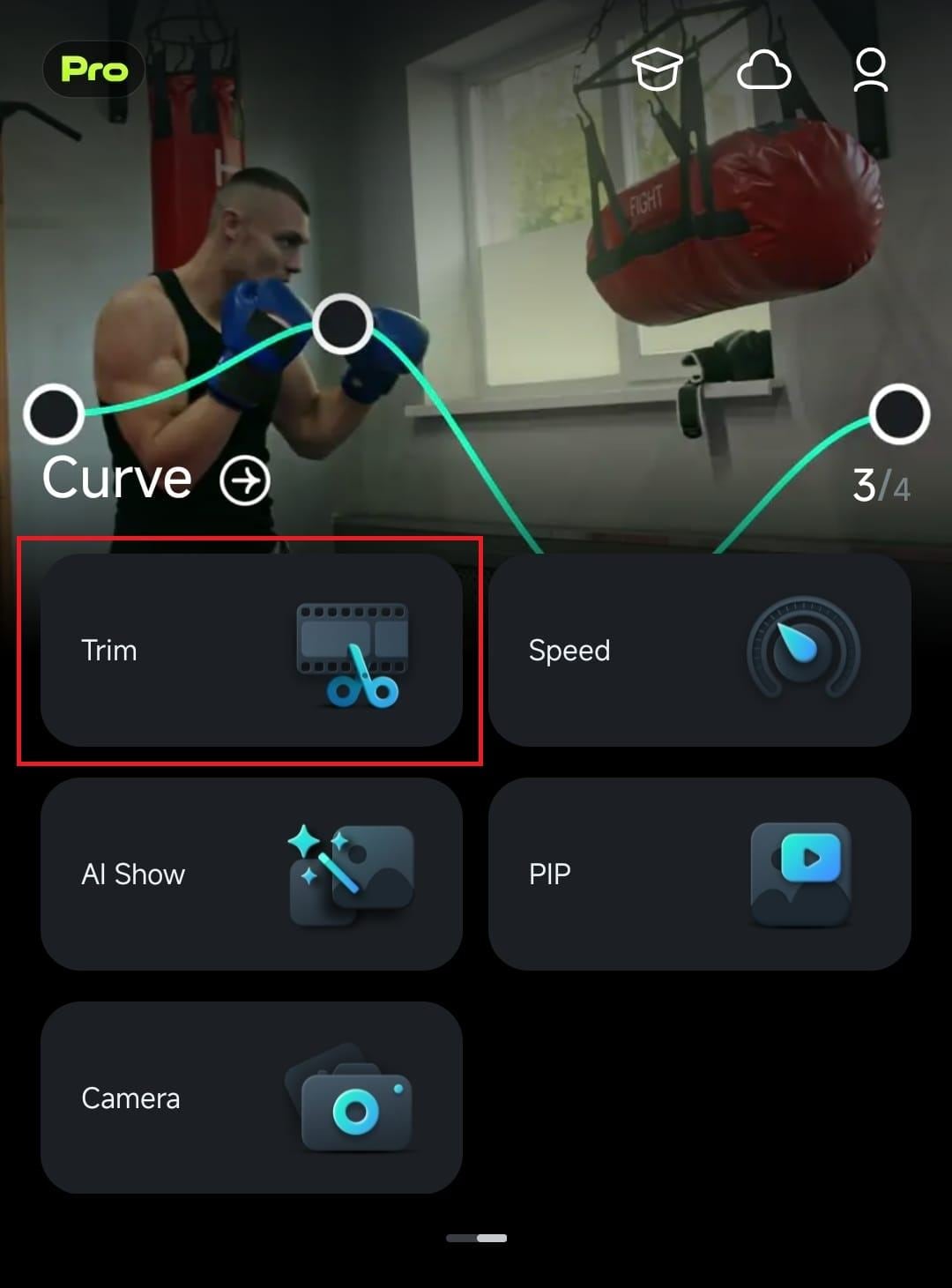
Since trimming is one of the most basic video editing features, Filmora for Mobile has a neat shortcut for the Trim tool in its Quick Access panel. Consequently, it’s the easiest method to get to Filmora’s Trim feature, and here’s how:
1. Once you launch the mobile editing app, swipe in the Quick Access panel and tap the Trim button.
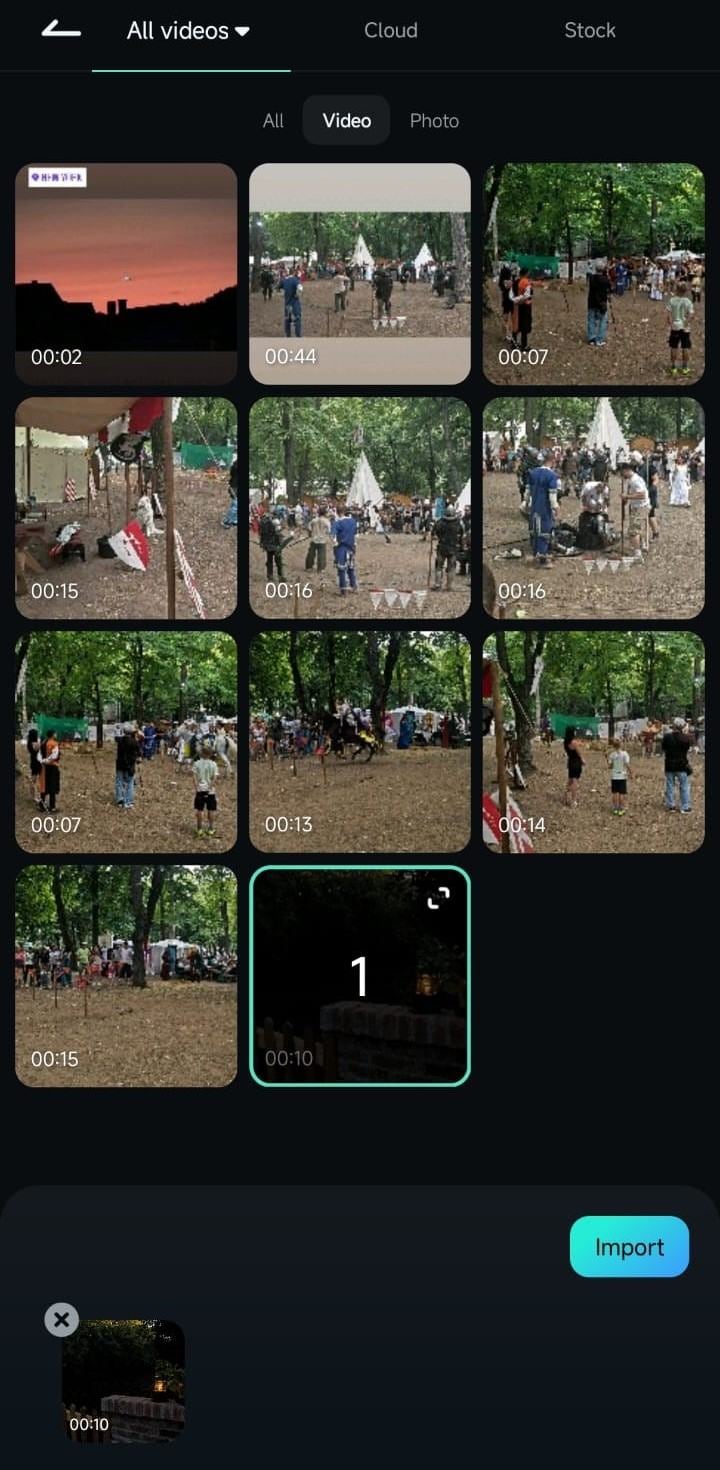
2. Tap on a video you want to trim to select it, and then hit the Import button at the bottom right corner.
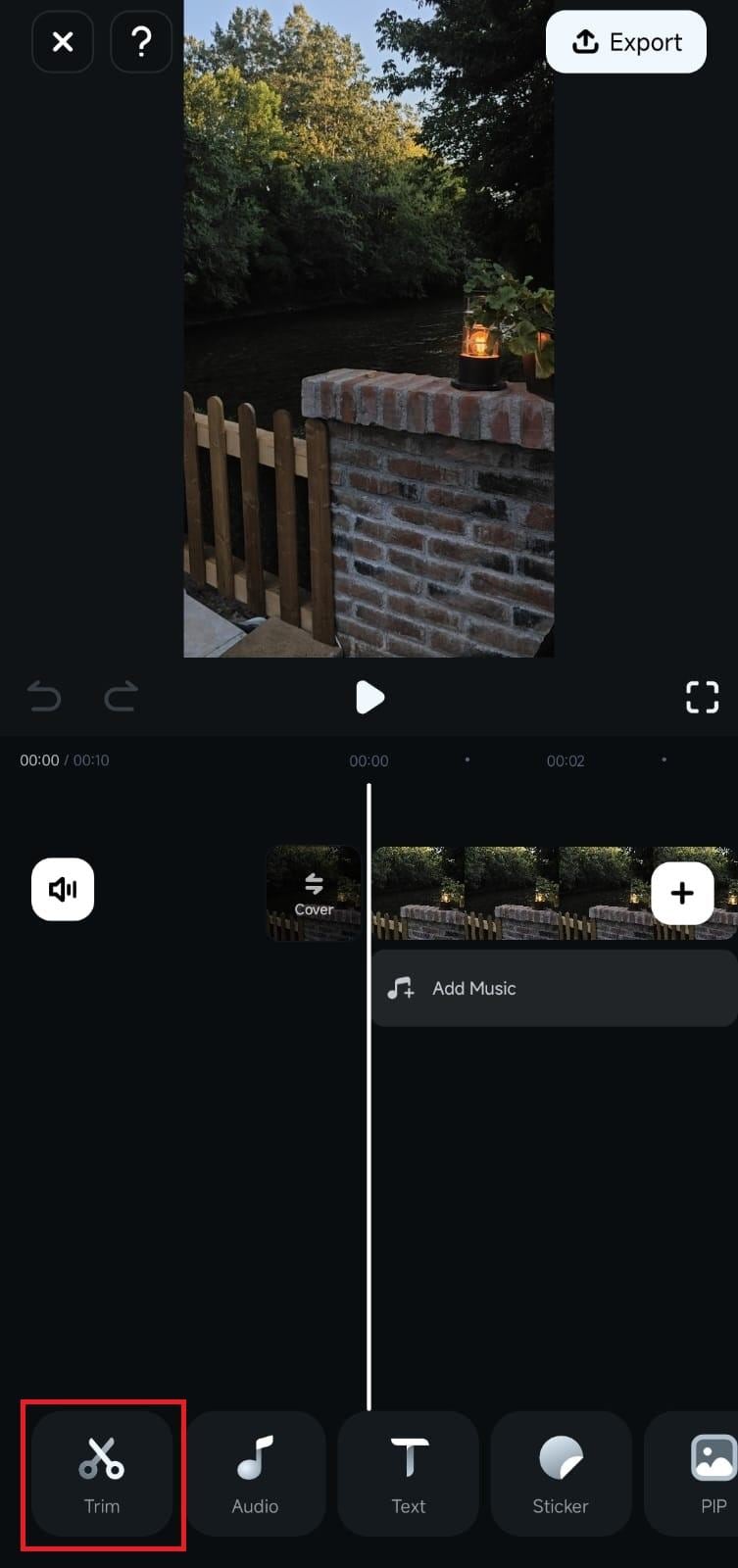
Access the Trim Menu From the Toolbar in the Work Area
Alternatively, if you’re already in the Work Area and editing a clip, you can access the Trim menu with a single tap in the Toolbar at the bottom of the screen.
Trim a Video
Regardless of how you accessed the app’s Trim tool, removing unwanted segments from a clip will be effortless, and you can do that by following these simple steps:
1. Press and hold the Mark In button on the left side of the clip.
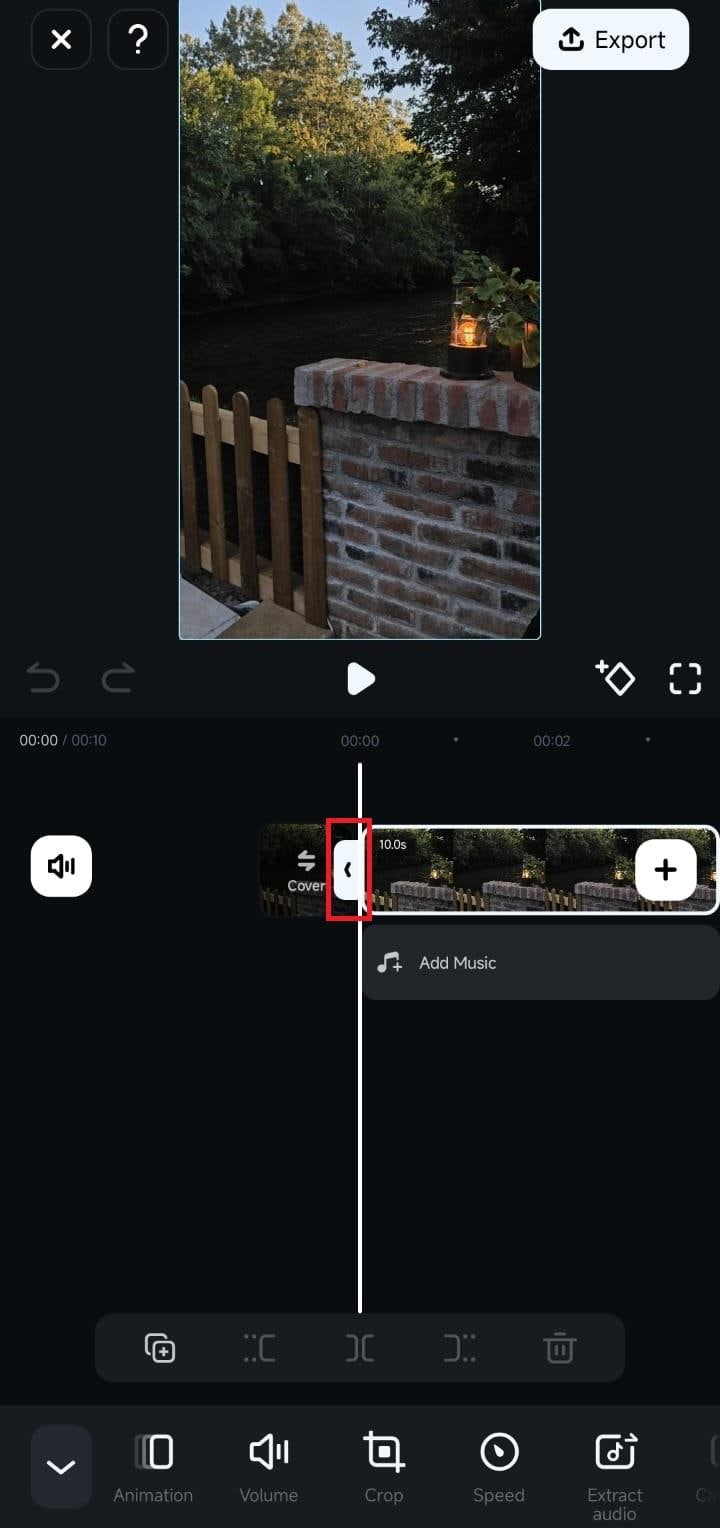
2. Drag the button to the right to trim a video’s beginning.
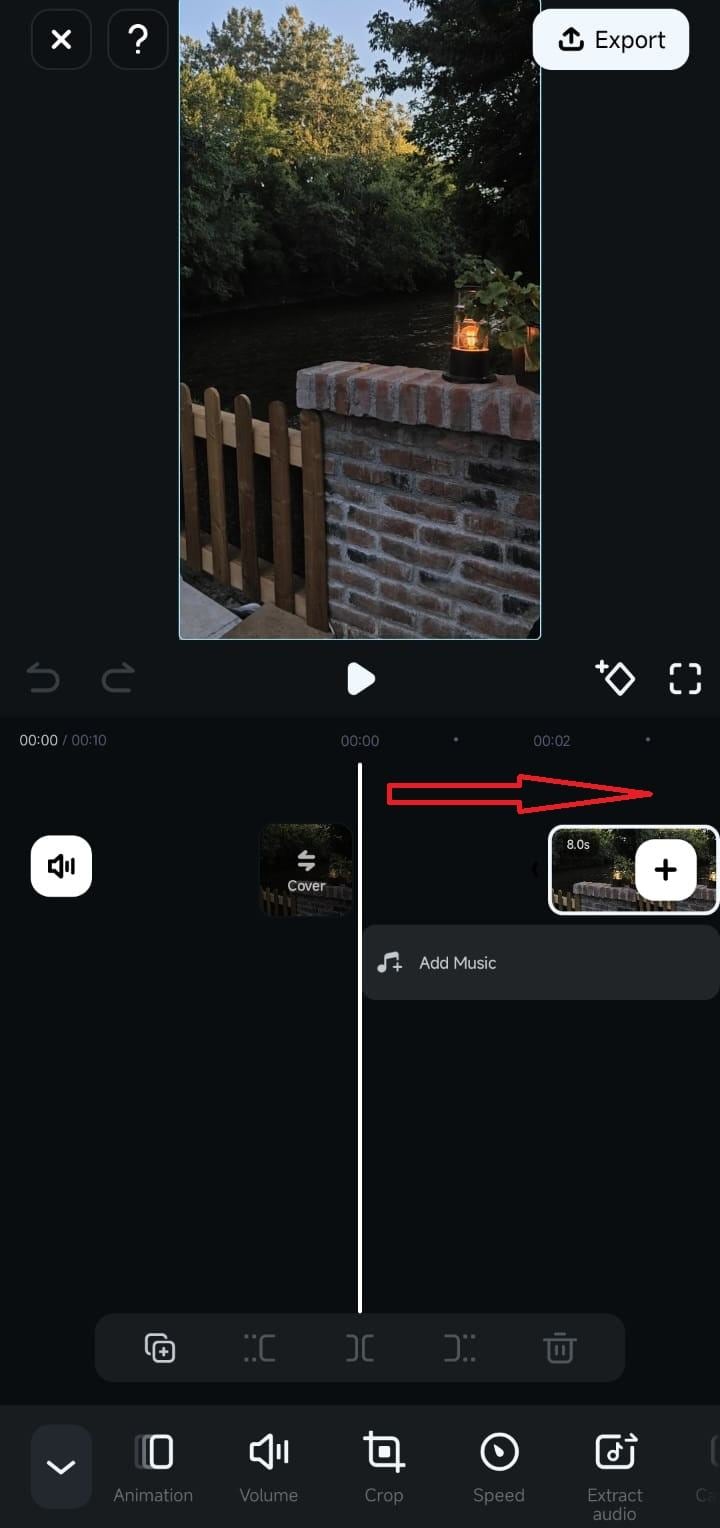
3. Alternatively, press and hold the Mark Out button on the right side of the Timeline clip.
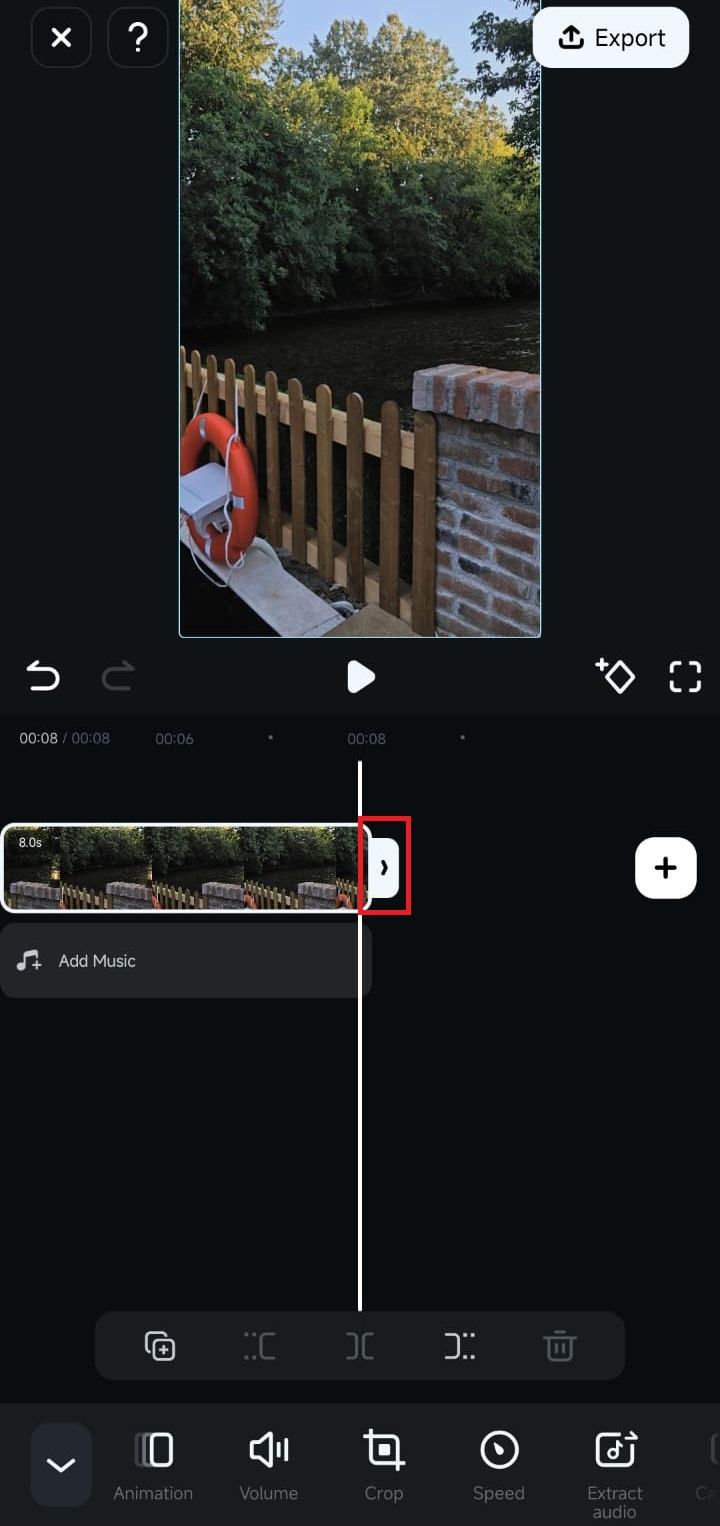
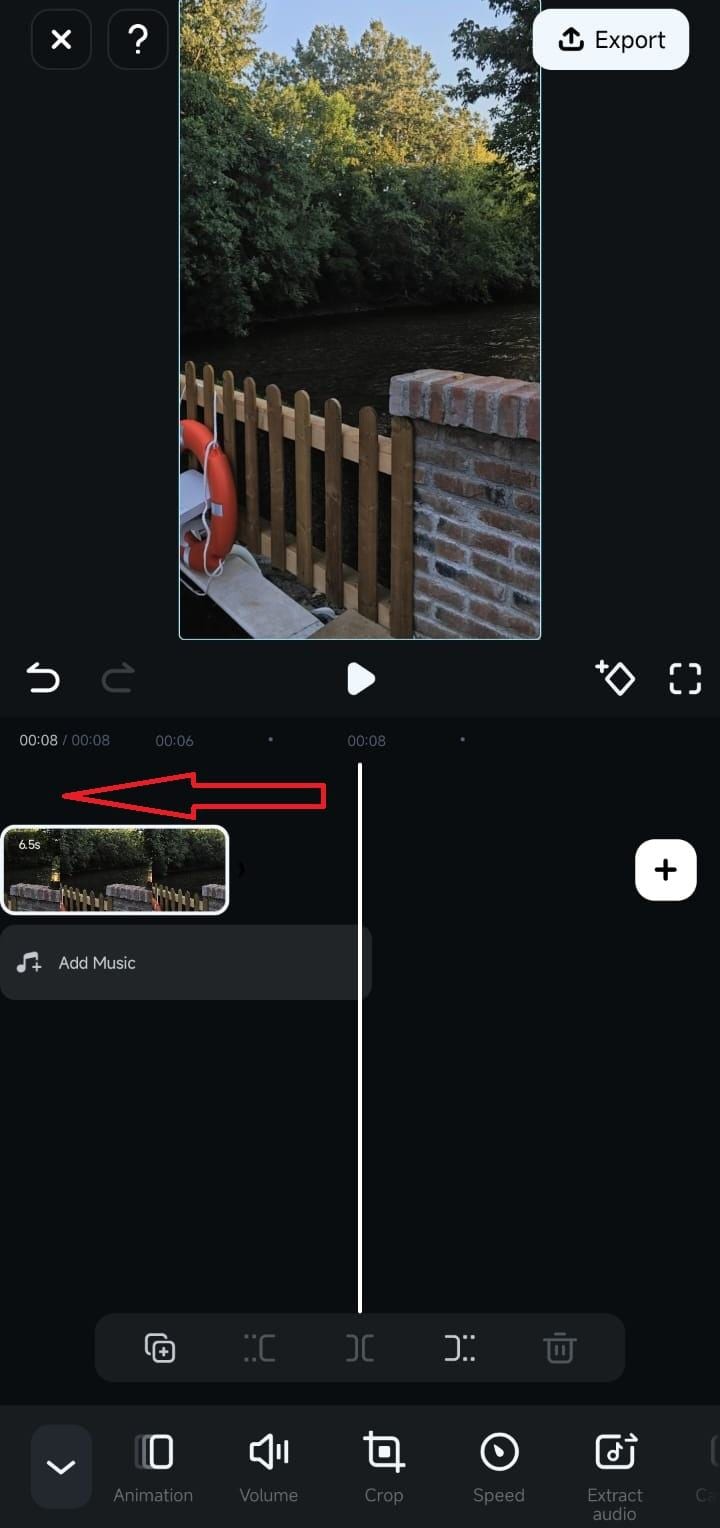
4. Drag it to the left to remove an unwanted segment from the end of the video.
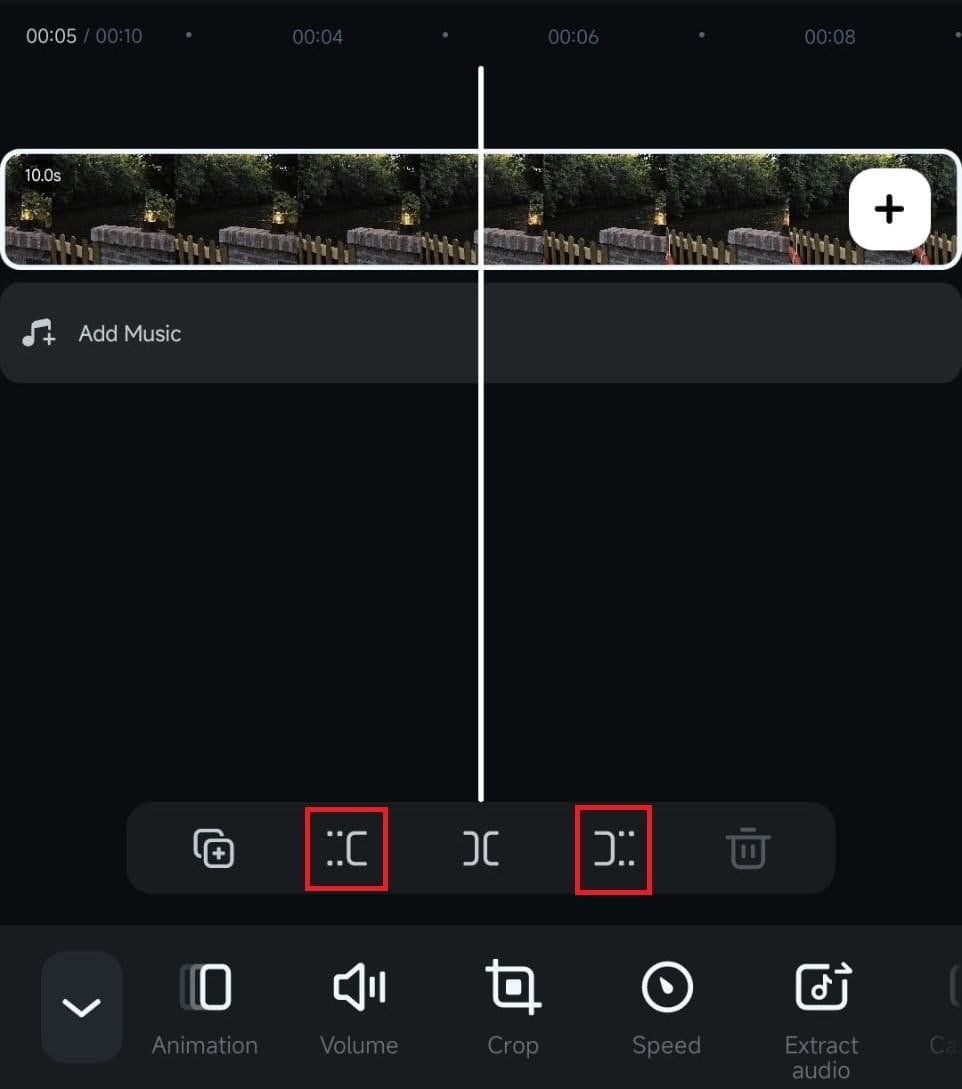
Alternatively, you can drag the Playhead line to where you want to trim the clip and use the Trim buttons above the Toolbar.
Was This Helpful?
Thanks for your feedback.
Can you tell us what didn't work for you?
Email address is optional. Leave it blank if you do not need follow-up.
Feedback sent!