Video Demonstration: https://youtu.be/A-o6efGzZEQ
Step 1: Launch FamiSafe on your phone and start Fammy-Blocksite on the device you wish to manage (That is, launch the parent version of FamiSafe and the child version, Fammy-Blocksite, on two separate devices).
Parent App Splash Screen Child App Splash Screen
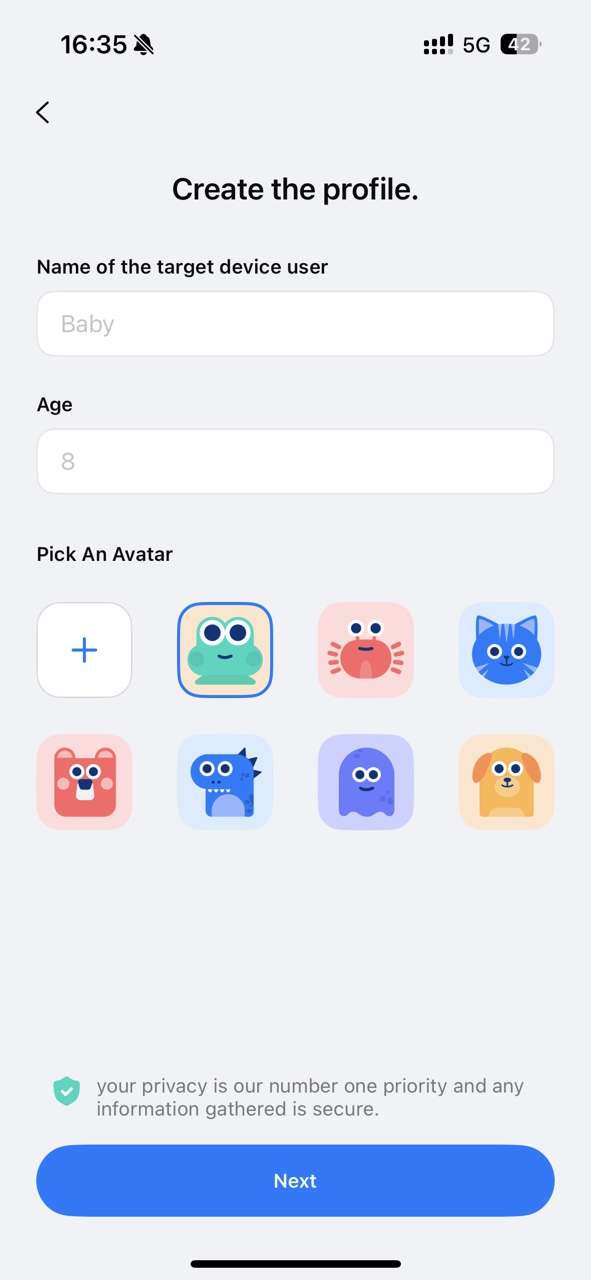
Step 2: On your phone, tap "Add Kid's Device" and enter your child's basic information (nickname, avatar, and age).
Step 3: After completing the entry of your child's information, you will receive a pairing code and a QR code for pairing. You can choose either method to connect the device.
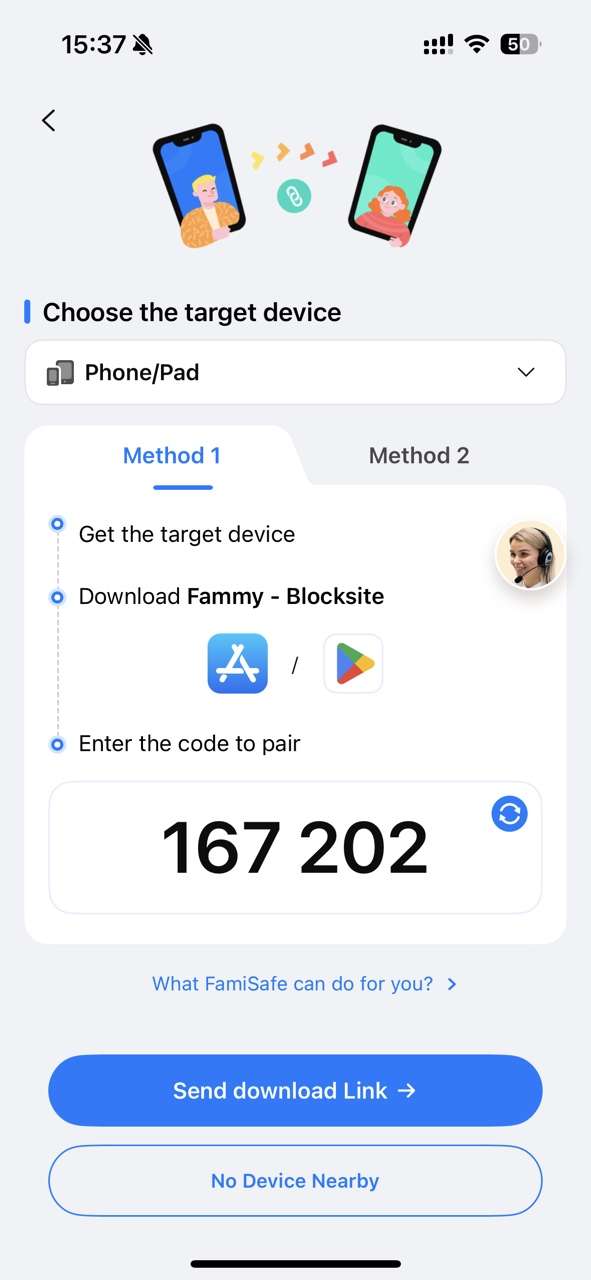
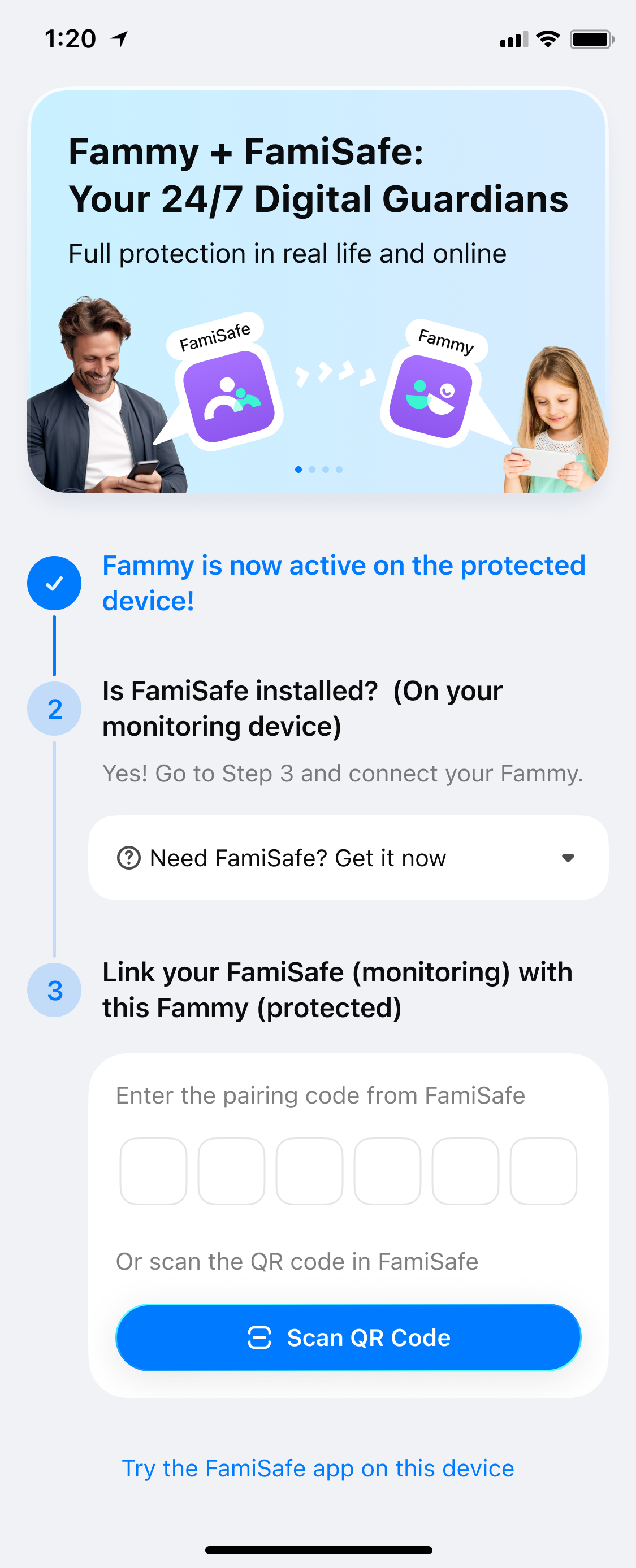
FamiSafe on Parents’ phone Fammy-Blocksite on Kid’s phone
Step 4: After you complete the pairing, you will need to grant certain access to Fammy-Blocksite to ensure its smooth operation.
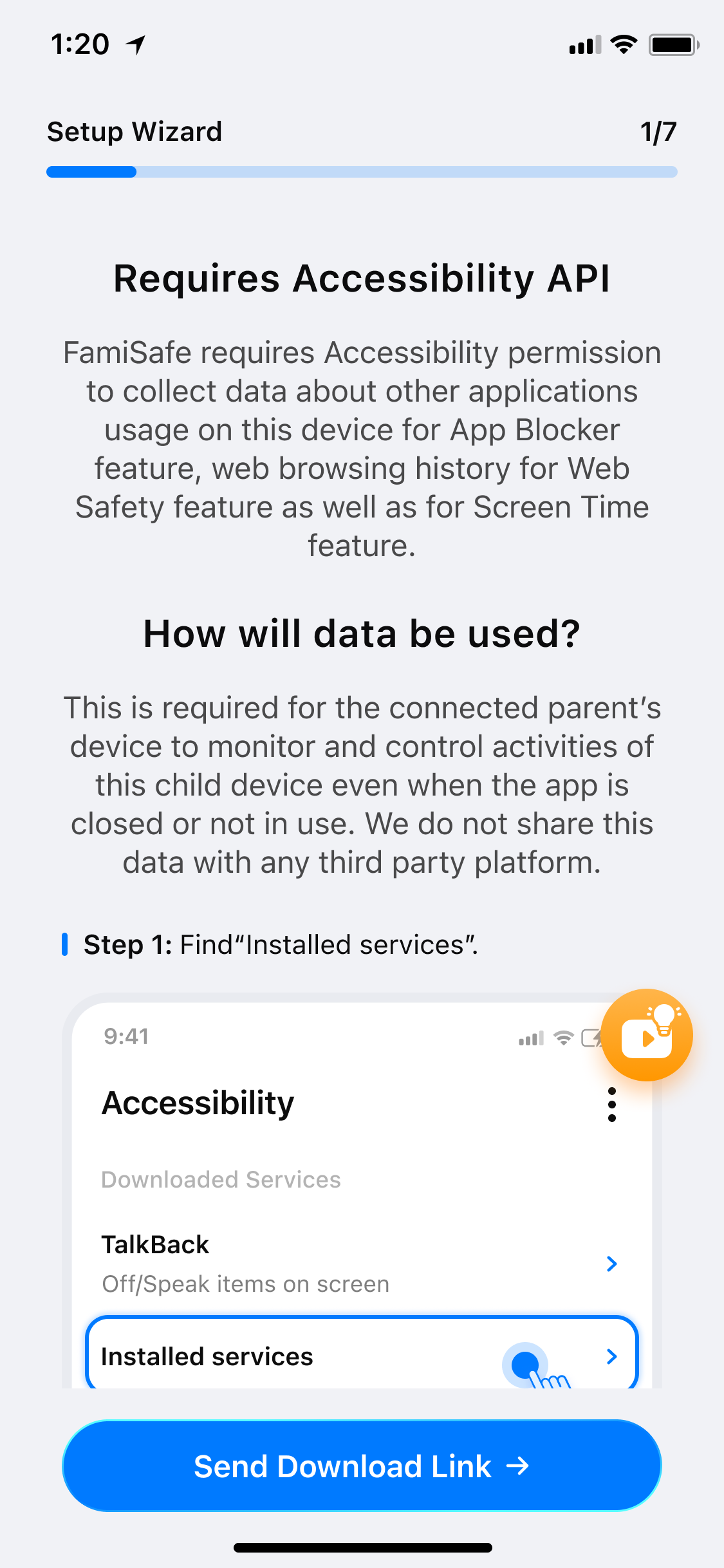
(1)Activate Accessibility to allow Fammy-Blocksite to access the needed information.
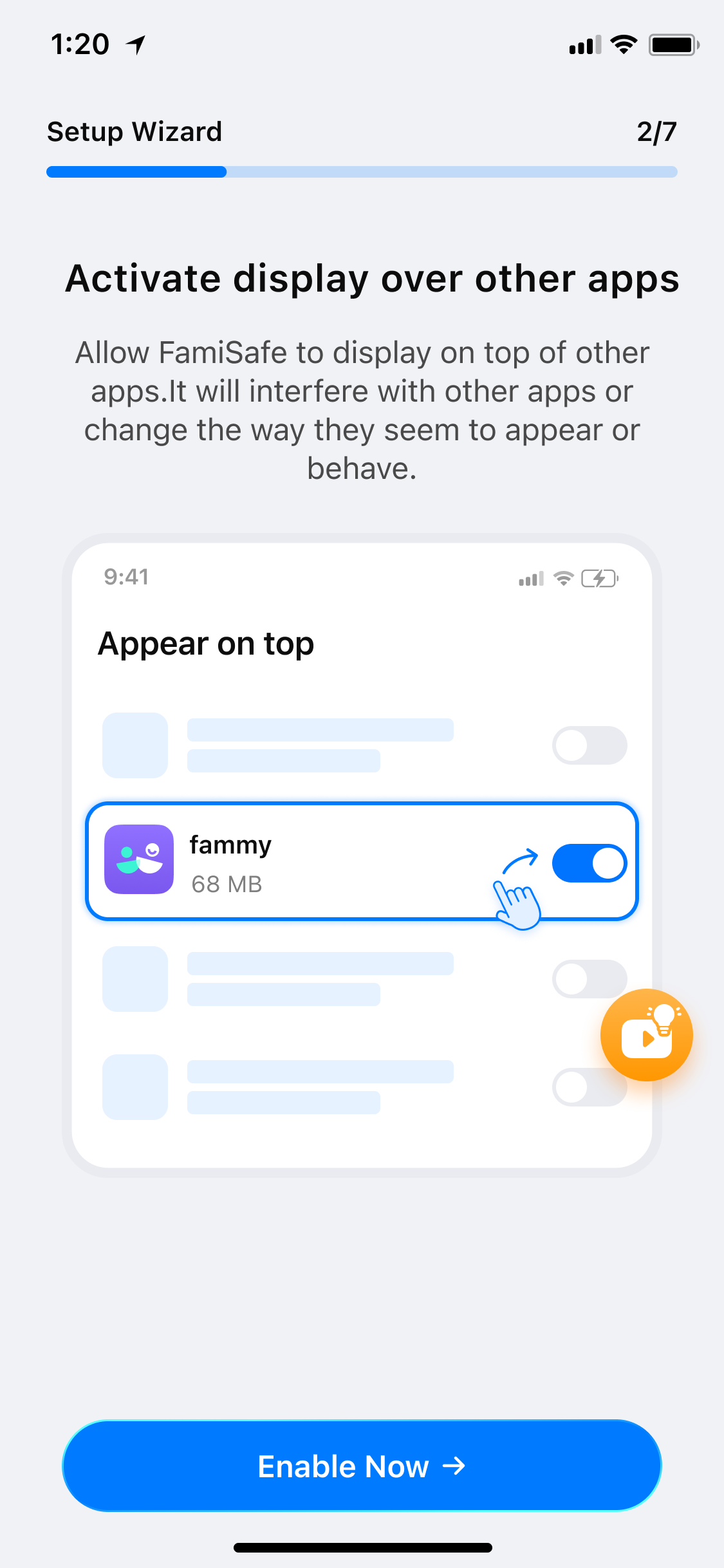
(2) Activate display over other apps to allow Fammy-Blocksite to display on other apps when they are blocked.
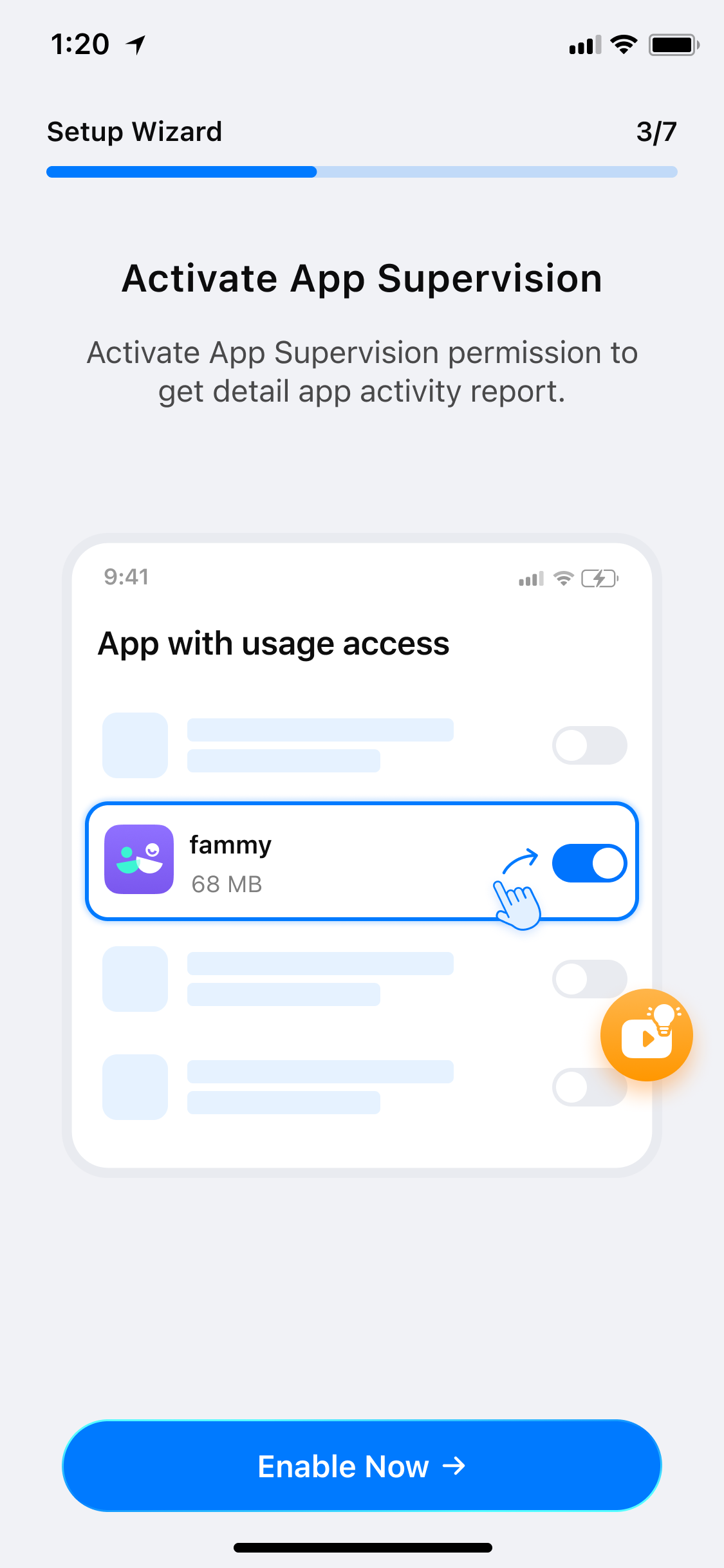
(3) Activate App Supervision to get detailed app activity report.
(4) Activate Notification Access to allow FamiSafe to monitor the notification on the kid's phone.
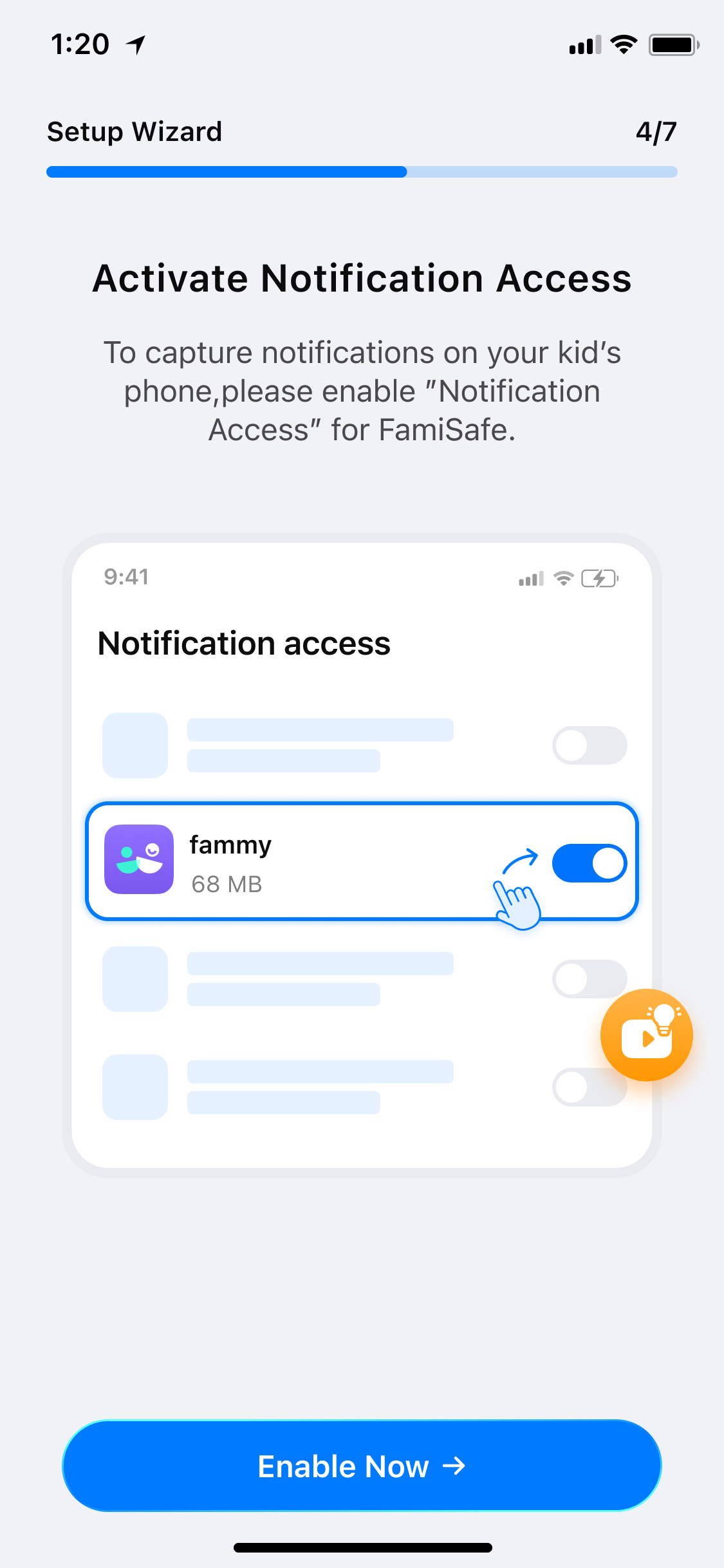
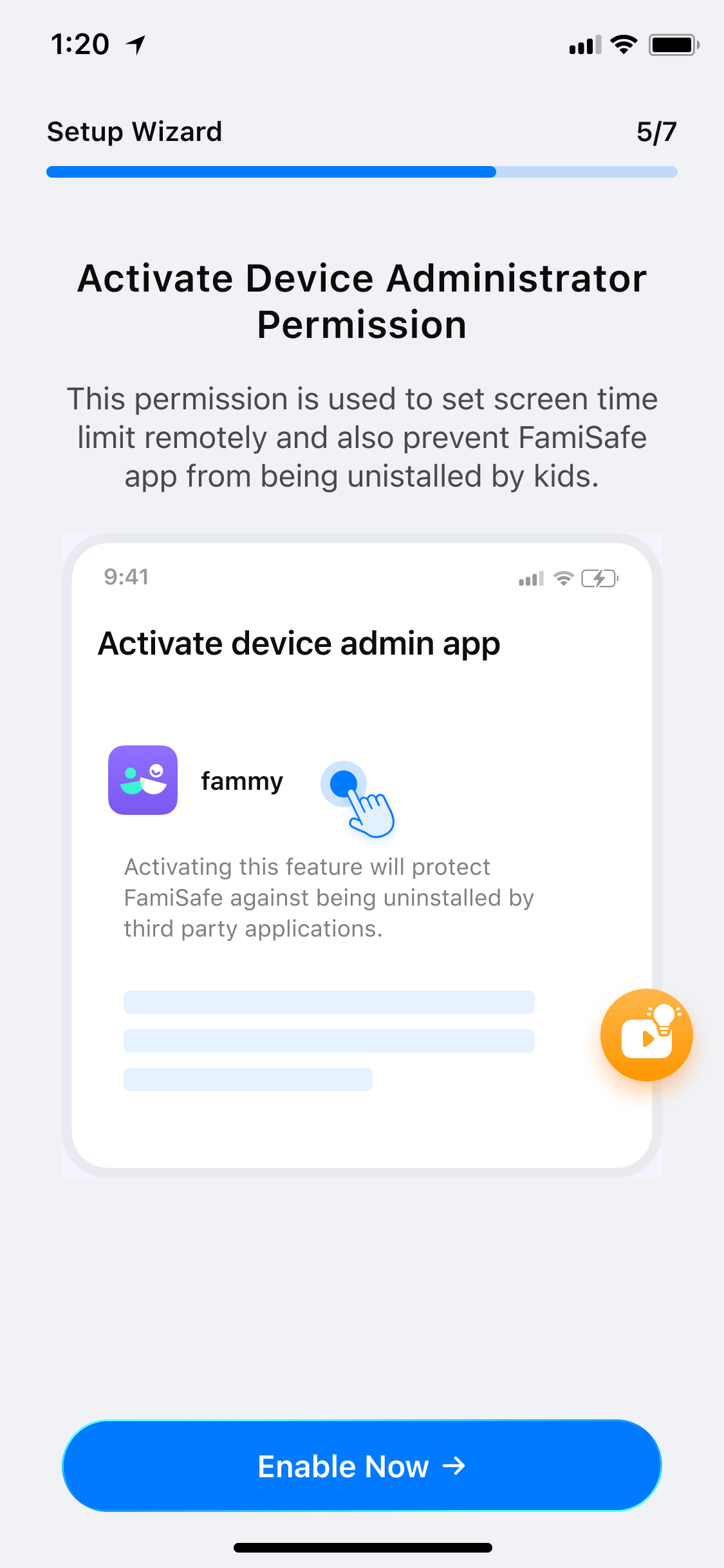
(5) Activate Device Administrator Permission to set screen time limit remotely and prevent FamiSafe from being uninstalled by kids.
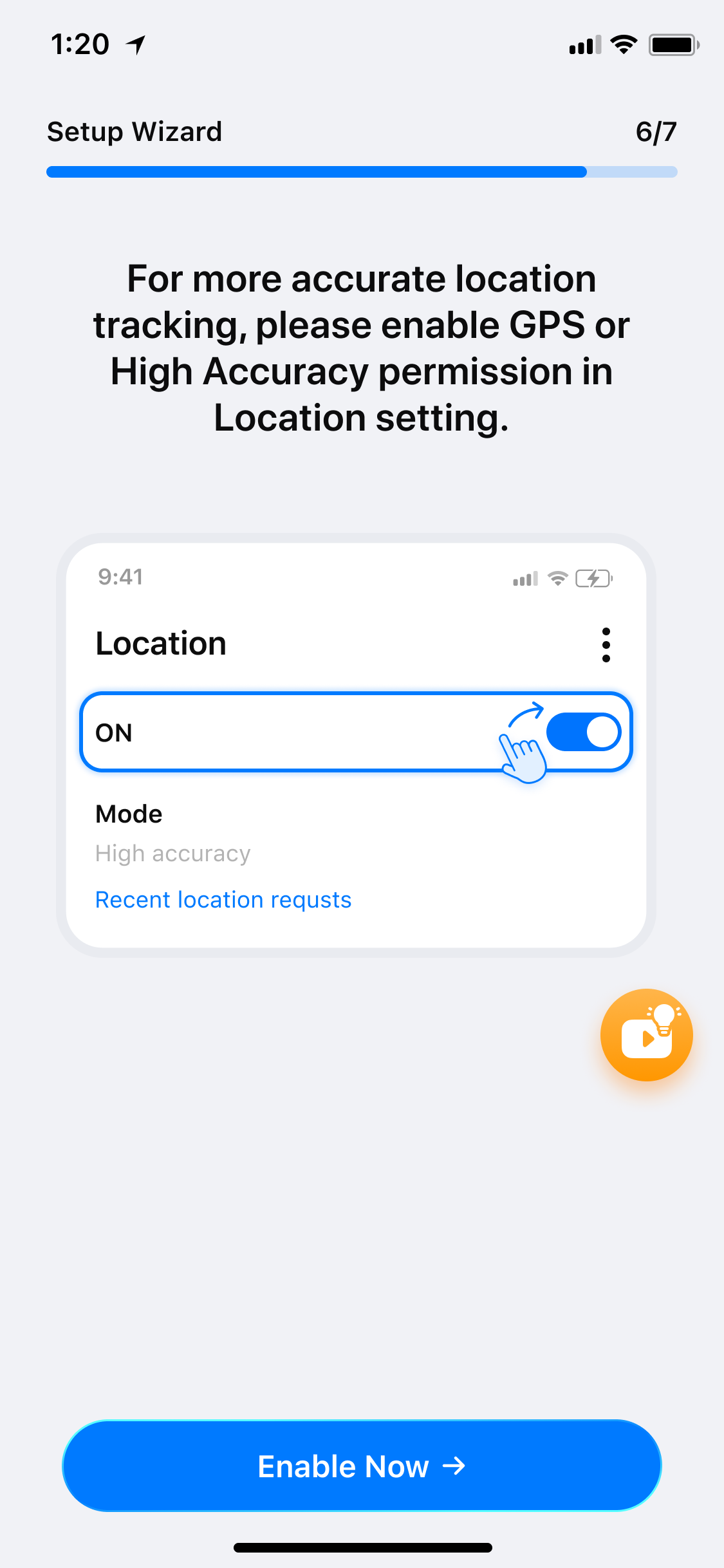
(6) Some Android devices have battery saving or battery optimization settings. For these devices, you need to allow FamiSafe to stay active in the background. Activate Contact List & Location Permissions, tap Allow on the pop-up window.
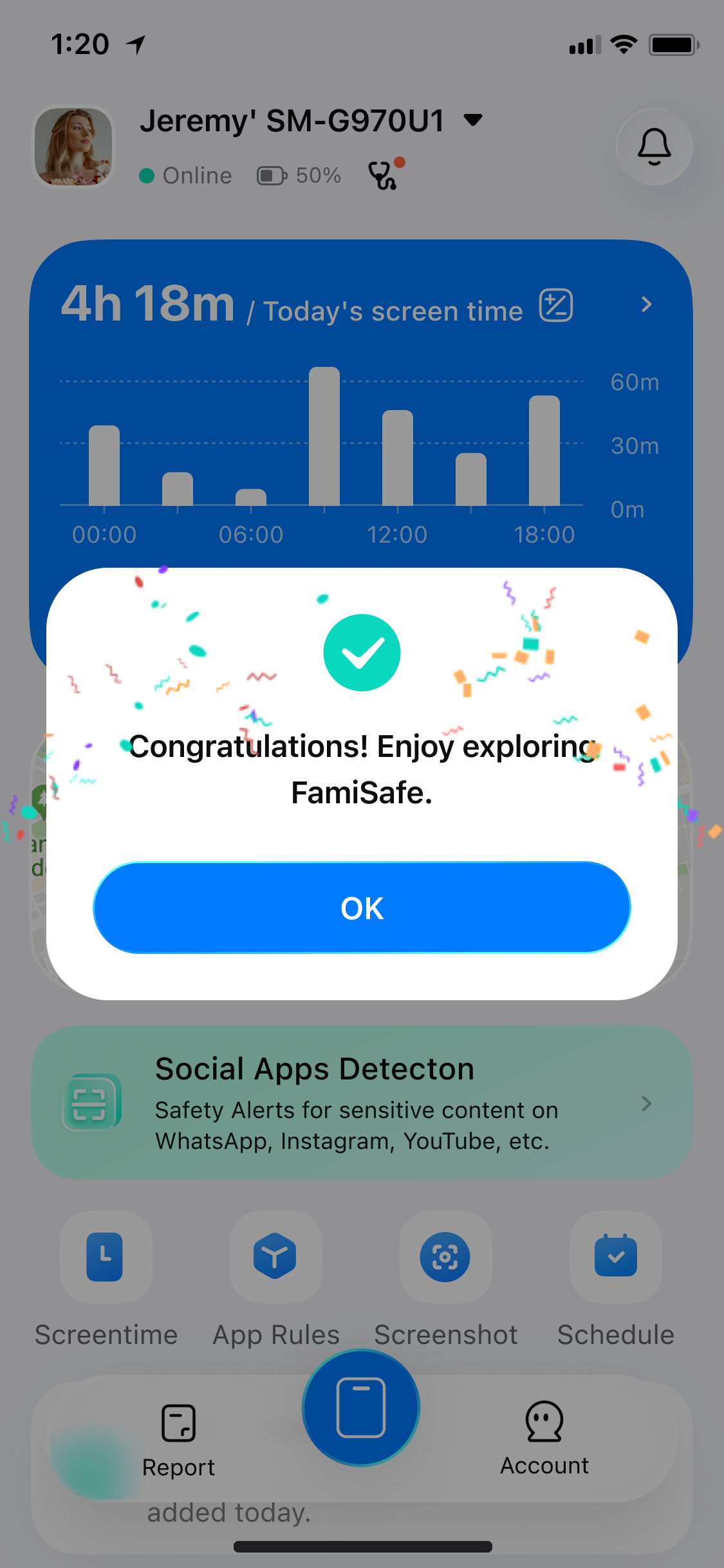
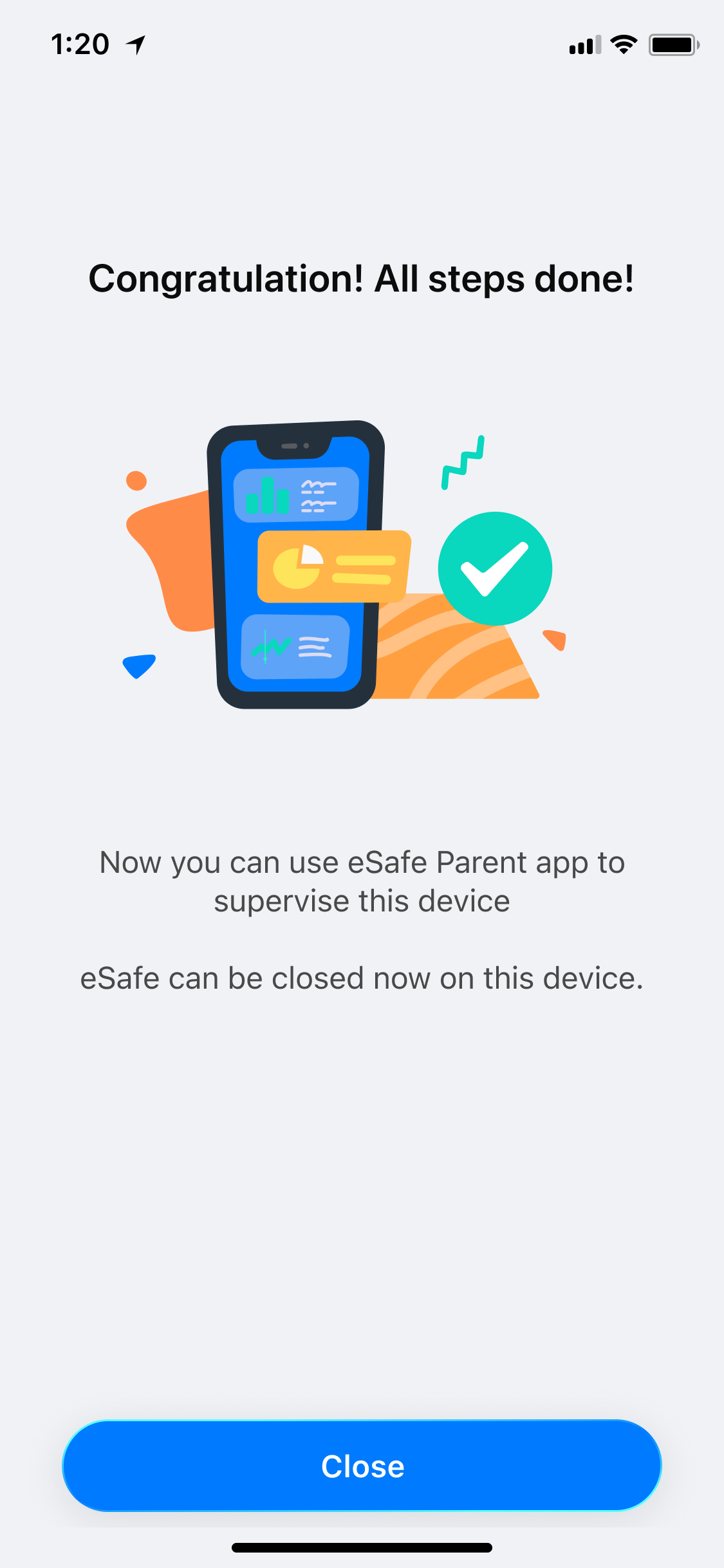
Now you are all set. Now you can head back to your device to start setting up rules and check details of your kid’s Android device.
FamiSafe on Parents’ phone Fammy-Blocksite on Kid’s phone
Was This Helpful?
Thanks for your feedback.
Can you tell us what didn't work for you?
Email address is optional. Leave it blank if you do not need follow-up.
Feedback sent!