Video Demonstration: https://www.youtube.com/watch?v=ltEBDQ4J6eo
Step 1: Launch FamiSafe on your phone and start Fammy-Blocksite on the iPhone or iPad you wish to manage (That is, launch the parent version of FamiSafe and the child version, Fammy-Blocksite, on two separate devices).
Parent App Splash Screen Child App Splash Screen
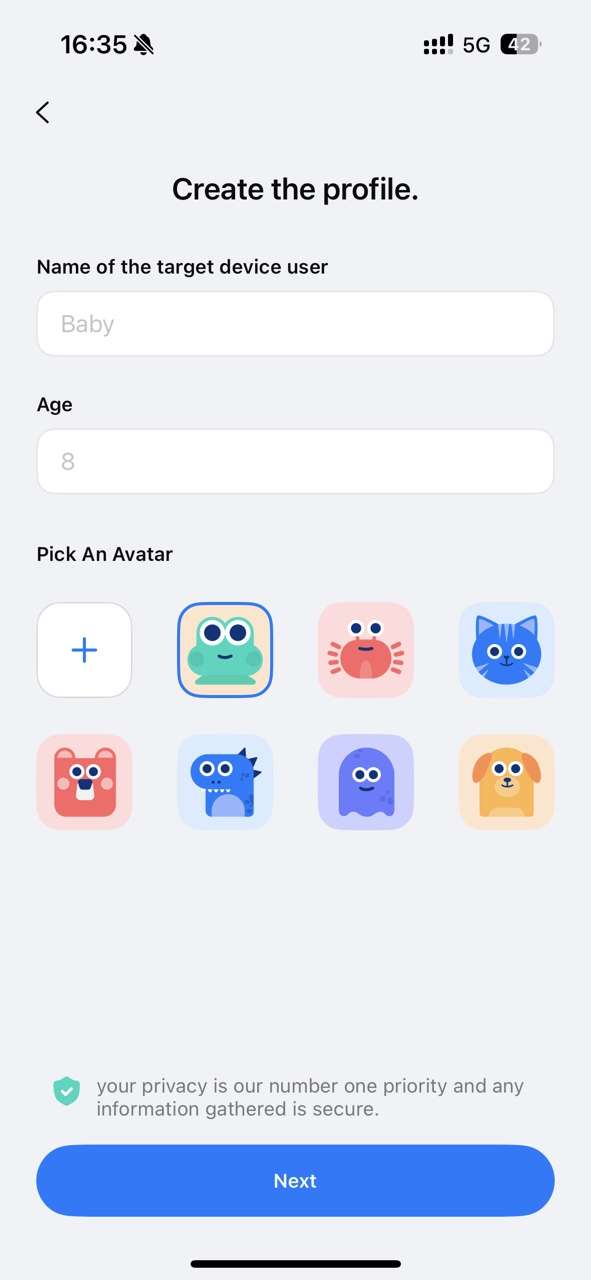
Step 2: On your phone, tap “Add Kid’s Device” and enter your child’s basic information (nickname, avatar, and age).
Step 3: After completing the entry of your child’s information, you will receive a pairing code and a QR code for pairing. You can choose either method to connect the device.
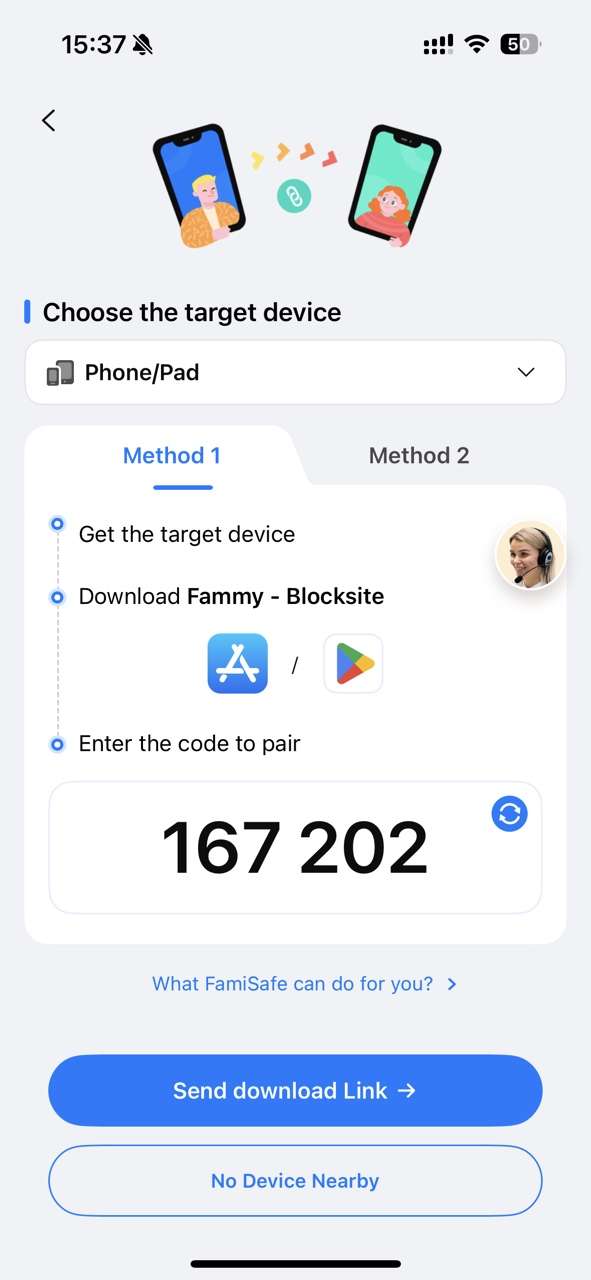
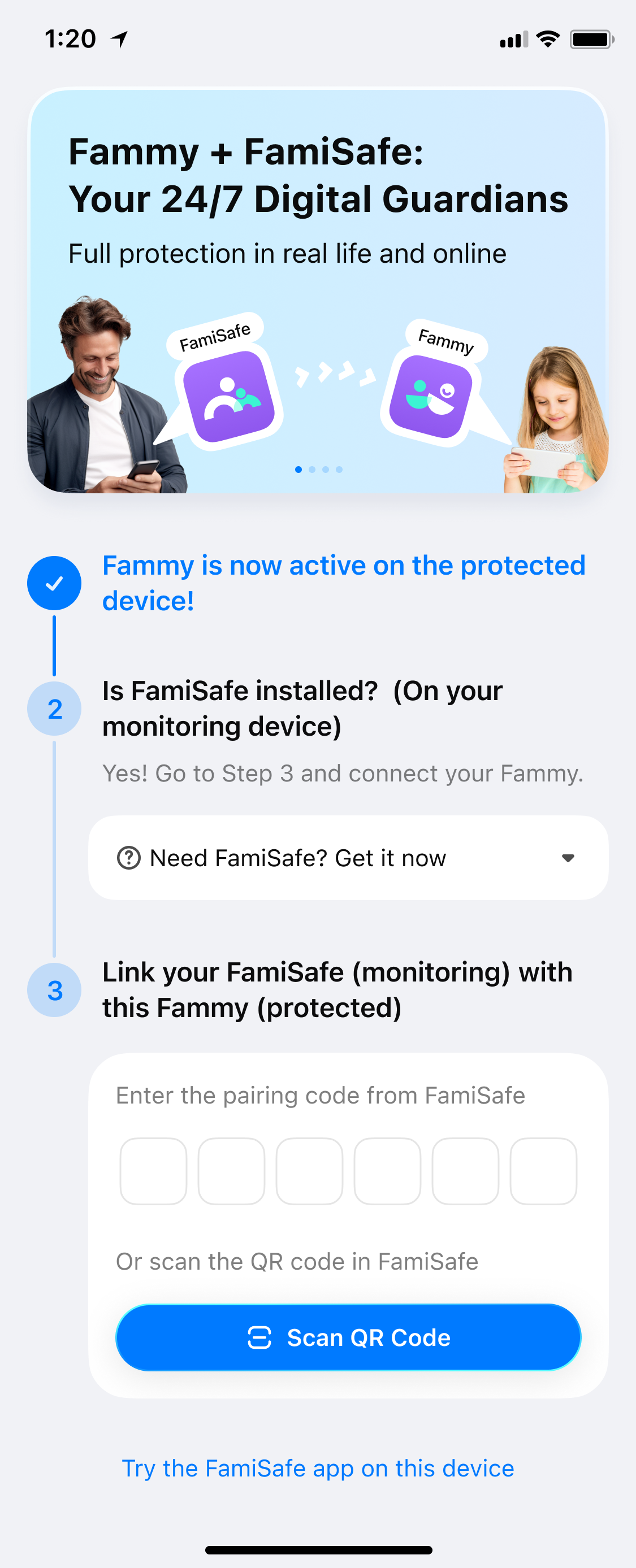
FamiSafe on Parents’ phone Fammy-Blocksite on Kid’s phone
Step 4: After you complete the pairing, you will need to grant certain access to Fammy-Blocksite to ensure its smooth operation.
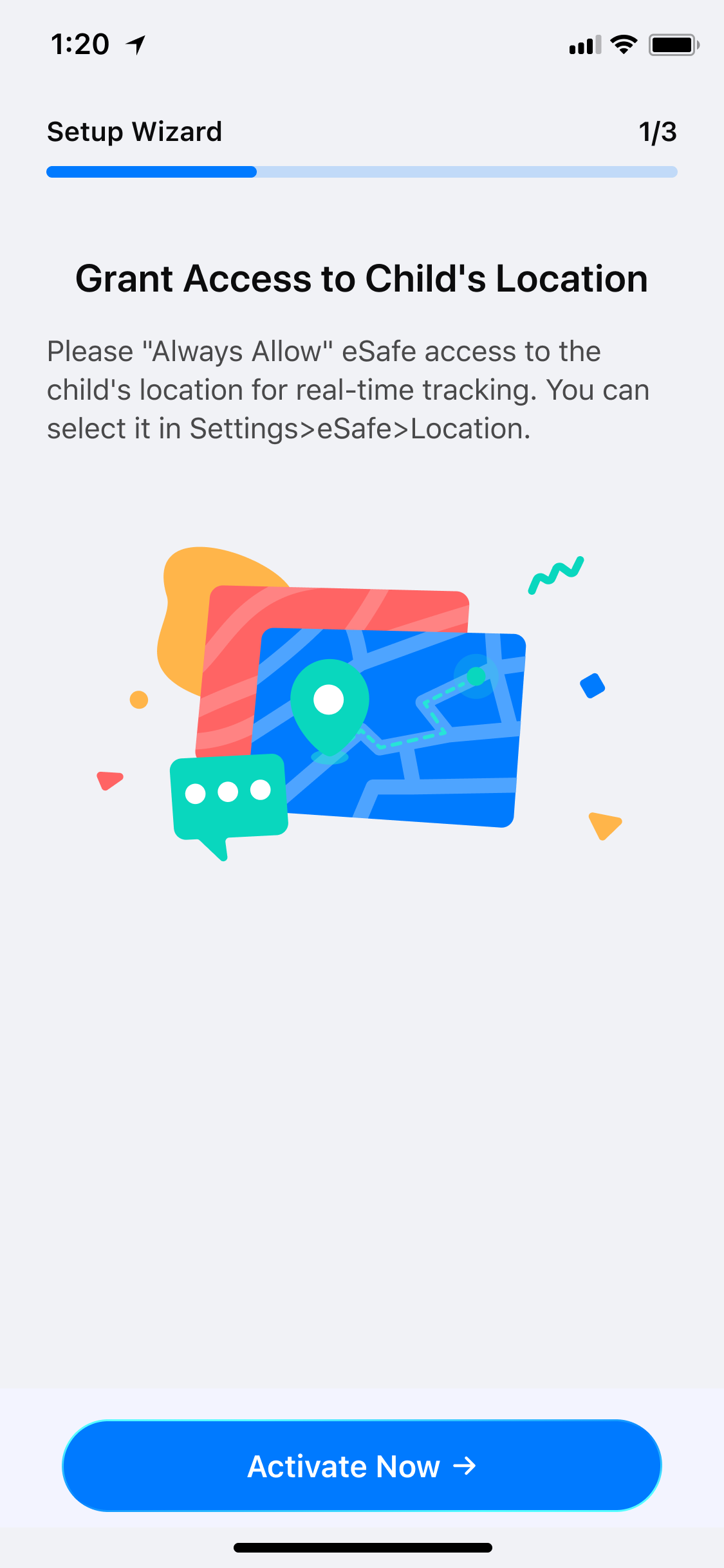
(1) Activate Location Tracking so that Fammy-Blocksite can track the kid's location. Please note that there will be two pop-up windows requesting access to your location. It is essential that you choose "Always Allow" in the second pop-up to enable us to track your child's geographical location information in real time.
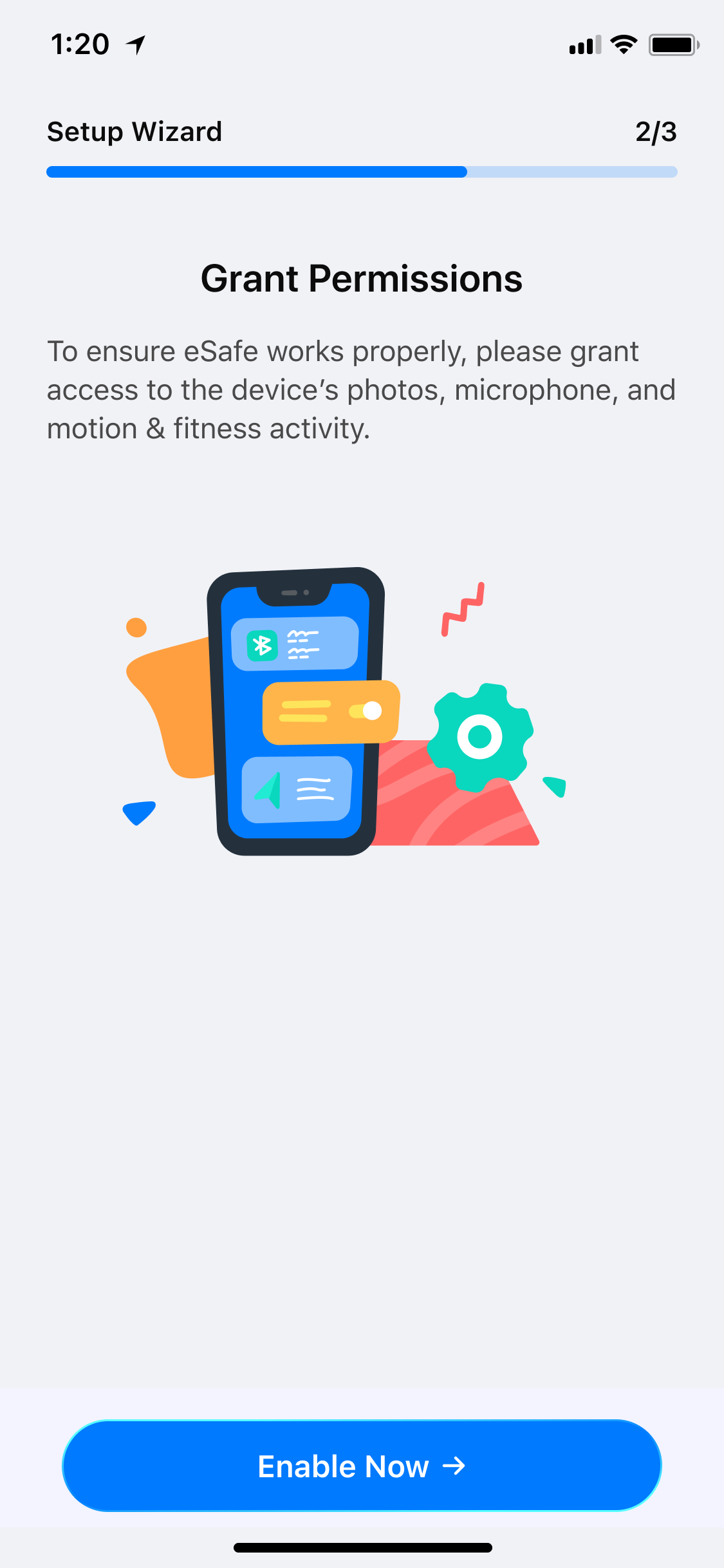
(2) Fammy-Blocksite will ask for permission for Microphone and Photo, please tap Allow when you receive the pop-up request.
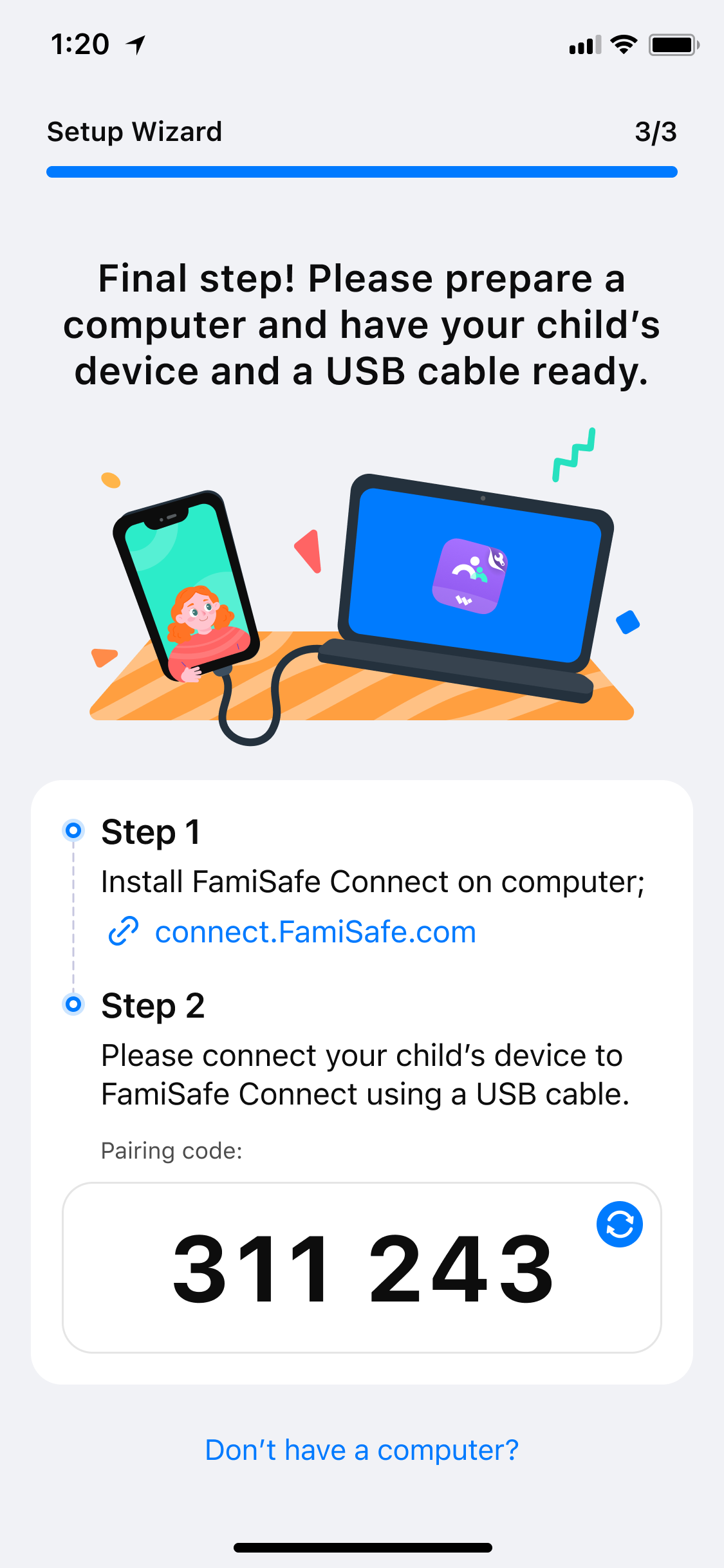
(3) Starting from this step, you will need to use a computer device (if you don't have a computer, please skip directly to step 5).
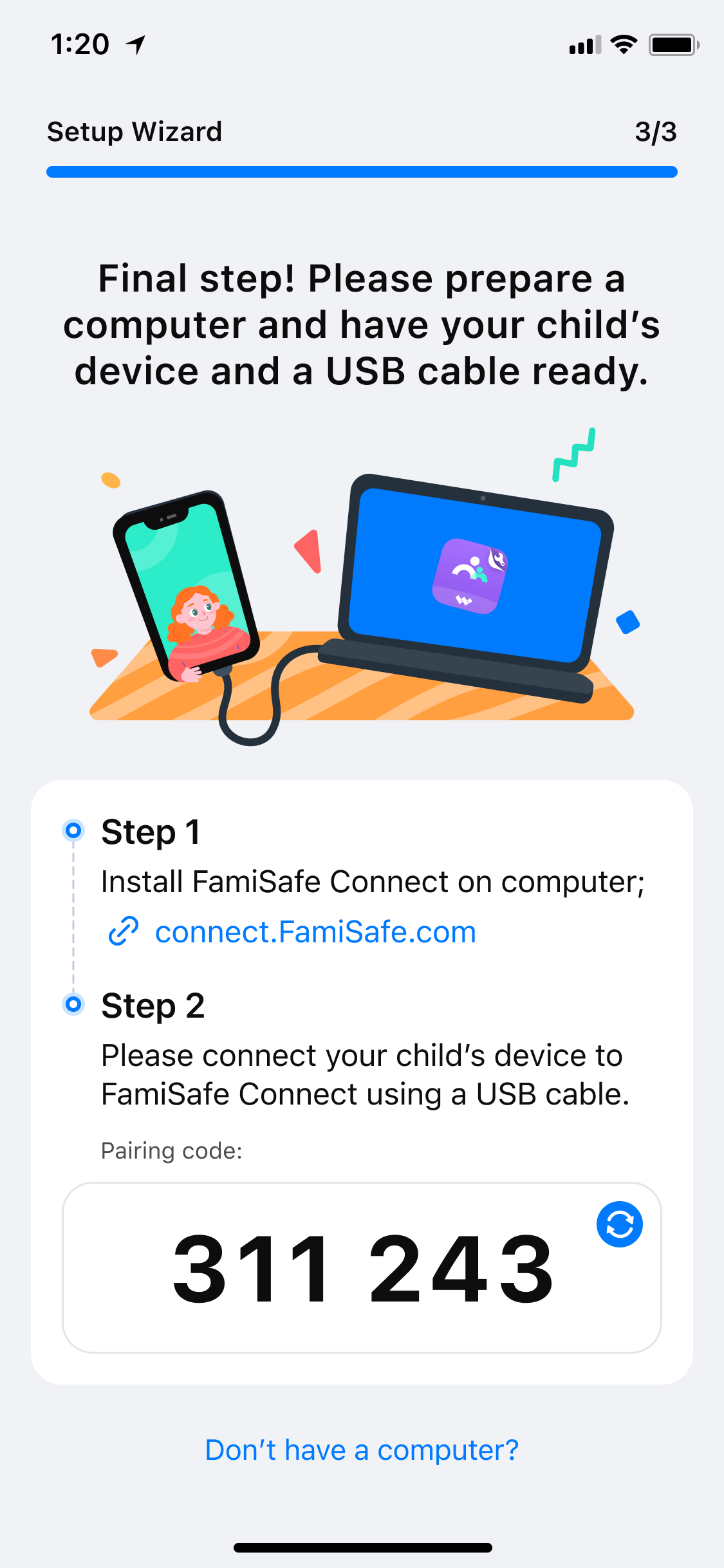
First, turn on your computer and visit https://connect.famisafe.com/ to download our assistant utility software FamiSafe Connect.
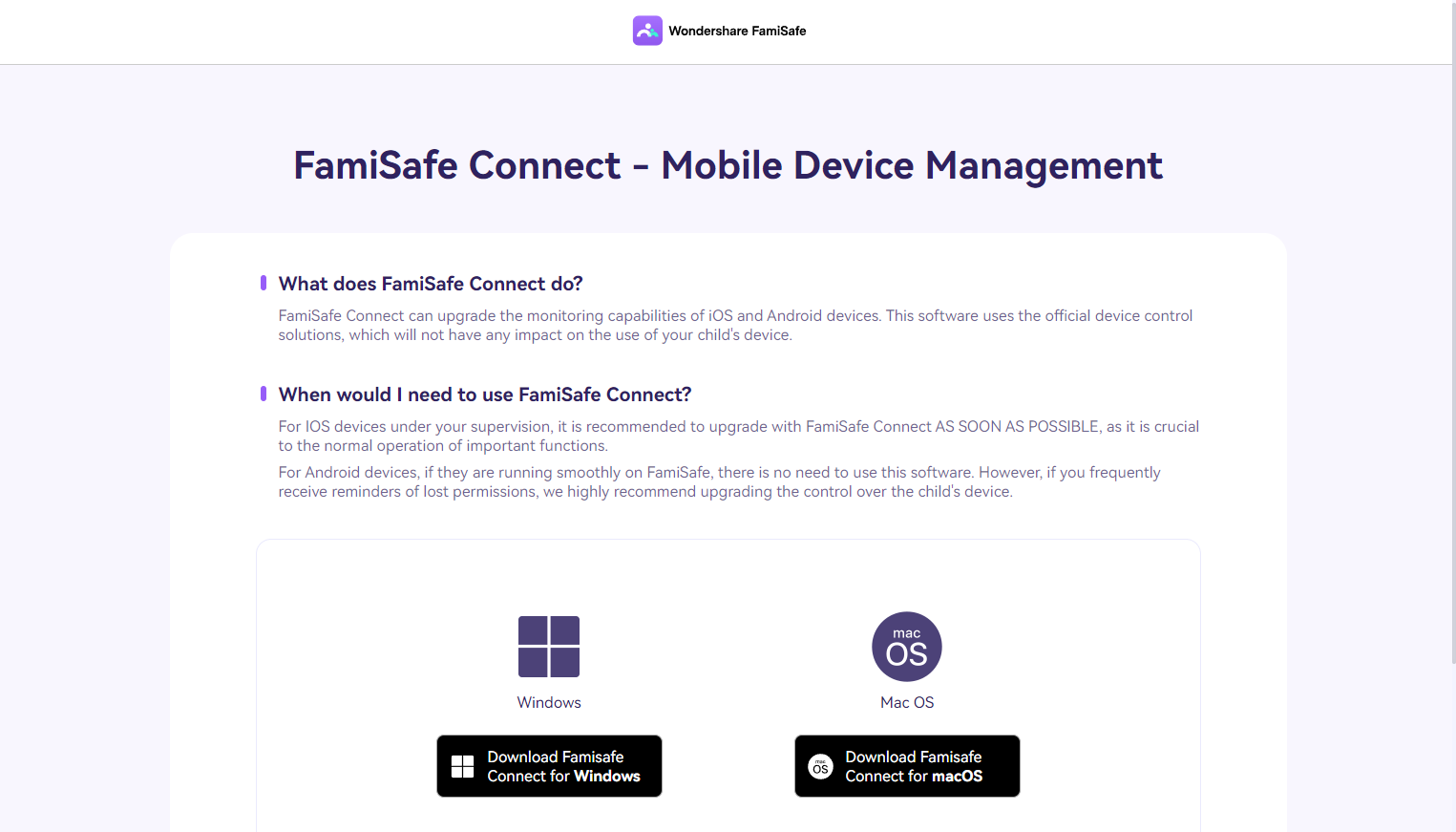
After the download is complete, click on "iOS Device (Upgrade Control Mode)" to proceed with the upgrade of your device's control settings. You may be prompted to enter a matching code, which can be found on the parent's FamiSafe App.
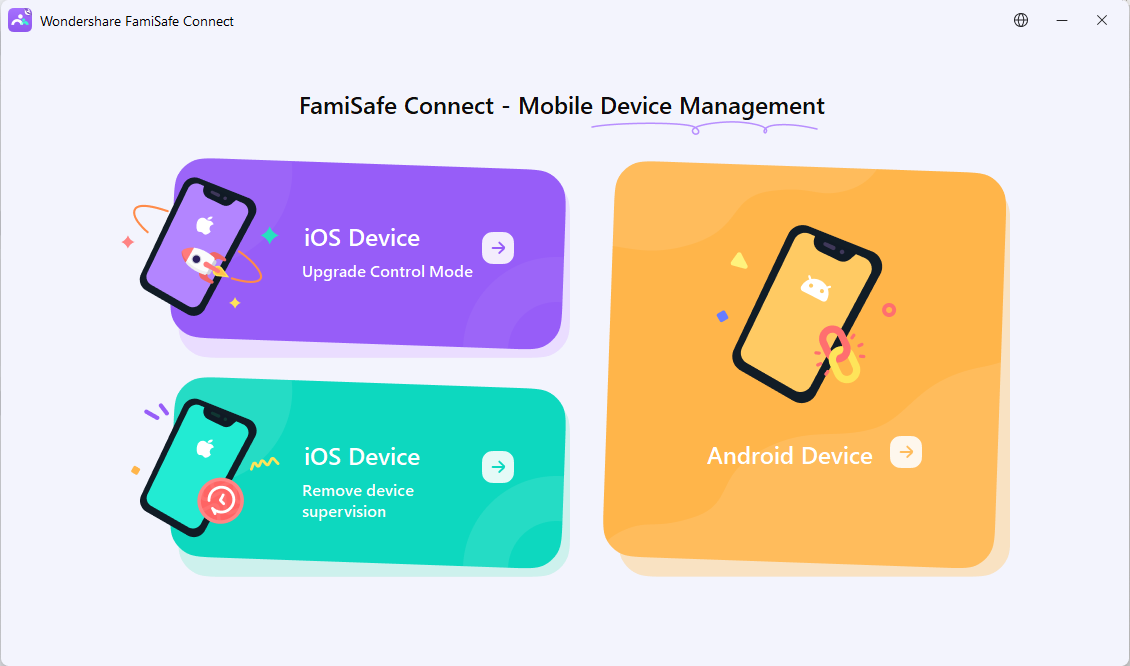
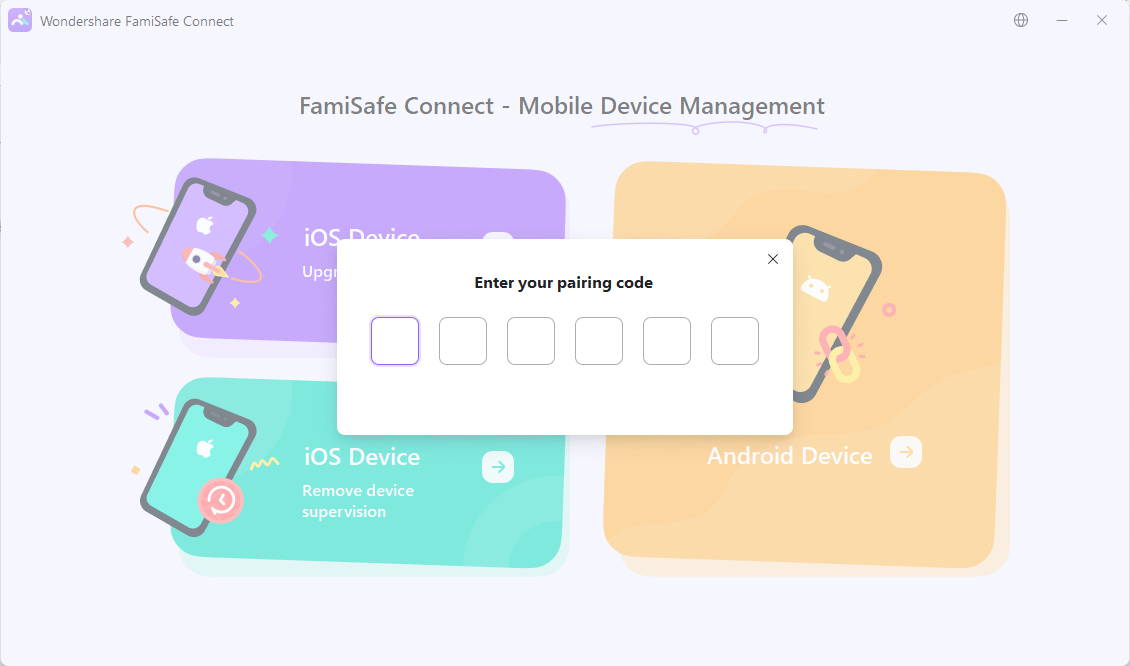
FamiSafe Connect
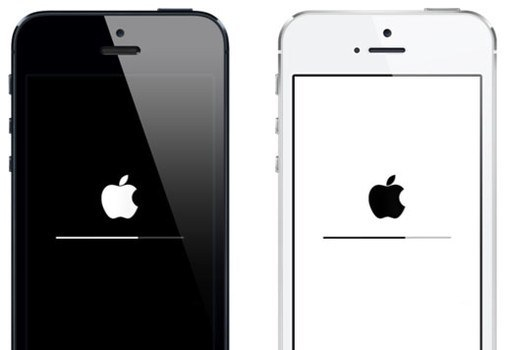
Please have a USB cable ready to connect the child's device to FamiSafe Connect. Then, follow the instructions provided by FamiSafe Connect to complete each step of the process. Once the upgrade is complete, the child's device will be restarted. If you see a white loading bar during the restart, this is a normal occurrence.
At this point, the upgrade for the iPhone and iPad has been fully completed. If you notice that the apps on the screen are in a gray loading state, please do not worry. Just wait for a while, and everything will return to normal.
Step 5: If you currently do not have a computer available, we have provided an alternative solution. However, please note that the functionality available through this alternative method is somewhat limited. We still recommend that you complete the upgrade using the computer software as soon as conditions permit.
|
|
Basic pairing |
FamiSafe Connect |
|
Location Service (Live Location, Location history, Geofence, Driving Report) |
√ |
√ |
|
Location Service |
√ |
√ |
|
YouTube Content Detection |
√ |
√ |
|
Sensitive Pictures |
√ |
√ |
|
Safe Search & Web Filter |
√ |
√ |
|
Broswer History |
√ |
√ |
|
Screen Time |
× |
√ |
|
Calls & Messages |
× |
√ |
|
Screenshot |
× |
√ |
|
App Blocker rules |
× |
√ |
|
App Limit |
× |
√ |
|
App Usage Report |
× |
√ |
|
iOS Restrictions |
× |
√ |
|
Today's Used App |
× |
√ |
(1) Tap on "Don't have a computer?" at the bottom of the page to proceed to the next page. Then Tap on "Install iOS Profile," and Fammy-Blocksite will launch Safari to download the Profile file.
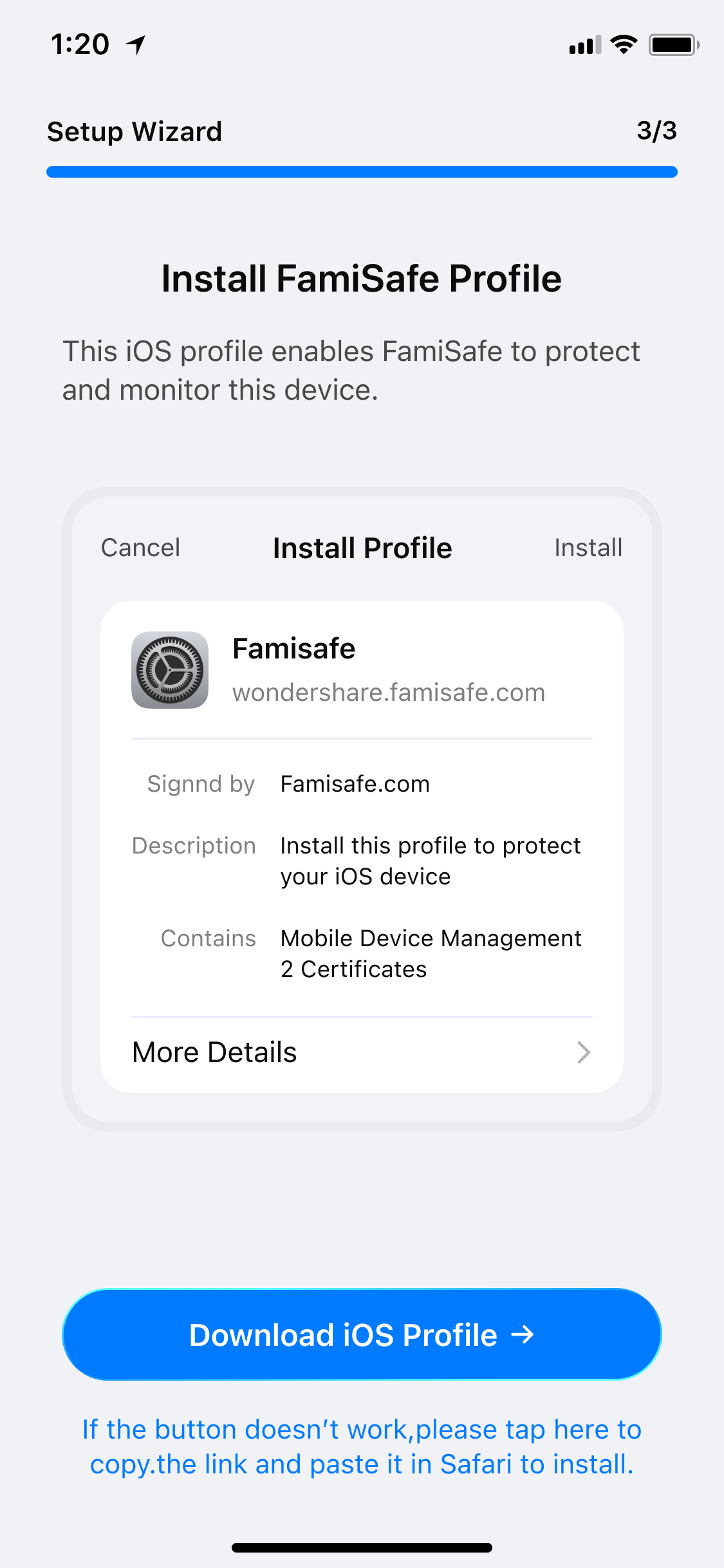
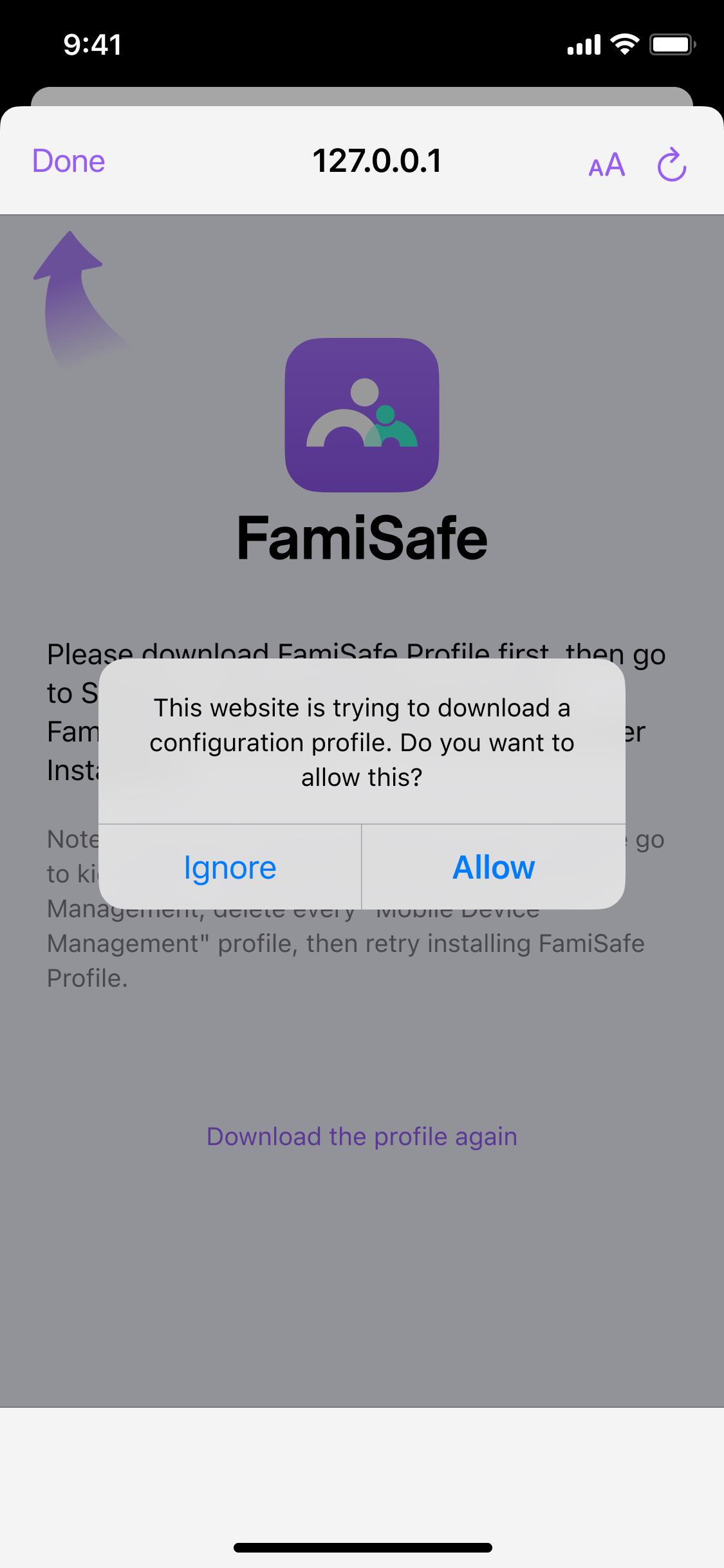
(2) Tap Allow to proceed. If you are using iOS 14 or later version, please make sure that you download the Profile file using Safari. Or the file may not be able to be opened. After the Profile is downloaded. Go to Setting › Downloaded Profile to find FamiSafe Profile.
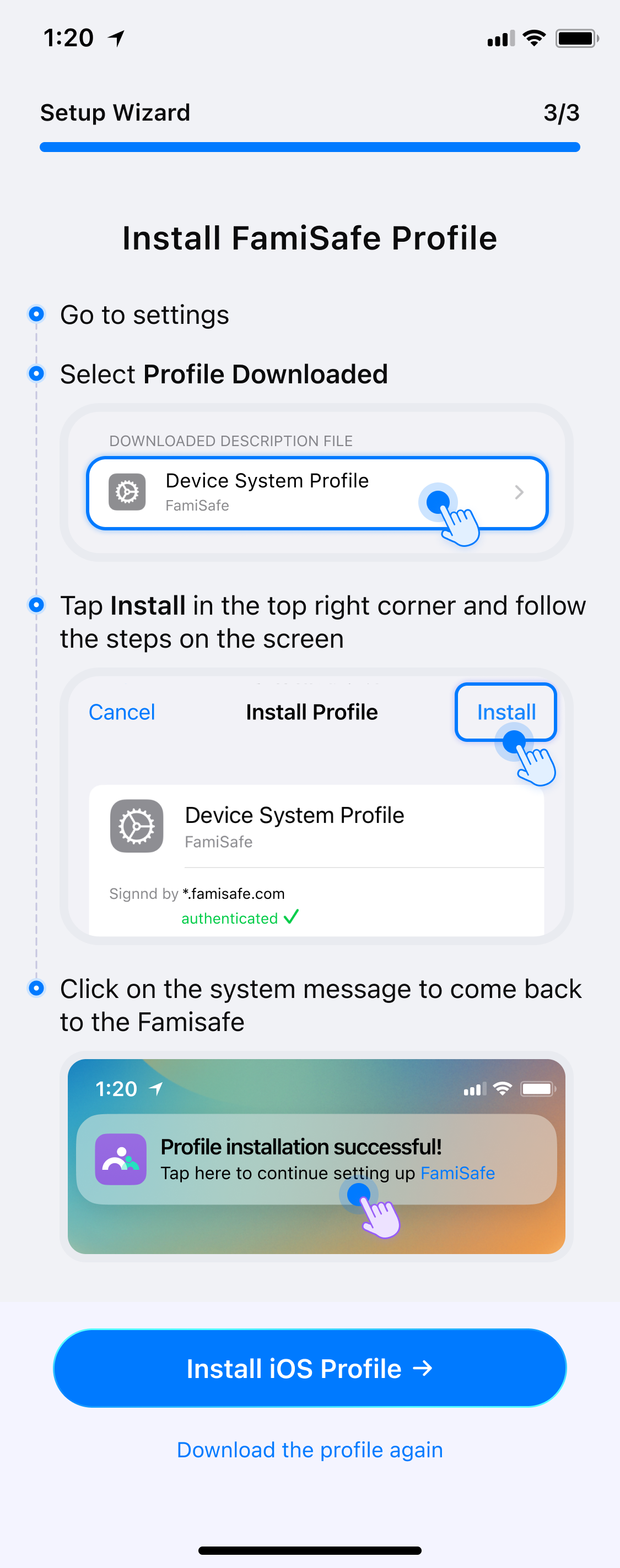
(3) Tap on FamiSafe Profile tap Install. Enter your kid’s iOS device’s passcode, a window will pop up to ask whether to trust Remote Management, tap Trust.
(4) Now you are all set. Now you can head back to your device to start setting up rules and check details of your kid’s iPhone or iPad.
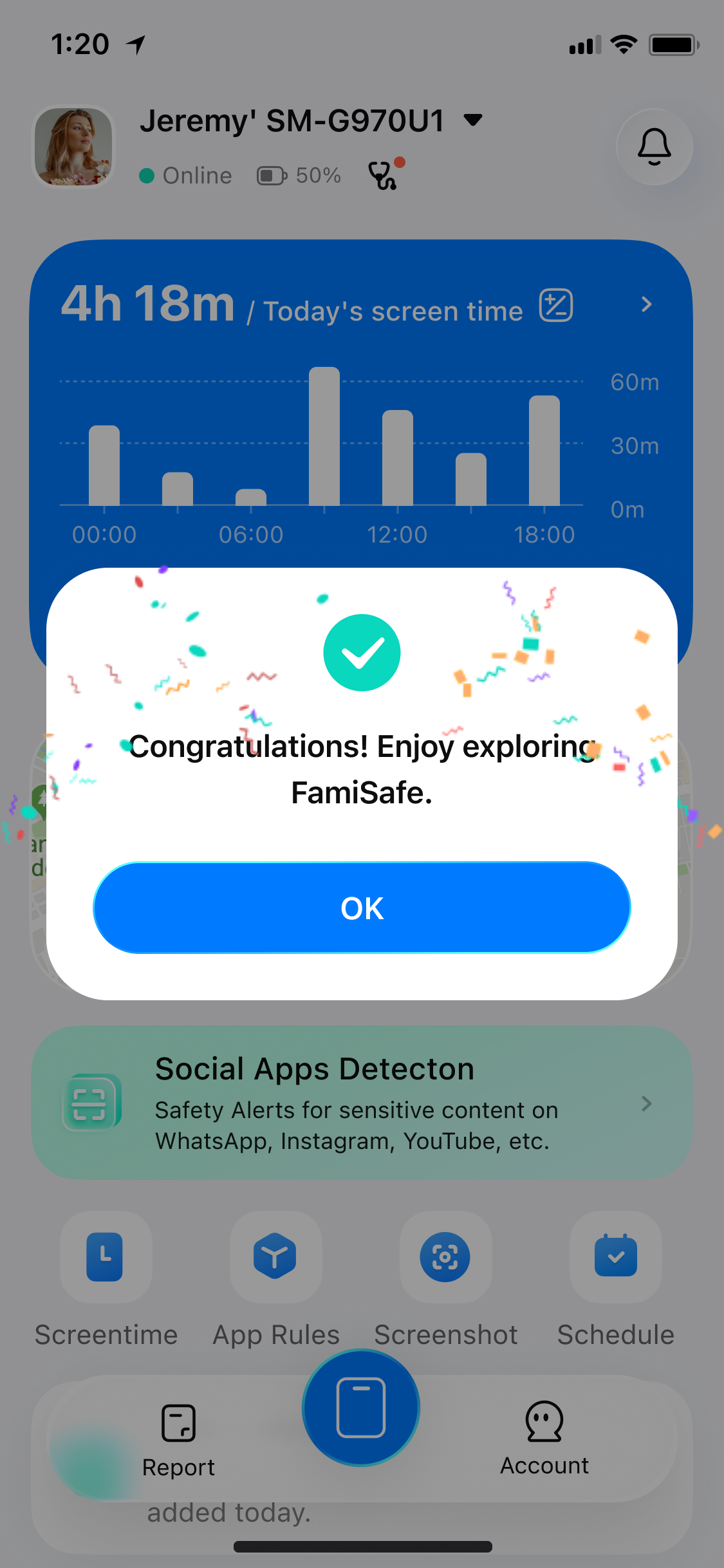
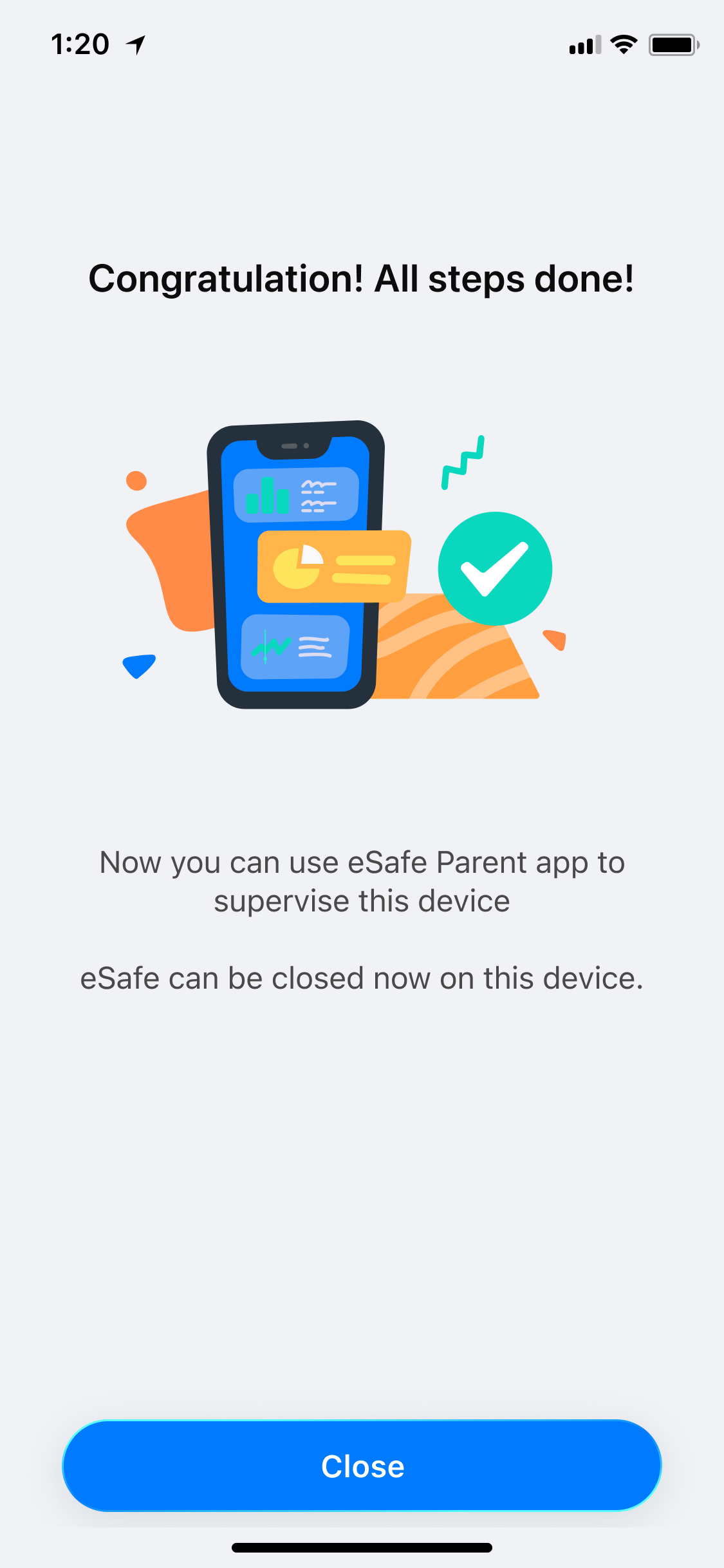
FamiSafe on Parents’ phone Fammy-Blocksite on Kid’s phone
Was This Helpful?
Thanks for your feedback.
Can you tell us what didn't work for you?
Email address is optional. Leave it blank if you do not need follow-up.
Feedback sent!