Step 1: Locate the App Rules entry point.
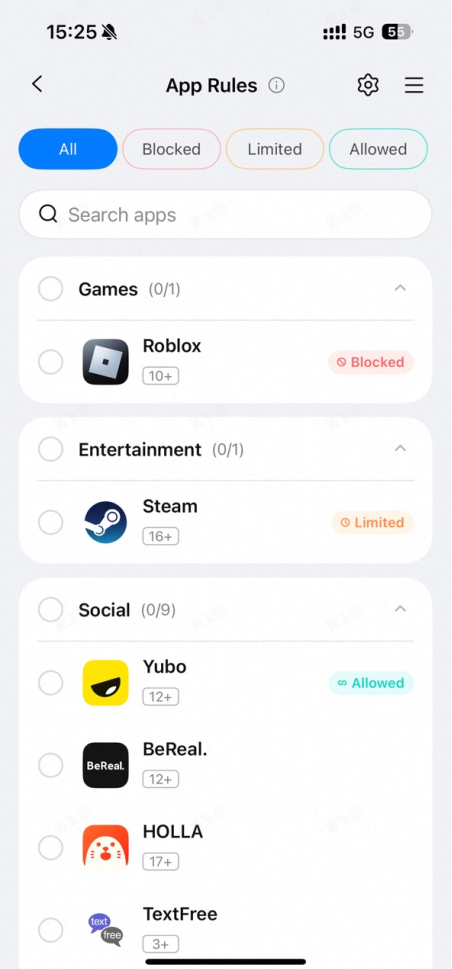
Step 2: Review apps installed on the target device to determine if rules need to be set. We generally recommend focusing on apps rated for ages 17 and up, especially those related to dating, gaming, and social networking. For educational and learning software, you can add them to the list of allowed apps if necessary, ensuring such apps aren't restricted alongside others.
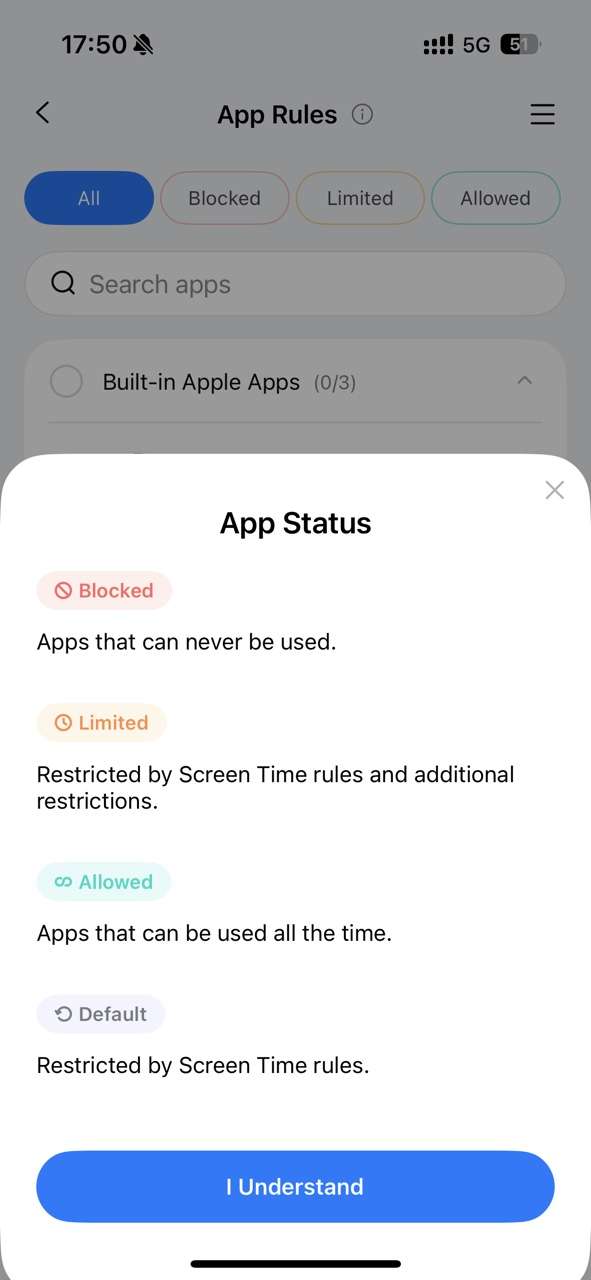
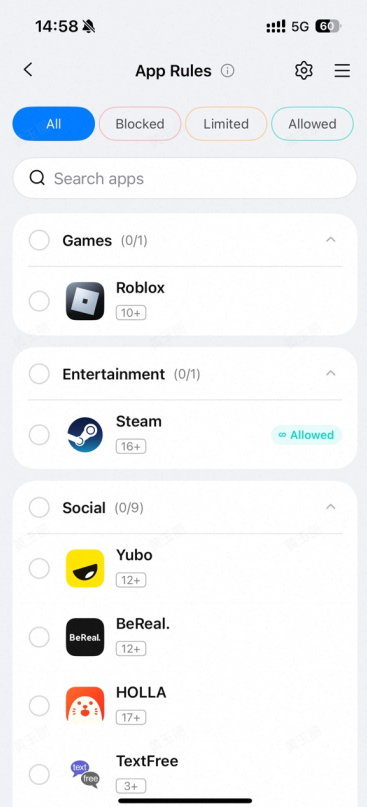
Block: Refers to apps that can never be used;
Limited: Refers to apps restricted by Screen Time rules and other limitations;
Allowed: Refers to apps that can be used at any time, even during periods covered by Screen Time rules;
Default: Apps subject to Screen Time restrictions.
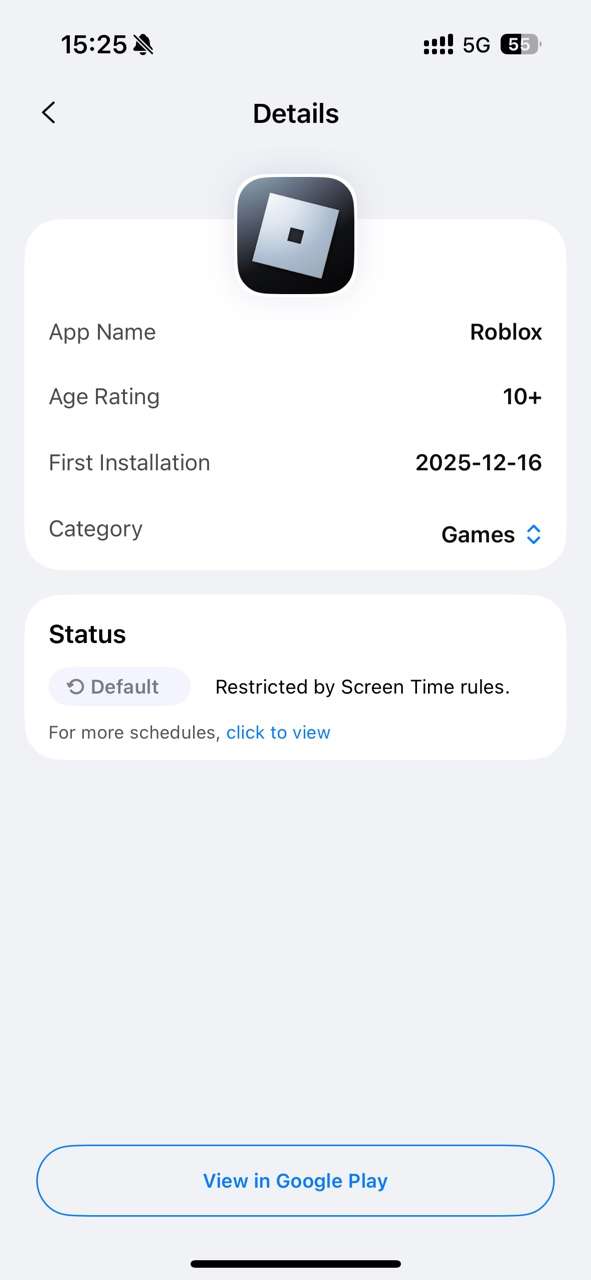
Step 3: Tap an app to view its name, age rating, initial installation date, and category.
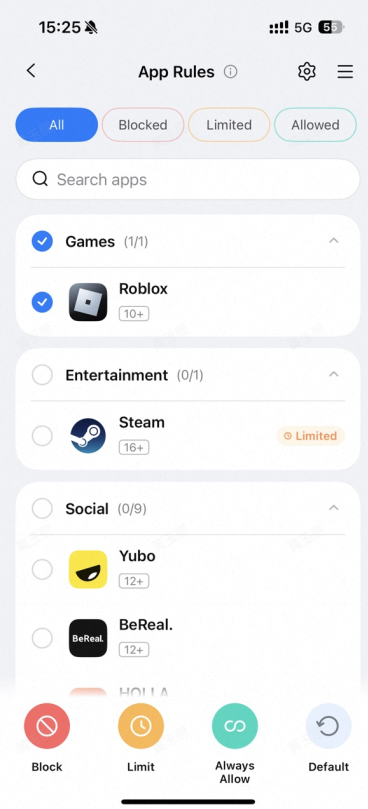
Check the box before an app to set it as Blocked, Limited, Allowed, or Default.
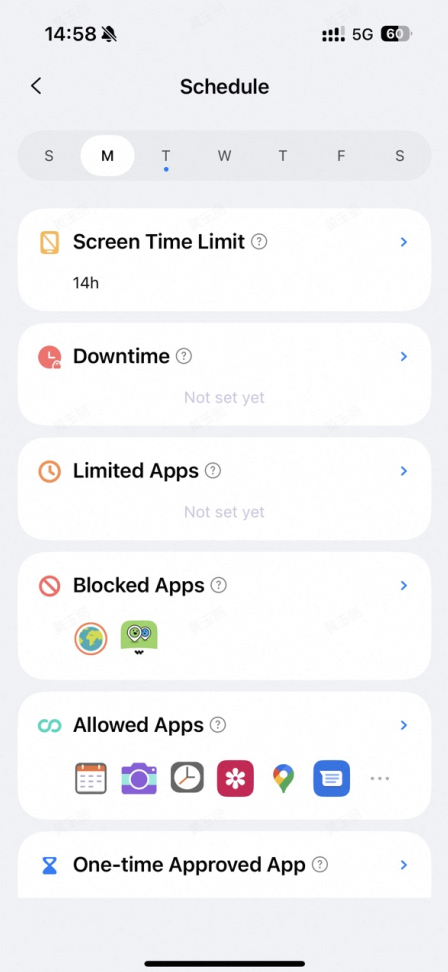
Step 4: You can view established rules in the Schedule section under Device. Additionally, you can flexibly adjust existing rules at any time.
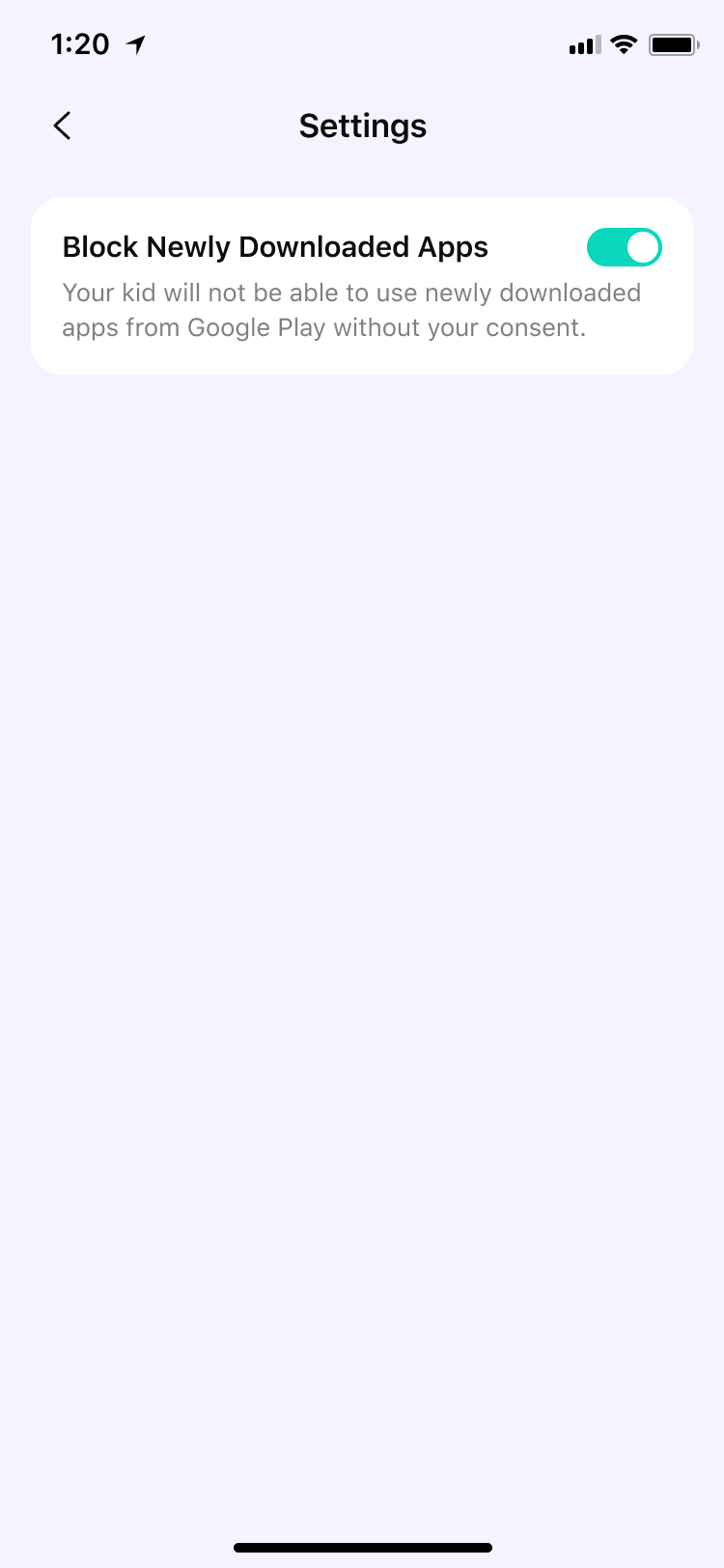
Step 5: If your child downloads a new app from Google Play, you will receive a timely notification. If you do not want your child to use the newly downloaded app without your consent ( ), you can click the entry in the upper right corner of the page to activate the corresponding controls.
Was This Helpful?
Thanks for your feedback.
Can you tell us what didn't work for you?
Email address is optional. Leave it blank if you do not need follow-up.
Feedback sent!