Step 1: Launch FamiSafe > Tap Features > Tap Calls & Messages
Step 2: For the first backup of your child's message data, you will need to obtain your child's phone and prepare a data cable to connect it. The normal operation of this feature requires the use of FamiSafe Connect, and the device you wish to monitor must have previously been upgraded with the control mode by FamiSafe Connect.
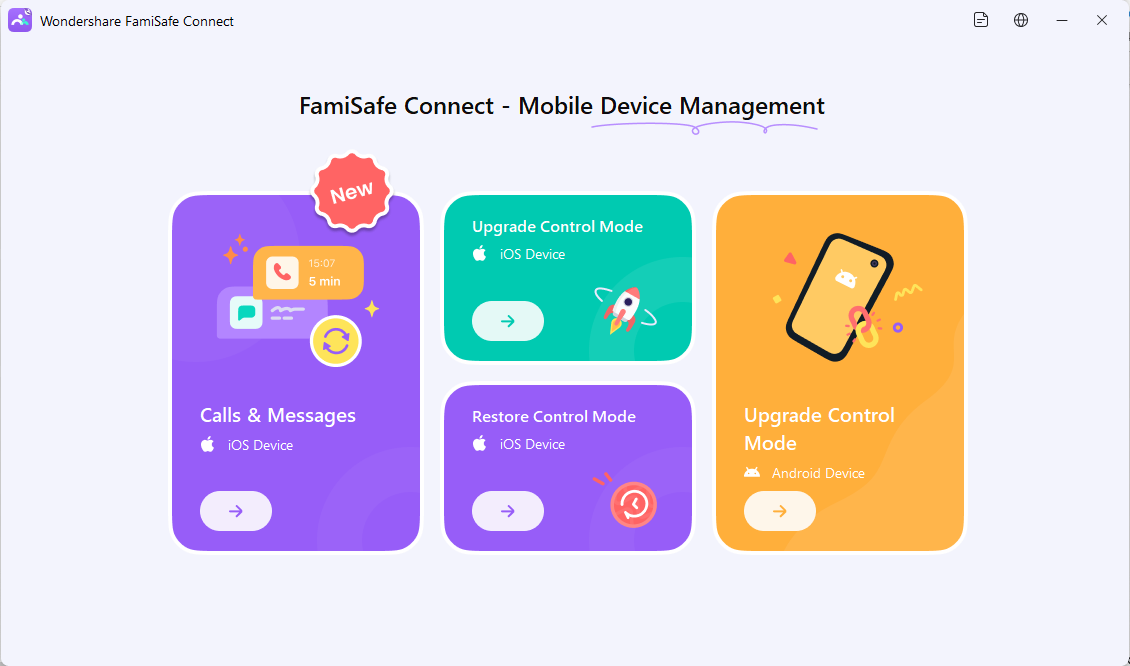
Step 3: Open FamiSafe Connect on your computer and click on the Calls & Messages entry for iOS devices. Enter the four-digit matching code from the parent's app into FamiSafe Connect to complete the pairing. If prompted that the MDM certificate is not installed after entering the matching code, this indicates that you need to first complete the upgrade of the control mode. You can click on "Upgrade Control Mode" in FamiSafe Connect to proceed with the operation.
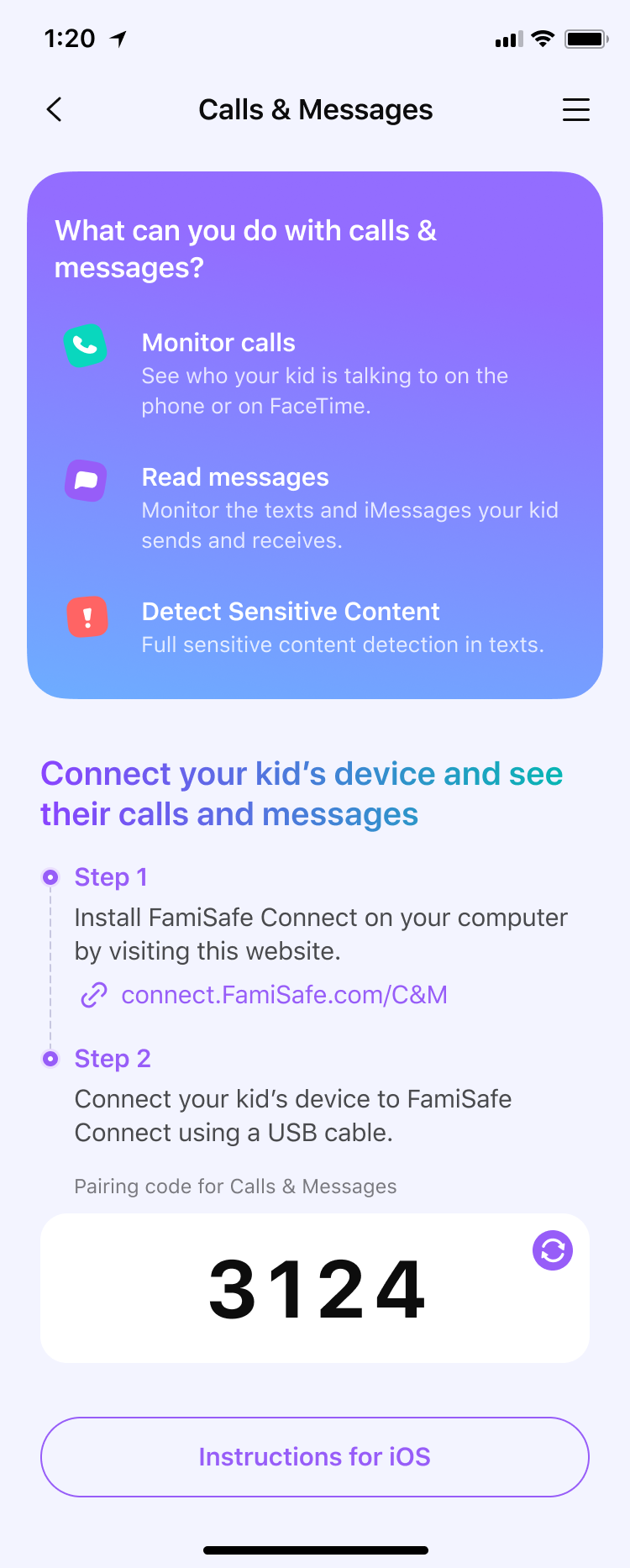
Step 4: You will need to enter a password to unlock your child's device, and then follow the instructions provided by FamiSafe Connect to proceed. Typically, the initial backup requires a longer time, so please be patient and wait.
Step 5: After the initial backup is completed, if your child's device and the computer are connected to the same Wi-Fi network, the data will be continuously synchronized and updated. The default frequency for automatic updates is once every hour. If the frequency of automatic updates does not meet your needs, you can open FamiSafe Connect on your computer at any time for manual synchronization. However, this also requires that your child's device and the computer are on the same Wi-Fi network.
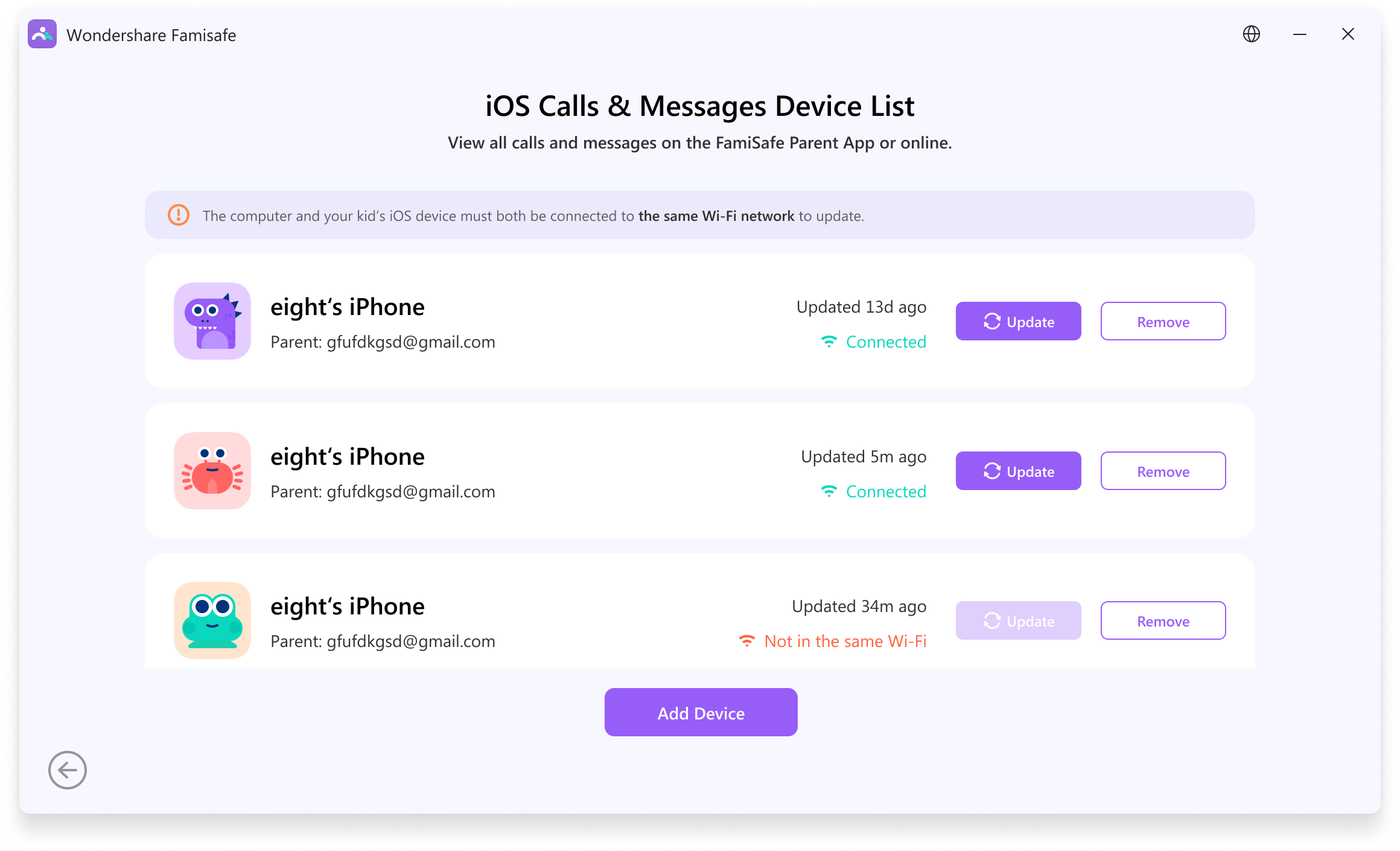
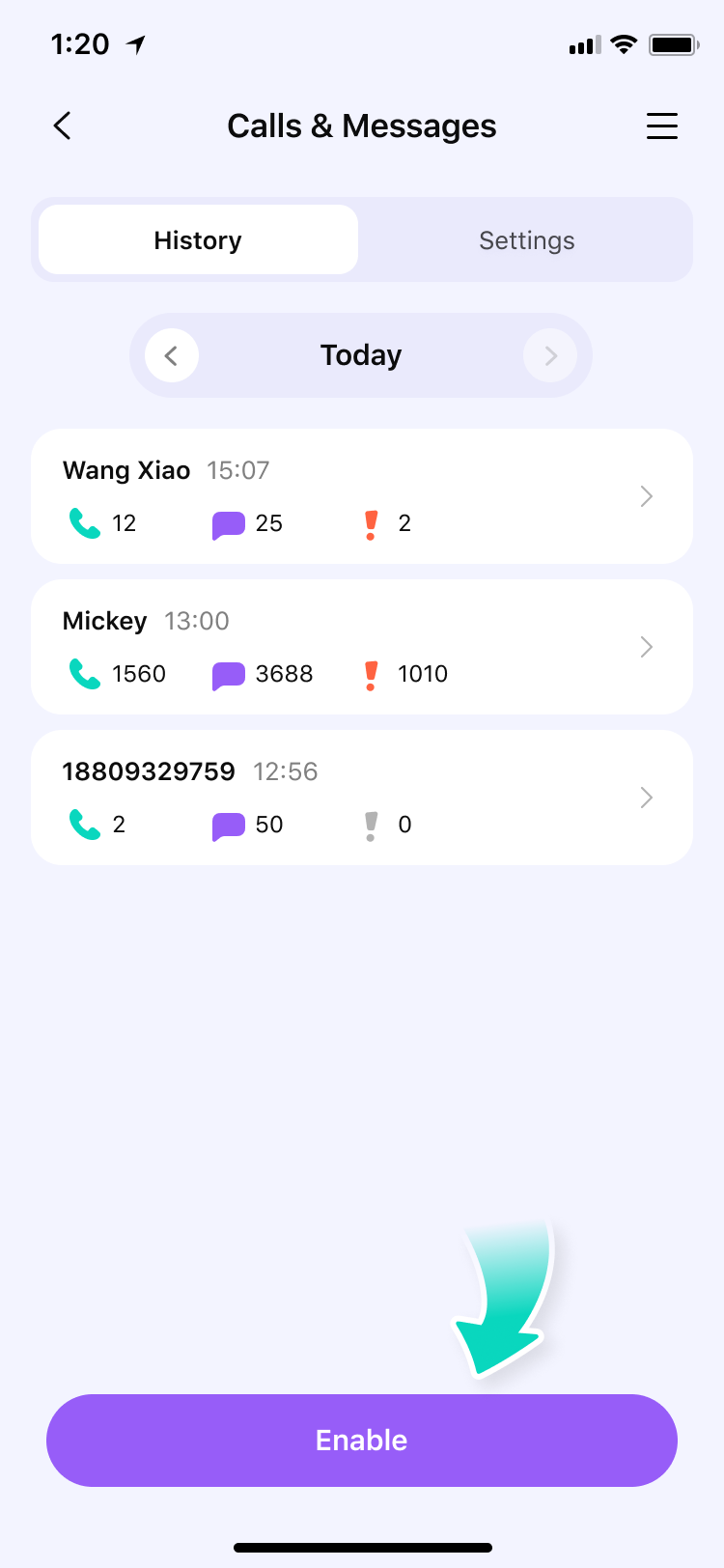
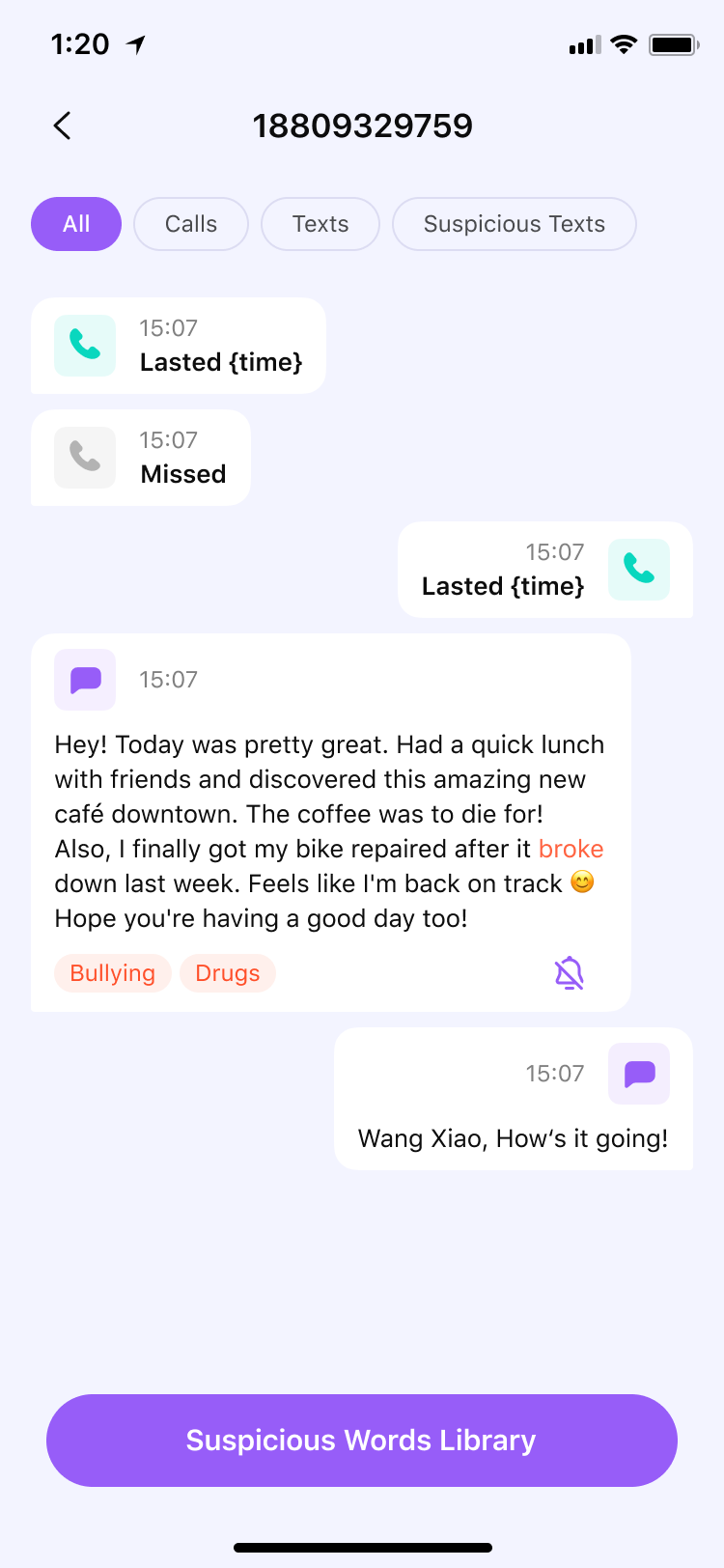
Step 6: Once all the settings are successfully completed, you can return to the FamiSafe App on your mobile device and monitor your child's text messages and call logs in real time during your day-to-day activities.
Was This Helpful?
Thanks for your feedback.
Can you tell us what didn't work for you?
Email address is optional. Leave it blank if you do not need follow-up.
Feedback sent!