Step 1: Tap the blue screen time card and the screen time function in the diamond area to enter the screen time settings page.
Step 2: Choose the type of rule you want to set – Downtime or Screen Time Limit. Downtime restricts the time period for phone use, ideal for setting during children's sleep or study times. Screen Time Limit specifies the total daily screen time allowed for children, helping to prevent excessive screen time.
If you want to set Downtime, proceed to Step 3; if you intend to set Screen Time Limit, skip to Step 4: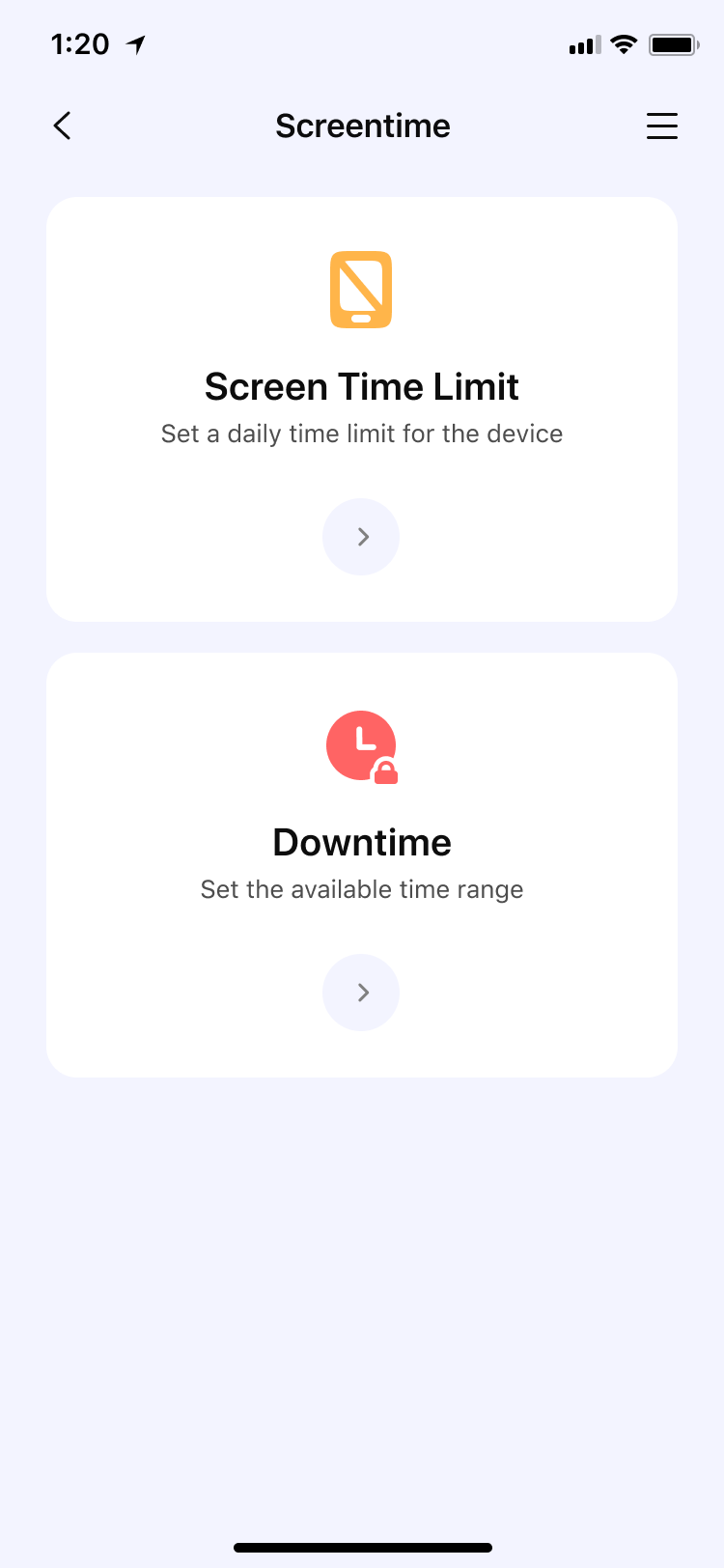
Step 3: For Downtime, first enter or select a name for the Downtime. Then set a time period to apply the schedule at specific times (choose the start and end times). You can choose to use the same Downtime every day, or customize the schedule for different time periods on different dates.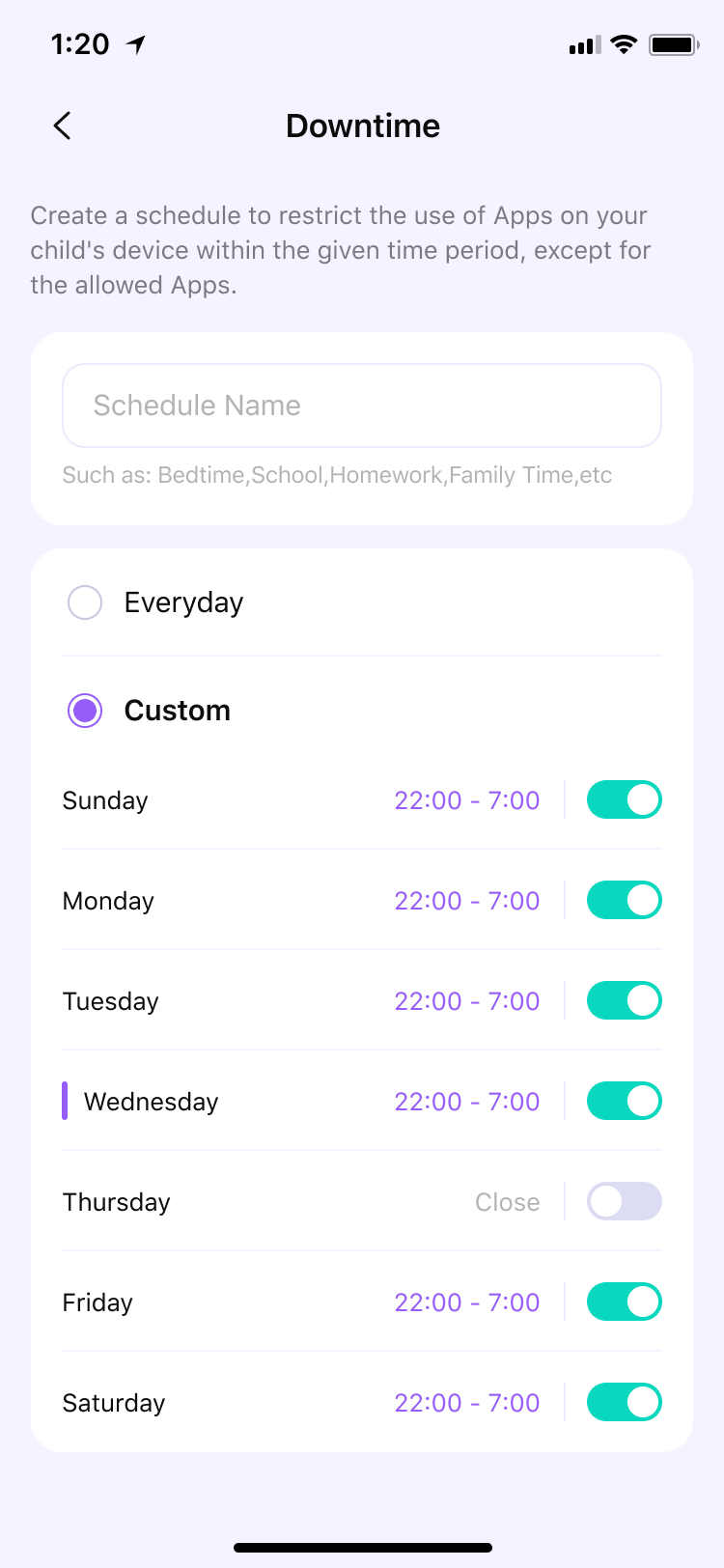
Step 4: For Screen Time Limit, once the switch is turned on, you can set daily usage limits for your child's screen time. You can choose to use the same time limit every day, or customize the time limit for different dates.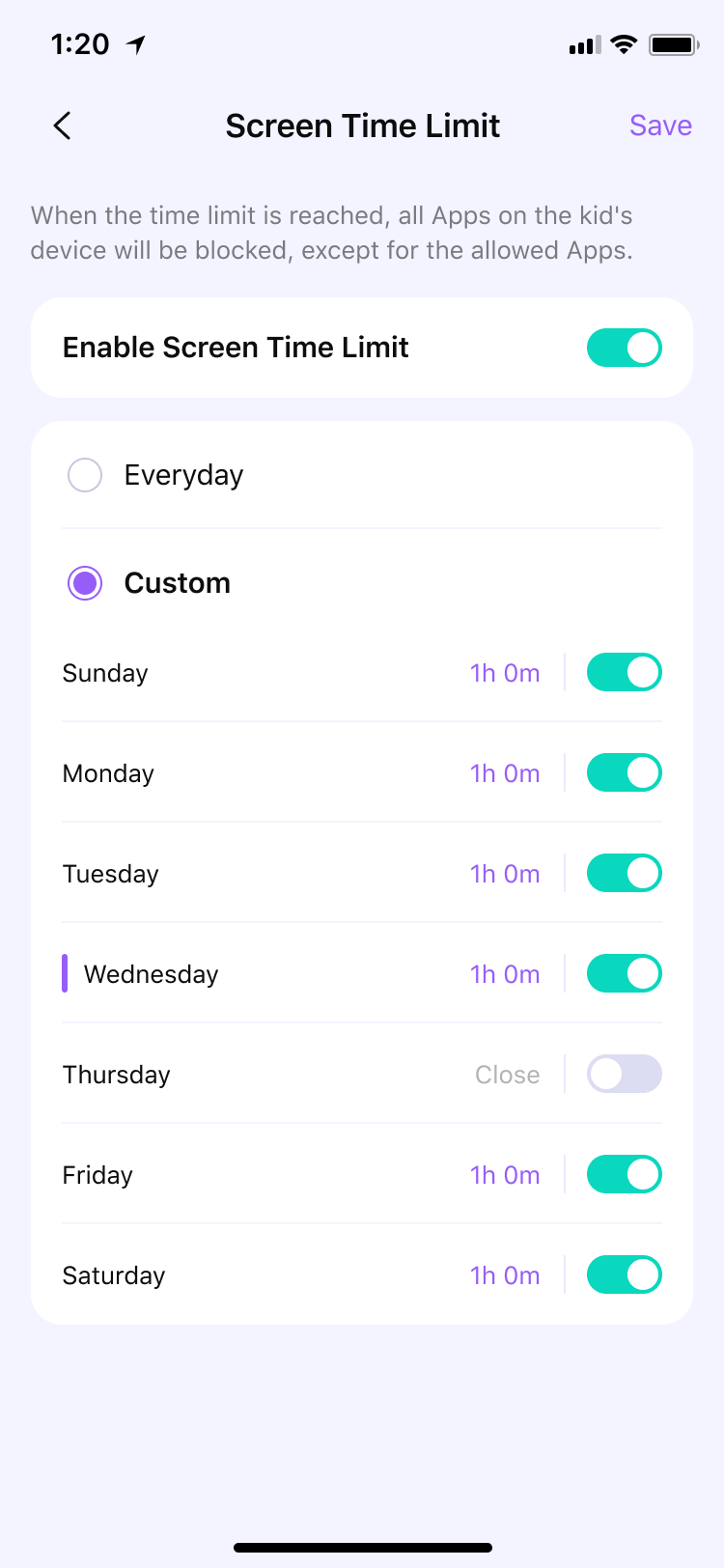
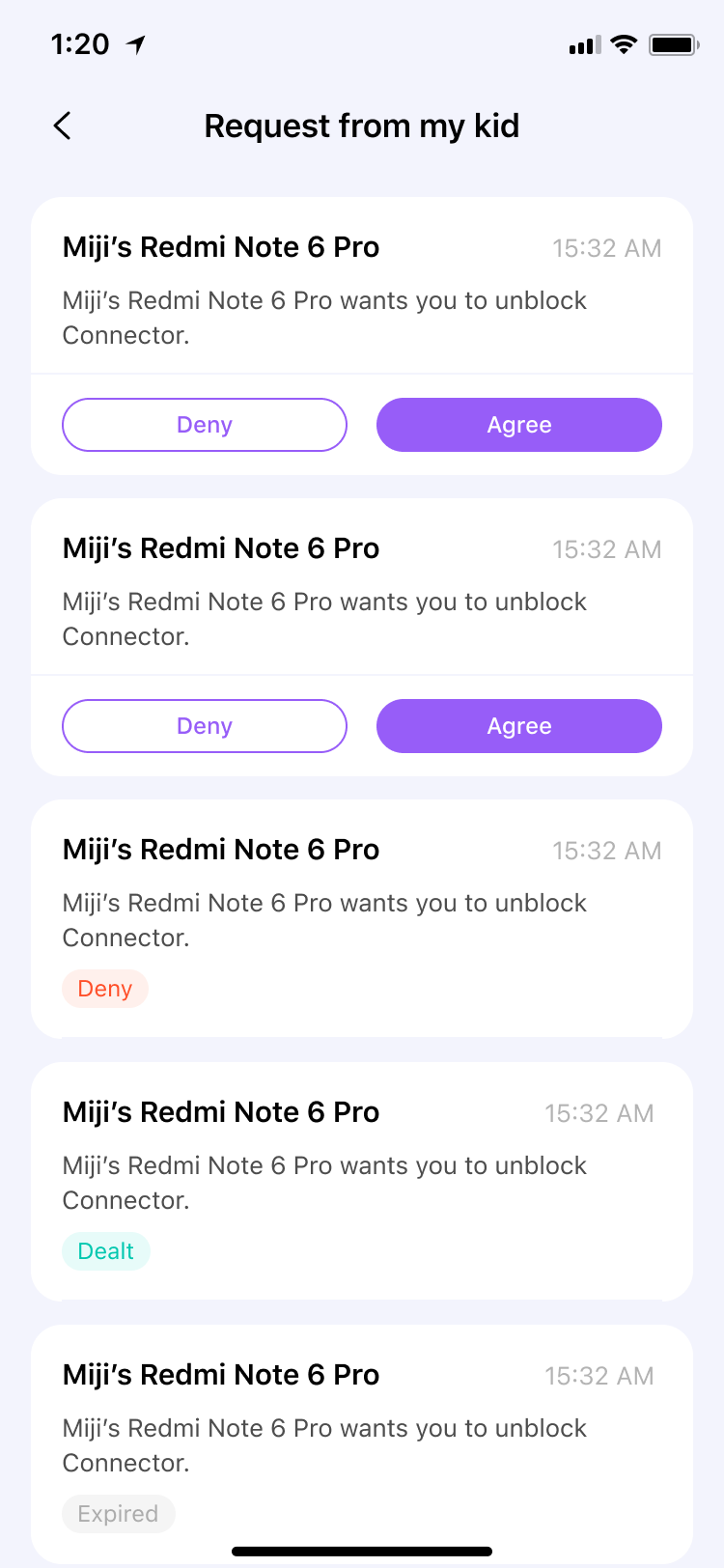
Step 5: When your child reaches their time limit or Downtime, the apps on their device will be covered by the screen (as shown in the image below), reminding them it's time to put down their phone. They can also send a request via the button at the bottom of the overlay. You will receive a notification and can handle the request from your child in the notification section.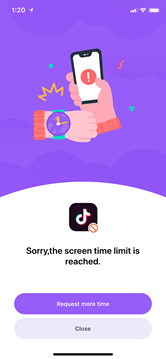
Step 6: Note that Allowed Apps are not subject to any restrictions. However, for Screen Time Limits, time spent on Allowed Apps will count towards the total available screen time.
Step 7: Finally, you can view the time rules you set for your child in the Schedule section of the dashboard. The Schedule entry will also appear on the child's app's home screen, making it easier for you and your child to establish good phone usage habits together.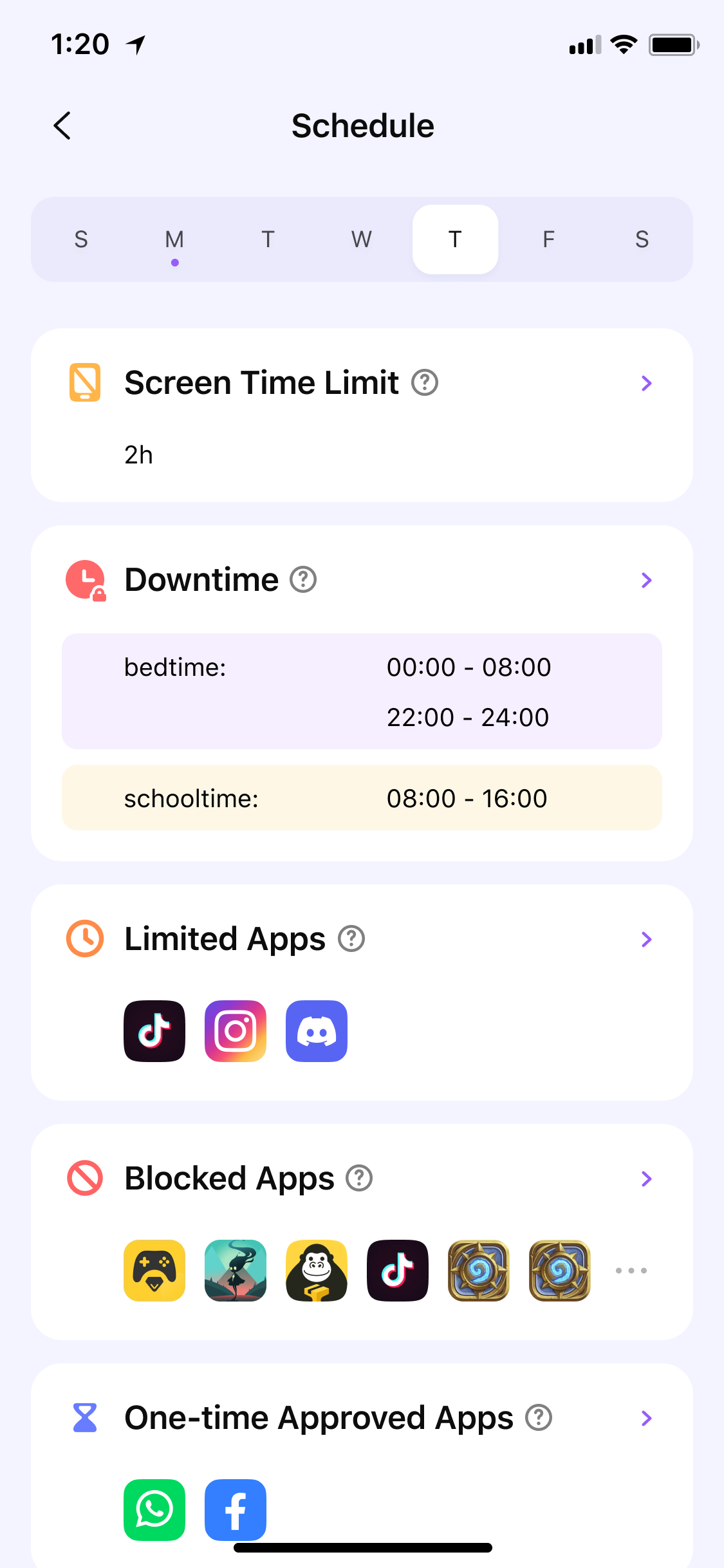
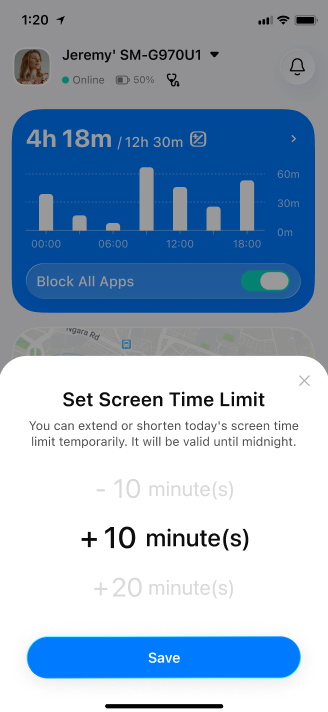
Step 8: Tap the +/- time icon on the blue screen time card to bring up a pop-up window to increase or decrease device usage time, allowing you to adjust the usage time of the target device.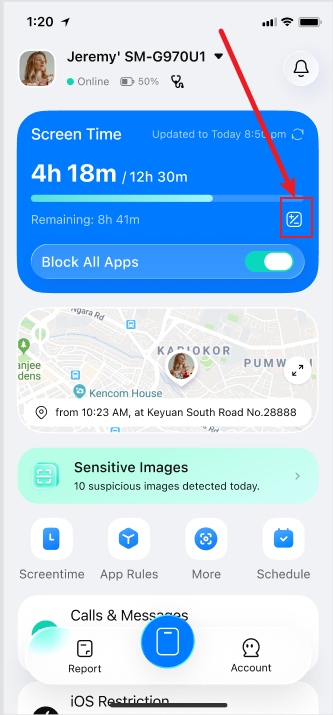
Was This Helpful?
Thanks for your feedback.
Can you tell us what didn't work for you?
Email address is optional. Leave it blank if you do not need follow-up.
Feedback sent!