Step 1: Tap Features > Tap YouTube Controls.
Step 2: Tap History to view your child's viewing history on the YouTube app. Tap the lock icon next to the viewing history to block the video. Tap the video title to open the video's link in your browser.
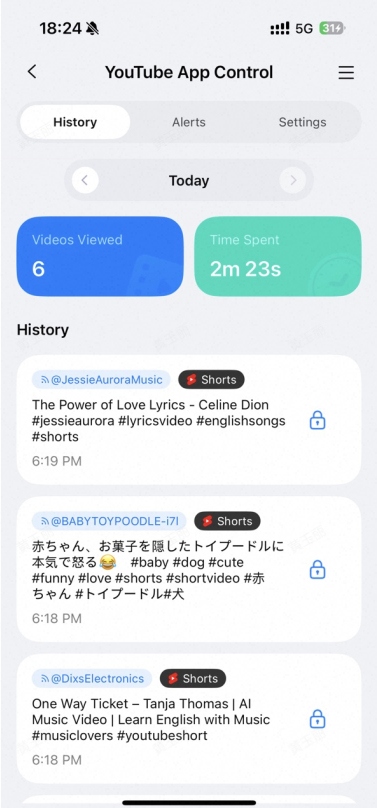
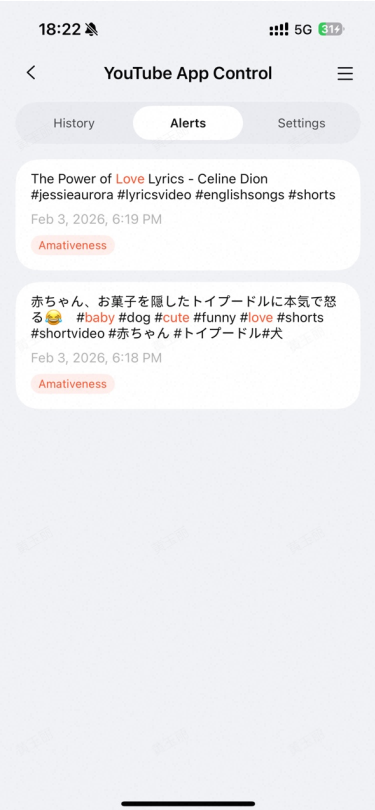
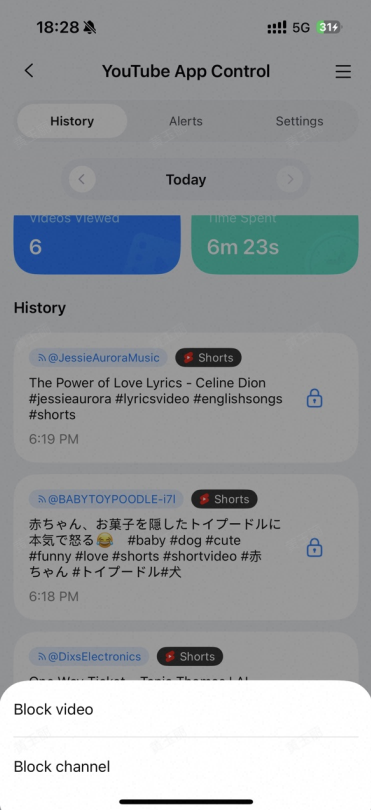
Step 3: To view history or potential issues for different dates, you can tap "<" or ">" to move to the previous or next day, or tap the date to select the date you want to check.
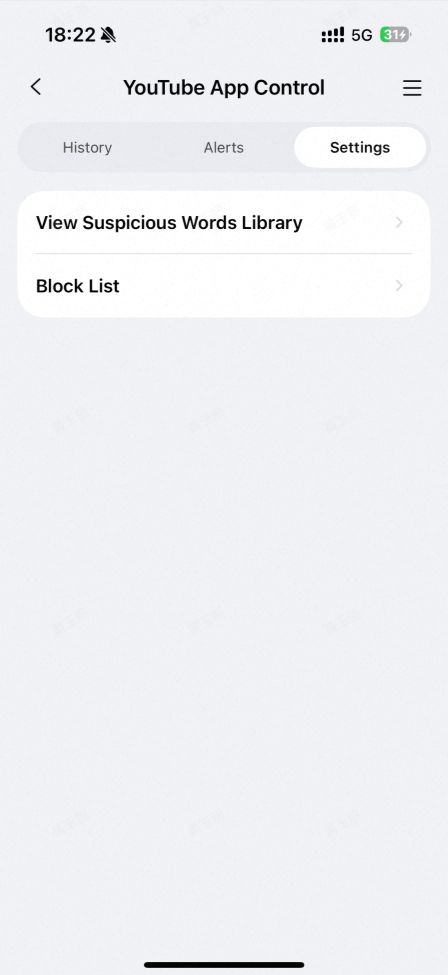
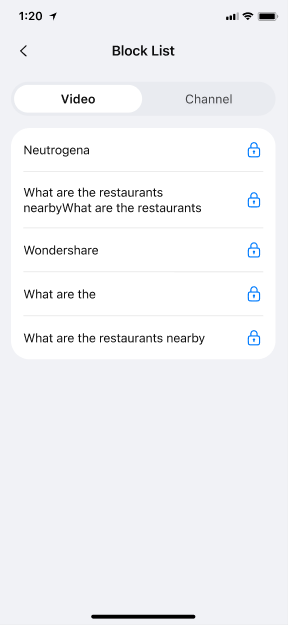
Step 4: Tap View Suspicious Words library in Settings to view or add suspicious words, monitoring and detecting any suspicious text in the descriptions, titles, and comments of videos your child watches, posts, or comments on. Tap Block list to view blocked videos and YouTube channels.
Was This Helpful?
Thanks for your feedback.
Can you tell us what didn't work for you?
Email address is optional. Leave it blank if you do not need follow-up.
Feedback sent!